Help · Plans and billing

How to cancel your subscription

You can cancel your HyperClapper plan yourself, from Settings, in about a minute. This guide shows every screen, what happens to your plan afterwards, and the options you have if you would rather stay.

No call or email needed · Your plan stays active until the end of your billing period
The short version

Cancelling, in three facts

Where you cancel

In the app, open Settings, go to the Plan & billing tab and click Cancel subscription. Then follow three short screens.

When your plan ends

Not straight away. Your plan stays active until the end of the billing period you have already paid for, and you are not charged again.

What you keep

Your account stays open. When the paid period ends it moves to the Free plan, with 3 boosts a month and 1 channel per boost.

Good to know: cancelling stops your next payment. It does not refund the current period, which is why your plan keeps working until that period ends.

Step by step

Cancel in four steps

Everything happens inside the app. You only need to be logged in to your HyperClapper account.

Step 1

Open Settings and go to Plan & billing

Log in to HyperClapper and click Settings in the left sidebar. Settings opens on the Account tab, so click the Plan & billing tab. At the top you will see your current plan, how many posts you have used this month, and two buttons.

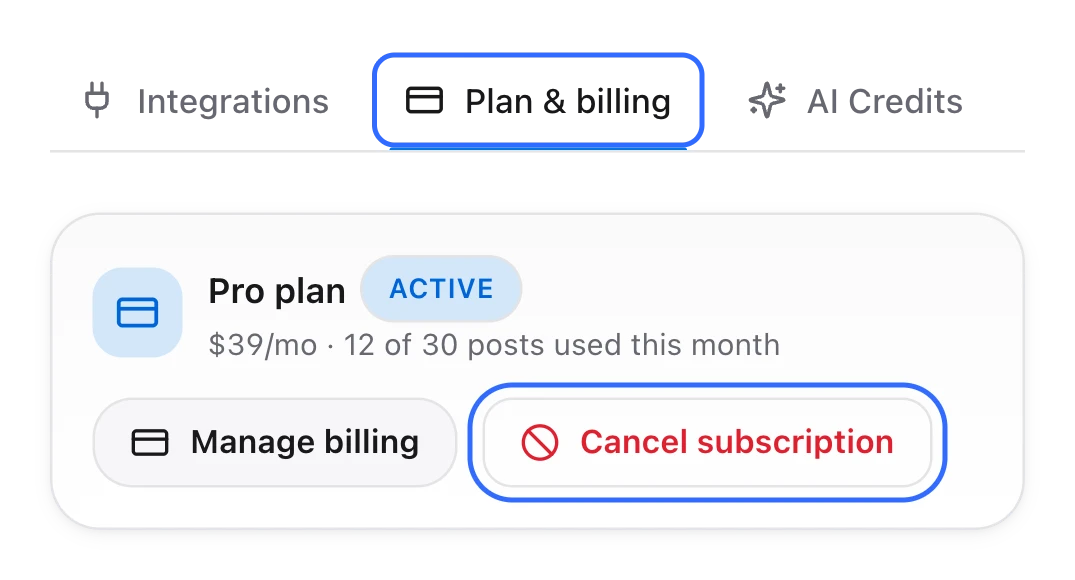
✓Click the red Cancel subscription button to start
✓Manage billing opens the billing portal. It does not cancel your plan
✓On the Free plan there is no Cancel subscription button, because there is nothing to cancel
The Settings page with the Plan and billing tab selected and the Cancel subscription button highlighted next to Manage billingThe Settings page with the Plan and billing tab selected and the Cancel subscription button highlighted next to Manage billing
Step 2

Tell us why you are leaving

A window called Before you go opens. Choose the reason that fits best, then click Continue. It is one click, and it tells us what to fix.
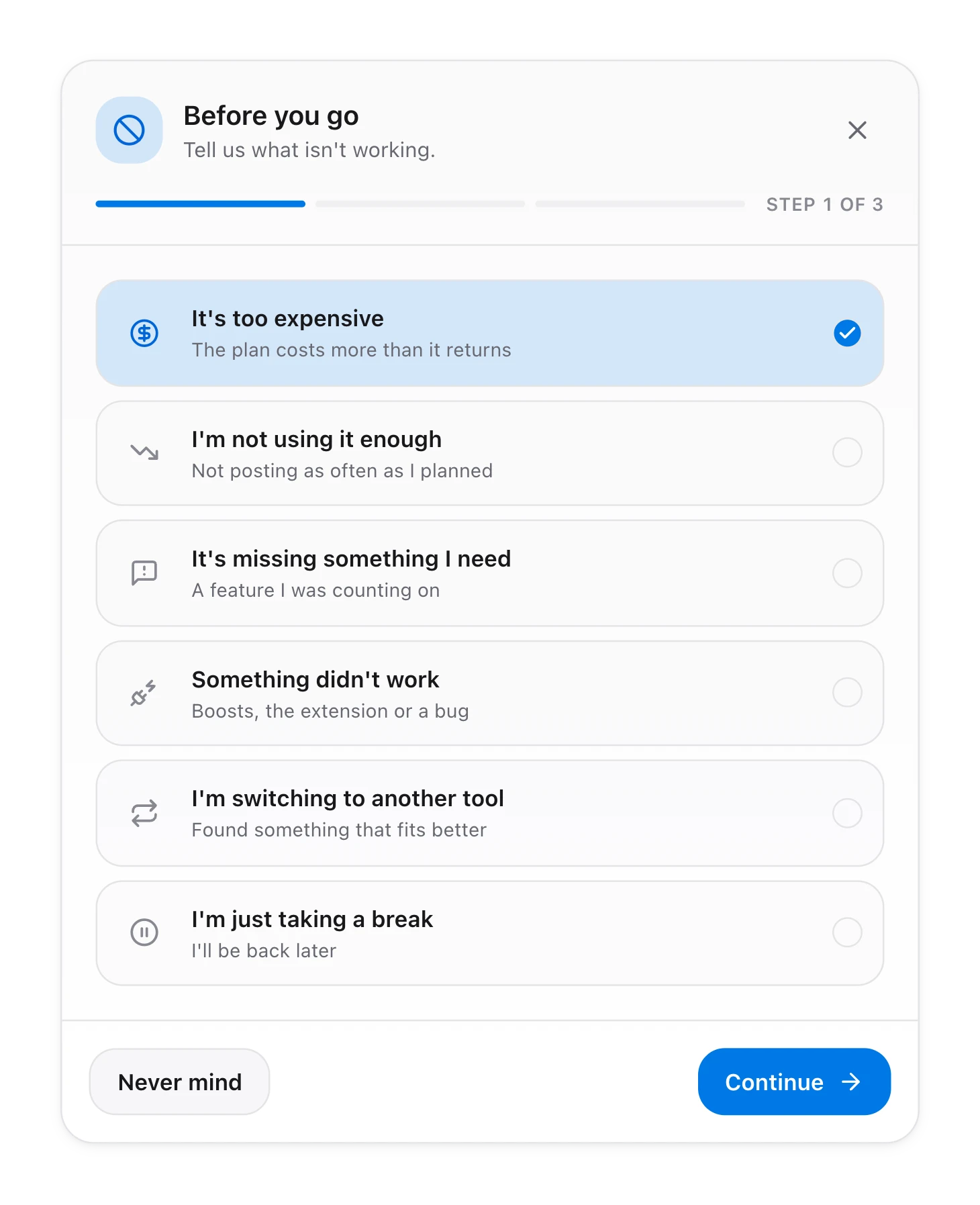
✓There are six reasons to choose from, such as price, not using it enough or taking a break
✓Changed your mind? Click Never mind and nothing is cancelled
✓The bar at the top shows where you are: step 1 of 3
The Before you go window listing six reasons for leaving, with It is too expensive selected and a Continue button
Step 3

Look at the offer, or skip it

Before you cancel, HyperClapper shows one option that matches your reason. If you said the plan is too expensive, for example, you are offered 10% off for the next 3 months.
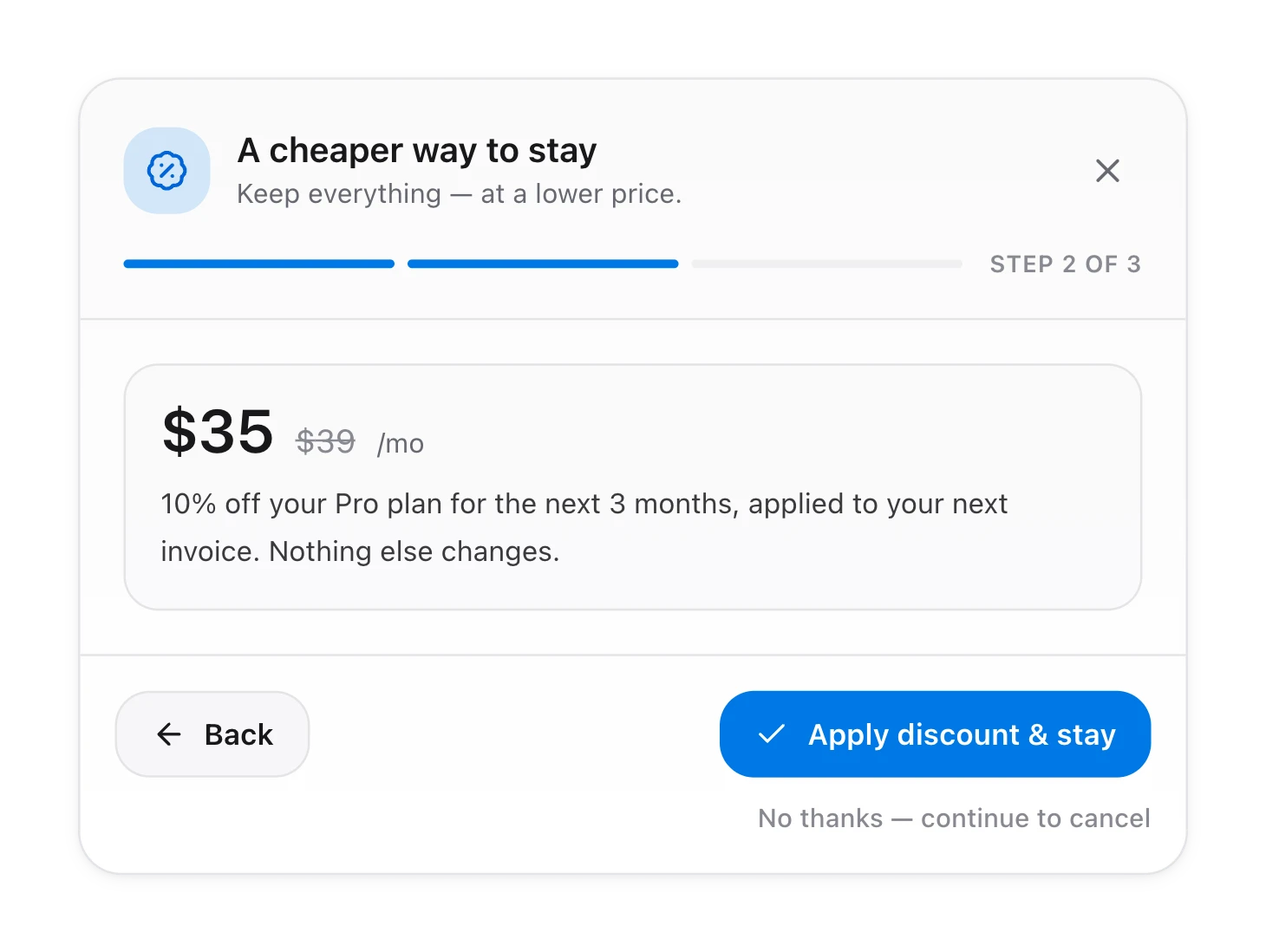
✓Want the offer? Click the blue button. Your plan carries on and nothing is cancelled
✓Still want to cancel? Click “No thanks — continue to cancel” under the buttons
✓Back returns you to the list of reasons
Step 2 of 3: an offer of 10 percent off the Pro plan for the next 3 months, with Apply discount and stay, and a No thanks, continue to cancel link
Step 4

Confirm the cancellation

The last screen tells you exactly what will happen: the date your plan stays active until, and what changes after that. Click the red Cancel subscription button to finish.
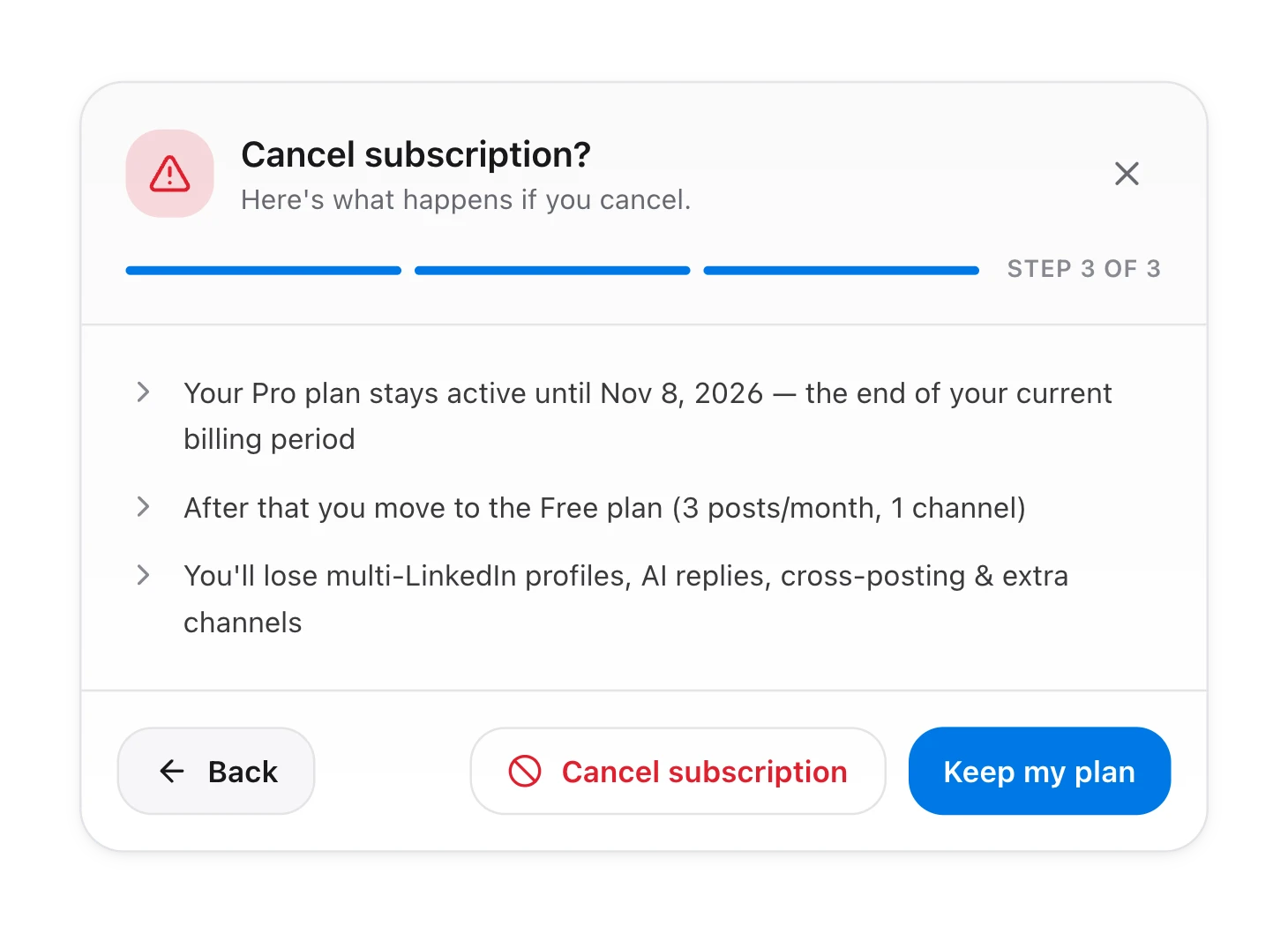
✓Nothing is cancelled until you click Cancel subscription on this screen
✓Keep my plan closes the window and leaves your plan as it is
✓A message confirms the cancellation and repeats the date your plan ends
The plan, price and date in these pictures are examples. Your screens show your own plan and the end of your own billing period.
Step 3 of 3: Cancel subscription? The plan stays active until the end of the billing period, then moves to the Free plan. Buttons: Back, Cancel subscription, Keep my plan
After you cancel

What happens to your plan

Nothing switches off on the day you cancel. Here is what happens, and when.

Until the period ends

Nothing changes. You keep the plan you paid for.

✓Every feature of your plan keeps working
✓Your boosts, channels and profiles stay as they are
✓No further payment is taken

After that: the Free plan

Your account moves to Free automatically. You do not need to do anything.

✓3 boosts a month, at most 1 a day
✓1 channel per boost
✓The AI comment generator is still included

What you lose

The paid features stop when your account moves to Free.

×Several LinkedIn profiles on one account
×AI replies
×Cross-posting
×Extra channels per boost

Want it back? You can choose a plan again whenever you like from Settings, under Plan & billing. A new subscription starts a new billing cycle on the day you subscribe.

Before you decide

Options that are not cancelling

If the plan is close to right but not quite, one of these may suit you better. The cancel window offers the one that matches your reason.

Stay on your terms

Three ways to keep your account working for you

✓Take the discount. 10% off your plan for the next 3 months, applied to your next invoice. Everything else stays the same.
✓Move to a smaller plan. If you post less than you planned, a smaller plan costs less and your profiles, channels and history come with you. You can move back up at any time.
✓Let us fix it first. If a boost, the extension or anything else did not work, tell us what went wrong at support@hyperclapper.com and a person will look into it.
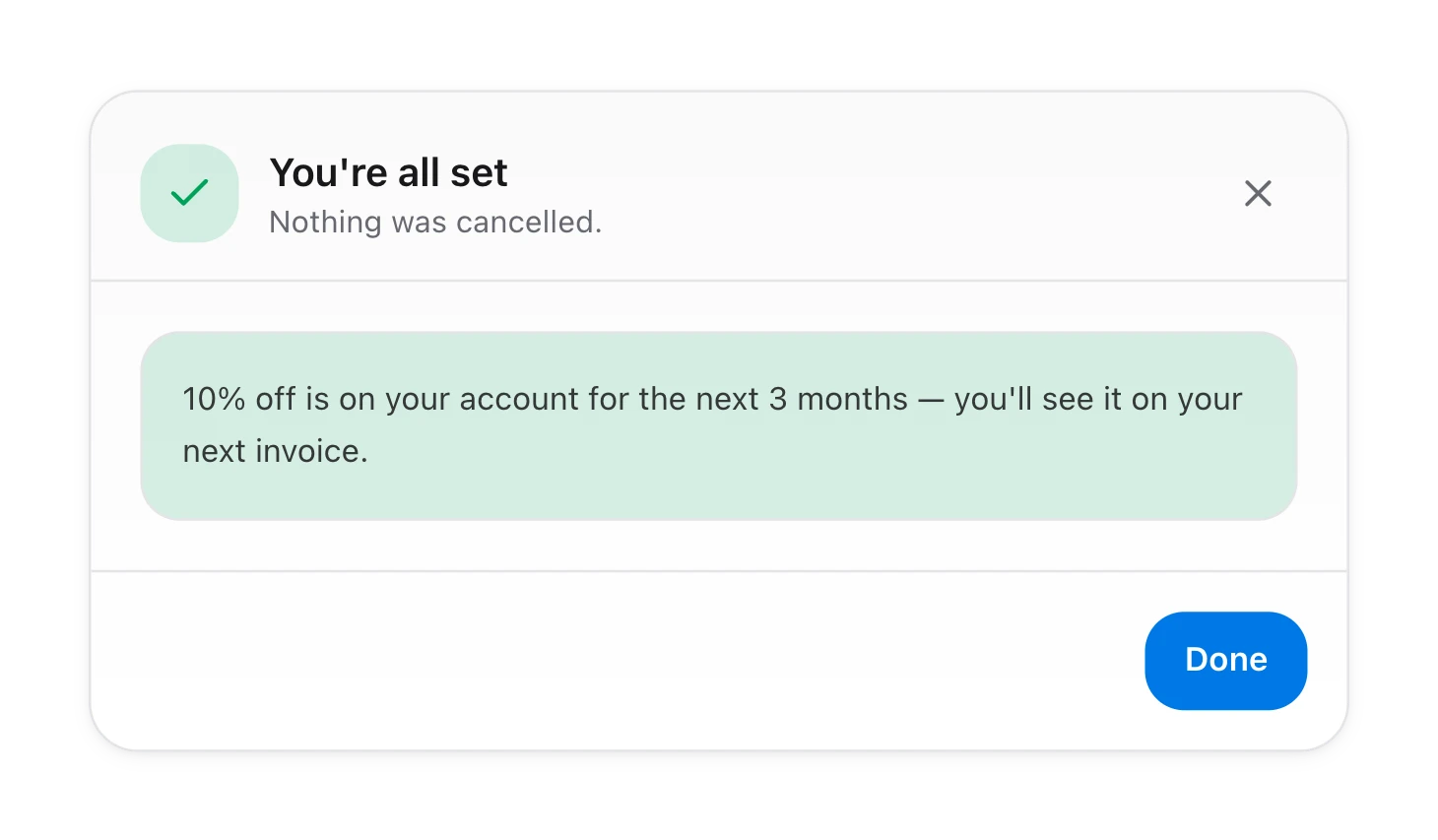
Accepting an offer never cancels anything. The window closes with “You're all set” and your plan carries on.
The window after accepting an offer: You are all set, nothing was cancelled, 10 percent off is on your account for the next 3 months
Do not mix them up

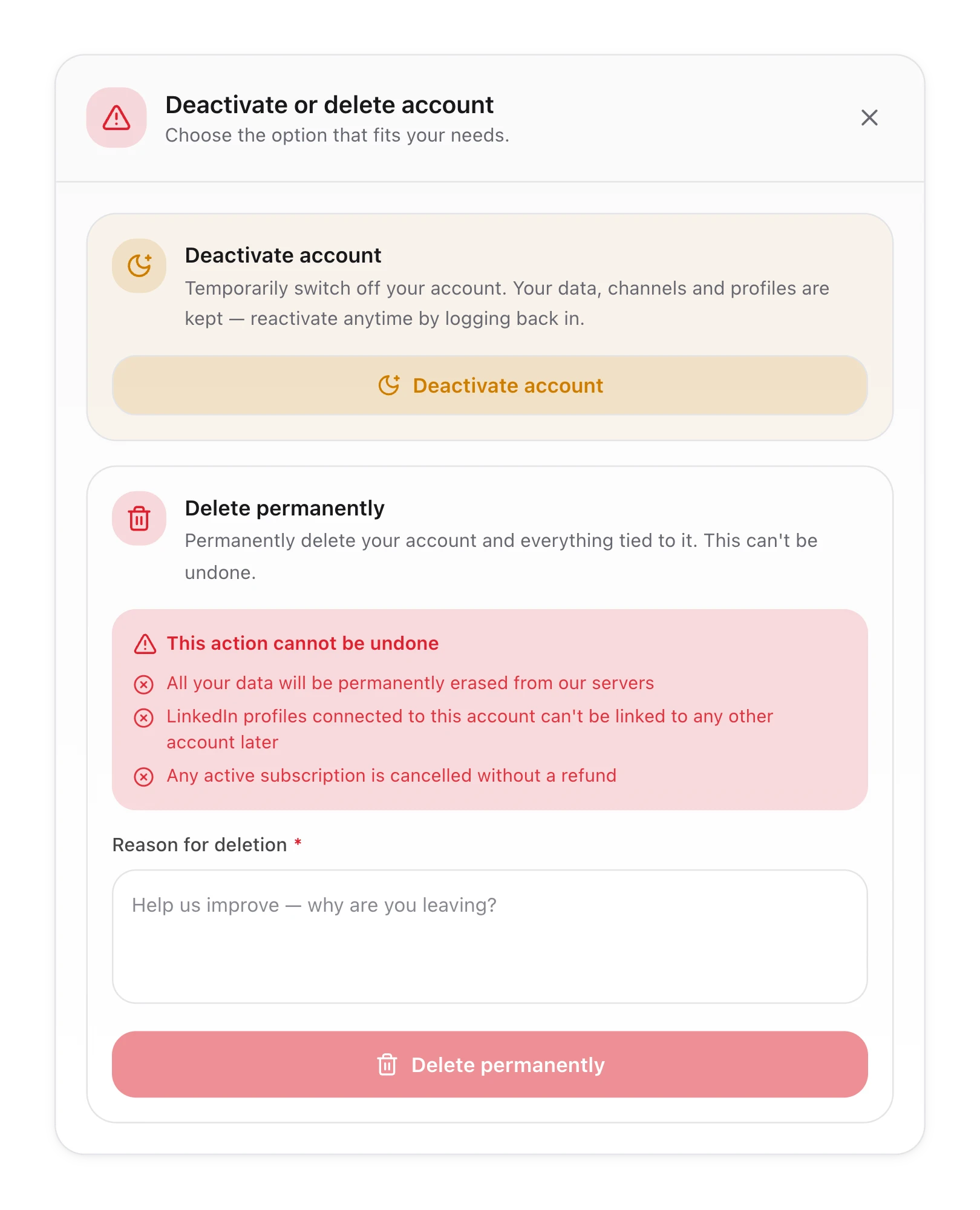
Cancelling is not the same as deleting your account

HyperClapper has three different controls. They live in different places and do different things.

Which one do you need?

Cancel, deactivate or delete

✓Cancel subscription stops future payments. Your account stays open and moves to the Free plan. You find it in Settings, under Plan & billing.
✓Deactivate account switches your account off for a while. Your data, channels and profiles are kept, and you reactivate it by logging back in. You find it in Settings, under Account, in the Danger zone.
✓Delete permanently erases your account and all its data. It cannot be undone, the LinkedIn profiles connected to it cannot be linked to another account later, and any active subscription is cancelled without a refund.
Only want to stop paying? Use Cancel subscription. You do not need to delete anything.
The Deactivate or delete account window with two choices: Deactivate account, which keeps your data, and Delete permanently, which cannot be undone
Common questions

Charges, refunds and coming back

Will I be charged again after I cancel?+

No. Cancelling stops your subscription from renewing. Your plan stays active until the end of the current billing period, and no further payment is taken.

Do I get a refund for the time I have not used?+

No. All HyperClapper purchases are non-refundable, and there are no refunds or credits for unused time or partial billing periods. That is why your plan keeps working until the period you paid for ends. The one exception is a duplicate payment caused by a technical error: email support@hyperclapper.com within 7 days of the payment. The full policy is in our Terms and Conditions.

When exactly does my plan end?+

At the end of your current billing period. The exact date is shown on the last screen before you confirm, and again in the message you see after cancelling.

I pay yearly or every 6 months. Can I still cancel?+

Yes. Cancelling stops the next renewal, and your plan runs until the end of the period you paid for. A yearly or 6-month plan cannot be switched to monthly or refunded part of the way through.

I cannot see a Cancel subscription button. Why?+

The button only appears on paid plans. On the Free plan there is nothing to cancel. If you are on a paid plan and still cannot find it, email support@hyperclapper.com from the address on your account.

Can I cancel by email instead?+

Yes. Email support@hyperclapper.com from the address on your account and ask us to cancel your renewal. Doing it yourself in Settings is faster, because it takes effect as soon as you confirm.

Does removing the Chrome extension cancel my subscription?+

No. Removing the extension, disconnecting your LinkedIn profile or simply not logging in does not stop your subscription. Only Cancel subscription in Settings, or a request to support, does.

Can I come back later?+

Yes. Open Settings, go to Plan and billing and choose a plan. A new subscription starts a new billing cycle from the day you subscribe.

Still stuck? We will help

Email us from the address on your account and tell us what you need. A person on our team will sort out your subscription with you.

support@hyperclapper.com