Watch it first
The whole setup in one short loop
Every screen you will see, in order. Each one is explained below.
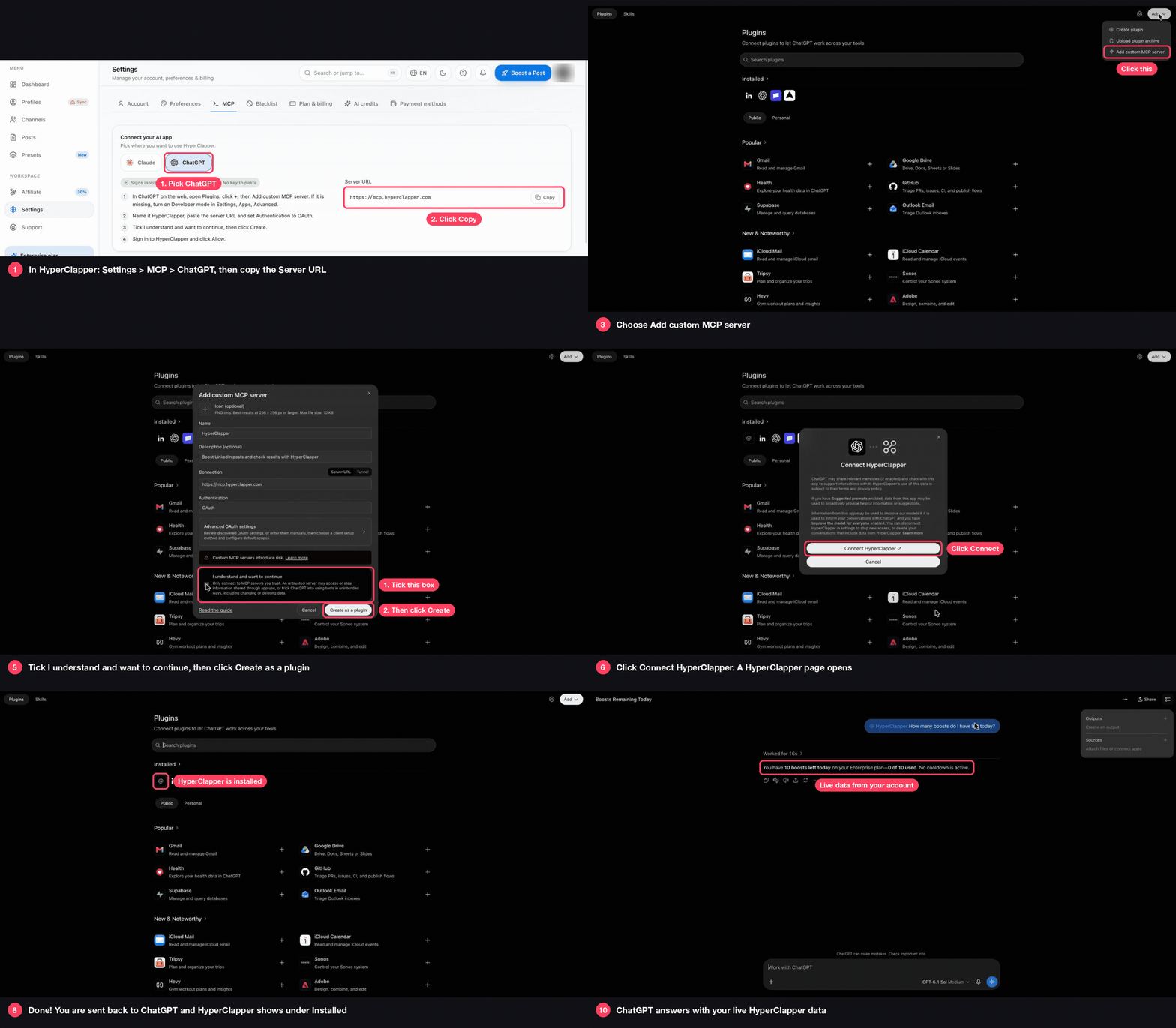
Check your plan, boost a post and see how it did, just by chatting with ChatGPT. Setup takes about two minutes, and there is no API key: you sign in with your HyperClapper account.
Any plan works. Log in at app.hyperclapper.com. To let ChatGPT start boosts, save at least one preset first.
Use ChatGPT on the web at chatgpt.com. Setting up from the phone app is not covered here.
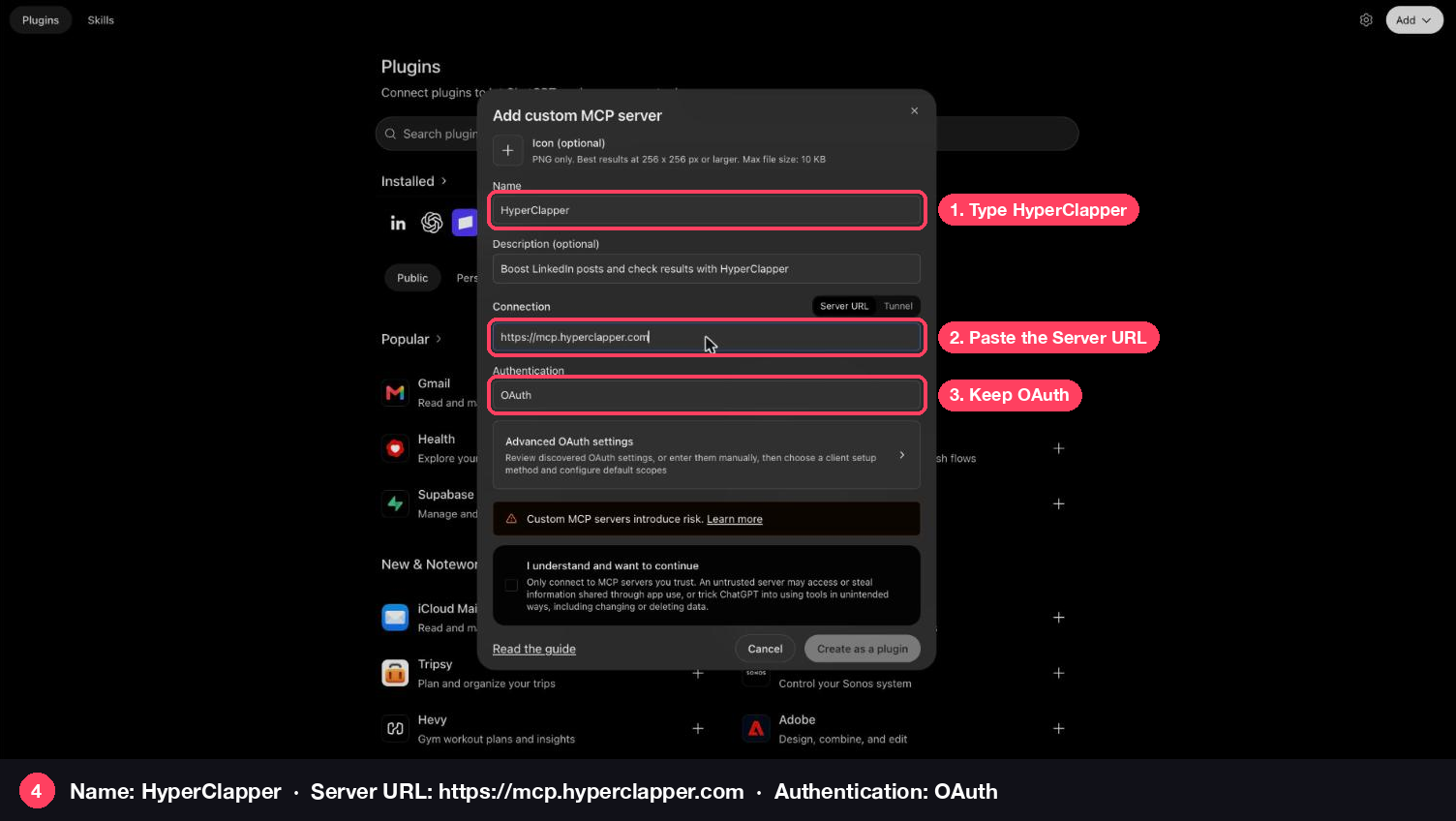
Paste this into ChatGPT: https://mcp.hyperclapper.com. You can also copy it from Settings, MCP tab, in HyperClapper.
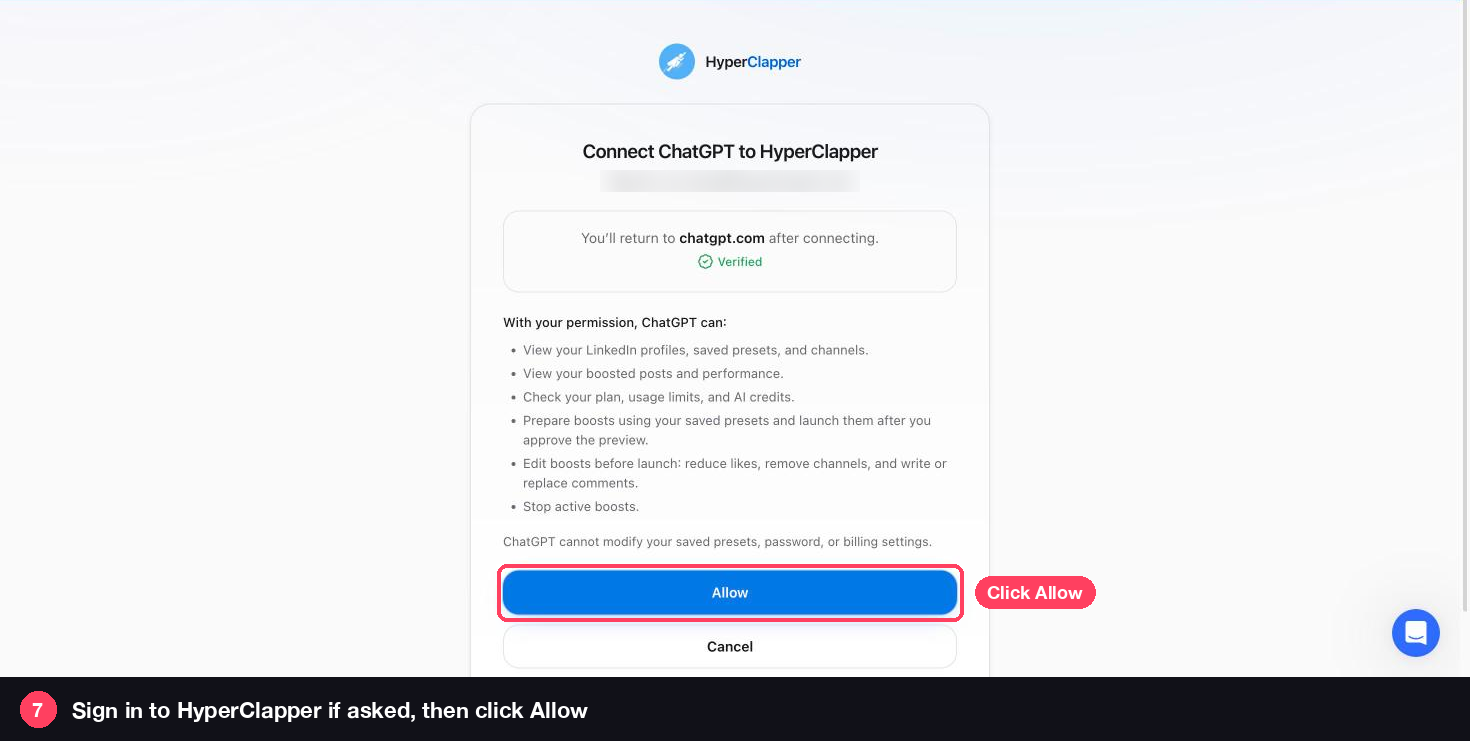
Good to know: you never paste a password or API key into ChatGPT. You sign in on a HyperClapper page and choose Allow.
Every screen you will see, in order. Each one is explained below.
The red boxes in each picture show where to click. Do the steps in order and keep the HyperClapper tab open.
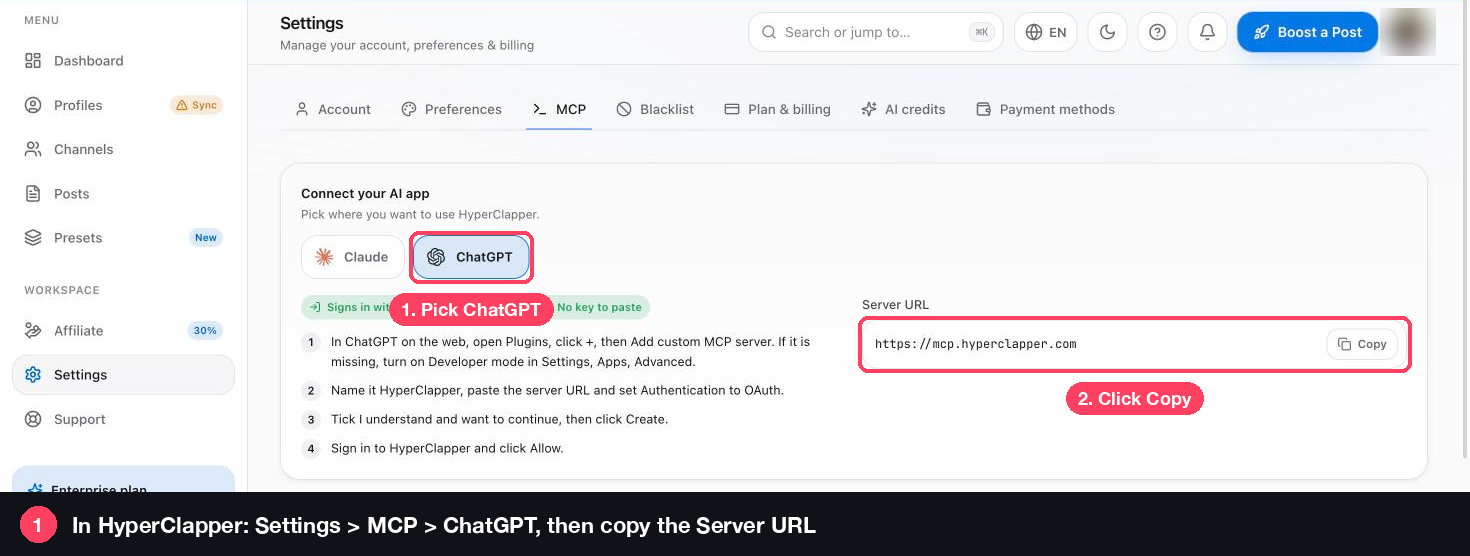
Log in to HyperClapper, click Settings and open the MCP tab. Pick ChatGPT and click Copy next to the Server URL. You will paste it in step 4.
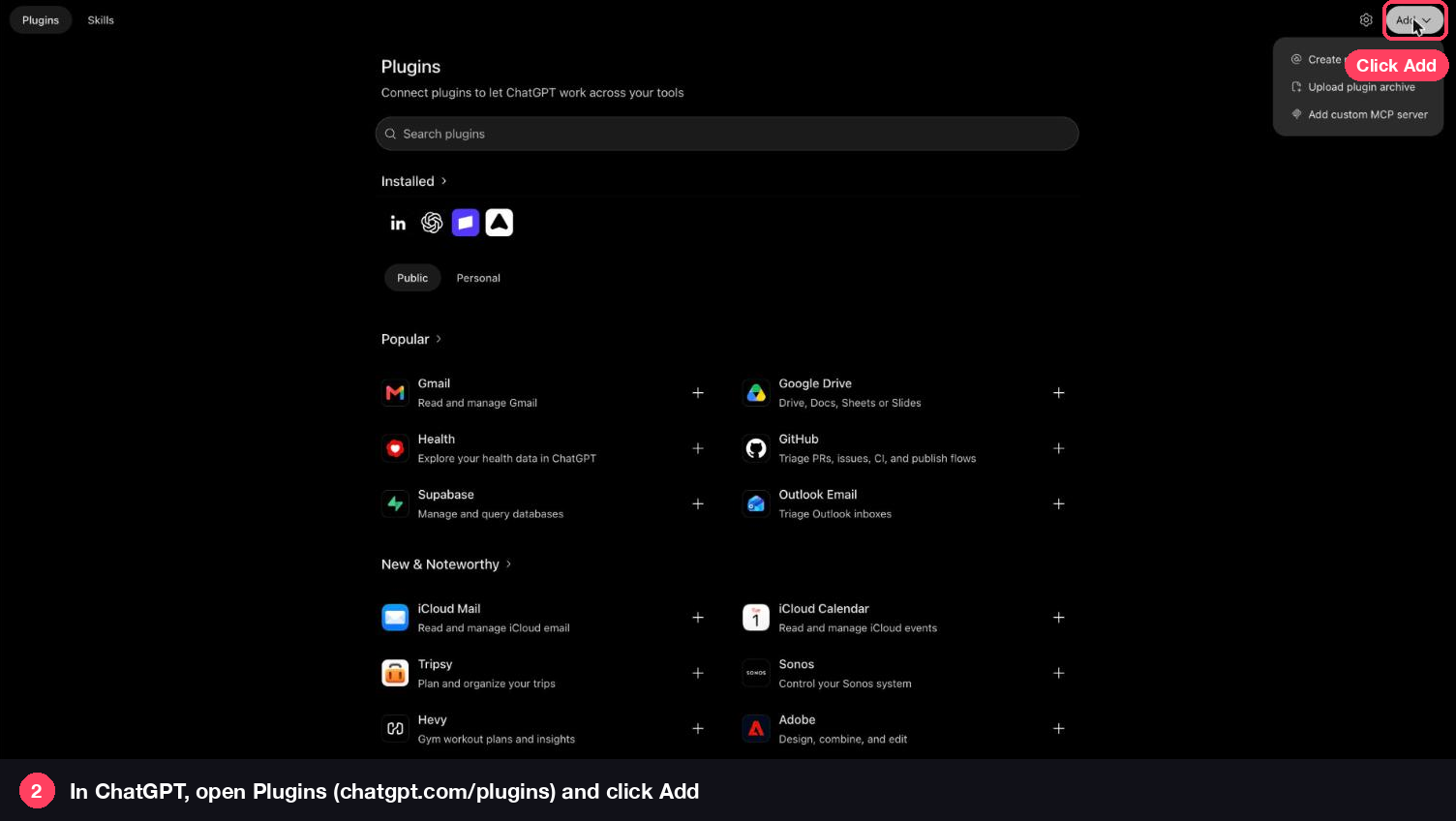
Go to chatgpt.com/plugins. This page lists the apps ChatGPT can use. Click the Add button in the top-right corner.
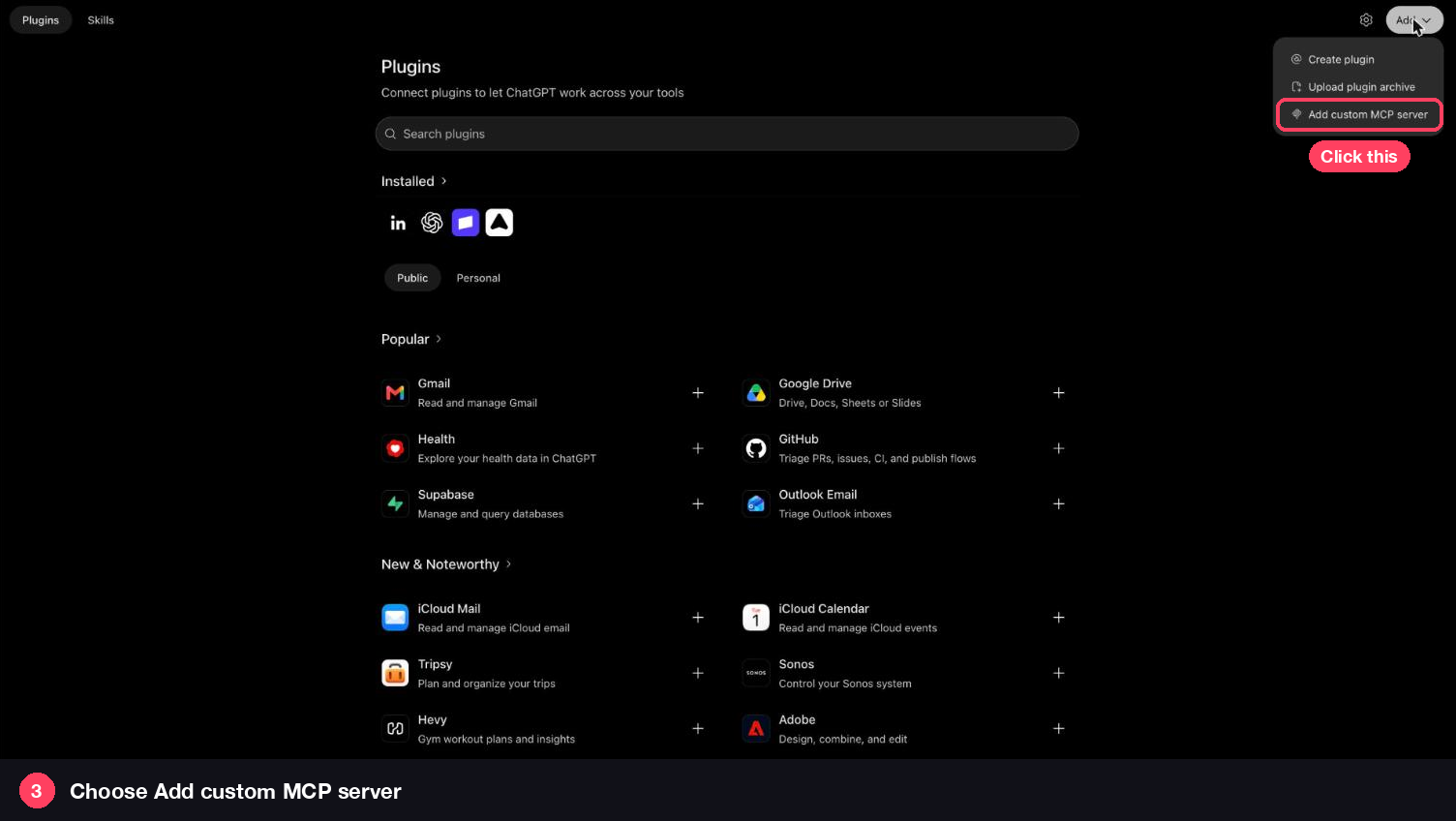
A small menu opens under the Add button. Click Add custom MCP server.
A form called Add custom MCP server opens. Fill in three things and leave the rest as it is.
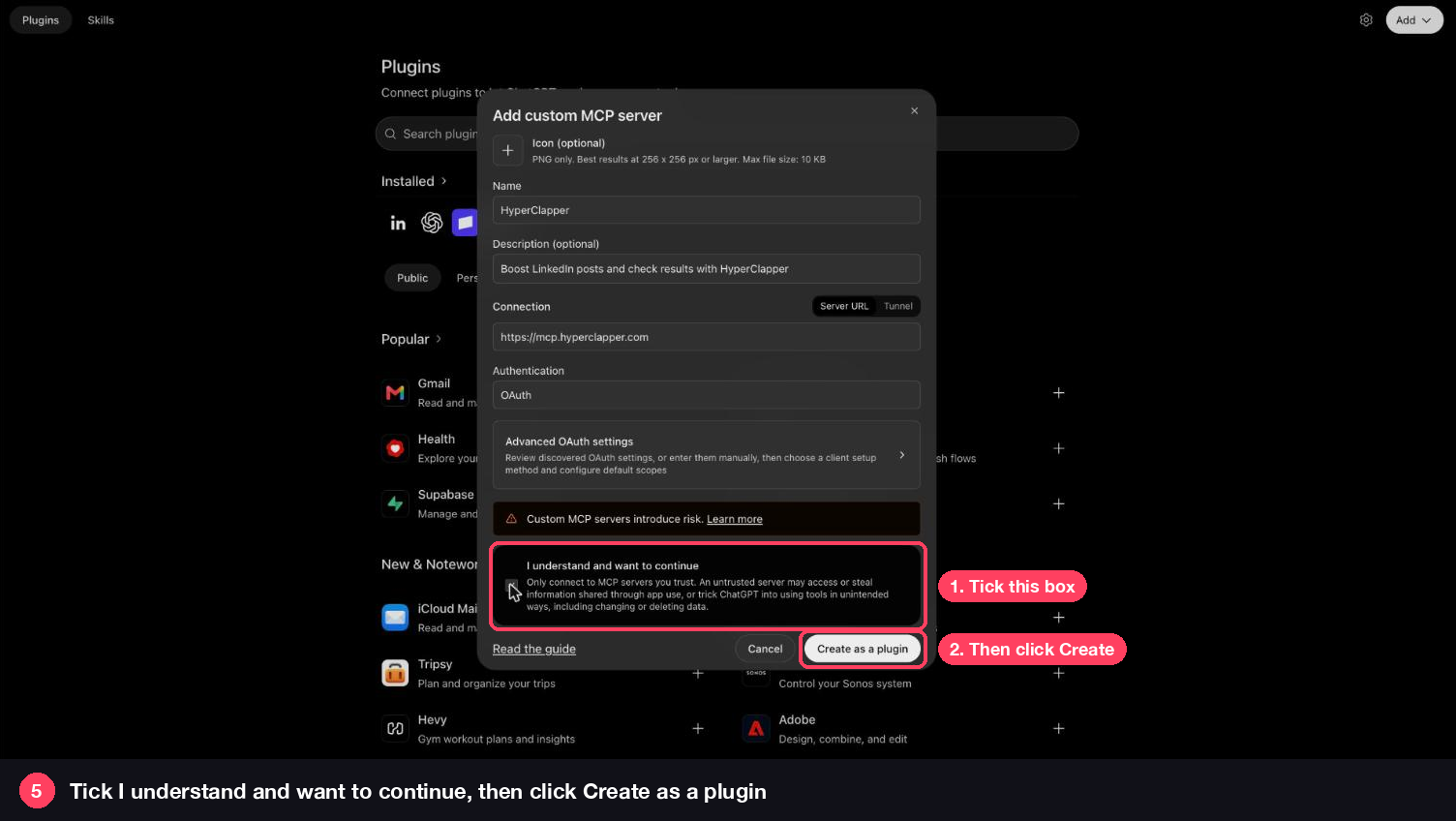
ChatGPT shows a short safety note about custom servers. Tick I understand and want to continue, then click Create as a plugin.
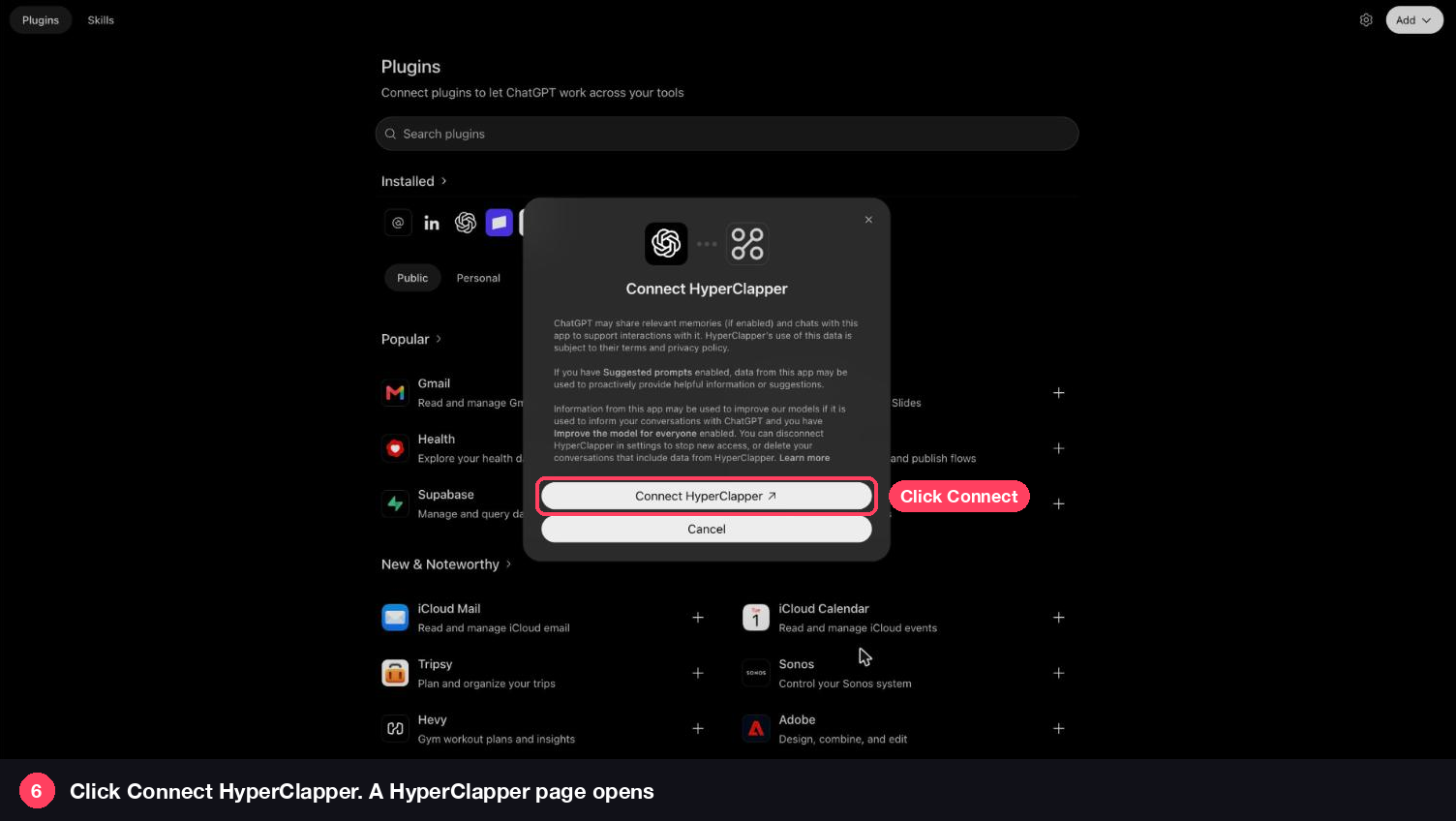
ChatGPT now asks to link your HyperClapper account. Click Connect HyperClapper and a HyperClapper page opens.
Sign in to HyperClapper if you are asked. The page lists exactly what ChatGPT will be able to do. Read it, then click Allow.
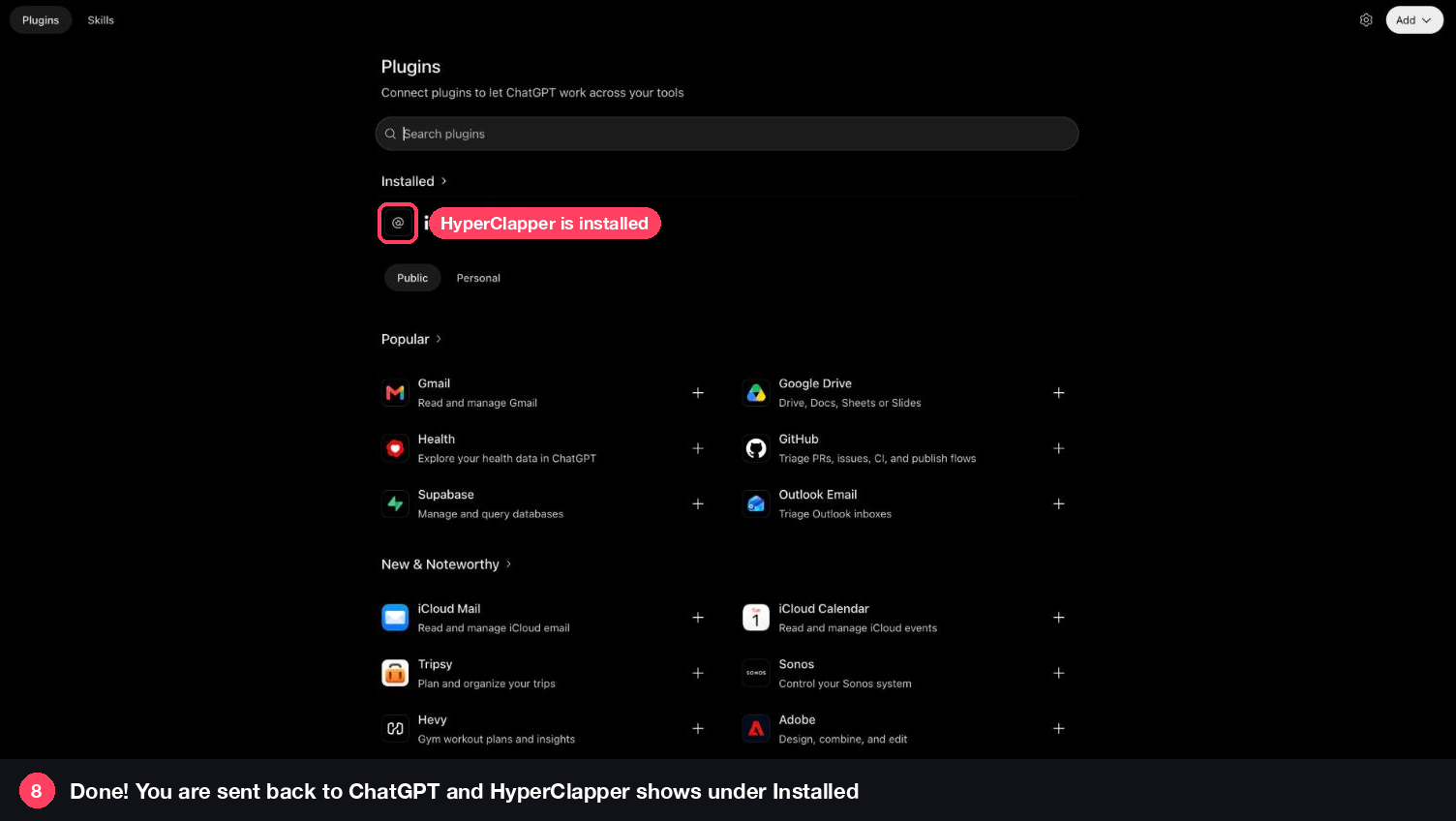
You are sent back to ChatGPT. HyperClapper now shows under Installed on the Plugins page.
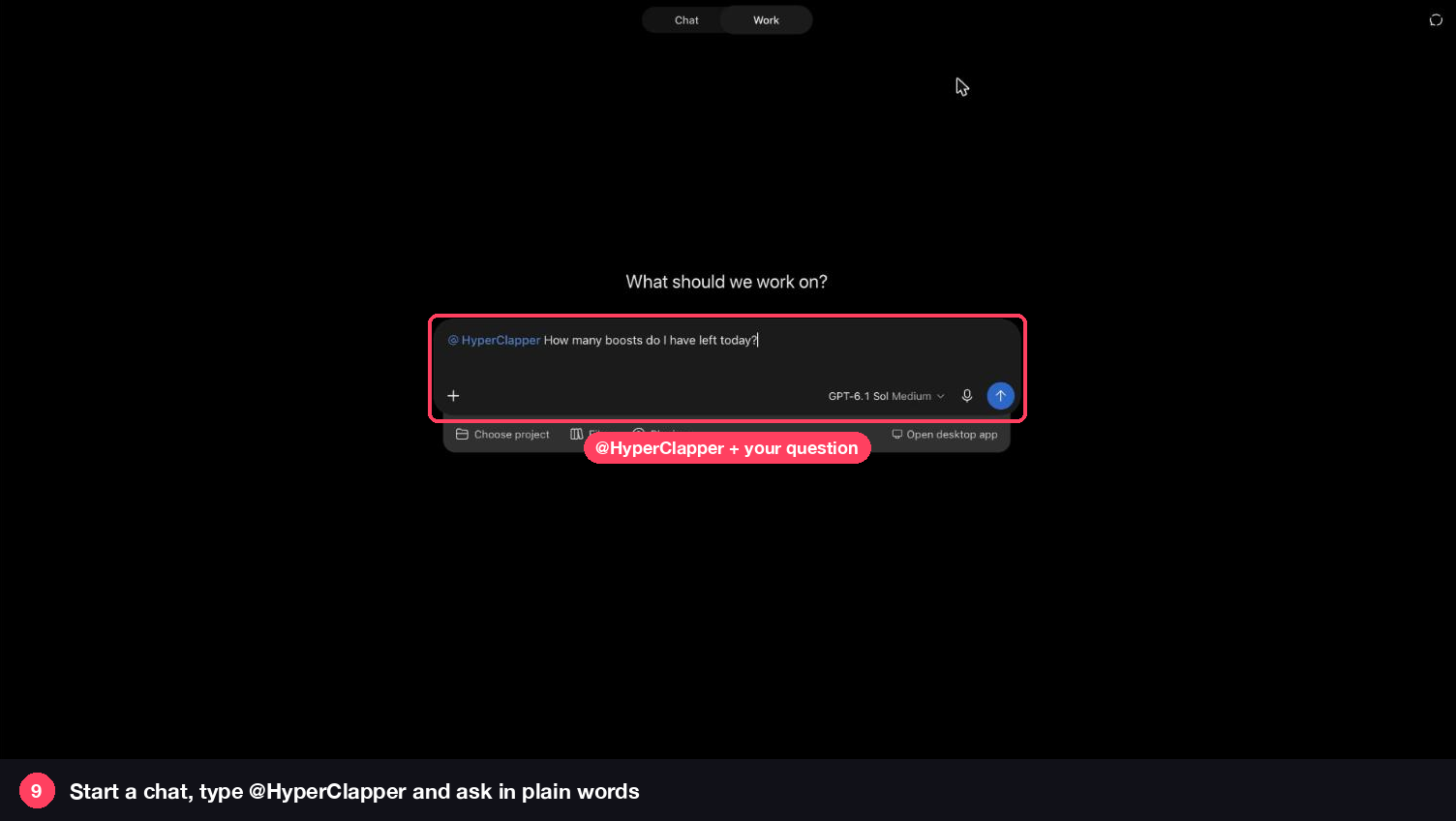
Start a new chat. Type @HyperClapper, then your question, for example “How many boosts do I have left today?”
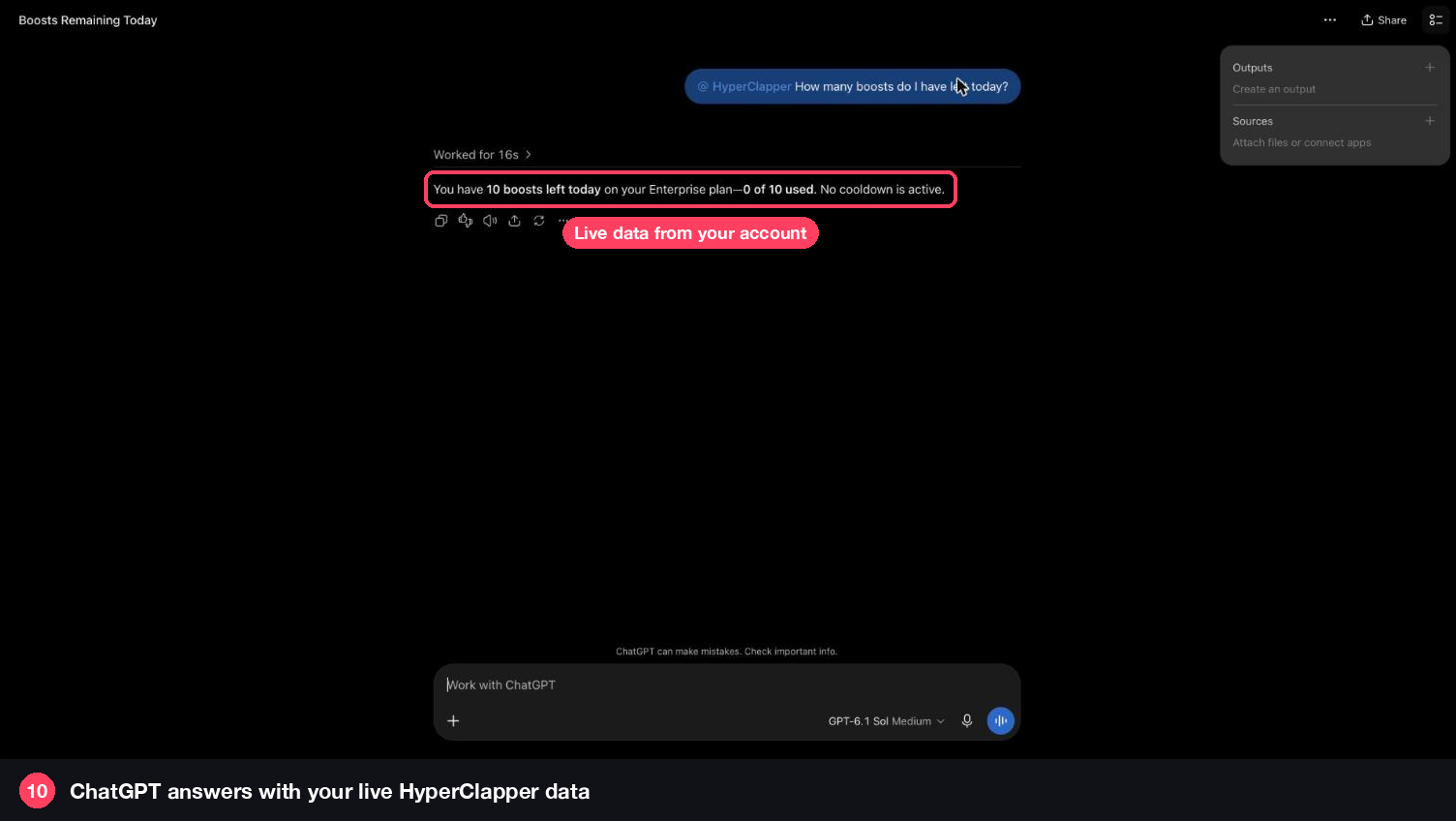
ChatGPT reads your HyperClapper account and answers. That is it, you are set up.
Just ask in plain words. Here are some to start with.
Turn on Developer mode in ChatGPT under Settings, Apps, Advanced. Then open Plugins again and click Add.
Your browser may be blocking pop-ups for chatgpt.com. Allow them, then click Connect HyperClapper again.
Start your message with @HyperClapper so ChatGPT knows to use it.
No. Every boost starts from one of your saved presets, and nothing starts until you approve its preview in the chat.
No. You sign in with your HyperClapper account when you click Connect, so there is nothing to copy or keep safe.
In HyperClapper, open Settings, then the MCP tab, and click Disconnect. You can also remove HyperClapper from the Plugins page in ChatGPT.
Open the MCP tab in HyperClapper, copy your server URL and you are two minutes away. Stuck? Email us and a person on our team will help.
Grab 3 free boosts on your next LinkedIn post — real likes & comments from 5,000+ creators. No card, cancel anytime.



 +5k