New here? Start with this page

How HyperClapper works, step by step

The whole journey in plain words: add the Chrome extension, connect your LinkedIn, join channels, boost a post and let AI write your comments and replies. Boosts, channels, AI credits and plans are explained along the way.

Free plan includes 3 boosts a month · No credit card required
The basics

The idea, in 30 seconds

The first hour decides reach

LinkedIn looks at how a post performs in its first hour to decide how far it travels. A strong start means many more people see it.

Real people give it that start

When you boost a post, members of the channels you choose like and comment on it in that window. They are real professionals with real profiles, never bots.

You stay in control

You choose every post, every channel and how many likes and comments it gets. Nothing happens until you press Launch.

Good to know: HyperClapper is a give-and-get community. While you receive engagement, your profile also likes and comments on other members' posts. Paid plans let you limit that.

Part 1 of 4 · Get set up

Add the extension and connect LinkedIn

You do this once. After that, boosting a post takes about a minute.

Step 1

Create your account and add the Chrome extension

Sign up free, then add the HyperClapper extension to Chrome. The extension is the bridge between HyperClapper and your LinkedIn account.

✓The Free plan needs no credit card
✓Use Chrome on a laptop or desktop. Extensions do not run on phones or tablets
✓Stay logged in to LinkedIn in the same browser
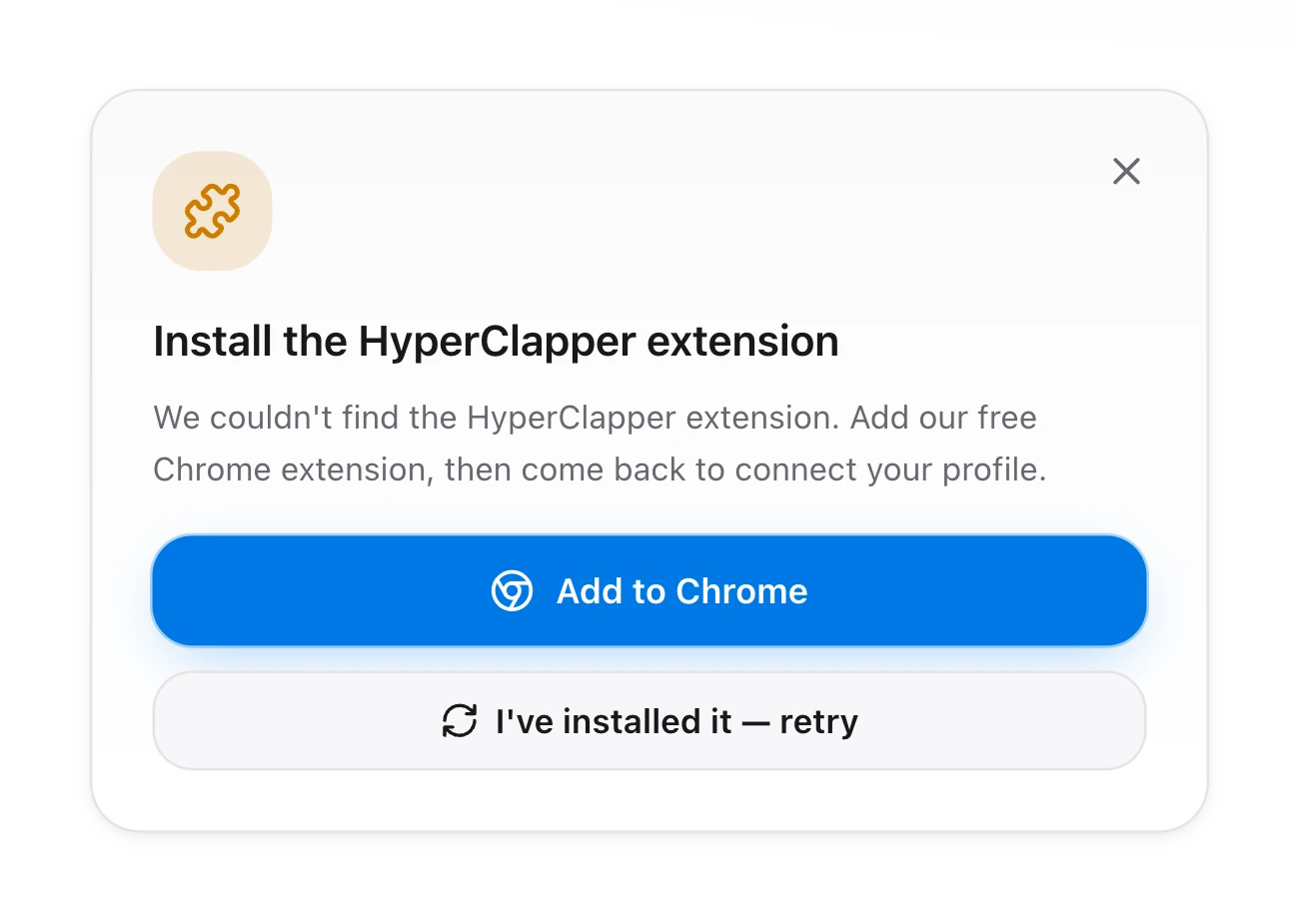
HyperClapper asking to install its Chrome extension, with an Add to Chrome button
Step 2

Connect your LinkedIn profile

Open Profiles and click Connect a profile. HyperClapper finds the extension, reads your profile from your open LinkedIn session and shows it to you. Check that it is the right one, then click Connect.

✓Manage company pages? Tick the box to connect them and boost their posts too
✓Nothing is posted without your approval
✓From the Pro plan you can connect several LinkedIn profiles and switch between them in one click
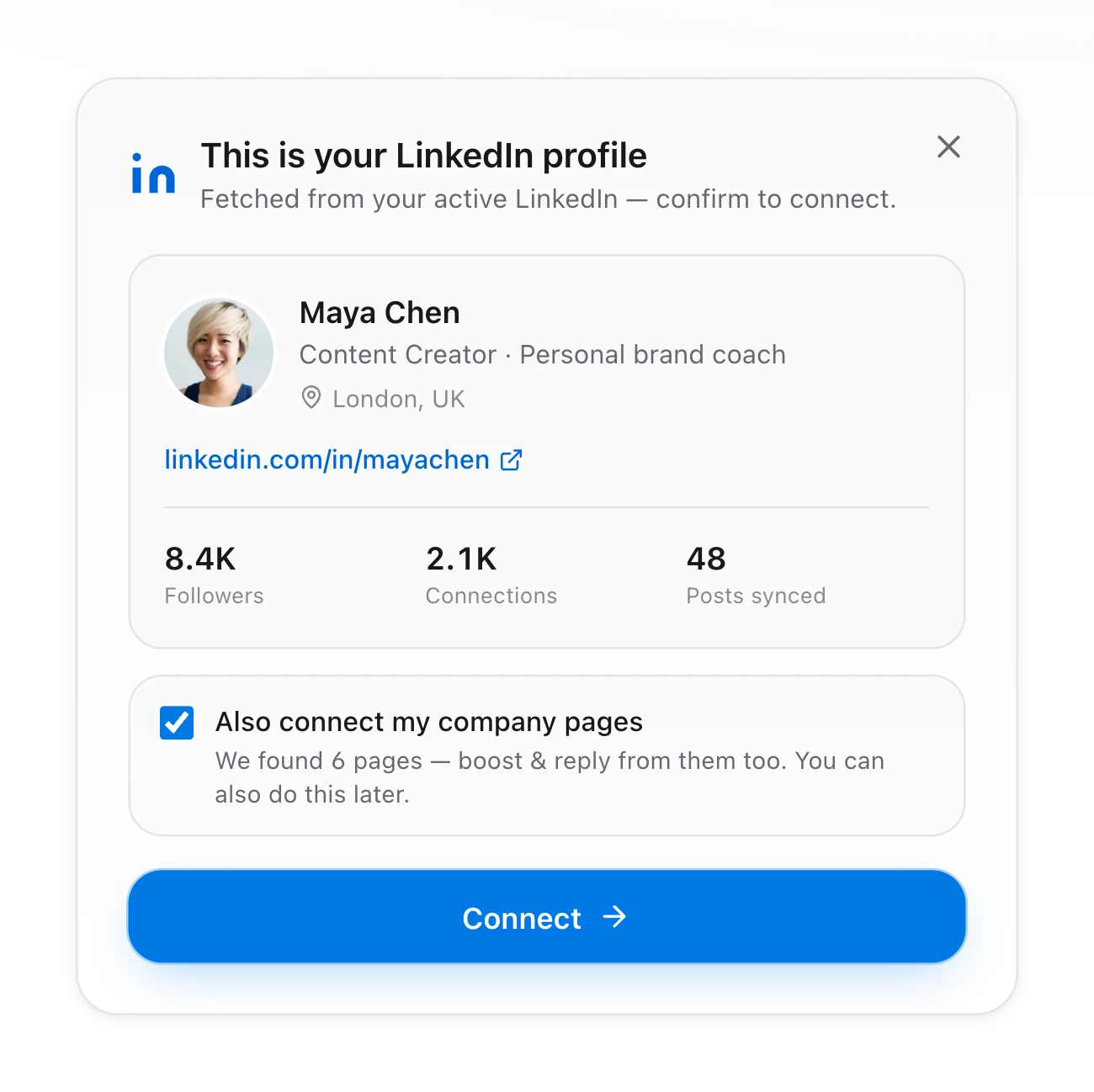
The connect screen showing a fetched LinkedIn profile with followers, connections and a Connect button
Part 2 of 4 · Join channels

Find the people who will engage

Channels are where the likes and comments come from.

Step 3

Join the channels that fit your niche

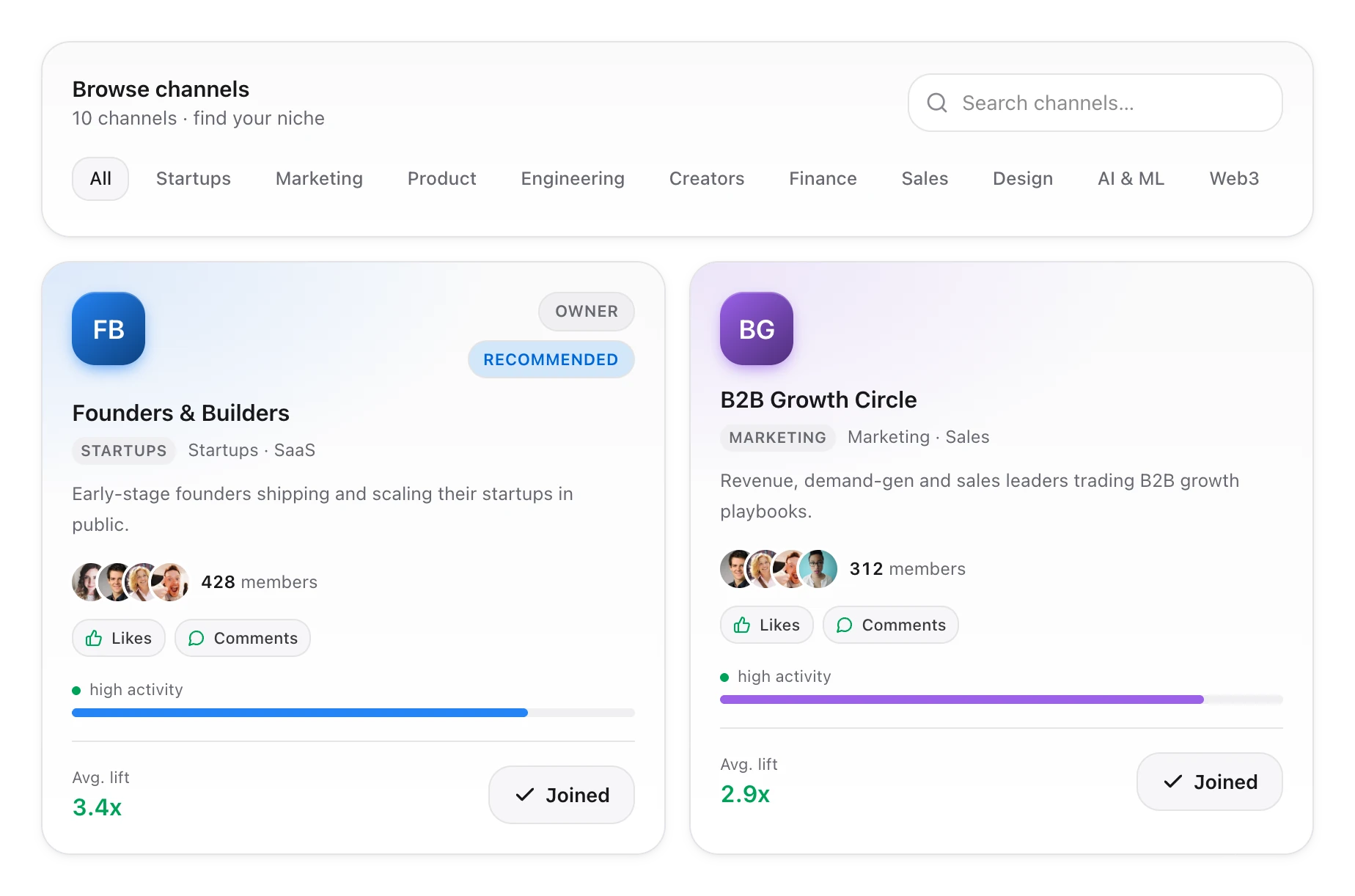
A channel (some people call it a pod) is a group of real professionals with a shared interest: founders, marketers, engineers, designers and more. Members engage with each other's posts. Open Channels, browse by topic and join with one click.

✓Every channel shows its members, activity level and average lift
✓You can create your own private channel and invite people with a link
✓Leave a channel whenever you like
The Channels page with topic filters and two channel cards showing members, activity and average lift
Part 3 of 4 · Boost a post

Send a post to your channels

A boost is three short screens: your post, your channels, your engagement.

Step 4

Paste your post link

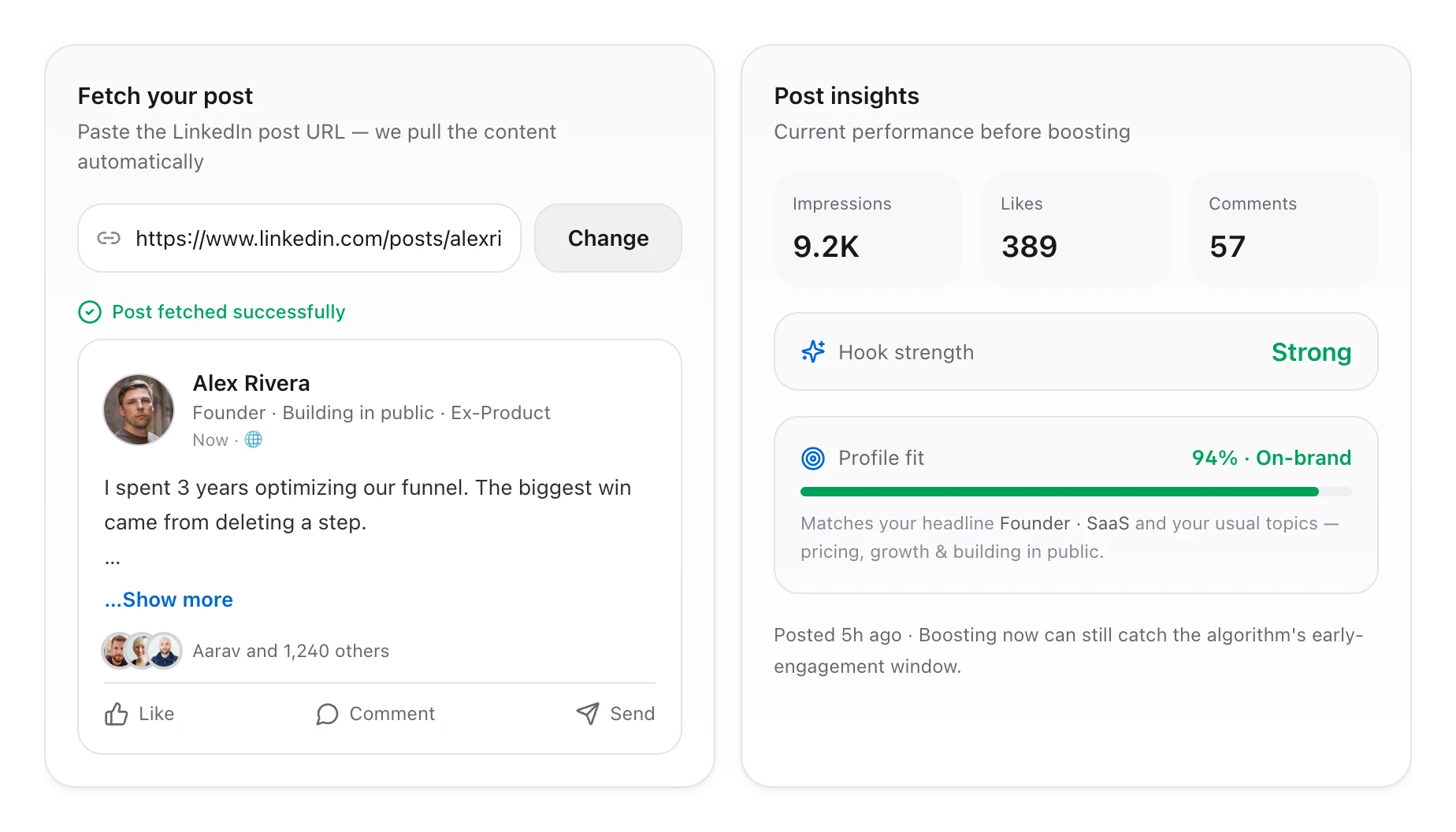
Publish your post on LinkedIn as usual. Copy its link, open Boost a post, paste the link and click Fetch. HyperClapper pulls in the post and shows how it is doing right now.

✓Boost soon after you post. The first hour matters most
✓Post insights show impressions, likes and comments so far, plus hook strength and profile fit
✓Posts from your company pages can be boosted too
Boost step 1: a fetched LinkedIn post next to its post insights
Step 5

Choose who will engage

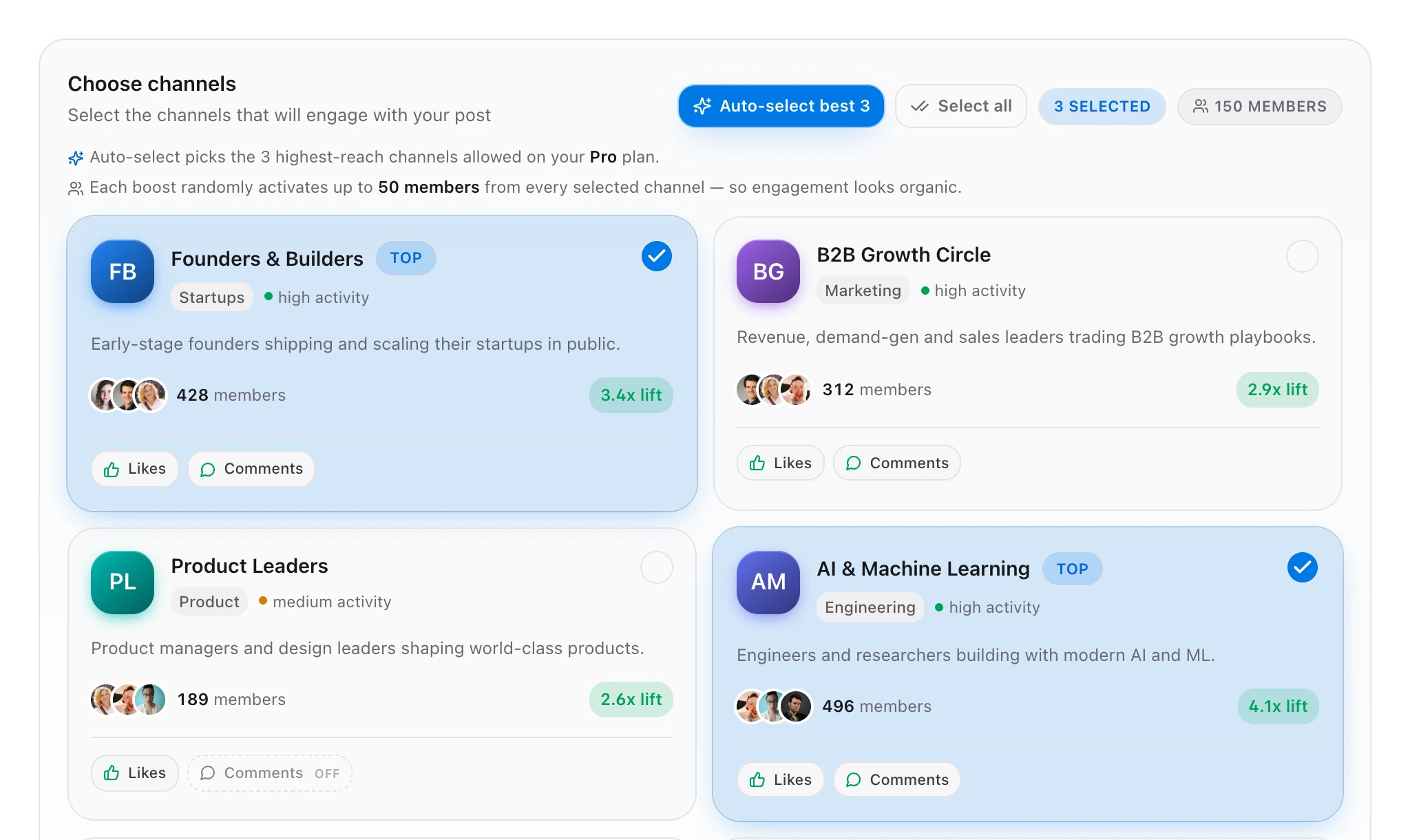
Select the channels whose members should engage with this post. Not sure which? Auto-select picks the highest-reach channels your plan allows.

✓Each boost activates up to 50 randomly chosen members from every channel you select, so the engagement looks organic
✓Three channels means up to 150 people who can like or comment
✓Your plan sets how many channels you can use per boost, from 1 to 8
Boost step 2: channel cards with the best three selected by Auto-select
Step 6

Set likes, comments and speed

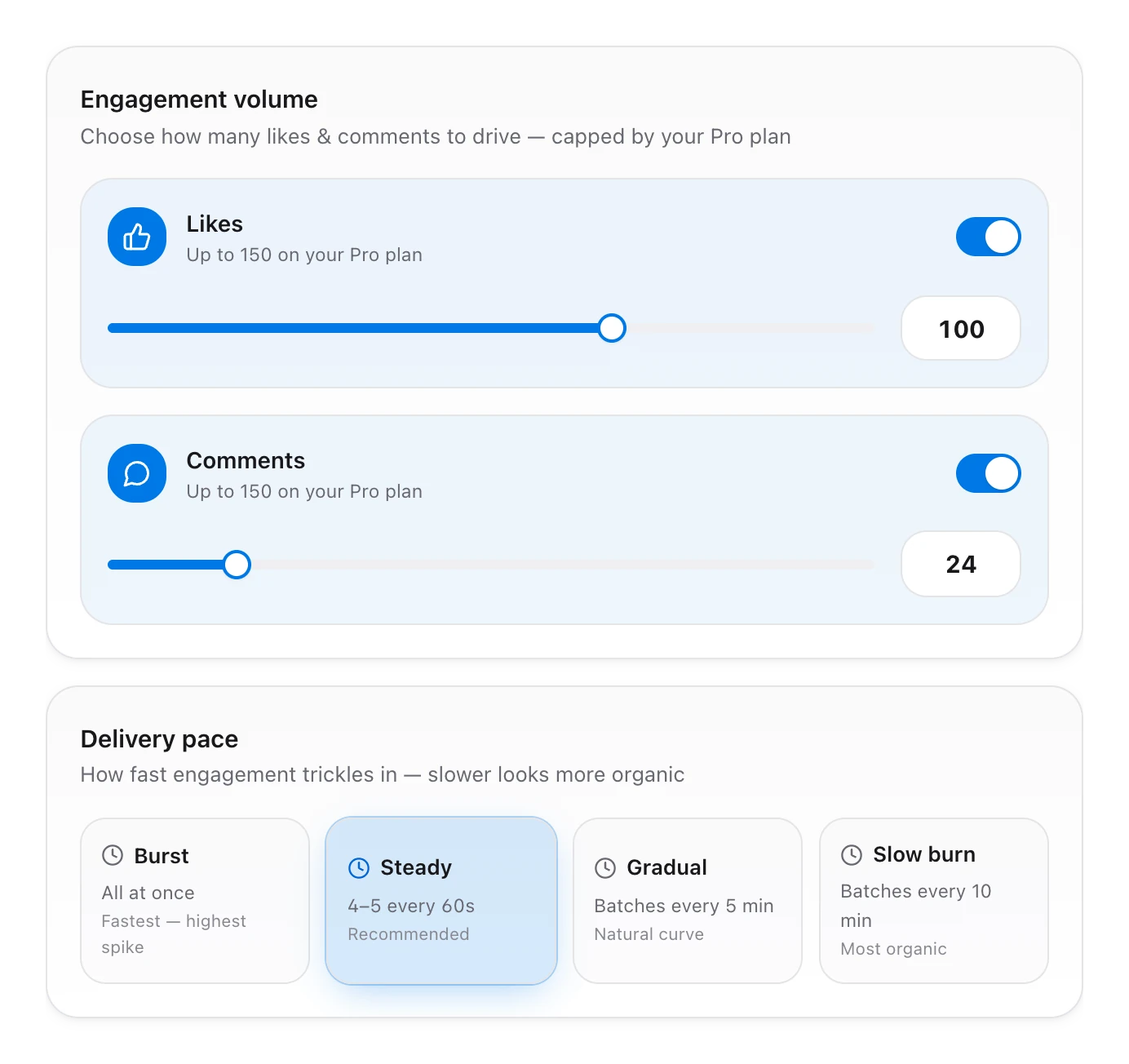
Use the sliders to choose how many likes and comments you want. Then pick how fast they should arrive.

✓Burst: all at once, for the highest spike
✓Steady: 4 to 5 every 60 seconds. This is the recommended pace
✓Gradual: batches every 5 minutes
✓Slow burn: batches every 10 minutes, the most organic
Boost step 3: sliders for likes and comments and four delivery pace options
Part 4 of 4 · AI comments and replies

Let AI write, then launch

Comments are what start conversations. You decide how they get written.

Step 7

Let AI write the comments and your replies

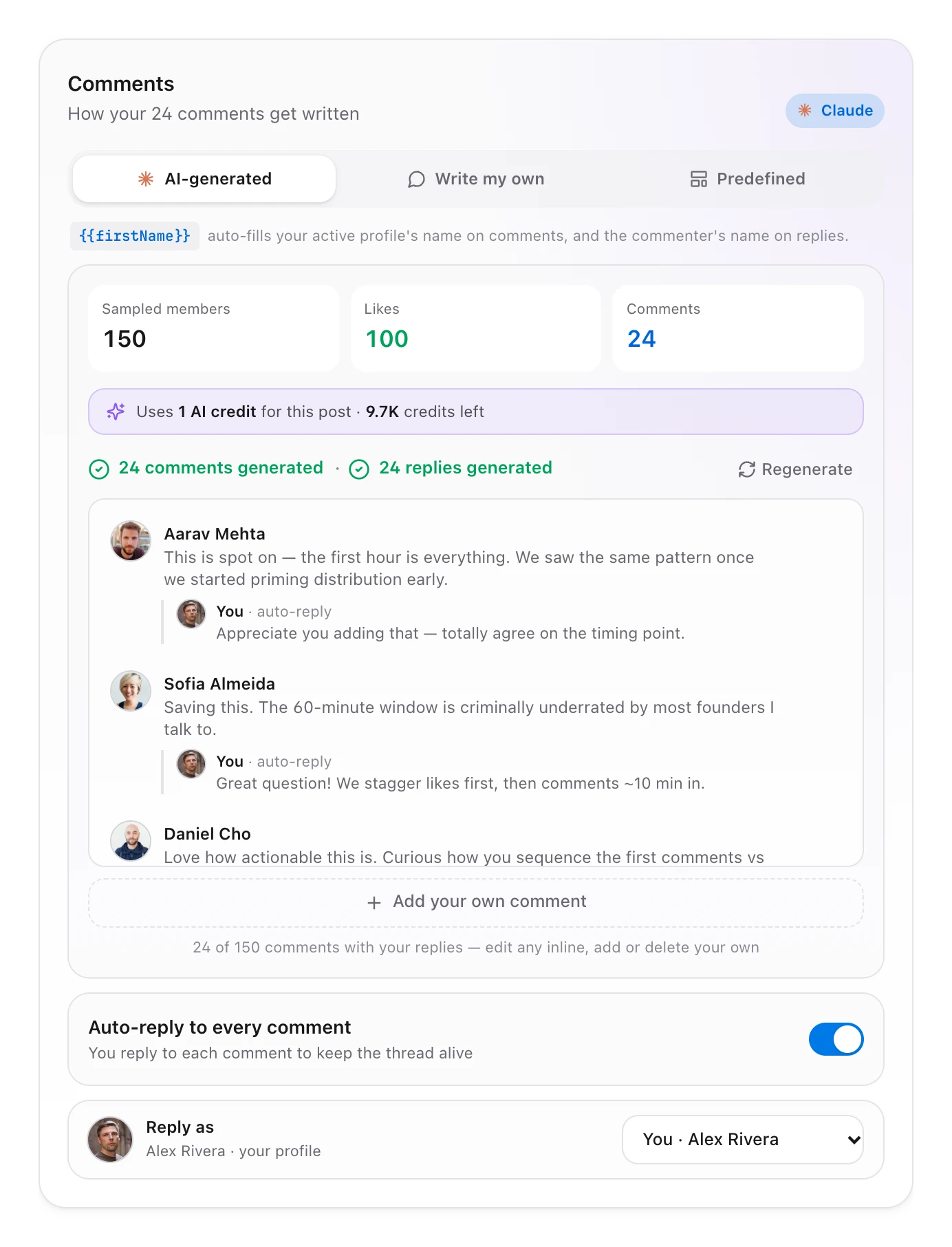
Choose AI-generated and Claude, the AI model from Anthropic, writes comments that match your post. Prefer your own words? Use Write my own, or pick from Predefined comments.

✓Switch on auto-replies and AI also writes your reply to each comment, which keeps the thread alive
✓Edit, delete or add comments before launch. Nothing goes out without your approval
✓AI comments and replies use 1 AI credit per post. Your own and predefined comments are free
AI replies are included from the Growth plan.
The Comments card with AI-generated comments, auto-replies under each one and a note that it uses 1 AI credit
Step 8

Launch and watch it land

Check the summary under Review and launch, then press Launch boost. Likes and comments start arriving at the pace you chose, and you can watch them come in live.

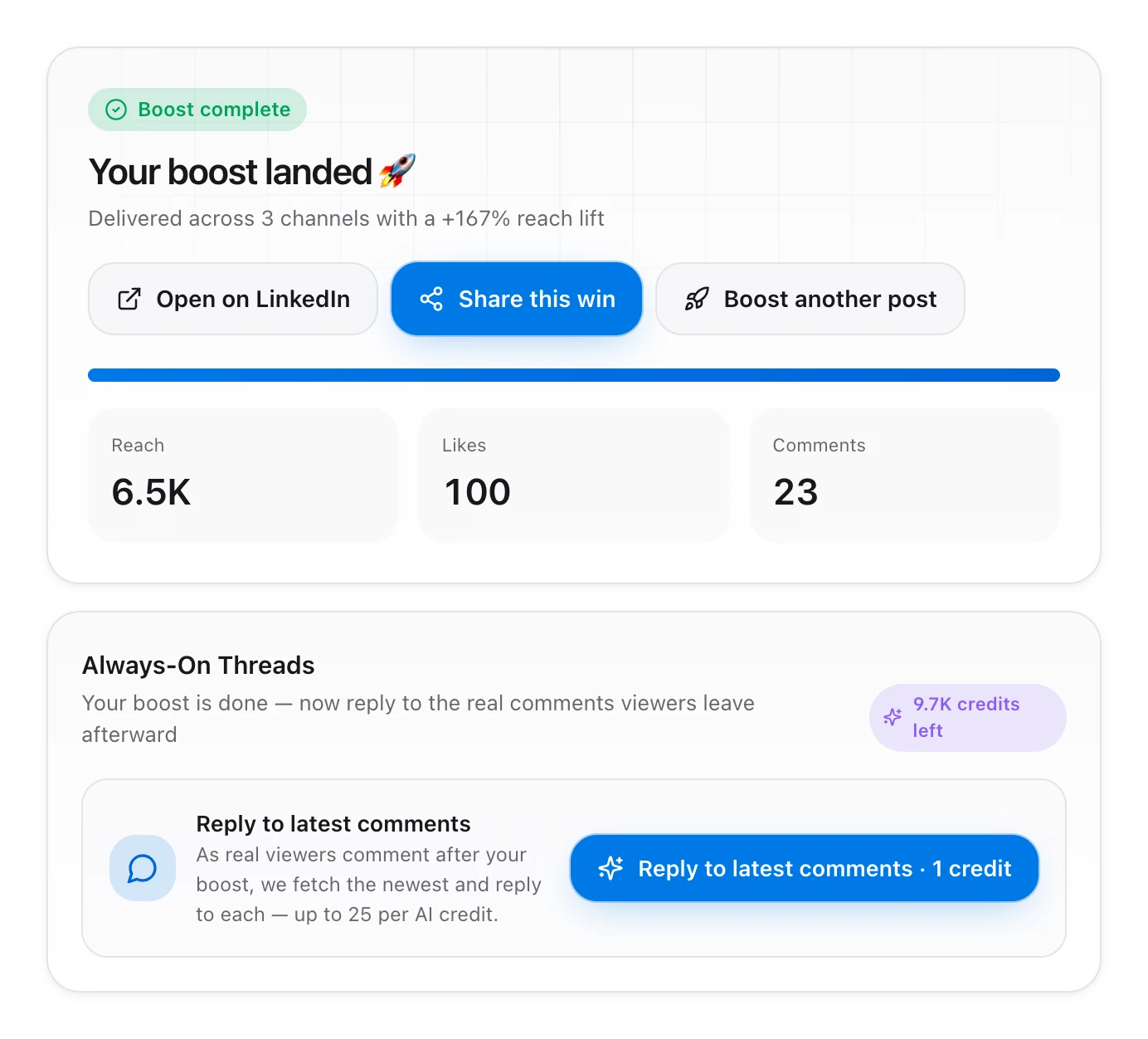
✓When it finishes you see the reach, likes and comments delivered
✓Always-On Threads can keep replying to new real comments after the boost: up to 25 replies per AI credit
✓Every boosted post is saved under Posts with its analytics, and you can share the result as a Win Card
A finished boost showing reach, likes and comments delivered, and the Always-On Threads option
Key terms

Boosts, channels and AI credits, explained

Three words you will see everywhere in HyperClapper.

Boost

One boost is one post sent to your channels for likes and comments.

✓Every plan has a daily and a monthly boost limit
✓Free gives 3 boosts a month, Pro gives 30, and Enterprise goes up to 300
✓The daily limit resets at midnight

Channel

A group of real members who engage with each other's posts.

✓Up to 50 members are activated per channel on each boost
✓Free uses 1 channel per boost. Higher plans use up to 8
✓Join existing channels or create your own

AI credit

The unit that pays for AI writing. 1 credit covers AI comments and replies for one post.

✓Every plan includes one-time credits when you start, from 5 to 50
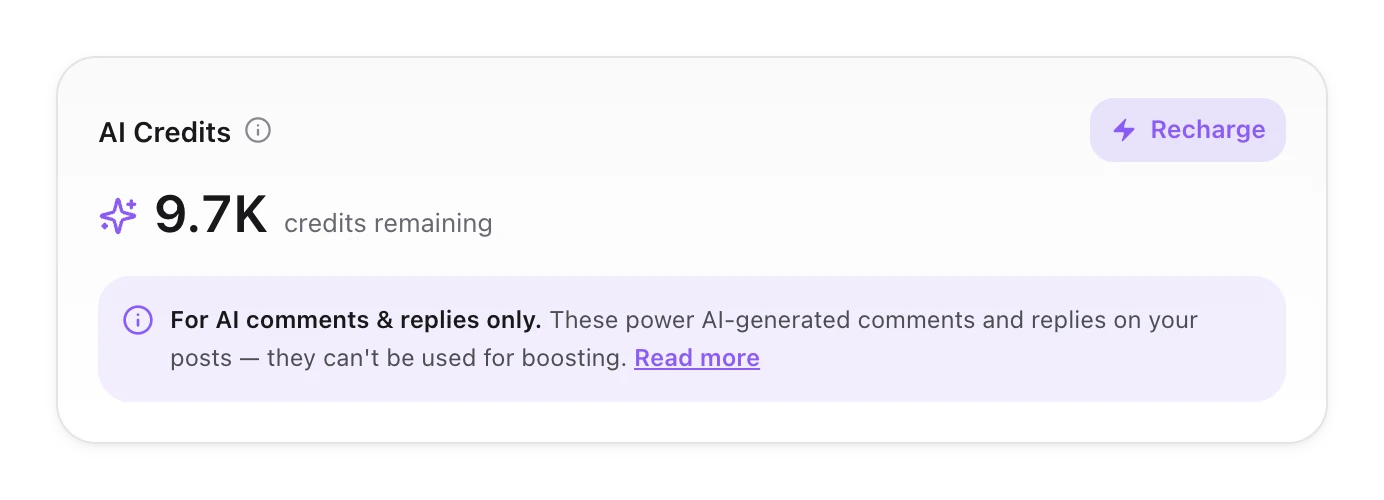
✓Credits are only for AI comments, replies and Always-On Threads. They are never used for boosting
✓Run low? Top up from Settings, under AI Credits
Example

What one boost actually uses

Say you are on Pro and boost today's post with AI comments and auto-replies switched on.

✓1 of your 30 monthly boosts, and your 1 boost for the day
✓Up to 3 channels, so up to 150 members who can engage
✓1 AI credit, because AI wrote the comments and replies
The AI Credits card showing credits remaining and a note that they are for AI comments and replies only
Plans

Pick a plan by how often you post

Plans are priced by how many posts you boost, not by how many profiles you connect. Start free and move up when you post more.

Swipe sideways to see every plan
Free$0/mo
Pro$39/mo
Growth$59/mo
Infinity$99/mo
Power$149/mo
Enterprise$499/mo
Boosts per day
1
1
2
3
4
10
Boosts per month
3
30
60
90
120
300
Channels per boost
1
3
4
5
6
8
One-time AI credits
5
10
20
30
40
50
AI comment generator
✓
✓
✓
✓
✓
✓
AI replies and Always-On Threads
–
–
✓
✓
✓
✓
Several LinkedIn profiles
–
✓
✓
✓
✓
✓
Cross-posting
–
–
–
✓
✓
✓
Engagement presets
–
–
–
3
Unlimited
Unlimited
Prices are per month in USD. Pay every 6 months and save 10%, or yearly and save 20%.See the full plan comparison
Questions new members ask

Before you start

Are the likes and comments from real people?+

Yes. Every like and comment comes from one of 5,000+ real professionals, such as founders, marketers and engineers, with real careers and real networks. No bots and no fake accounts.

Do I stay in control of my LinkedIn account?+

Completely. HyperClapper connects through a Chrome extension, and you choose every post, every channel and every engagement volume. Nothing happens without you launching it.

Can I set it up on my phone?+

You need Chrome on a laptop or desktop to connect your profile, because browser extensions do not run on phones or tablets.

What do I get on the Free plan?+

The Free plan gives you 3 boosted posts a month with 1 channel per boost, the AI comment generator and 5 one-time AI credits. No credit card is required.

What does my profile do for other members?+

By default your profile gives real likes and comments to other members' posts. To stop your profile from commenting you need at least the Pro plan. To switch off both likes and comments you need the Infinity plan.

What happens when I run out of AI credits?+

You can still boost. Likes, comments you write yourself and predefined comments do not use credits. To use AI comments and replies again, top up from Settings under AI Credits.

Why was my post not accepted?+

Every post goes through Content Guard, which checks quality and relevance to keep HyperClapper professional. A post can be blocked if it has too many links or irrelevant content.

Can I boost a post that is a few hours old?+

Yes, but sooner is better. The first hour is the window LinkedIn uses to decide how far a post travels, so boost as close to posting as you can.

Ready to boost your first post?

Create a free account, add the extension and connect your LinkedIn. Your first boost is a few minutes away.

3 boosts a month on the Free plan · No credit card required