
Your LinkedIn URL vs public profile URL — these are not the same thing, and confusing them is the single most common LinkedIn branding mistake observed across professionals at every level. LinkedIn actually surfaces two distinct URLs for every account: a raw internal link (often containing a long string of numbers) and a clean, customizable LinkedIn vanity URL in the format linkedin.com/in/yourname. The public profile URL is the one that matters for resumes, email signatures, and searchability. This guide covers what each one is, how to find and customize yours, and — critically — what actually happens after you change it.
- Does LinkedIn Have Two Different URLs? (Yes — Here's What Each One Is)
- How to Find Your LinkedIn URL and Public Profile URL
- How to Customize Your LinkedIn Public Profile URL (And What Happens After You Change It)
- Which LinkedIn URL Should You Share? Resume, Email Signature, and Beyond
- Common Mistakes to Avoid With Your LinkedIn Vanity URL
- Frequently Asked Questions About LinkedIn URLs and Public Profile URLs
- LinkedIn generates two URLs per profile — only the public profile URL (the
/in/yournameversion) should ever be shared externally. - The internal URL with number strings is session-dependent and looks unprofessional on a resume or bio.
- You can customize your public profile URL once every 30 days — and your old URL does not permanently redirect after you change it.
- 46% of LinkedIn member support requests to the Identity Platform relate to vanity URL issues — this causes real confusion at scale.
- Always update every place you've shared your old URL immediately after changing it.
- First name + last name is the strongest naming convention for discoverability.
Does LinkedIn Have Two Different URLs? (Yes — Here's What Each One Is)
A pattern observed across professionals sharing their LinkedIn profiles is that most paste whichever URL they stumble across first — without realizing LinkedIn assigns two completely different links to every account. Understanding which is which takes about 30 seconds and avoids a lot of downstream confusion.
Your internal LinkedIn URL is the link LinkedIn auto-generates when you view your own profile while logged in. It often looks like https://www.linkedin.com/in/john-doe-3b4a29187 — with a trailing alphanumeric string. This URL is functional but messy. It's what LinkedIn creates by default before you've customized anything.
What Is a LinkedIn Public Profile URL?
A LinkedIn public profile URL is the clean, indexable link tied to your profile that anyone — logged in or not — can access. It follows the structure linkedin.com/in/yourname and is visible to search engines, recruiters, and anyone you send it to. This is the URL that shows up in Google search results when someone searches your name. Learn more about making your LinkedIn profile public for maximum networking.
What Is a LinkedIn Vanity URL?
A LinkedIn vanity URL is the customizable slug at the end of your public profile URL — the part you choose, like /in/janedoe or /in/johnsmithmarketing. It is your personal branding URL slug: a short, memorable identifier that replaces LinkedIn's auto-generated string of numbers. Vanity URL and public profile URL are often used interchangeably, though technically the vanity URL refers specifically to the editable slug portion.
According to a LinkedIn engineering post on vanity URL infrastructure, 46% of LinkedIn Identity Platform member support requests relate to vanity URL issues — deletions, conflicts, and broken links. This is not a minor edge case; it is one of the most common profile problems on the platform.
How to Find Your LinkedIn URL and Public Profile URL
Finding your correct public profile URL takes under a minute — but the steps differ slightly by device.
On desktop:

- Click Me in the top navigation bar.
- Select View Profile.
- Look at your browser's address bar — if it shows
linkedin.com/in/yournamewithout trailing numbers, that is your public profile URL. Copy it directly from there.
Where to Find LinkedIn URL on App Android

On Android, tap your profile photo in the top-left corner, then tap View Profile. Tap the three-dot menu (⋮) in the top right, then select Contact info. Your public profile URL appears under the LinkedIn section. Tap it to copy. For a full walkthrough, see this guide on how to find your LinkedIn profile URL.
How to Find LinkedIn URL on iPhone
On iPhone, the path is identical: tap your profile photo → View Profile → three-dot menu → Contact info. Your LinkedIn public profile URL is listed there. Tap and hold to copy it to your clipboard. This is also how to copy LinkedIn url on mobile regardless of whether you're on iOS or Android — the Contact info route is the most reliable on both platforms.
Can Anyone See My LinkedIn Public Profile URL?
Yes — your LinkedIn custom URL is publicly visible to anyone, including people who are not logged into LinkedIn. If your profile visibility is set to public, the URL is indexable by Google and other search engines. If you've restricted your profile to LinkedIn members only, the URL still exists but the page will prompt visitors to log in. You can view how your LinkedIn profile appears publicly to verify exactly what's visible.
How to Customize Your LinkedIn Public Profile URL (And What Happens After You Change It)
Customizing takes less than two minutes on desktop — but most guides stop at the "how" and skip what comes next, which is where real problems start.
Steps to customize your LinkedIn public profile URL:
- Go to your LinkedIn profile page.
- Click Edit public profile & URL in the top-right area of your profile.
- In the right panel, find Edit your custom URL and click the pencil icon.
- Type your preferred vanity URL name (3–100 characters, letters and numbers only).
- Click Save.
This is the gap that most guides ignore entirely. The custom profile link redirect behavior on LinkedIn is temporary and unreliable — unlike domain redirects on websites, LinkedIn's old slugs are recycled into the available pool. Treat your old URL as dead the moment you change it.
What to Do If Your Preferred LinkedIn Vanity URL Name Is Already Taken
Username availability conflict resolution on LinkedIn is straightforward once you know the options. Try these in order:
- Add your middle initial:
/in/johnmdoe - Add your professional title abbreviation:
/in/janedoecpa - Add your city or country code:
/in/janedoenyc - Use a hyphen between first and last name:
/in/jane-doe
Avoid adding random numbers (like birth years) — they read as an afterthought and undermine the professional branding effect the vanity URL is meant to create.
How to Change LinkedIn URL on Mobile
You can change your LinkedIn URL on mobile, but it's easier on desktop. On the LinkedIn app (iOS or Android), go to your profile → tap the pencil/edit icon → scroll to Contact info → tap the pencil next to your LinkedIn URL → edit the slug → save. The mobile interface is slightly less intuitive, so if you run into issues, switching to a desktop browser is the faster path. See this complete walkthrough on how to edit your LinkedIn URL for a clean, custom link.
Which LinkedIn URL Should You Share? Resume, Email Signature, and Beyond
Always share your LinkedIn public profile URL — the clean /in/yourname version. Never paste the internal numbered URL anywhere public. Here's how to format it across common use cases:
- Resume: Place it in your header next to phone and email. Drop the
https://www.prefix for space — write it aslinkedin.com/in/yourname. Keep it as a live hyperlink in the PDF version. - Email signature: Hyperlink the word "LinkedIn" or your name to the URL — cleaner than displaying the raw link.
- Job application PDFs: Confirm the URL is a clickable hyperlink, not plain text. Many recruiters click directly from the document.
- Portfolio or personal website: Link it as a social icon or inline text. This is also a strong signal for LinkedIn profile discoverability via Google.
The LinkedIn profile link for resume use case is where most people first notice they have the wrong URL — when a recruiter or peer mentions the link looks odd. Fix it before it reaches anyone's inbox.
Benefits of a Customized LinkedIn URL for Personal Branding
Teams that invest in professional online identity management — including a clean LinkedIn URL — consistently see stronger profile view-to-connection conversion. A customized URL signals digital fluency, makes your profile easier to find via Google search, and reinforces name recognition every time someone reads your resume or email. The difference between linkedin.com/in/sarahchen and linkedin.com/in/sarahchen-4b2a18193 is subtle but significant to anyone who looks closely.
✓ LinkedIn Vanity URL Checklist
- ☐Verify your current URL is the
/in/yournameformat (no number strings) - ☐Customize your vanity URL to FirstnameLastname or a clean professional variant
- ☐Update your resume header with the new URL immediately after changing it
- ☐Update your email signature, portfolio, and any published bios
- ☐Confirm your LinkedIn profile visibility is set to public so the URL is searchable
- ☐Test the URL in an incognito browser tab to confirm it loads correctly for non-logged-in viewers
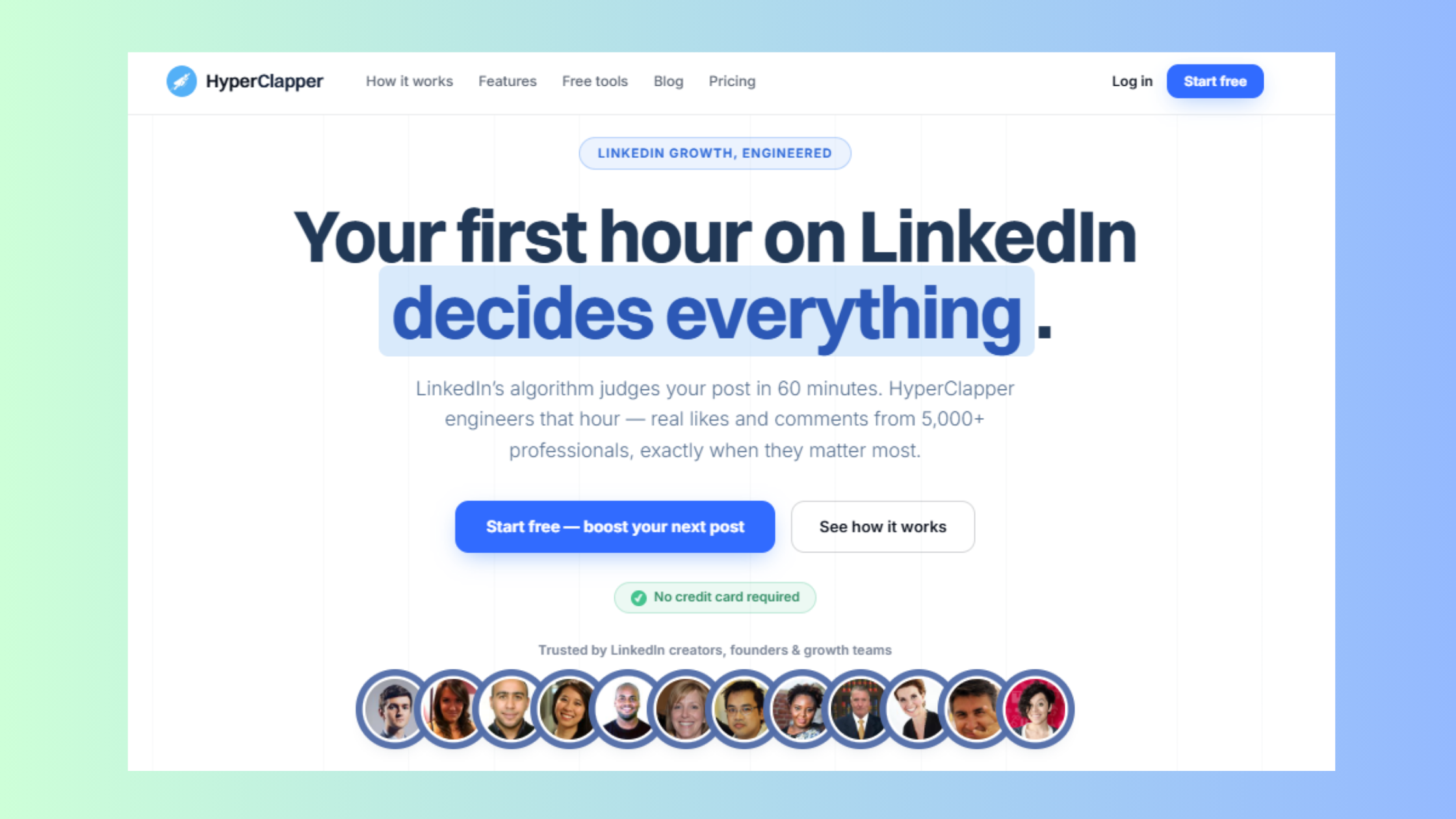
Once your URL is clean and consistent, the next lever for LinkedIn growth is your content visibility. Tools like HyperClapper help founders, marketers, and recruiters increase post reach through real community engagement — so the profile people land on after clicking your URL actually has active, visible content to back it up.
Common Mistakes to Avoid With Your LinkedIn Vanity URL

The most common failure mode is simply never customizing the URL at all — leaving a number-string link on a resume immediately signals to tech-savvy recruiters that the applicant hasn't engaged seriously with their LinkedIn presence. It's a small detail that carries outsized weight.
- Mistake #1 — Never customizing: The default auto-generated URL looks careless on any professional document. Takes 90 seconds to fix.
- Mistake #2 — Changing the URL without updating shared links: Broken profile links in circulated resumes and published bios are a silent credibility problem that's hard to detect and harder to repair.
- Mistake #3 — Making the URL role-specific: Slugs like
/in/JohnTheMarketercreate friction if you change industries. Stick to your name. - Mistake #4 — Inconsistent formatting across platforms: Listing the URL differently on your resume versus your portfolio creates confusion about which profile is current.
What consistently separates professionals with strong LinkedIn discoverability from those with flat profile views is not the quality of their content alone — it is the combination of a clean, searchable URL, a public profile, and content that earns engagement when people arrive. You can also customize and share your LinkedIn URL effectively with a few additional steps beyond the basics covered here.
Frequently Asked Questions About LinkedIn URLs and Public Profile URLs
What is the difference between a LinkedIn URL and a LinkedIn public profile URL?
Your LinkedIn URL can refer to either the auto-generated internal link (often containing a number string) or your customized public profile URL. The LinkedIn public profile URL is the clean linkedin.com/in/yourname version — shareable, indexed by Google, and visible to anyone. Always use this version externally. The internal URL is session-based and not suitable for sharing.
Why does my LinkedIn profile show two different URLs?
LinkedIn generates an automatic URL when your account is created, then lets you replace the random slug with a custom vanity URL. If you haven't customized yours yet, your profile still carries the original numbered URL. Once customized, both technically point to your profile — but only the /in/yourname version should ever be shared publicly.
Should I put my LinkedIn URL or public profile URL on my resume?
Put your public profile URL — the linkedin.com/in/yourname version — on your resume. Never use the numbered internal URL. Format it without the https://www. prefix to keep it clean, and make sure it's a clickable hyperlink in any PDF version you submit. This is the LinkedIn profile link for resume standard that recruiters expect.
How do I find and customize my LinkedIn public profile URL?
On desktop: go to your profile → click Edit public profile & URL (top right) → click the pencil icon under Edit your custom URL → type your preferred slug → save. On mobile, go to your profile → three-dot menu → Contact info to find it, and use the desktop flow to edit it for best results. Full steps are in this guide on how to customize and share your LinkedIn URL.
What is a vanity URL on LinkedIn?
A LinkedIn vanity URL is the customizable portion of your public profile URL — the slug after linkedin.com/in/ that you choose yourself, like /in/janedoe. It replaces LinkedIn's auto-generated alphanumeric string, making your profile easier to find, share, and remember. You can change it once every 30 days.
What should I name my LinkedIn URL?
Use FirstnameLastname as your first choice — it's the strongest option for searchability and professional branding. If that's taken, try adding a middle initial, a credential abbreviation (CPA, MBA), or your city. Avoid role-specific labels like /in/SarahTheDesigner — they date poorly if your career evolves. Keep it as close to your real name as possible.
What are some good LinkedIn URL examples?
Strong linkedin url examples follow a predictable pattern: linkedin.com/in/sarahchen, linkedin.com/in/markjohnsonengineer, linkedin.com/in/amyjohnson-nyc, or linkedin.com/in/davidleecpa. The cleanest are simply first name + last name with no separators. Avoid numbers, underscores, or anything that looks like a generated string.



