Learn how to find and remove LinkedIn connected apps from your account settings. Revoke third-party app permissions, protect your data, and audit in minutes.
📅 ⏱ 11 min read📝 ~2100 words
LinkedIn connected apps are third-party tools and services granted OAuth-based access to your LinkedIn account — think CRMs, job boards, scheduling platforms, and engagement tools that use your LinkedIn login. A pattern consistently observed across professional accounts is that most people grant access once during a trial or onboarding and never look back. Over months or years, that list quietly grows. Each forgotten authorization is a live door into your profile data, and periodic audits are the only way to close doors you no longer need open.
Key Takeaways
Who this is for: Any LinkedIn user who has ever signed in to a third-party tool using their LinkedIn account.
What you'll learn: Exactly where to find LinkedIn connected apps settings and how to remove them in under two minutes.
Why it matters: Connected apps can read your profile, connections, and email — and some can post on your behalf.
Counterintuitive finding: Removing an app from LinkedIn does NOT delete the data the app already collected — you must contact the provider separately.
Best practice: Run a connected apps audit every 90 days, or any time you notice unfamiliar login activity.
What Are Connected Apps on LinkedIn (and Why They Matter in 2026)
LinkedIn connected apps are services that you have explicitly authorised — usually by clicking "Sign in with LinkedIn" or "Allow access" — to interact with your account through the LinkedIn API. The LinkedIn API is LinkedIn's official programming interface that lets approved third-party tools read or write account data on your behalf. That authorisation is handled via OAuth, a token-based permission system that lets an app act on your behalf without storing your password.
Common examples include:
CRM platforms (HubSpot, Salesforce) that sync your LinkedIn connections
Job boards and applicant tracking systems that use your LinkedIn profile to auto-fill applications
Content scheduling tools (Buffer, Hootsuite) with posting rights
Recruitment software that accesses candidate connection data
Engagement platforms that require LinkedIn login to function
Depending on the permissions you approved, a connected app can typically access:
Your public profile (name, headline, photo, work history)
Your primary email address
Your first-degree connections list
Your account activity and engagement data
In some cases, the right to post, comment, or message on your behalf
Periodic social media app authorization audits matter because LinkedIn account data privacy erodes silently. According to SuperGrow (2026), more than one million LinkedIn members had connected at least one third-party app. That scale means the risk pool is real — and forgotten authorisations accumulate over time.
⚠️
Warning:Apps with posting permissions can publish content on your behalf if their systems are compromised. A single breached scheduling tool can damage your professional reputation before you notice anything is wrong.
Can Third-Party Apps Access Your LinkedIn Data Without You Knowing?
Not without an initial authorisation you clicked — but that one click can grant surprisingly broad access. The question can third-party apps access my LinkedIn data has a nuanced answer: yes, within the scope you approved, and for as long as that OAuth token remains active. If you approved an app two years ago and never revoked it, it may still be pulling your profile data today, even if you stopped using the product entirely.
Knowing where to look is the first step. The good news: LinkedIn gives you full visibility and control from one settings page.
Where to Find LinkedIn Connected Apps Settings (Step-by-Step)
Finding LinkedIn connected apps settings takes under 60 seconds on desktop. Here is the exact path:
Click the Me icon (your profile photo) in the top navigation bar.
Select Settings & Privacy from the dropdown.
In the left sidebar, click Data Privacy.
Data Privacy LinkedIn
Scroll to Other applications and click Permitted services.
Permitted Services LinkedIn
Your full list of connected apps LinkedIn has authorised appears here — including app name, permission scope, and the date access was granted.
On mobile (iOS or Android):
Tap your profile photo → Settings.
Tap Data Privacy.
Tap Other applications, then Permitted services.
💡
Pro Tip:Screenshot your Permitted Services list before making any changes. It gives you a clear record of what was connected — useful if you need to re-authorise a tool you use regularly, or if you want to track your audit history over time.
How to View Third-Party App Access on LinkedIn
To view third-party app access LinkedIn grants, the Permitted Services page is your single source of truth. Each entry shows the app's name, the specific permissions it holds (read-only vs. write access), and when you first authorised it. If you see an app you do not recognise, do not dismiss it — scroll down to understand what that unknown connection means before deciding whether to remove it.
Once you know what is there, removing what you do not need is straightforward.
How to Remove Connected Apps and Revoke App Permissions on LinkedIn
To revoke app permissions LinkedIn has listed under Permitted Services, follow these steps:
Navigate to Settings & Privacy → Data Privacy → Permitted services (path above).
Find the app you want to remove.
Click Remove next to its name.
Confirm the removal when prompted.
That action triggers OAuth token revocation — meaning LinkedIn invalidates the access token the app was using. The app can no longer authenticate with LinkedIn on your behalf, pull new profile data, or post content. In effect, you have disconnected the app from your LinkedIn account.
Does Removing a LinkedIn App Revoke Its Data Access Completely?
This is the most important nuance — and the one most guides skip. What happens when you remove an app from LinkedIn is that LinkedIn revokes the token going forward. But it does not reach into the third-party provider's database and delete the data it already collected.
In practice, this means:
Future data pulls are blocked immediately.
Data already stored by the app remains in their system until you separately request deletion under applicable data protection rights (GDPR, CCPA, etc.).
Removing an app from LinkedIn does not uninstall it from your phone or delete your account with that service.
Revoking LinkedIn access is the lock — but it does not empty the room. Contact the app provider directly if you want historical data removed from their servers.
🔴
Avoid:Assuming that removing an app from LinkedIn fully ends that relationship. If a tool held your email address or connection data, that information stays in their system. Always follow up with a deletion request if data privacy is your concern.
If you are evaluating which LinkedIn tools are worth authorising in the first place, tools like HyperClapper are built around safer engagement practices — real community interaction rather than aggressive data scraping — which matters when you are deciding how much access to grant any platform.
Risks of Leaving Unknown or Unused Apps Connected to Your LinkedIn
Risks of Leaving Unknown or Unused Apps Connected to Your LinkedIn
Dormant LinkedIn connected apps are a silent security risk. The most common failure mode is not an aggressive attack — it is a forgotten free trial from 18 months ago whose provider suffers a data breach. Your LinkedIn data inside their system is then exposed, even though you stopped using the product long ago.
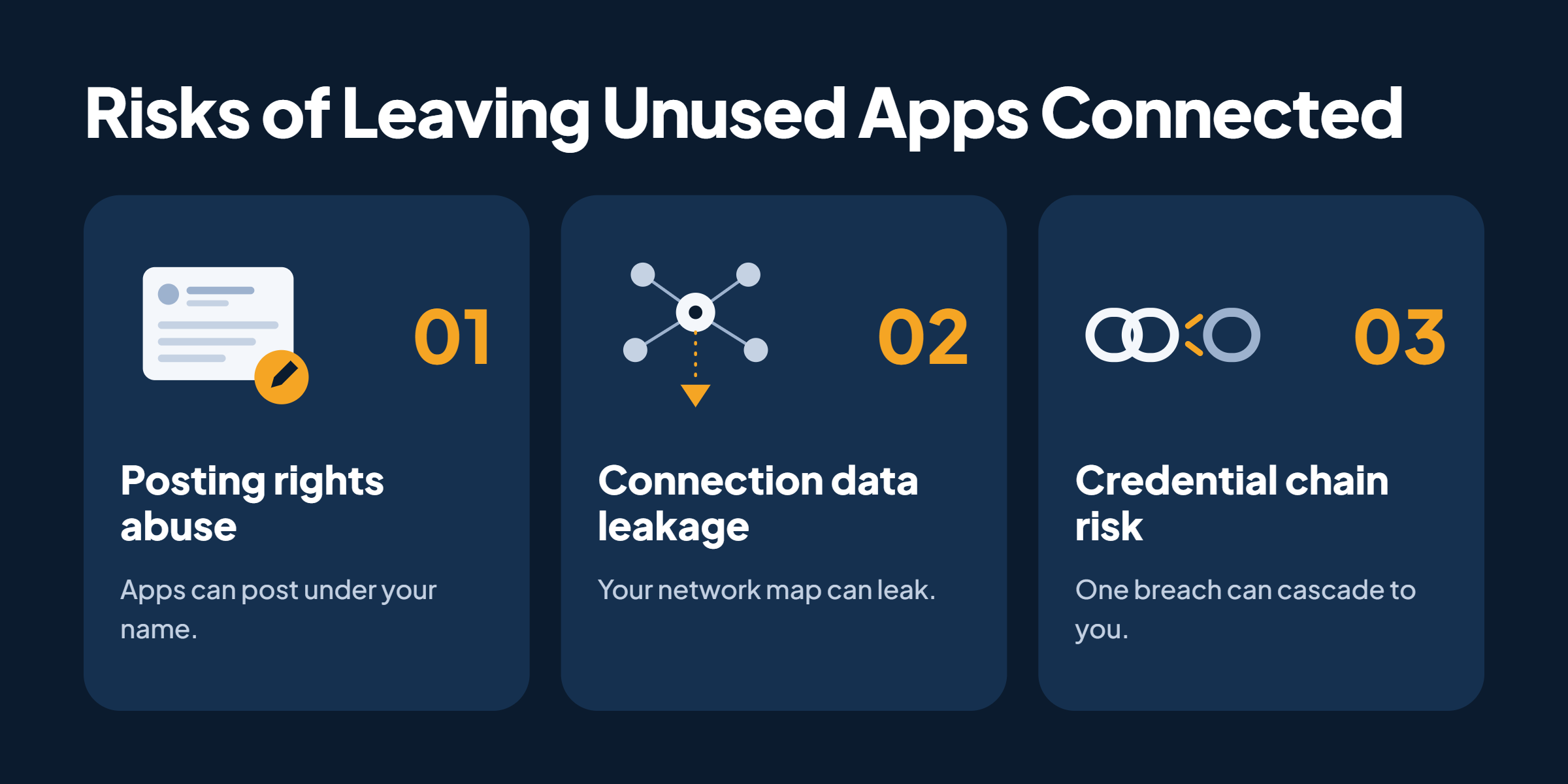
Three specific risks stand out:
Posting rights abuse: Apps with write permissions can publish posts or comments on your behalf if their infrastructure is compromised. The professional damage from a rogue post under your name can be significant.
Connection data leakage: Some apps request access to your first-degree network. That data — essentially your professional relationship map — is valuable and sensitive.
Credential chain risk: If you used LinkedIn login (OAuth) as the sign-in method for another service, that service's breach can cascade into broader account exposure.
Why an unknown app might appear in your Permitted Services list:
A former employer's SSO (single sign-on) system still holding an active token
A free tool trial you signed up for and forgot
A browser extension that requested LinkedIn login to function
A recruitment platform a recruiter invited you to — and you clicked through without reading the permissions
Common Mistakes When Managing LinkedIn App Permissions
Teams that skip regular permission audits consistently see unnecessary exposure accumulate. The most common mistake is reactive management — only checking LinkedIn account privacy settings apps after noticing suspicious login activity, rather than auditing proactively. By then, an app may have held active access for years.
The fix is simple: set a 90-day calendar reminder to visit Permitted Services and remove anything you no longer actively use. It takes under five minutes.
✓ LinkedIn Connected Apps Audit Checklist
☐Navigate to Settings & Privacy → Data Privacy → Permitted services
☐Screenshot the full list before making changes
☐Identify any apps you no longer actively use
☐Identify any apps you do not recognise — research them before deciding
☐Remove all unused or unknown apps using the Remove button
☐Contact removed app providers separately to request data deletion if needed
☐Schedule the next audit in 90 days
For more on how LinkedIn's privacy model affects what others can see about you, the LinkedIn activity privacy settings guide covers related visibility controls in depth. And if you are thinking about how your LinkedIn sign-in security works more broadly, that guide walks through safe access practices alongside connected app management.
Want to grow on LinkedIn without the security trade-offs?
HyperClapper boosts your LinkedIn posts through real community engagement — no scrapers, no aggressive automation, no unnecessary data access.
Frequently Asked Questions About LinkedIn Connected Apps
How do I see all the apps connected to my LinkedIn account?
Go to Settings & Privacy → Data Privacy → Other applications → Permitted services. This page lists every app currently authorised to access your LinkedIn account, including the permissions granted and the date of authorisation. It is available on both desktop and the LinkedIn mobile app.
Is it safe to leave third-party apps connected to LinkedIn?
It is lower risk for apps you actively use and trust, but leaving dormant or unknown apps connected creates unnecessary exposure. If a connected provider suffers a breach, your LinkedIn data stored in their system is at risk. Active, reputable apps with minimal permissions are generally fine; unused ones should be removed.
What data can a connected app access on my LinkedIn profile?
It depends on the permissions you approved. At minimum, most apps access your public profile and email. Apps with broader permissions can also access your connections list, activity data, and — if you granted write access — the ability to post or message on your behalf. The Permitted Services page shows each app's specific scope.
How do I stop an app from using my LinkedIn login?
Navigate to Settings & Privacy → Data Privacy → Permitted services, find the app, and click Remove. This revokes the app's OAuth token immediately — it can no longer authenticate with LinkedIn or pull new data. For full data removal, also contact the app provider to request deletion of any stored information.
Will LinkedIn notify me if an app accesses my account without permission?
LinkedIn does not send real-time alerts for connected app activity. However, LinkedIn does send security notifications for unusual login events (new device, new location). For app-level access, your only visibility is the Permitted Services page — which is why proactive audits matter more than waiting for a notification.
Why is an unknown app connected to my LinkedIn account?
The most common reasons are a forgotten free trial, a former employer's SSO system, a browser extension that requested LinkedIn access, or a recruitment platform you signed into once. Check the authorisation date — it usually reveals the source. If you cannot identify it, remove it immediately and monitor your account for unusual activity.
Does removing a LinkedIn app revoke its data access completely?
Removing an app revokes its ability to access LinkedIn going forward — but it does not delete data the app already collected. That historical data remains in the provider's own systems. To have it deleted, submit a data deletion request directly to the app provider, citing your rights under GDPR, CCPA, or applicable local law.
What consistently separates accounts with strong privacy hygiene from those with lingering exposure is not any single action — it is the habit of treating app permissions as an ongoing responsibility, not a one-time setup. Accounts that audit every quarter rarely face surprises; accounts that never audit are almost always carrying more access than they realise.
👋
⚡ Free plan
Leaving already?
Grab 3 free boosts on your next LinkedIn post — real likes & comments from 5,000+ creators. No card, cancel anytime.