
A custom LinkedIn URL — also called a vanity URL — replaces the random string LinkedIn assigns by default (think linkedin.com/in/john-smith-3b4c2a) with something clean and professional like linkedin.com/in/johnsmith. A pattern observed across high-performing LinkedIn profiles is that a clear, name-based URL is one of the smallest changes that delivers outsized results: it looks sharper on a resume, performs better in Google search, and reinforces personal branding consistency across every platform where you show up. This guide covers how to customize your LinkedIn URL, what to do when your preferred name is already taken, and what actually happens to your old link once you change it.
- Who this is for: anyone on LinkedIn — job seekers, founders, recruiters, creators — who wants a cleaner, more professional profile link.
- What you'll learn: exactly where to find the URL setting on desktop and mobile, and how to change it in under two minutes.
- Naming strategy: when your preferred name is taken, practical fallback formulas (FirstLastCity, FirstLastInitial) that still look professional.
- Critical fact most guides miss: LinkedIn does not redirect your old URL — anyone with your previous link hits a dead end.
- SEO impact: a keyword-rich custom URL contributes to both LinkedIn's internal search and Google indexing of your profile.
- Limit: you can change your LinkedIn URL up to 5 times every 6 months — plan before you switch.
- What Is a LinkedIn Vanity URL (and Why It Matters in 2026)
- How to Customize Your LinkedIn Profile URL (Desktop & Mobile)
- LinkedIn Vanity URL Best Practices & Naming Strategy for Taken Names
- LinkedIn URL for SEO, Resumes & Profile Discoverability
- Best LinkedIn Profile Optimization Tools to Pair With Your Custom URL
- Frequently Asked Questions About LinkedIn Custom URLs
What Is a LinkedIn Vanity URL (and Why It Matters in 2026)
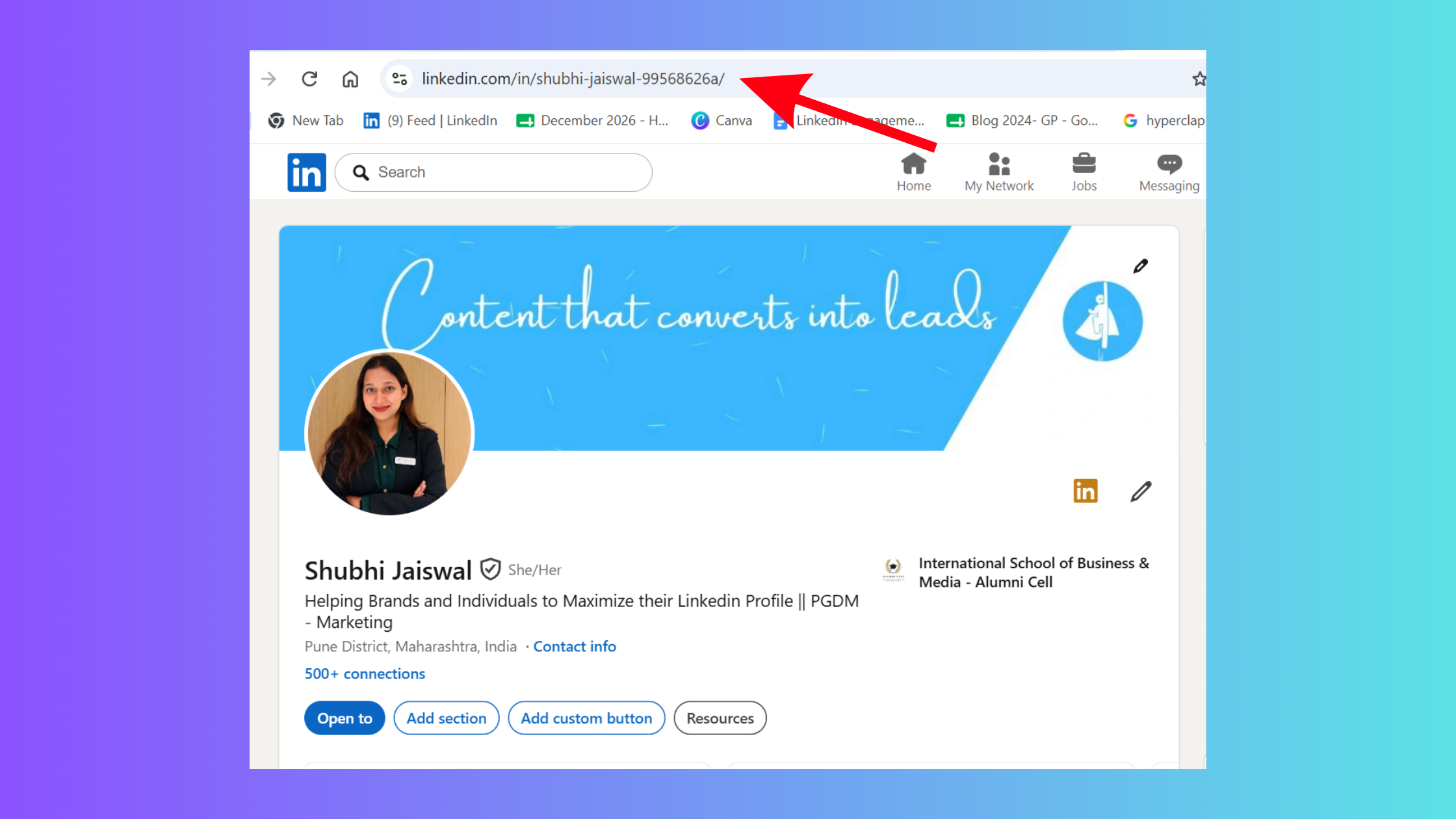
A LinkedIn vanity URL is the customizable slug at the end of your public profile link — the part after linkedin.com/in/. By default, LinkedIn auto-generates a string that mixes your name with random numbers and letters. A vanity URL replaces that with whatever you choose, most commonly your full name.
The difference matters more than it looks. Paste a default LinkedIn URL into an email signature or a resume header and it signals carelessness — especially when a clean, name-based link takes under two minutes to set up. According to icypeas, LinkedIn Top Voice profiles are roughly 3x more likely to have a customized URL than average profiles. That correlation isn't coincidental — professionals who invest in their presence tend to get the small details right.
According to Sprout Social (2026), LinkedIn now has 1.3 billion members and sees 1.4 billion monthly visits. In that crowd, LinkedIn profile discoverability depends on every signal you control — and your URL is one of them.
LinkedIn Custom URL vs. Default URL: What Changes and What Doesn't
Changing your URL updates your public profile link — the one anyone can access without being logged in. It does not change your LinkedIn profile content, your connections, your notifications, or your privacy settings. One important rule: no two people can hold the same LinkedIn URL simultaneously. If linkedin.com/in/janesmith is already claimed, you'll need to choose a variation. LinkedIn enforces uniqueness across all 1.3 billion accounts — first come, first served.
Understanding what a vanity URL is is the easy part. The step most people get stuck on is actually finding the setting to change it — which is exactly what the next section covers.
How to Customize Your LinkedIn Profile URL (Desktop & Mobile)
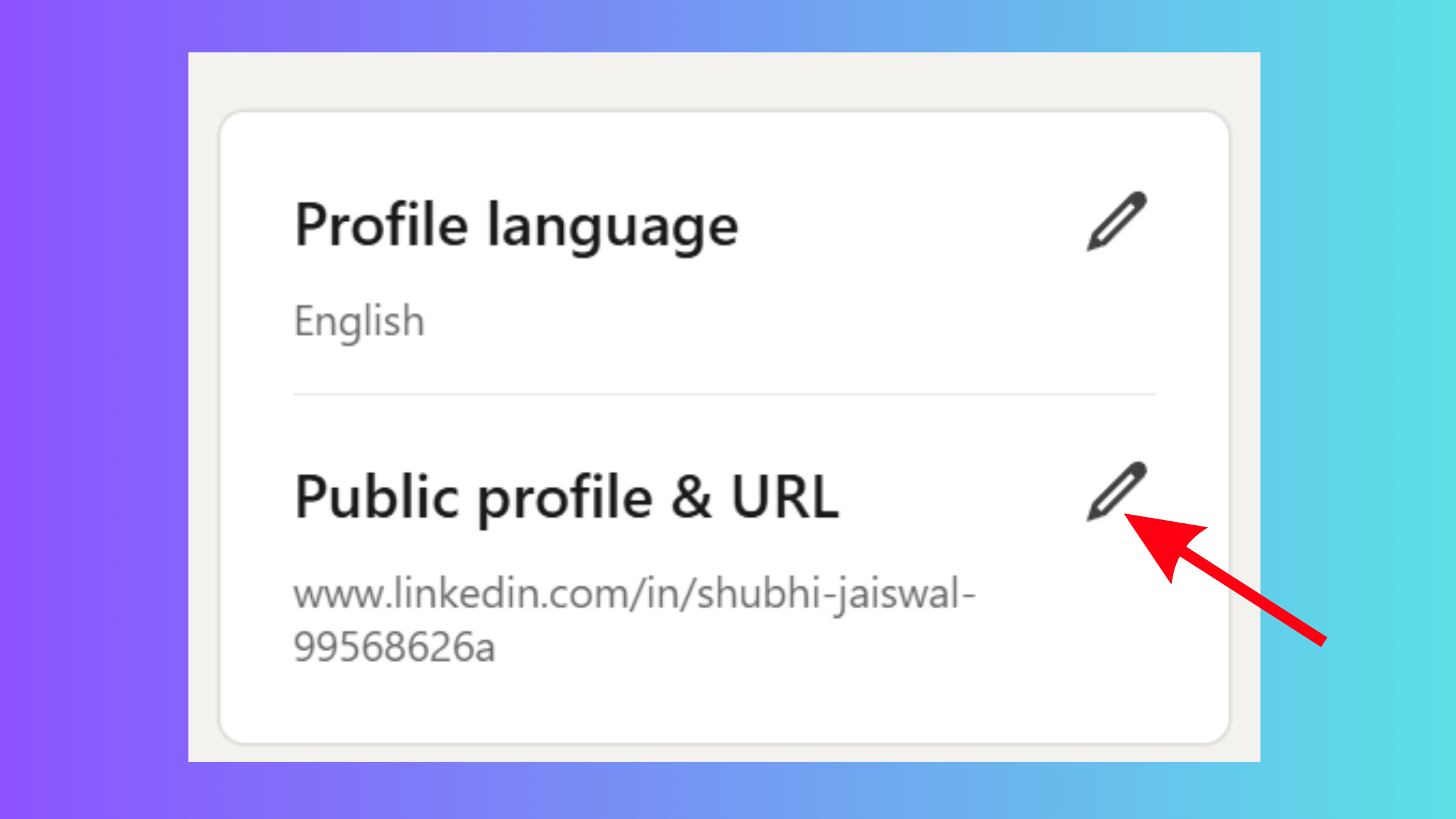
The most common frustration — confirmed repeatedly across Reddit threads and LinkedIn help forums — is that users know they want a custom URL but can't locate the setting. Here's the exact path on every platform.
How to Find Your LinkedIn Profile URL
Before customizing, you need to find your LinkedIn profile URL. On desktop, click your profile photo in the top navigation, then click View Profile. Your current URL appears in the browser address bar. On mobile, tap your profile photo → View Profile → tap the three dots (⋯) at the top right → Share profile — your URL is shown here. That's the fastest way to find your LinkedIn URL on any device.
To customize it on desktop:
- Go to your LinkedIn profile page.
- Click Edit public profile & URL (top right of the profile page, or in the right panel).
- Under "Edit your custom URL," click the pencil icon next to your current URL.
- Type your chosen slug (letters and numbers only, 3–100 characters).
- Click Save.
The whole process takes under 90 seconds once you know where to look.
How to Change LinkedIn URL on Mobile
Learning how to change LinkedIn URL on mobile is slightly different depending on whether you're on the app or a mobile browser. For how to find LinkedIn URL on iPhone (or Android) and edit it:
LinkedIn app (iOS & Android):
- Tap your profile photo → View Profile.
- Tap the Edit pencil on your profile header, then scroll down to find Edit public profile & URL — or tap the three dots (⋯) → Edit public profile.
- Tap the pencil next to your current URL slug.
- Type your new URL and save.
For where to find LinkedIn URL on app Android specifically: the navigation path is identical to iOS. If you can't find the edit option in the app, switch to LinkedIn in your mobile browser — the desktop layout renders cleanly and the setting is easier to find.
What Happens to Your Old LinkedIn URL When You Change It
LinkedIn does not automatically redirect your old URL to your new one. This is the detail almost every guide skips — and it matters. If you've already shared your profile link on a resume, in a bio, or in email signatures, those links will break the moment you switch. Anyone clicking your old URL will land on a "Profile not found" page. Before changing your URL, audit everywhere you've shared it and update those links promptly. Treat it the same way you'd treat a broken backlink risk on a website — the old link has zero value the instant you abandon it.
You can change your LinkedIn URL up to 5 times within any 6-month rolling window. Hitting that limit locks you out of further changes for the remainder of the period — so choose deliberately, not experimentally.
LinkedIn Vanity URL Best Practices & Naming Strategy for Taken Names
Teams that advise on personal branding consistently find the same issue: most users know to use their name, but freeze when that name is already taken. Here's how to handle it.
When your preferred name is available: use FirstLastName — simple, professional, and portable across your whole career.
When your preferred URL is taken, try these formulas in order:
FirstMiddleLast— e.g.,johnmichaelsmithFirstLastInitial— e.g.,johnsmithjFirstLastCity— e.g.,johnsmithnycFirstLastProfession— e.g.,johnsmithdesigner
Avoid job titles as your primary URL. Roles change — your title today may be obsolete in three years. Your name is permanent. A URL like linkedin.com/in/headsofmarketing2024 ages badly and signals poor foresight to anyone who notices. These are real custom LinkedIn URL examples of what to do — and what to avoid.
Common LinkedIn URL Mistakes to Avoid
- Using special characters (only letters, numbers, and hyphens are allowed)
- Choosing a URL longer than 25 characters — it wraps awkwardly in resume headers
- Picking a nickname that doesn't match your legal or professional name — creates confusion when people search for you
- Changing your URL repeatedly without updating linked profiles first
Personal branding consistency is the principle at work here: if your LinkedIn slug is johnsmith, aim for the same handle on X/Twitter, your personal site, and your email signature. When all three match, your identity is immediately recognizable and searchable across platforms.
LinkedIn URL for SEO, Resumes & Profile Discoverability
A custom URL contributes to LinkedIn URL for SEO in two distinct ways. Inside LinkedIn's own search, your URL slug is part of your public profile's metadata — a name-based slug reinforces the keyword signals that help your profile surface when someone searches for your name or profession. On Google, your LinkedIn public profile is an indexed page, and a clean URL with your name in it performs better than a string of random characters in Google's ranking signals.
The profiles that rank on Google's first page for "[Name] LinkedIn" are almost always those with a clean, name-based custom URL — the URL itself is one of the clearest on-page signals Google reads.
That said, your URL only drives SEO value if your public profile visibility settings are turned on. To confirm: go to Edit public profile & URL → make sure "Your profile's public visibility" is toggled On. A hidden profile with a perfect URL still ranks nowhere.
LinkedIn URL on Resume
Adding your LinkedIn URL on resume is standard practice in 2026. A few formatting rules that make it look polished:
- Place it in your resume header alongside your phone number and email
- Use hyperlinked text in digital versions: anchor it to your name or the word "LinkedIn" — not the raw URL
- For printed resumes, include the full URL but strip the
https://www.prefix: just writelinkedin.com/in/yourname— cleaner and shorter - Keep the slug short enough that the URL fits on one line — this is why a concise custom URL matters for print
For more detail on how to share your LinkedIn profile link across different contexts, the same principles apply whether you're dropping it into a bio, a Calendly page, or a cold email.
How to Share Your LinkedIn Profile Link Without Looking Spammy
The most natural placements for your LinkedIn link are email signatures, "About" sections on other platforms, and your resume header. In direct messages or networking emails, contextualise it briefly: "Here's my LinkedIn if it's useful" beats a bare URL. Creators who paste their LinkedIn URL into every comment or reply quickly see engagement drop — it reads as self-promotional rather than relational. Let the link work passively through your signature and bio; use it actively only when someone has explicitly asked for it or when context genuinely warrants it.
Get More Eyes on Your LinkedIn Profile
A clean URL gets people to your profile — real engagement keeps them there and signals LinkedIn's algorithm to surface you more.
Try HyperClapper FreeBest LinkedIn Profile Optimization Tools to Pair With Your Custom URL
What separates top performers on LinkedIn from everyone else who has a clean URL and a complete profile is what happens after someone lands on their page. A polished URL gets people there. Consistent post engagement keeps them there — and signals LinkedIn's algorithm to surface your profile more often in search and feeds.
How HyperClapper Complements Your LinkedIn Profile Strategy
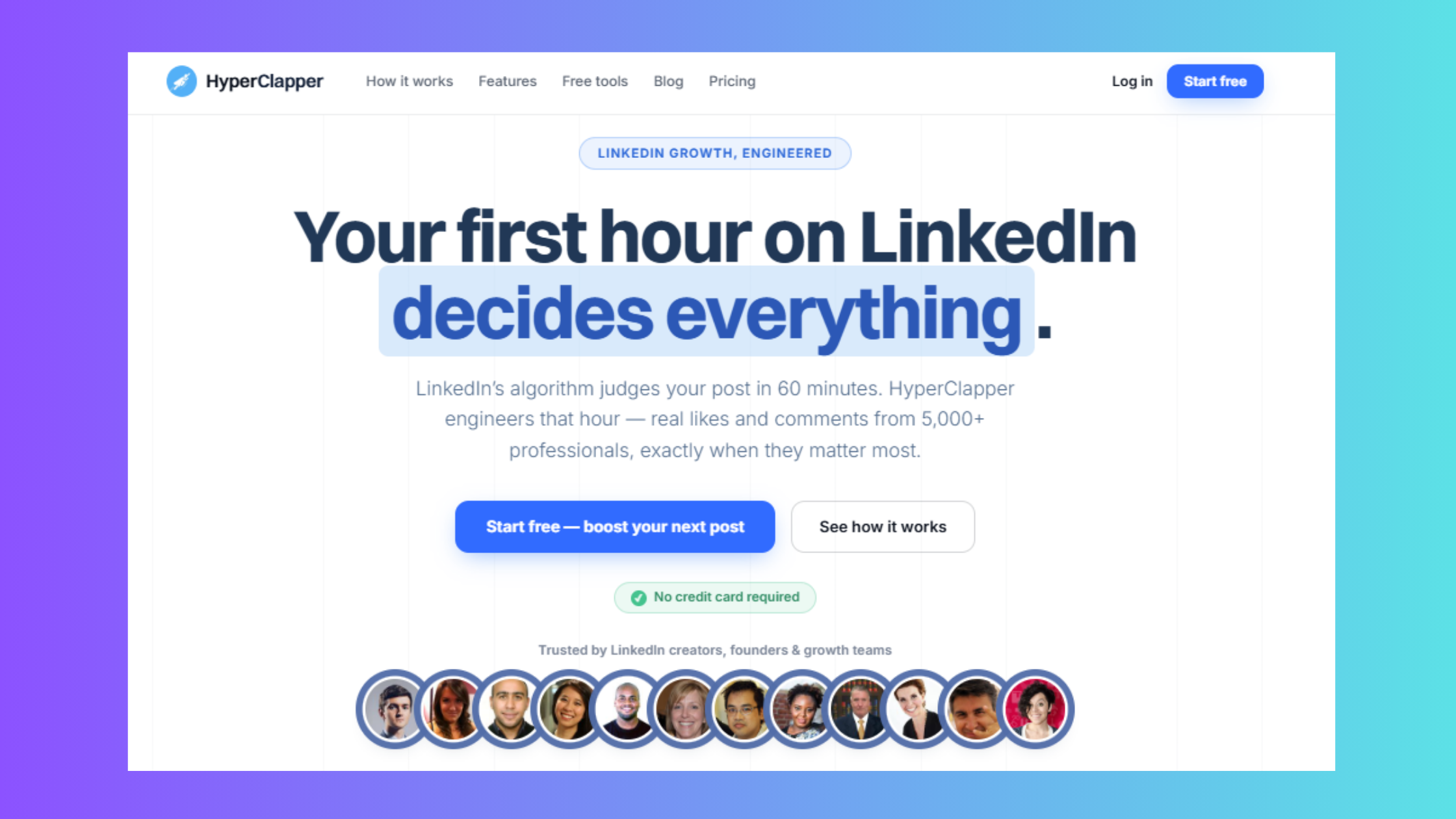
Among the best LinkedIn profile optimization tools built for exactly this purpose, HyperClapper connects your posts with real engagement groups called channels — communities of professionals who like and comment on each other's content. Unlike bot-driven engagement tools, every interaction on HyperClapper comes from a real account. The platform also generates AI-powered replies that keep conversations active for days after a post goes live, since LinkedIn's algorithm rewards depth of discussion over raw like counts.
Compared to alternatives like Lempod and Podawaa, HyperClapper adds two differentiators worth noting: a Content Guard moderation layer that screens posts for sensitive or risky topics before they go out, and company page boosting that extends the same engagement model to brand accounts. For founders, recruiters, and marketers who want stronger LinkedIn profile discoverability without aggressive automation, it's a meaningful difference.
The compounding effect is straightforward: a clean custom URL drives Google and LinkedIn search traffic to your profile; strong post engagement signals to LinkedIn that your profile is active and worth surfacing; more visibility means more profile views, connection requests, and inbound opportunities. Each element reinforces the others.
✓ LinkedIn Profile Optimization Checklist
- ☐Set a custom URL using your real name (or best available variation)
- ☐Confirm your public profile visibility is turned ON
- ☐Update your resume header, email signature, and all bios with the new URL
- ☐Match your LinkedIn slug to your handle on other professional platforms
- ☐Post consistently (3x/week minimum) so the algorithm surfaces your profile
- ☐Use an engagement platform like HyperClapper to build early post momentum
For a deeper walkthrough of everything that goes into making a profile visible, see this guide on optimizing your LinkedIn profile for maximum visibility.
Frequently Asked Questions About LinkedIn Custom URLs
Can I customize my LinkedIn URL?
Yes — every LinkedIn member can set a custom URL. Go to your profile → Edit public profile & URL → click the pencil next to your current URL → type your preferred slug → save. It's free, takes under two minutes, and is available to all account types including free accounts.
How do I create a custom LinkedIn URL that looks professional?
Use your full name in lowercase with no numbers, hyphens, or special characters where possible — e.g., linkedin.com/in/janesmith. If that's taken, try FirstMiddleLast or FirstLastCity. Keep it under 25 characters so it fits cleanly on a resume header without wrapping.
What should my LinkedIn URL include — my name or job title?
Use your name, not your job title. Roles change — your name doesn't. A URL built around a job title like cmoattech becomes misleading the moment you change positions, whereas a name-based URL stays professional and portable for the entire arc of your career.
Does having a custom LinkedIn URL help with Google search results?
Yes, in two ways. A name-based URL is a cleaner keyword signal for Google when indexing your public profile page, improving your chances of ranking for "[Your Name] LinkedIn" searches. It also makes the link more clickable and recognizable when shared, indirectly increasing traffic to your profile.
How many times can you change your LinkedIn URL?
LinkedIn allows up to 5 URL changes within any rolling 6-month window. Once you hit that limit, you're locked out of further changes until the window resets. More importantly, each change breaks the previous URL permanently — there's no redirect — so change deliberately, not repeatedly.
How do I customize my LinkedIn URL on the mobile app?
Tap your profile photo → View Profile → tap the three dots (⋯) → Edit public profile. Tap the pencil next to your current URL slug, type your new custom URL, and save. If you can't locate the option in the app, open LinkedIn in your mobile browser — the setting is easier to find in the full layout.
How to customize LinkedIn URL on mobile app?
Open the LinkedIn app, go to your profile, tap the three-dot menu (⋯), and select Edit public profile. From there, tap the pencil icon next to your URL and enter your preferred custom slug. The process is the same on both iOS and Android devices.
Can two people have the same LinkedIn URL?
No. LinkedIn enforces unique URLs across all accounts — if someone already holds linkedin.com/in/yourname, you cannot claim the same slug. You'll need to use a variation. The URL is assigned on a first-come, first-served basis with no exceptions, regardless of account type or seniority.
What consistently separates LinkedIn profiles with real search visibility from those that stay invisible — despite complete, well-written content — is the combination of a clean custom URL, an active public profile setting, and consistent post engagement. Get all three right and the effects compound. Miss any one, and the others underdeliver regardless of how polished the rest of the profile looks.



