LinkedIn Post Date Extractor: See Exactly When a Post Went Live
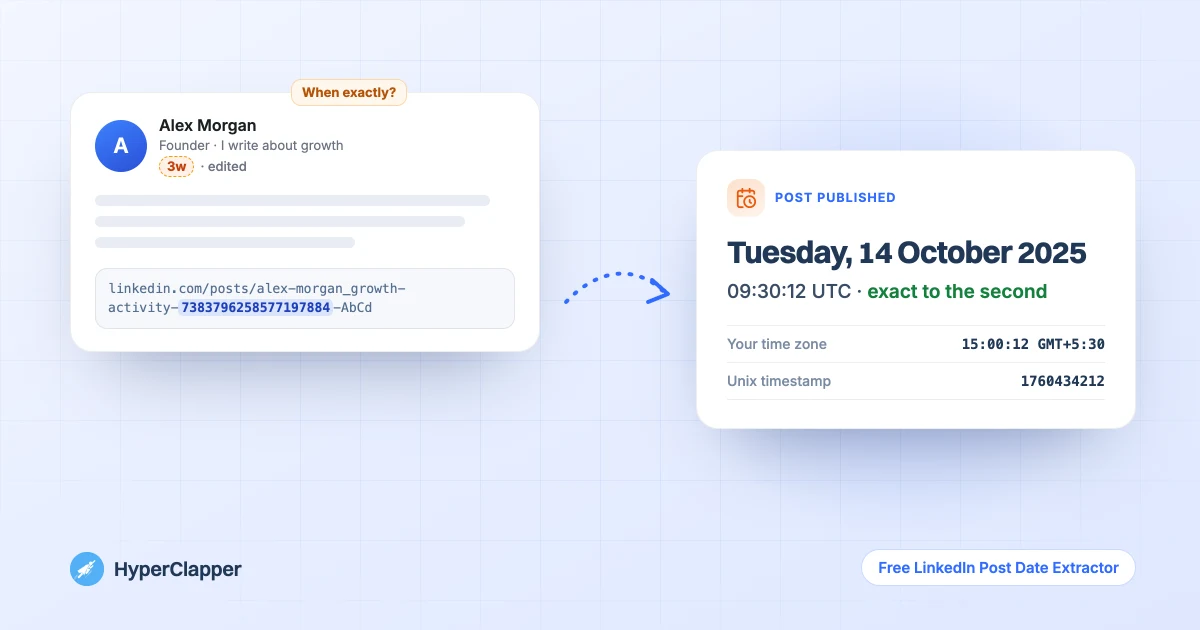
LinkedIn only tells you a post is "3w" or "1yr" old. Paste the link and get the exact date, time and time zone it was published, down to the second. It works for comments and replies too, and for a whole list of links at once.
✓Free, no sign-up or login✓Runs in your browser, nothing is sent to LinkedIn✓Posts, comments, replies and bulk lists
On LinkedIn, click the three dots on a post, then Copy link to post. For a comment, click the dots on the comment and Copy link to comment.
Posting your own content?The first hour decides how far a post travels. Get real likes and comments from LinkedIn professionals right after you publish.
Why LinkedIn hides the date, and how to get it back
In the feed, LinkedIn shows the age of a post instead of its date: 5h, 2d, 3w, 4mo, 1yr. That is fine for scrolling, but useless when you need to know exactly when something was said. "1yr" could mean twelve months ago or almost two years ago.
The exact time is not lost. Every LinkedIn post, comment and reply has a long ID number, and that number is in the link you copy. The first part of the ID is the moment the post was created, written as a count of milliseconds. This tool reads that part of the number and turns it back into a normal date and time.
Because the date comes from the link itself, the tool does not need to log in, visit LinkedIn or see the post. You paste a link and get the date, in your own time zone or any other, with UTC and a Unix timestamp you can copy into a spreadsheet or a report.
At a glance
You give itA LinkedIn post or comment link, or a list of links
You getThe exact date and time in your time zone, UTC and Unix time
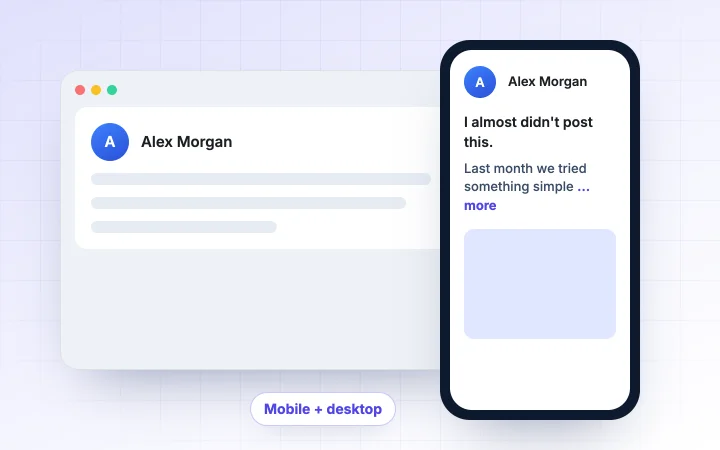
On LinkedIn, click the three dots at the top right of a post and choose Copy link to post. For a comment or a reply, click the three dots on that comment and choose Copy link to comment. You can also copy the address from your browser bar when the post is open.
2
Paste it into the tool
Paste the link into the box. The date appears as soon as you paste, or click Get the date. To check many posts at once, paste one link per line.
3
Pick your time zone
The tool shows the time in your own time zone first. Choose UTC or any other time zone from the list to see when the post went live for someone in another country.
4
Copy or export the result
Copy the date and time, the UTC time, the Unix timestamp or the post ID with one click. For a list of links, copy the whole table or download it as a CSV file for Excel or Google Sheets.
Features
What the post date extractor gives you
Everything runs in your browser. There is nothing to install and no account to create.
Exact date, time and age
See the weekday, date and time to the second, plus a precise age such as "1 year 2 months ago" instead of LinkedIn's rounded "1yr".
Any time zone, plus UTC
Results open in your own time zone. Switch to UTC or any of the world's time zones, and every date on the page updates at once.
Comments and replies
Paste a comment or reply link and you get two or three dates: when the post was published, when the comment was left and when the reply came in.
Bulk links and CSV export
Paste up to 300 links, one per line. You get a table with every date, a count of what was read, and a CSV download that opens cleanly in Excel or Google Sheets.
Posting rhythm at a glance
With two or more posts, the tool shows the oldest and newest date and the average number of days between posts. Handy for checking how often an account publishes.
Private by design
The date is worked out from the number in the link, inside your browser. Nothing is sent to LinkedIn or to us, and the author is never notified.
Guide
How the date is hidden inside a LinkedIn link
You do not need to know this to use the tool, but it helps to trust the result.
Every post has a 19-digit ID
Open any LinkedIn post and look at its link. Somewhere in it you will find a long number, usually 19 digits, after a word such as activity, share or ugcPost. That number is the post's ID, and it is the same no matter which version of the link you copy.
LinkedIn builds these IDs so that new ones are always larger than old ones. Written in binary, the first 41 digits of the ID are the time the item was created, in milliseconds since 1 January 1970. The rest of the number keeps IDs unique. The tool takes the ID, keeps those first 41 binary digits and converts them into a date.
✓This is why the result is exact to the second, not rounded like "3w"
✓It works the same way for posts, comments and replies
✓The tool checks the result is a real date between 2003 and today, so a random number is not mistaken for a post
Links that do not carry a date
Some LinkedIn links do not contain a post ID, so no tool can read a date from them. The extractor tells you which kind you pasted and what to do instead.
✓lnkd.in short links: open the link first, then copy the full address from your browser bar
✓Articles (linkedin.com/pulse/...): the publish date is printed at the top of the article
✓Profile links (linkedin.com/in/...): open a post on the profile and copy that post's link
✓Job links: job IDs are counters, not timestamps, so they cannot be turned into a date
Guide
Edits, reposts and comments: which date you get
The ID is created once, when the item is first published. That decides what the date means in a few common cases.
Edited posts keep their original date
Editing a post does not give it a new ID. The date you see is when the post was first published, not when it was last changed. LinkedIn marks edited posts with "Edited" next to the age, but does not say when the edit was made.
Reposts
A repost with your own thoughts added is a new post with its own link, so you get the date of the repost. A plain repost usually links back to the original post, so you get the original publish date. If you are not sure which one you have, open the link and check whose post is shown.
Comments and replies
A comment link holds two IDs: the post and the comment. A reply link adds a third. The tool shows each one on its own card, so you can see, for example, that a comment was left two days after the post went live.
ExamplePost published: Tuesday, 14 October 2025, 09:30 UTCComment posted: Wednesday, 15 October 2025, 16:05 UTC
Guide
What people use LinkedIn post dates for
A precise date turns a vague "a while ago" into something you can rely on.
Citing a LinkedIn post
APA and MLA citations for social media posts ask for the full date. In APA 7 style the pattern is usually: Last name, Initial. (Year, Month Day). First 20 words of the post [Post]. LinkedIn. URL. Check your own style guide for the exact format, then copy the date from the tool.
ExampleDoe, J. (2025, October 14). We tried writing every post as if we were texting one friend [Post]. LinkedIn. https://www.linkedin.com/posts/...
Checking how often an account posts
Paste the links of a creator's or company's recent posts, one per line. The summary shows the newest and oldest post and the average gap between them. Download the CSV to compare several accounts side by side.
✓Study competitors' posting rhythm before you plan your own calendar
✓See which day of the week and time of day their posts went out
✓Spot accounts that have gone quiet before you reach out
Research, reporting and fact checking
Journalists, recruiters and analysts often need to prove when something was said. The UTC time and Unix timestamp give you a format that does not depend on anyone's time zone, so it can go straight into a report, a spreadsheet or an evidence log.
Timing your own posts
Look up the exact time your best posts went live and compare it with how they did. Posting time is only one factor, though. What happens in the first hour after you post matters more: a post that gets early likes and comments keeps being shown to more people. HyperClapper gets real professionals to react and comment on your post in that first hour.
Watch
How to get more followers on LinkedIn with HyperClapper
A short walkthrough of how a good post plus a strong first hour helps you grow.
Questions people ask about the LinkedIn Post Date Extractor
How do I find the exact date of a LinkedIn post?+
Copy the post's link (three dots on the post, then Copy link to post) and paste it into this tool. It reads the post ID in the link and shows the exact date and time it was published, in your time zone.
Why does LinkedIn only show "1w" or "1yr" instead of a date?+
LinkedIn shows the age of a post rather than its date to keep the feed short and simple. The exact time is still stored in the post's ID, which is part of its link, so you can recover it with this tool.
Can I see the exact time a LinkedIn post was made?+
Yes. The tool gives the time down to the second, in your own time zone, in UTC or in any time zone you choose, plus a Unix timestamp.
Does it work for LinkedIn comments and replies?+
Yes. Use Copy link to comment on a comment or reply and paste that link. You get the post date and the comment date, and the reply date for a reply link.
Can I check many LinkedIn posts at once?+
Yes. Paste up to 300 links, one per line. You get a table of dates, the average gap between posts, and a CSV file you can download.
Does editing a post change its date?+
No. The ID is created when the post is first published and does not change when it is edited, so the tool shows the original publish date.
Why does my link say no post ID was found?+
The link does not contain a post ID. That happens with lnkd.in short links, profile links, article (pulse) links and job links. For a short link, open it and copy the full address from your browser bar. For a profile, open the post itself and copy its link.
Is the LinkedIn post date extractor free and private?+
It is free with no sign-up and no limit. The date is worked out inside your browser from the link you paste. Nothing is sent to LinkedIn or to HyperClapper, and the person who posted is not notified.
How accurate is the date?+
The date comes from the ID LinkedIn created when the post was published, so it is exact to the millisecond of that moment. The tool shows it to the second.
Know when they posted. Now make your own posts travel further.
HyperClapper gets real likes and comments from LinkedIn professionals on your post right after you publish, so it keeps reaching more people.