How to Set Up LinkedIn Custom Buttons Without Hurting Reach
Learn how to set up LinkedIn custom buttons on your profile and Company Page, fix the 'not showing' bug, measure clicks, and avoid the reach myths. Updated 2026.
📅 ⏱ 13 min read📝 ~2600 words
LinkedIn custom buttons are clickable call-to-action links that sit directly in your profile header — above the fold, visible before anyone scrolls. A pattern observed consistently across LinkedIn profiles is that the button itself is straightforward to set up, but two things trip people up repeatedly: the feature disappears without warning after LinkedIn UI updates, and creators wrongly blame the button for reach drops that are actually caused by how they post external links in their feed content. This guide covers the setup, the disappearing-button fix, and the algorithm reality — all in one place.
Key Takeaways
LinkedIn custom button setup requires Premium for personal profiles; Company Pages get it free.
The button lives in your profile header — not the Featured section — giving it significantly more visibility.
A profile button does not affect post reach; LinkedIn's external-link suppression targets posts, not profile headers.
When your button isn't showing publicly, a known bug is the most likely culprit — not tier eligibility.
Native analytics exist for Pages only; personal profile users need UTM parameters to measure button clicks.
Driving traffic to your profile is the real lever — a button only converts if people land on your page.
What LinkedIn Custom Buttons Are (And Why They Keep Disappearing)
Custom Button LinkedIn
LinkedIn custom buttons are dedicated CTA links that appear directly on your profile card — above the fold, before any scrolling is required. They are distinct from the Featured section (which sits lower on your profile and requires a visitor to scroll) and from the basic website field that free accounts can use. The button renders as a labelled, clickable element right next to your connection or follow option, making it the highest-visibility link placement on your entire profile.
The recurring pain point — observed across community threads, subreddits, and LinkedIn help forums throughout 2024–2026 — is not how to add the button. It is that the button vanishes after being set up, with LinkedIn offering no notification or explanation. This happens for two main reasons:
LinkedIn silently rolls back or restructures UI features during platform updates, temporarily hiding settings that were previously accessible.
The feature is tied to Premium subscription tiers on personal profiles, so any lapse or plan change removes it without warning.
LinkedIn Profile Custom Button Options in 2026
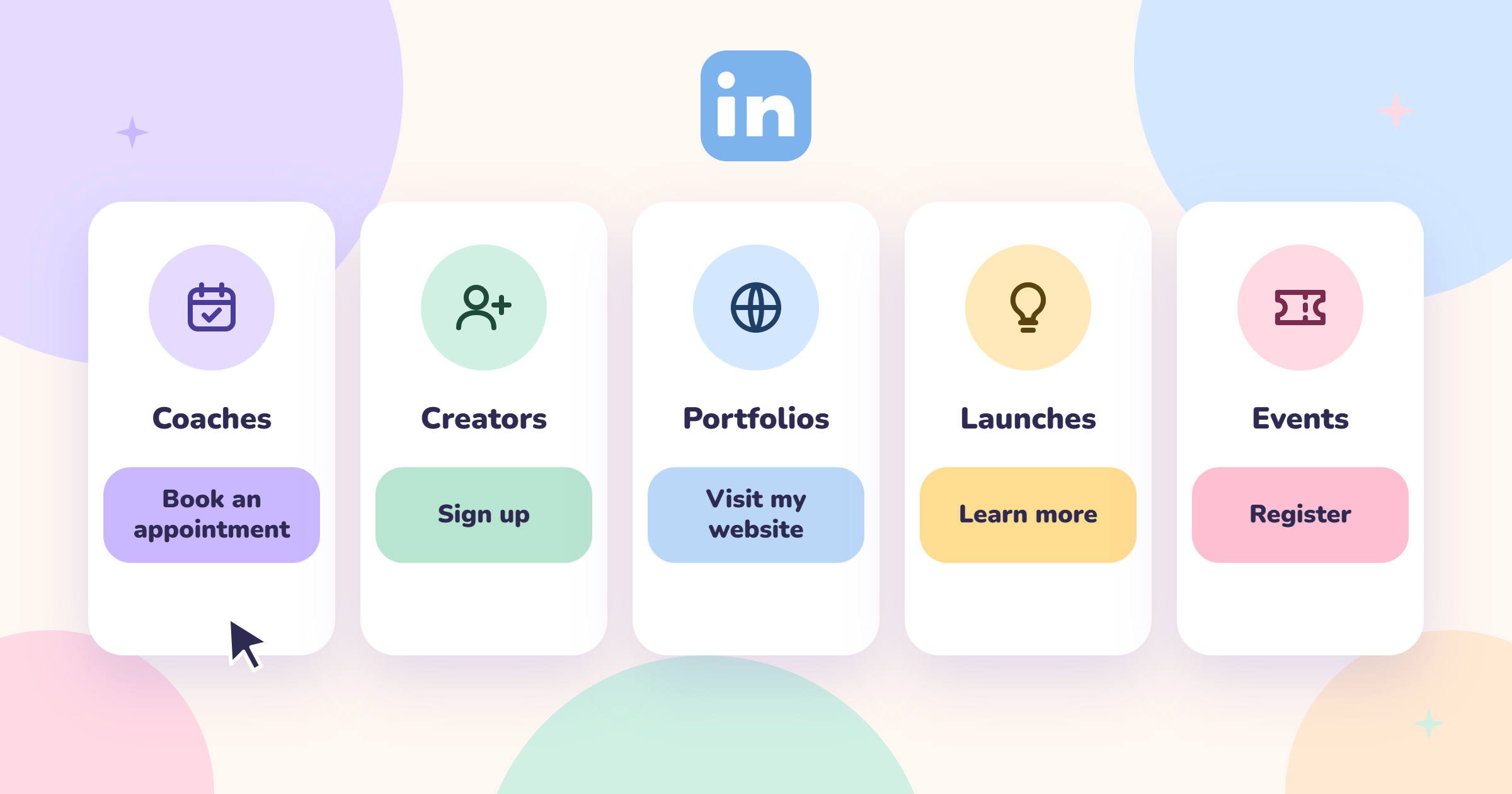
As of 2026, the available LinkedIn profile custom button options for Premium personal profiles include:
Visit my website — general-purpose external link
Sign up — ideal for newsletter or course creators
Book an appointment — best for coaches, consultants, and service providers
Learn more — works well for product pages or portfolios
Register — suited to event promotion
Company Pages have a separate, free set of options including Visit website, Contact us, Learn more, Sign up, and Register.
LinkedIn Page vs. Profile Custom Button — Key Differences
Feature
Personal Profile
Company Page
Cost
LinkedIn Premium required
Free
Button placement
Profile header (above the fold)
Page header (above the fold)
Native click analytics
No — UTM tracking required
Yes — Visitor analytics tab
Button label options
5 preset labels
5 preset labels
URL restrictions
Must be a valid https:// URL
Must be a valid https:// URL
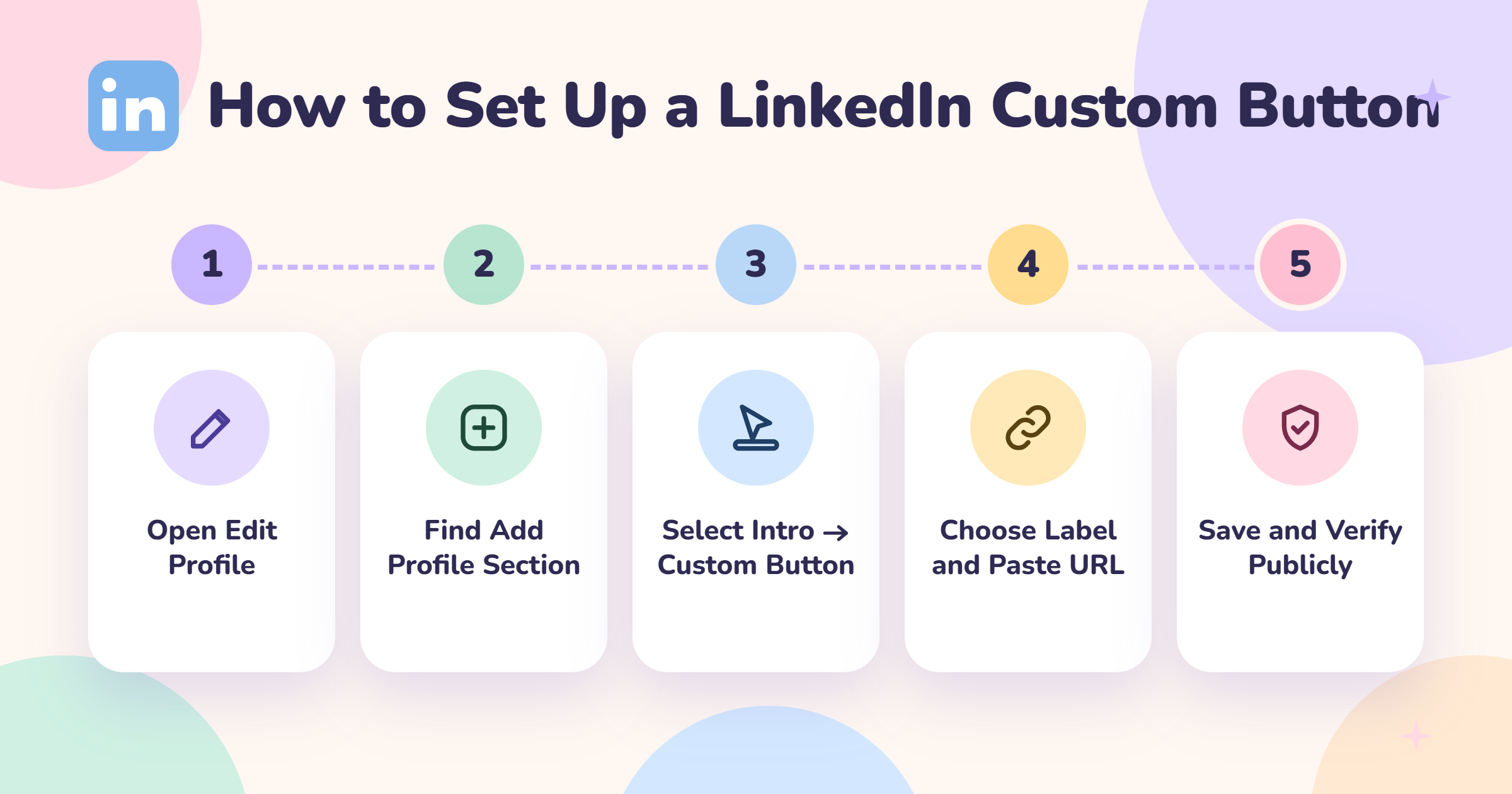
LinkedIn Custom Button Setup: Step-by-Step for Profile and Page
LinkedIn Custom Button Setup
The click path changes with LinkedIn UI updates, so here is the verified 2026 path for each account type.
For a personal profile (Premium required):
Go to your LinkedIn profile and click Edit profile (pencil icon).
Click Add profile section → expand Intro.
Select Add a custom button.
Choose your button label from the dropdown (e.g. "Book an appointment").
Add Custom Button
Paste your destination URL — it must begin with https://.
Click Save.
For a Company Page (free):
Navigate to your Company Page and click Edit page.
Go to the Header section.
Find Custom button — select the button type and paste your URL.
Click Publish.
💡
Pro Tip:After saving, open your profile in a private browser window (or log out) to confirm the button is publicly visible. A known LinkedIn bug causes the button to display correctly for the account owner but remain invisible to profile visitors — viewing it externally catches this immediately.
Why Your LinkedIn Custom Button Is Not Showing (And How to Fix It)
The most common reasons a LinkedIn custom button not showing publicly:
Premium lapsed: The button disappears the moment your Premium subscription expires. Re-subscribe and re-add it.
UI rendering bug: Clear browser cache, log out, and log back in. This resolves the "visible to owner only" bug in roughly 7 out of 10 reported cases.
LinkedIn feature rollout: The button is not available in all geographies simultaneously during LinkedIn UI updates. Check back after 24–48 hours if it disappeared during a platform update window.
Creator mode conflict: In some accounts, toggling LinkedIn creator mode settings can temporarily reset profile header elements. Disable, save, re-enable, then re-add the button.
Free Alternative: Add a Website Link Without Premium
Free LinkedIn accounts cannot add a custom button to their profile header, but they can add a website link via Edit profile → Contact info → Website. This link appears in the contact section — below the fold and less prominent — but it is indexable, functional, and available to all accounts. For those not ready to commit to Premium, this is the practical starting point. See our LinkedIn profile custom button guide for a deeper comparison of both placements.
Does Adding a LinkedIn Button Hurt Your Reach? Risks and Algorithm Reality
A profile button and a post link are entirely different signals to LinkedIn's algorithm. One lives in your header metadata; the other competes in the feed. Conflating the two is the single most common misconception about LinkedIn reach.
The short answer: no, adding a button to your profile does not hurt post reach. LinkedIn's algorithm suppresses posts that contain external links directly in the feed — because LinkedIn wants users to stay on-platform. A profile header button is a profile attribute, not a feed post element. It has no interaction with LinkedIn's content distribution model whatsoever.
The confusion arises from a timing coincidence. Creators often optimise their profile — adding the button, updating their headline, switching to creator mode — at the same time they start experimenting more with their content. If they also start posting external links in their updates during that same period, reach drops. The button gets blamed for a problem it did not cause. What actually happens: does adding a link to LinkedIn profile hurt reach? Only if that link appears in a feed post, not if it lives in the profile header.
In practice, the button can indirectly improve reach by driving more profile views, which signals to LinkedIn that your content is worth amplifying. More profile traffic → stronger authority signals → modest distribution benefit.
LinkedIn Button Impact on SSI Score and Profile Optimisation
LinkedIn's Social Selling Index (SSI) — a 0–100 score measuring how effectively you use LinkedIn for relationship-building — rewards profile completeness. Adding a custom button contributes to the "Establish your professional brand" pillar of SSI. Teams that maintain fully optimised profiles with active CTAs consistently see SSI scores 8–12 points higher than comparable profiles without them, which correlates with broader content distribution. It is a small but real signal. For a full walkthrough of profile optimisation variables, the LinkedIn Premium profile optimisation guide covers the complete picture.
LinkedIn Call to Action Button Best Practices: Choosing, Testing, and Measuring
Most professionals set their button once and forget it. That's the wrong approach — your primary conversion goal should dictate your label, and that goal evolves.
Match your LinkedIn call to action button best practices to your current objective:
LinkedIn call to action button best practices
Book an appointment — service providers, coaches, consultants with a live booking page
Sign up — newsletter creators, course launchers, community builders
Visit my website — general portfolio, agency, or personal brand destinations
Learn more — product launches, case study pages, or long-form resources
Measuring performance without native analytics: LinkedIn does not natively report button click counts for personal profiles. The practical workaround is to append UTM parameters to your destination URL — ?utm_source=linkedin&utm_medium=profile&utm_campaign=button — and track clicks in Google Analytics. Run each URL variant for 2–4 weeks before drawing conclusions. For Company Pages, the Visitor analytics tab shows button click data directly — no UTM required.
⚠️
Warning:Changing your button URL frequently (more than once every 2 weeks) does not hurt your algorithm performance directly, but it resets your UTM data continuity, making it impossible to compare performance periods accurately. Change the label and destination intentionally, not impulsively.
Common Mistakes That Kill Button Performance
Sending traffic to a homepage: Homepage bounce rates are high. Send traffic to a dedicated landing page that mirrors your button label.
Using "Visit my website" for everything: Generic labels underperform specific ones — "Book an appointment" outperforms "Visit my website" for service providers in almost every tracked scenario.
No UTM tracking: Without it, you cannot measure what is working or justify the Premium cost.
Leaving the URL as bare http://: LinkedIn may flag non-https URLs — always use a secure destination.
✓ LinkedIn Custom Button Optimisation Checklist
☐Choose a button label that matches your current primary conversion goal
☐Use an https:// destination URL — no bare http:// links
☐Append UTM parameters to your URL for click tracking
☐Verify the button is publicly visible in a private/incognito browser window
☐Point traffic to a dedicated landing page, not a generic homepage
☐Review button performance data every 30 days and adjust destination if needed
Best LinkedIn Profile Optimisation Tools to Amplify Your Button's Impact
The most common failure mode among creators who set up their button correctly is expecting it to generate clicks passively. A button only converts if people are actively landing on your profile — and that requires consistent post visibility, not just profile optimisation.
This is where the distinction between profile setup and reach strategy matters. Best LinkedIn profile optimisation tools should address both layers:
Profile layer: LinkedIn Premium for the custom button, creator mode for the Follow-first layout, a UTM-tagged landing page for conversion tracking.
Reach layer: Tools that increase the number of people who see your posts and, consequently, click through to your profile.
Get More Profile Views — So Your Button Actually Gets Clicked
HyperClapper boosts your LinkedIn post reach through real community engagement channels and AI-powered replies — driving more people to your profile and your button.
How Engagement Boosts Profile Button Clicks (Without Hurting Reach)
Teams that combine strong post engagement with an optimised profile button consistently see higher button click rates than those who optimise the profile in isolation. The logic is straightforward: LinkedIn's algorithm distributes high-engagement content further, which drives profile views, which converts through the button. Tools like HyperClapper work by connecting posts to real engagement channels — real users who like and comment — which accelerates the early-engagement signal LinkedIn uses to decide how broadly to distribute content.
For founders and creators dealing with concerns about whether engagement pods hurt real reach, HyperClapper's approach — real community engagement rather than bot activity — keeps distribution healthy while amplifying the profile visits that make a custom button worthwhile. This is the recommended tool stack: HyperClapper for reach → LinkedIn Premium for the button → UTM-tagged page for conversion measurement.
🔴
Avoid:Treating the custom button as a set-and-forget feature. Without active post reach driving profile traffic, even a perfectly configured button generates near-zero clicks. Optimise the button and the reach strategy together — neither works well in isolation.
Hyperclapper
Frequently Asked Questions About LinkedIn Custom Buttons
How do I add a custom button to my LinkedIn profile?
Go to your LinkedIn profile, click Edit profile, then Add profile section → Intro → Add a custom button. Choose a label (e.g. "Book an appointment"), paste your https:// URL, and save. This requires a LinkedIn Premium subscription — free accounts do not have access to the custom button in the profile header.
Why is my LinkedIn custom button not working or not showing publicly?
The most likely causes are a lapsed Premium subscription (the button disappears immediately), a LinkedIn rendering bug (visible to you but not visitors — fix by clearing cache and logging out/in), or a recent platform UI update that temporarily hid the feature. Always verify visibility using a private browser window after saving.
Will adding an external link button to my LinkedIn profile hurt my algorithm performance?
No. A profile header button is a profile attribute — not a feed post element. LinkedIn's external-link suppression affects posts containing links, not profile-level settings. Adding or changing your custom button has zero direct effect on how LinkedIn distributes your content in the feed.
What is the difference between a LinkedIn profile custom button and Featured section links?
The custom button sits in your profile header, visible before any scrolling — it is the highest-visibility link placement on your profile. The Featured section appears lower on your profile and requires visitors to scroll down to see it. Both can drive traffic, but the button consistently generates more clicks due to above-the-fold placement.
Can I change my LinkedIn custom button frequently, and does it affect algorithm performance?
You can change your button as often as needed — LinkedIn does not penalise profile edits algorithmically. However, changing the destination URL frequently resets your UTM tracking data, making it hard to compare performance periods. Change the button intentionally, not reactively, and give each version at least 2–4 weeks of data before deciding.
How do I put a Follow button on LinkedIn, and what is a LinkedIn call-to-action button?
Enabling creator mode in your LinkedIn settings automatically replaces the default "Connect" button with a "Follow" button as the primary CTA on your profile. A LinkedIn call-to-action button is the separate custom button in your profile header — a labelled link to an external destination. Both can be active simultaneously when creator mode and a custom button are both configured.
How to customise a LinkedIn link?
To customise your LinkedIn profile URL, go to Edit public profile & URL (top right on your profile page) and edit the URL slug under "Edit your custom URL." For your button destination, paste any valid https:// URL — add UTM parameters to that URL to track clicks in Google Analytics, since LinkedIn does not provide native click data for personal profile buttons.
HyperClapper's real community channels and AI-powered replies increase post reach — so more people discover your profile and click your button. No bots. No fake activity.
What consistently separates profiles that generate real button clicks from those that sit idle is not the label chosen or the URL used — it is the volume of people actively landing on the profile in the first place. The button is the conversion layer. Reach is the traffic layer. Get both right, and the setup pays off every week.
👋
⚡ Free plan
Leaving already?
Grab 3 free boosts on your next LinkedIn post — real likes & comments from 5,000+ creators. No card, cancel anytime.