
To withdraw LinkedIn invitations, go to My Network → Manage → Sent Invitations, find the person, and click Withdraw. The request disappears from their inbox immediately, they receive no notification, and your invitation slot is returned. A pattern observed across high-volume LinkedIn outreach accounts is that the withdrawal mechanics are simple — what trips people up is everything that happens after: the 3-week resend cooldown, the bulk-withdrawal limitation, and the quiet account risk that builds when too many pending requests age past 90 days.
- You can withdraw any pending LinkedIn invitation instantly — as long as it hasn't been accepted yet.
- The recipient is never notified when you withdraw; there's no social awkwardness or visible record on their end.
- A 3-week cooldown applies before you can resend to the same person — timing your withdrawal matters.
- LinkedIn has no native bulk-withdrawal tool in 2026; the process is one-by-one unless you use a third-party workaround.
- 55–70% of cold LinkedIn requests never get accepted — regular invitation audits protect your sending limit and spam score.
- Once a request is accepted, there's no cancellation option — you'd need to remove the connection instead.
- What It Means to Withdraw a LinkedIn Invitation
- How to Cancel a Sent Request on Desktop
- What Actually Happens After You Withdraw
- How to Resend After Withdrawing Without Getting Flagged
- Stop Request Already Sent: Risks and Limitations
- Connection Request Etiquette: Preventing the Problem
- Frequently Asked Questions
What It Means to Withdraw a LinkedIn Invitation (and Why It Matters)
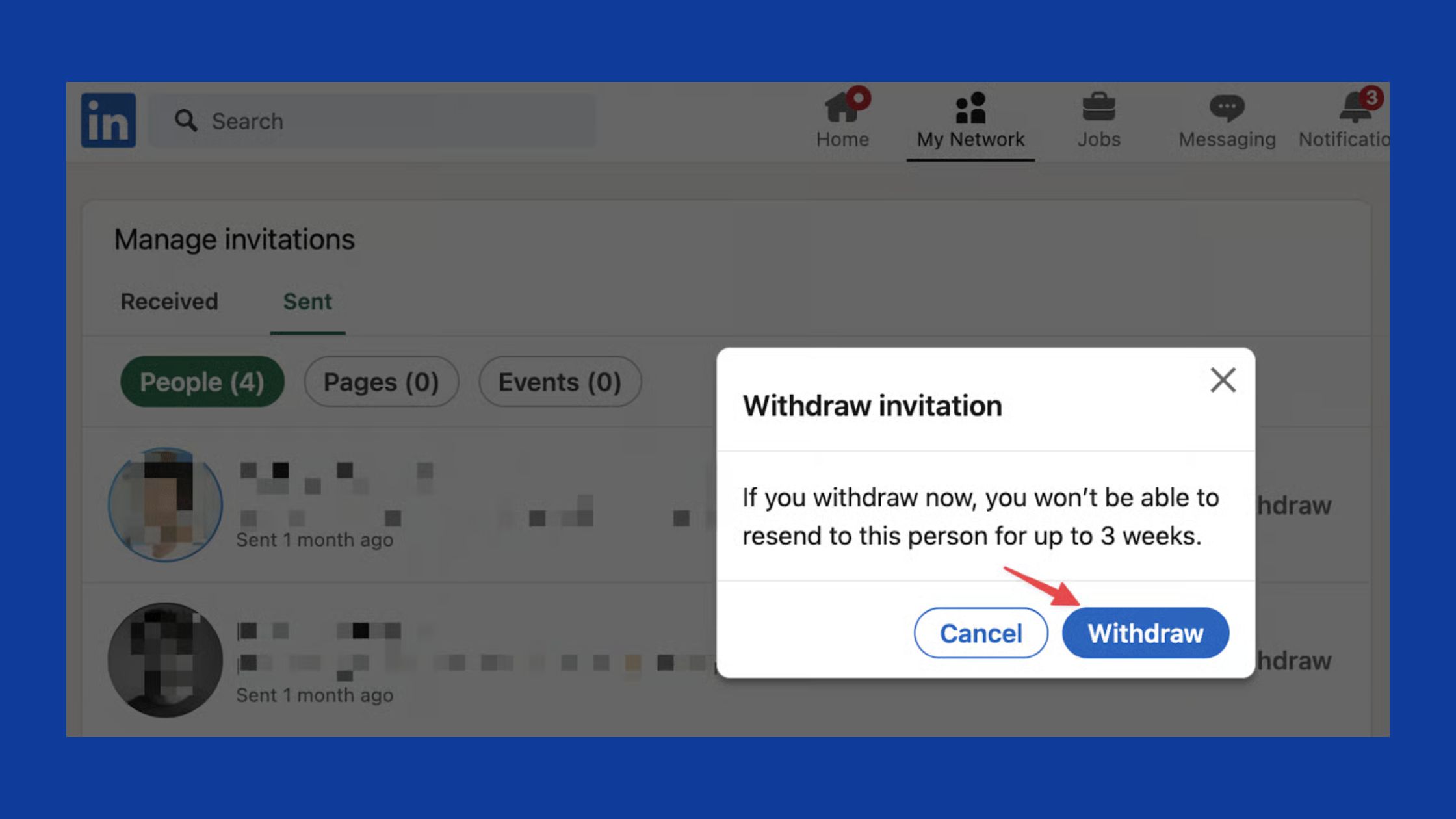
Withdrawing a LinkedIn invitation cancels a pending connection request before the recipient accepts or ignores it — the request vanishes from their inbox entirely, leaving no trace. It is not the same as a declined invite (where they actively rejected you) or an ignored invite (where it sits unread). The distinction matters for how LinkedIn's algorithm reads your account health.
The most common failure mode here isn't the withdrawal itself — it's letting old requests pile up without cleaning them up. According to LinkedIn community data, somewhere between 55–70% of cold connection requests never get accepted. That means the average active prospector has dozens — sometimes hundreds — of stale pending requests quietly eroding their invitation spam flag risk and eating into their LinkedIn connection limit headroom.
Pending Connection Requests: What LinkedIn Does (and Doesn't) Tell You
LinkedIn does not alert you when a sent invitation ages past a certain point, and it does not automatically expire old requests on a fixed schedule (though it has done so in past platform-wide cleanups). Pending connection requests are visible only to you — under Sent Invitations in the Manage panel. The recipient sees the request until you withdraw it or they action it. If neither happens, it sits indefinitely. That indefinite pile-up is exactly what LinkedIn's spam detection watches for: a high ratio of unanswered outgoing requests is one of the signals used to throttle or restrict an account's outreach capacity.
Understanding this sets the foundation for everything in this guide — the mechanics of withdrawal are simple, but the why behind timing and volume is where most guides stop short.
How to Cancel a Sent Request on Desktop (Step-by-Step)
The fastest path to how to cancel a sent request on LinkedIn desktop takes under 60 seconds:
- Go to My Network in the top navigation bar.
- Click Manage (top right of the page, next to the invitations counter).
- Select the Sent tab to see all outgoing pending requests.
- Find the person you want to remove, click Withdraw, and confirm.
Alternatively, if you remember exactly who you sent the request to, navigate directly to their profile. If the request is still pending, the button will show Pending — click it and select Withdraw from the dropdown.
The single most common mistake is looking in Notifications or Messages for the pending request list — it isn't there. The correct location is always the Manage Invitations panel. Creators who skip this step typically find the "withdraw" option when they accidentally discover it months later, after their sent queue has ballooned to hundreds of stale requests.
How to Withdraw LinkedIn Invitations in Bulk (and What Actually Works in 2026)
LinkedIn's native interface has no bulk-select or bulk-withdraw feature. You withdraw one invitation at a time. In 2026, the only workaround options are:
- Manual batching: Set a timer for 10 minutes and withdraw systematically from oldest to newest — most people can clear 40–60 requests in one sitting this way.
- Third-party tools: Some LinkedIn automation tools offer bulk-withdrawal scripts, but these carry account risk if they exceed LinkedIn's rate limits. Use only tools that mimic natural human pacing.
- Browser automation (advanced): Power users sometimes use browser-level scripts — this is effective but violates LinkedIn's Terms of Service and should be approached with full awareness of the risk.
The inability to bulk-withdraw is the single most complained-about limitation in LinkedIn's connection management UI — and the gap that third-party tools have most aggressively tried to fill. The safest approach remains manual batching with a daily cadence.
How to Cancel a Request on Mobile (iOS and Android)
The mobile process to how to cancel a request on mobile differs slightly from desktop. On the LinkedIn iOS or Android app:
- Tap My Network (the people icon in the bottom nav).
- Tap Manage at the top of the screen.
- Tap the Sent tab.
- Find the person and tap Withdraw.
If you don't see the Sent tab immediately, scroll left — it appears alongside Received. The mobile app mirrors the desktop functionality but occasionally lags in rendering the full Sent list on slower connections. If the list appears empty on mobile, switch to the desktop version to confirm your actual sent queue.
What Actually Happens After You Withdraw — Hidden Consequences Most Guides Skip
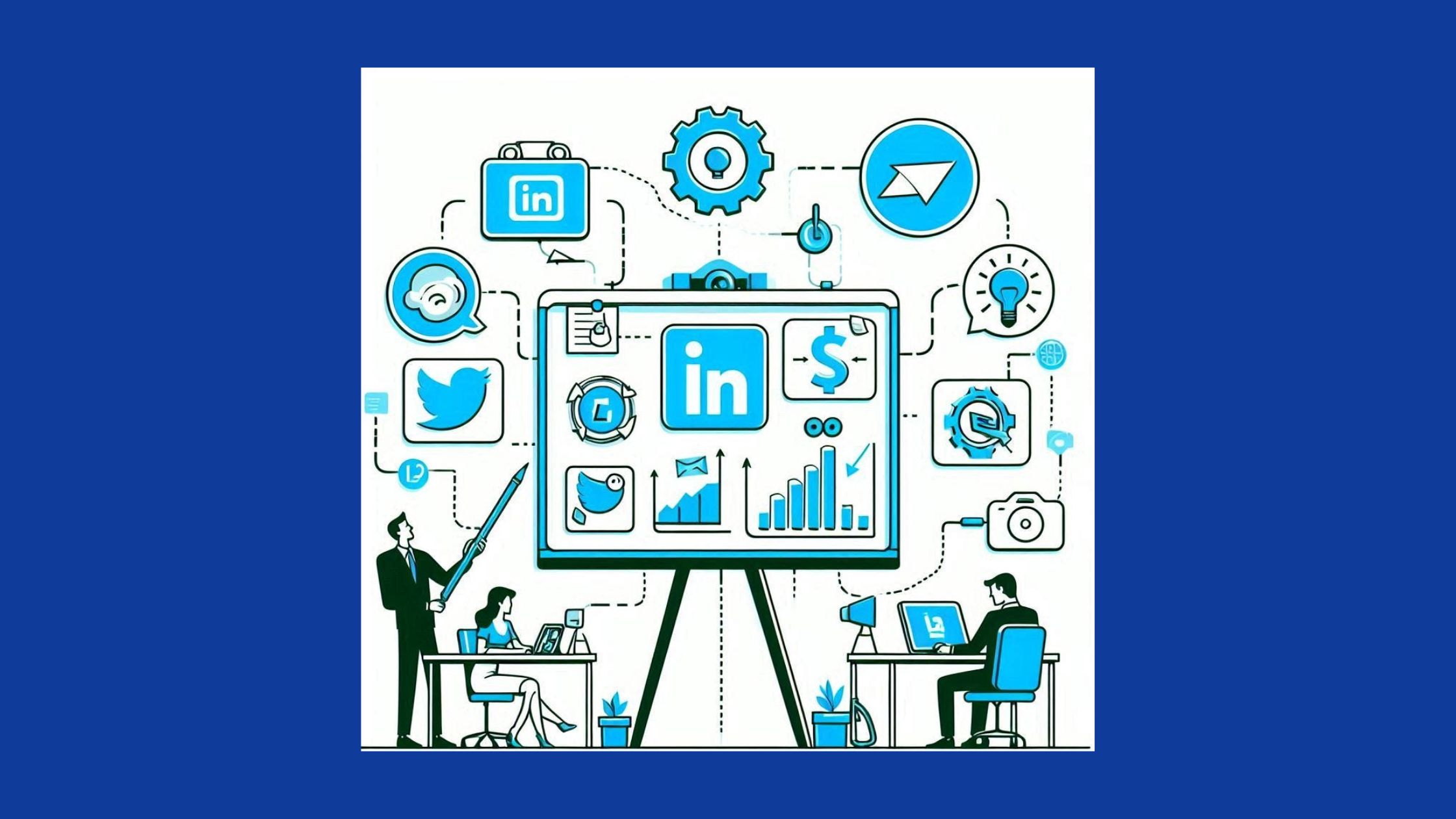
The recipient is never notified. Withdrawing a LinkedIn invite leaves zero trace on their end — no alert, no record in their connection history, nothing. This is the question that generates the most anxiety among users, and the answer is unambiguous: if you withdraw an invitation on LinkedIn will they know — no, they won't.
Three consequences that matter more than most guides acknowledge:
- Your invitation slot is restored immediately. The moment you withdraw, that pending request no longer counts against your weekly sending capacity.
- The 3-week resend cooldown begins. You cannot resend a request to the same person for approximately 21 days. This is the most misunderstood mechanic — the cooldown applies from the withdrawal date, not from the original send date.
- Your sent note is permanently deleted. Whatever message you included in the original request is gone. If you resend after the cooldown, you start from scratch.
On the question of the other person's ability to reach you: withdrawing an invitation does not affect their ability to send you a request later. The restriction is one-directional — you're blocked from resending for 21 days, but they can send you an invitation at any time.
LinkedIn Algorithm Impact: Can Mass Withdrawals Restrict Your Account?
Mass withdrawals in a short window are lower risk than mass sending — but they're not zero risk. LinkedIn's spam detection looks at behavioural velocity: withdrawing 200 requests in 20 minutes is the kind of automated pattern that can trigger a review, even though withdrawal is a permitted action.
A safer approach: withdraw in batches of 20–30 per session, spaced across multiple days. According to LinkedHelper's 2026 invitation management guide, requests older than 30 days should always be withdrawn, and anything between 7–14 days old is safe to remove without concern. Following that threshold keeps your LinkedIn outreach cooldown risk minimal while steadily cleaning your sent queue.
How to Resend After Withdrawing — and How to Do It Without Getting Flagged
After the 21-day cooldown clears, you can resend — but how you resend is what determines whether it works. Teams that rush back with a generic blank request after a withdrawal typically see lower acceptance rates than their original attempt.
The mechanics for resending cleanly:
- Wait the full 21 days — attempting to reconnect sooner will show the button as locked or revert to "Follow" only.
- Write a fresh note that references something specific: a post they published, a shared connection, a recent company update. The original message was deleted — a blank resend to someone who already saw one request from you reads as low-effort.
- On the question of how long do I have to cancel a sent request before consequences kick in: the cooldown starts only when you withdraw, not when you send. Cancelling within the first hour carries the same 21-day consequence as withdrawing after 3 weeks — so timing your original send carefully matters more than rushing to cancel.
Alternative Outreach After a Withdrawal: InMail, Following, and Warm Paths
If reconnecting via invitation feels like a second strike, there are lower-friction alternatives:
- Follow their profile: You appear in their follower list without using an invitation slot. If they notice and are interested, they'll often send the request themselves — a warm inbound connection that costs you nothing.
- Engage with their content: Leave a substantive comment on a post before resending. By the time your invitation arrives, you're a recognisable name rather than a cold stranger.
- InMail: If you have LinkedIn Premium, InMail bypasses the connection request entirely. It's the cleanest path when you need to reach someone without using invitation quota.
For professionals who want stronger post visibility alongside their outreach — tools like HyperClapper help build the kind of active, engaged presence on LinkedIn that makes inbound connection requests far more common, reducing the need to send cold invitations at volume in the first place.
Stop Request Already Sent: Risks, Limitations, and Why You Can't Always Cancel in Time
The most practical answer to can you cancel a request after sending it: yes, as long as it's still pending. The cancel window is open from the moment you send until the moment they accept or decline. There is no hard time limit on your end — the option remains available for days, weeks, or months if the request sits untouched.
The scenarios where withdrawal isn't possible:
- They already accepted. The connection is live. There's no withdrawal — you'd remove them as a connection instead (which they are also not notified about, for what it's worth).
- They declined. The request is gone from your Sent list. No action needed.
- Account restriction. In rare cases, LinkedIn temporarily locks outgoing actions — including withdrawals — if it flags unusual activity on the account.
On the broader question of undo submitted request logic — whether on LinkedIn or other platforms — the principle is consistent: cancellation is available while the action is in a pending, unprocessed state. Once the other party acts on it, the window closes. This same pattern applies to recall sent email request scenarios and withdraw form submission after sending in most web systems — the system can only reverse something it hasn't handed off yet.
The stop request already sent question most people actually mean to ask is simpler: if it's still showing as Pending in your Sent tab, you can withdraw it right now, and the other person will never know it existed.
Common Mistakes That Make Withdrawal Harder Than It Should Be
- Looking in the wrong place: Searching Messages or Notifications instead of My Network → Manage → Sent.
- Waiting too long: By the time some users try to audit, they have 400+ stale requests. The cleanup takes time; prevention is far easier.
- Withdrawing and immediately resending: The 21-day block is enforced — this frustrates users who think a quick withdraw-resend will refresh a stale request. It won't.
- Why can't I cancel my request: The second-most common reason (after acceptance) is a temporarily restricted account. If the Withdraw button is greyed out and the request was definitely not accepted, check for any LinkedIn notification about account limits or unusual activity.
Connection Request Etiquette: How to Prevent the Problem Before It Starts
The cleanest solution to invitation management is sending fewer requests that need withdrawing. What separates top performers here is not sending volume — it's send quality and the habit of regular audits.
According to SalesMotion's 2026 LinkedIn guide, LinkedIn caps connection requests at 100–200 per week, with the exact limit varying based on your Social Selling Index (SSI — LinkedIn's internal score measuring profile strength and network quality), account age, and acceptance rate. This means the ceiling isn't fixed — accounts with strong SSI scores can send more, and accounts with poor acceptance ratios get throttled faster.
The practical habits that prevent invitation buildup:
- Always include a personalised note. It raises acceptance rates and reduces the volume of requests that age out unanswered.
- Stay well under the weekly cap — sending 50–70 requests per week with a 40–50% acceptance rate is healthier than sending 150 with a 15% rate.
- Audit your Sent Invitations every 30 days. Withdraw anything older than 90 days — these are almost certainly never going to be accepted, and they're quietly inflating your pending queue.
On the question of do LinkedIn invitations automatically withdraw — no, they don't. Requests sit indefinitely unless you remove them or the recipient takes action. LinkedIn has run bulk expiry cleanups in the past, but these are not scheduled or predictable. Manual auditing is the only reliable approach.
✓ The LinkedIn Invitation Health Checklist
- ☐Check Sent Invitations panel (My Network → Manage → Sent) once per month
- ☐Withdraw all requests older than 90 days that remain unanswered
- ☐Keep weekly send volume under 100 to protect your acceptance ratio
- ☐Always add a specific, personalised note to cold connection requests
- ☐After withdrawing, wait the full 21 days before resending to the same person
- ☐If resending, write a fresh note — the original message was deleted on withdrawal
- ☐For bulk cleanups of 100+ requests, spread withdrawals across 5–7 days
How HyperClapper Helps You Manage LinkedIn Engagement Without Invitation Risk
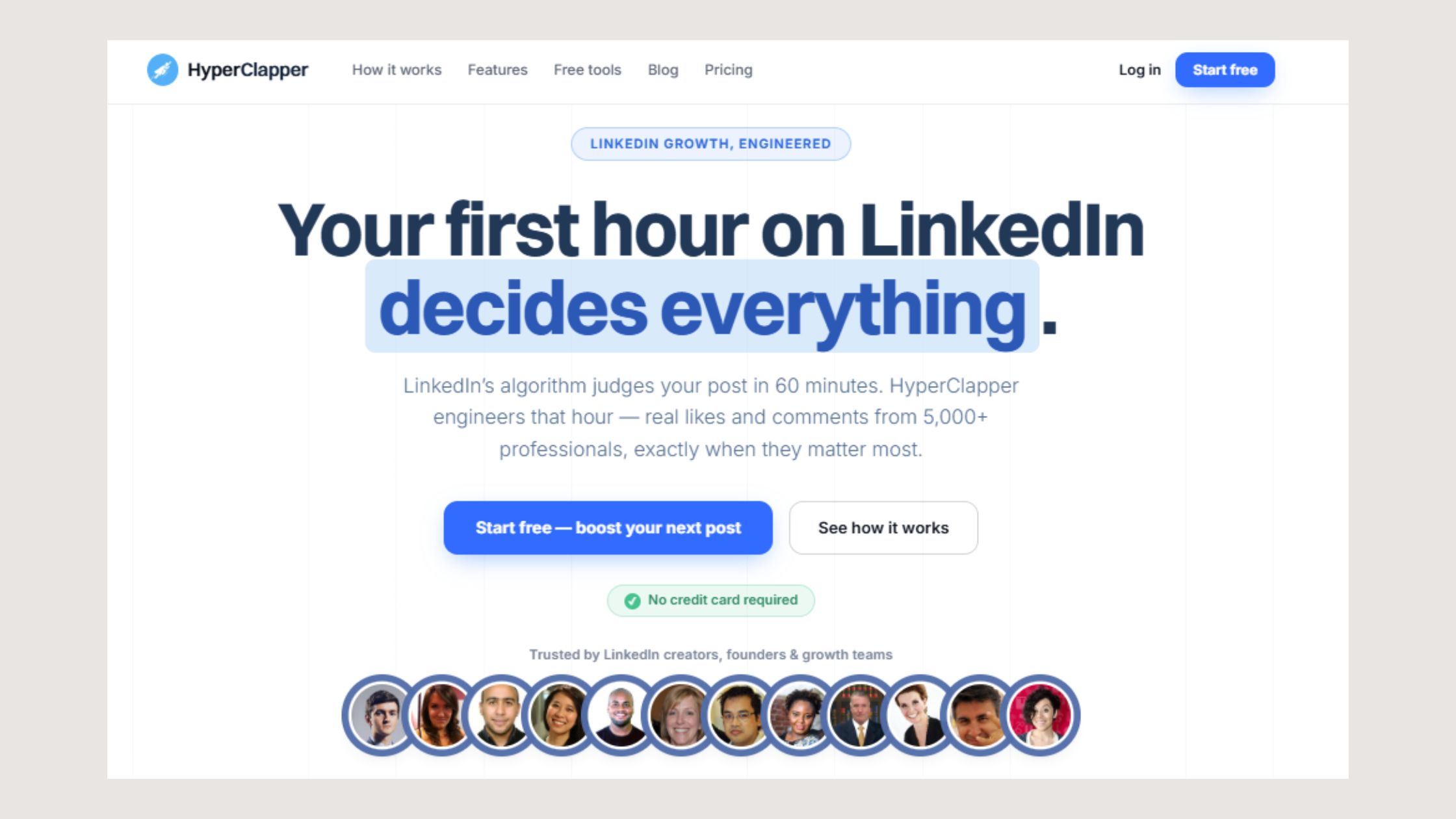
A large part of why professionals over-rely on cold connection requests is that their content isn't generating inbound interest. When posts get minimal reach, outbound invitations feel like the only lever. The pattern shifts when content starts pulling people in.
Tools like HyperClapper address this at the source — by boosting post visibility through real community engagement channels, your content reaches more of the right people organically. When prospects are already engaging with your posts, a connection request lands as a warm follow-up rather than a cold approach. That shift alone tends to cut the volume of unanswered requests — and the withdrawal headaches that follow.
If you're building outreach alongside content, the guide on beating LinkedIn invite limits with email covers how to layer both channels without burning either one.
Build a LinkedIn presence that brings connections to you
HyperClapper boosts your post reach with real engagement — so you spend less time chasing cold requests and more time talking to warm leads.
See How It WorksFrequently Asked Questions About Withdrawing LinkedIn Invitations
What happens if you withdraw a LinkedIn invitation?
Withdrawing a LinkedIn invitation cancels the pending request immediately. The recipient is never notified — the request simply disappears from their inbox. Your invitation slot is returned to your weekly sending allowance. A 21-day cooldown then prevents you from resending to the same person, and your original message is permanently deleted.
How do I withdraw all sent invitations on LinkedIn at once?
LinkedIn has no native bulk-withdrawal feature in 2026 — you must withdraw one at a time via My Network → Manage → Sent Invitations. For large backlogs, batch the process across multiple days (20–30 per session) to avoid triggering LinkedIn's behavioural spam detection. Some third-party tools offer automation, but these carry Terms of Service risk.
Do people know if you withdraw a LinkedIn request?
No. LinkedIn does not send any notification when an invitation is withdrawn. The request disappears silently from the recipient's pending list. There is no record visible to them, no alert, and no way for them to see that a request was ever sent unless they happened to notice it before you withdrew it.
I accidentally sent the wrong request — what should I do right now?
Go to My Network → Manage → Sent Invitations immediately and click Withdraw. As long as the person hasn't accepted yet, the request is reversible. Act quickly if you're concerned they might see it — once they accept, the connection is live and withdrawal is no longer an option. The whole process takes under 60 seconds.
What is the fastest way to stop a wrong request before it goes through?
Navigate directly to the person's LinkedIn profile. If the request is still pending, the button will show "Pending" — click it and select Withdraw. This is faster than going through the Manage panel if you remember exactly who you sent it to. The withdrawal is instant, and they will not be notified.
Does cancelling a request guarantee it won't be actioned?
Yes, if you withdraw before they accept. Once withdrawn, the request no longer exists in their inbox — they cannot action something that isn't there. The only scenario where cancellation fails to prevent acceptance is if they accept in the same moment you withdraw, which is technically possible but extremely rare in practice.
Is it possible to cancel a request that has already been sent and processed (accepted)?
No. Once a connection request is accepted, the cancel window closes permanently. You can remove the person as a connection — they won't be notified of that either — but there is no "undo" for an accepted invitation. If the request is still showing as Pending in your Sent tab, it has not been accepted and you can still withdraw it.
Do LinkedIn invitations automatically withdraw after a period of time?
No — not on a predictable schedule. Pending requests sit indefinitely unless you manually withdraw them or the recipient declines. LinkedIn has conducted platform-wide invitation expiry cleanups in the past, but these are not scheduled or guaranteed. Manual auditing every 30 days is the only reliable way to keep your sent queue clean.
After seeing this pattern across thousands of LinkedIn accounts, what consistently separates clean, high-performing outreach profiles from restricted or throttled ones is not sending volume — it's the discipline of regular invitation audits. Accounts that let pending requests age past 90 days are quietly building a spam risk that no amount of personalised notes can undo.



