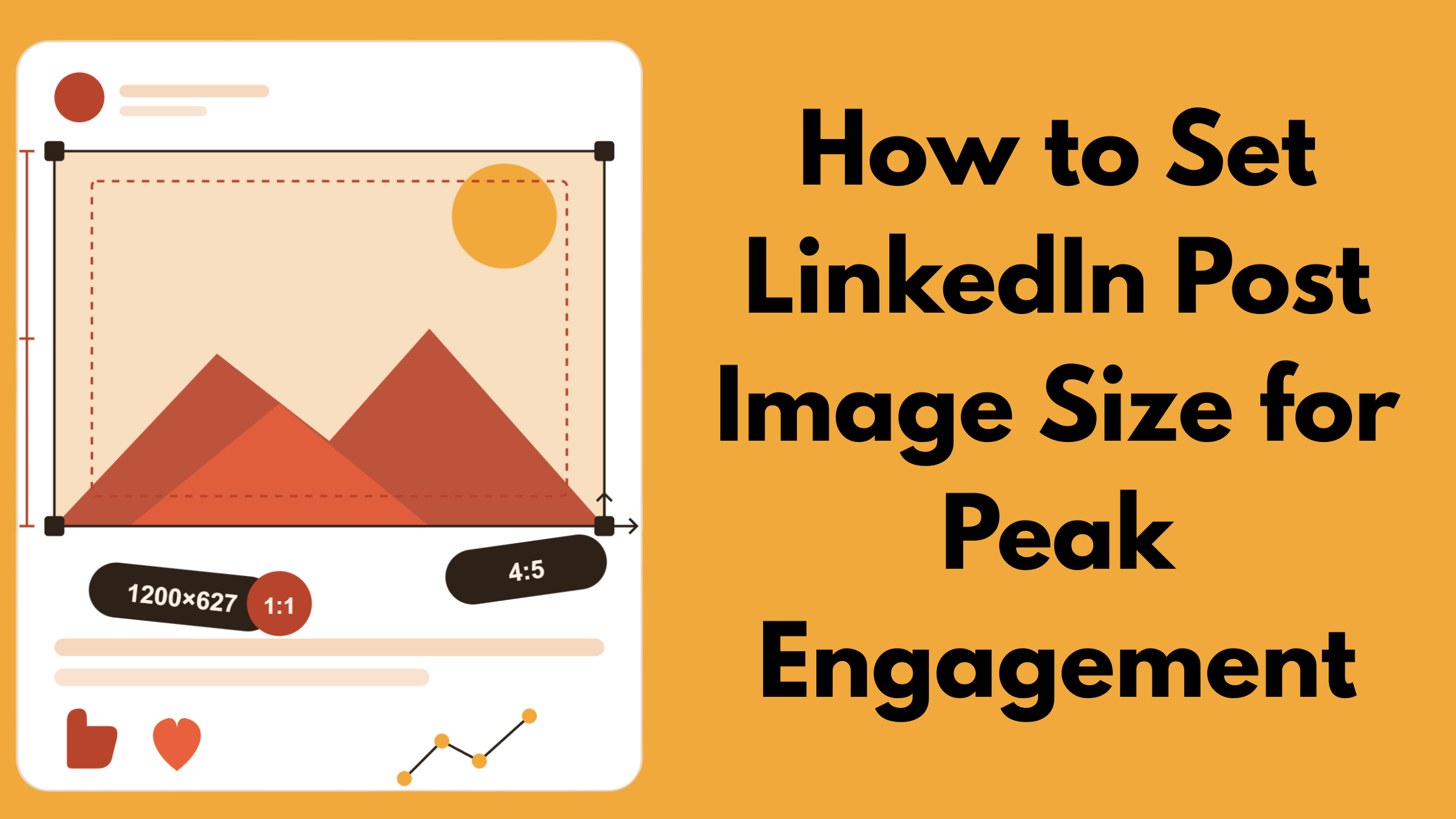
The size of LinkedIn post image that consistently performs best is 1200 × 627 px for landscape and 1080 × 1080 px for square — both render without cropping on desktop and mobile feeds. A pattern observed across thousands of LinkedIn posts is that blurry or cropped images are rarely a sizing mistake alone; they result from the interaction between pixel dimensions, file size, export quality, and LinkedIn's own compression pass. Get all four right, and your visuals land crisply every time.
- Recommended LinkedIn post image size: 1200 × 627 px (landscape) or 1080 × 1080 px (square)
- Minimum safe size: 552 × 276 px — anything below gets upscaled and looks soft
- LinkedIn applies lossy JPEG compression on every upload; export at 90–100% quality to survive it
- Portrait images (1080 × 1350 px, 4:5 ratio) take up more mobile feed space and tend to drive higher dwell time
- File size limit is 5 MB — staying under 3 MB reduces aggressive server-side compression
- Banner size differs entirely: the linkedin profile banner size is 1584 × 396 px (4:1 ratio)
- LinkedIn Post Image Size: Exact Dimensions for 2026
- Why Your LinkedIn Image Looks Blurry or Cropped
- How to Resize Images for LinkedIn Without Losing Quality
- Does Image Size Affect LinkedIn Reach?
- Common LinkedIn Image Mistakes That Kill Engagement
- Frequently Asked Questions About LinkedIn Post Image Size
LinkedIn Post Image Size: Exact Dimensions for 2026
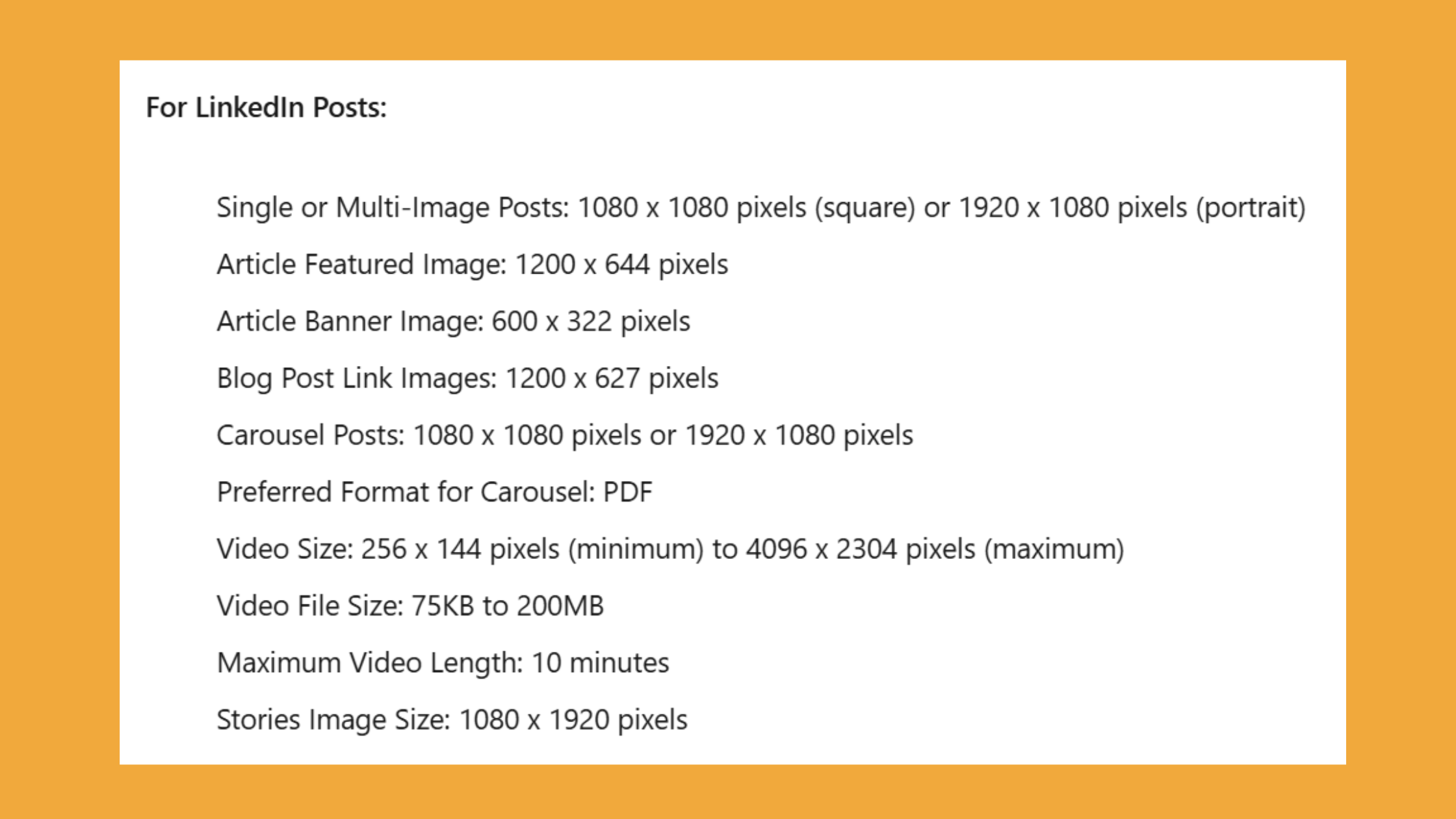
The linkedin post size 2026 spec has not changed dramatically, but knowing the full breakdown by content type prevents the most common errors. According to Sendible's 2026 LinkedIn post size guide, the recommended dimensions are 1200 × 627 px at a 1.91:1 aspect ratio for landscape single-image posts, with a maximum file size of 5 MB.
Dimensions by Post Type: Feed, Article, and Sponsored
The linkedin post size in pixels varies by where it appears. Here is the full breakdown:
| Content Type | Recommended Size | Aspect Ratio | Max File Size |
|---|---|---|---|
| Feed post (landscape) | 1200 × 627 px | 1.91:1 | 5 MB |
| Feed post (square) | 1080 × 1080 px | 1:1 | 5 MB |
| Feed post (portrait) | 1080 × 1350 px | 4:5 | 5 MB |
| Article cover image | 1200 × 644 px | ~1.86:1 | 5 MB |
| Sponsored content (single image) | 1200 × 627 px | 1.91:1 | 5 MB |
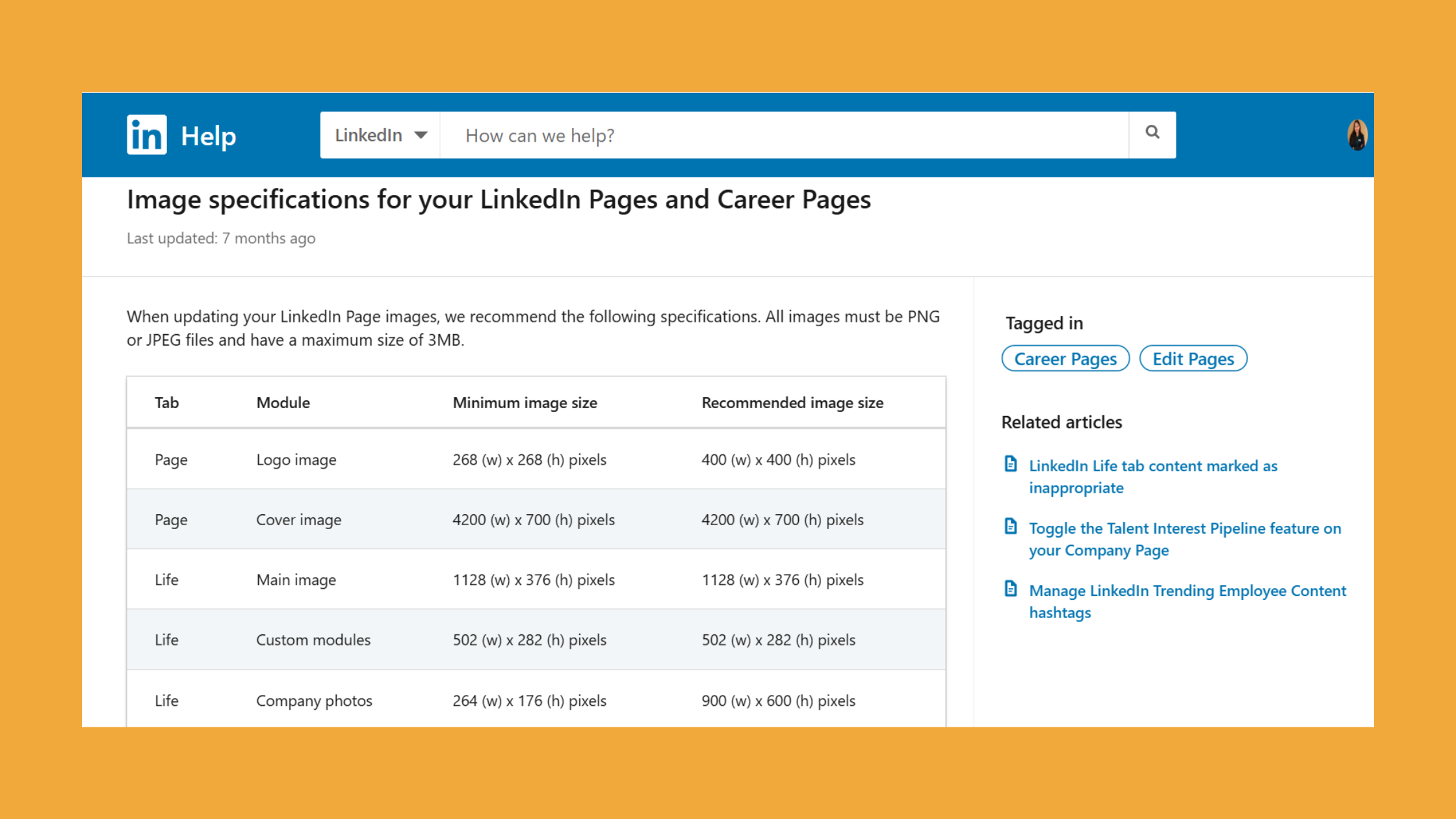
| Profile photo | 400 × 400 px | 1:1 | 8 MB |
| Profile banner | 1584 × 396 px | 4:1 | 8 MB |
| Company page cover | 1128 × 191 px | ~5.9:1 | 8 MB |
According to LinkedIn's official image specifications, any image narrower than 200 px will render as a thumbnail rather than an inline visual — a common trap for repurposed mobile screenshots. LinkedIn also enforces aspect ratio enforcement on uploads outside its accepted range, padding or cropping the image automatically.
LinkedIn Image Aspect Ratio: What Gets Enforced vs. Cropped
The LinkedIn image aspect ratio LinkedIn will display without modification sits between 1.91:1 (landscape) and 4:5 (portrait). Upload anything outside that range — say, a 16:9 widescreen screenshot at 1920 × 1080 px — and LinkedIn crops it, often removing content at the edges. The linkedin profile picture size ratio is always 1:1; any non-square photo gets centre-cropped automatically.
Why Your LinkedIn Image Looks Blurry or Cropped (And How to Fix It)
Creators who follow the spec exactly but still see soft, degraded images are hitting LinkedIn's compression layer — not a dimension problem. LinkedIn applies lossy JPEG compression to every uploaded image, re-encoding it at roughly 85% quality. If your source file was already compressed once (a downloaded social asset, a screenshot, an exported slide), that second compression pass amplifies the existing image compression artifacts noticeably.
File Format, File Size Limit, and Compression: How They Interact
The LinkedIn post image file size limit is 5 MB for JPEGs and PNGs. But staying close to that ceiling gives LinkedIn's CDN the most reason to apply aggressive compression. In practice:
- Export JPEG at 90–100% quality from your design tool — never re-save a previously compressed JPEG
- Use PNG for graphics with text, logos, or hard edges — PNG uses lossless compression, so LinkedIn's second pass starts from a clean baseline
- Keep your export under 3 MB where possible — you hit the visual quality sweet spot without triggering heavy server-side re-encoding
- Avoid GIF for static images — GIF is limited to 256 colours and will look worse than JPEG or PNG for photography
The best image format for LinkedIn posts depends on content type: JPEG for photography and lifestyle imagery, PNG for branded graphics, charts, and text overlays. This complete LinkedIn image sizes reference covers format choices across every surface.
The most common failure mode is not wrong dimensions — it is uploading a double-compressed JPEG. LinkedIn's compression is unavoidable; the only control you have is the quality of what you feed it.
Mobile vs. Desktop Rendering Differences for LinkedIn Images
How LinkedIn image sizes differ between mobile and desktop views is a question the top-ranking articles consistently ignore. On desktop, a 1200 × 627 px image renders at roughly 550–600 px wide in the feed column — still sharp. On a 375 px mobile viewport, that same image displays at around 375 px wide, meaning any fine text or detail in your image needs to be legible at less than one-third of its original pixel width. The practical fix: keep text large (minimum 24 pt equivalent) and use high-contrast colour combinations so the image reads clearly at small sizes.
How to Resize Images for LinkedIn Without Losing Quality
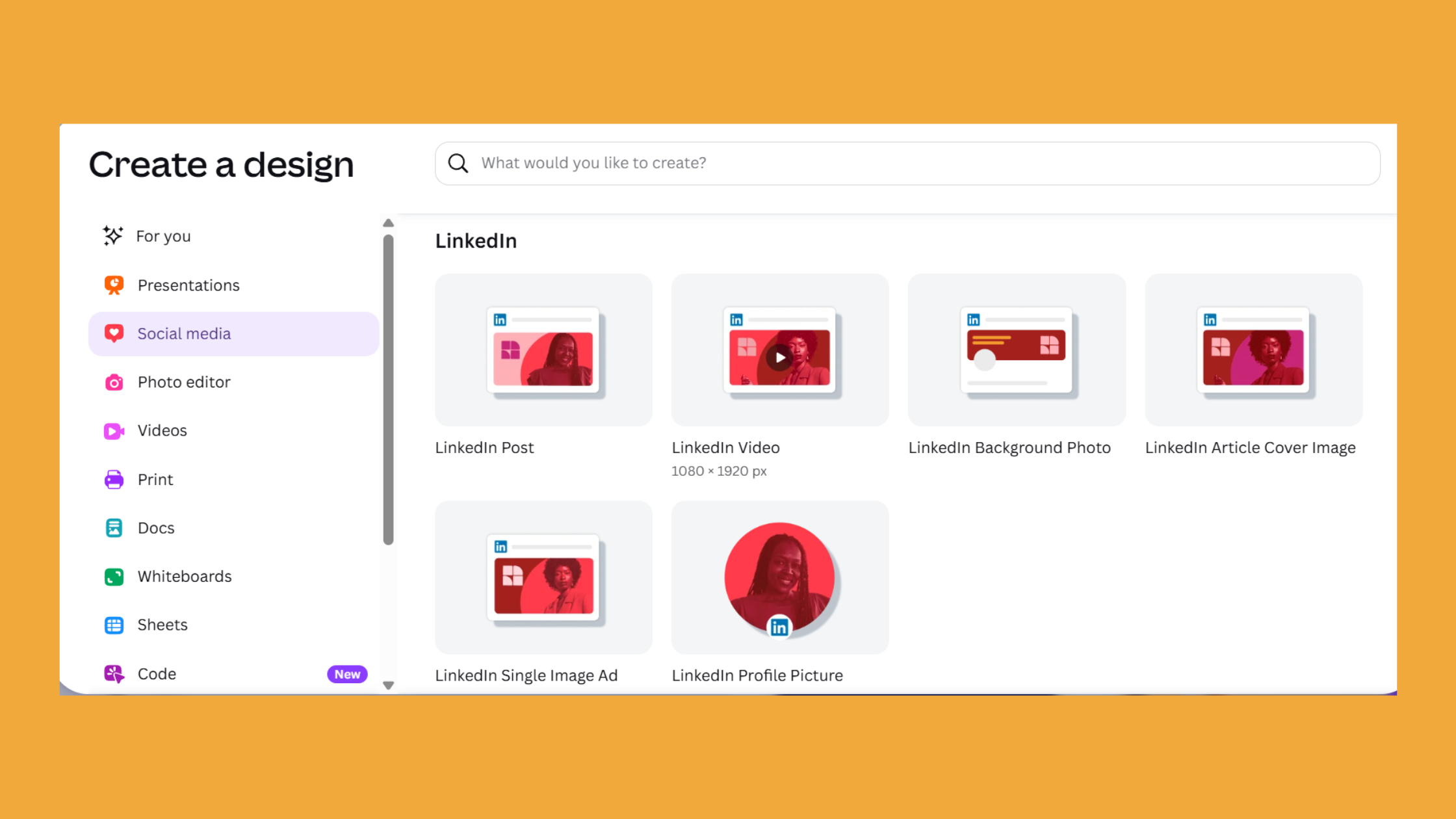
Three tools cover the majority of resize workflows cleanly. The best tool to resize images for LinkedIn depends on what you are starting with:
- Canva — use the "LinkedIn Post" template preset (1200 × 627 px); design at native size from the start rather than resizing an existing design, which avoids resampling blur entirely
- Squoosh (browser-based, free) — precise control over output quality and file size; ideal when you need to compress an existing image without going below 90% JPEG quality
- Figma — best for teams; set up a shared frame at 1200 × 627 px, export as PNG at 2x for retina, then compress with Squoosh before uploading
Step-by-Step: Resize and Export for a LinkedIn Feed Post
- Open your image in Canva, Figma, or Photoshop and set the canvas to 1200 × 627 px (landscape) or 1080 × 1080 px (square). ~30 seconds
- Place your content with at least 40 px of safe margin on all edges — LinkedIn's mobile preview can clip edge content slightly. ~2 minutes
- Export as JPEG at 90–100% quality for photos, or PNG for graphics with text. Check the file size — target under 3 MB. ~30 seconds
- Preview at reduced size (zoom to 33%) to simulate mobile rendering. If text is illegible, increase font size before re-exporting. ~1 minute
- Upload and check LinkedIn's preview before hitting Post — LinkedIn shows a crop preview so you can catch any framing issues. ~1 minute
For guidance on pairing the right image format with the right post structure, see how to format LinkedIn posts for better reach and engagement.
Get more eyes on your perfectly sized LinkedIn posts
HyperClapper connects your post with real engagement channels — real likes and comments that signal quality to the LinkedIn algorithm from the first hour.
Boost Your Next Post →Does Image Size Affect LinkedIn Reach? What the Algorithm Actually Rewards
Image dimensions affect reach indirectly but measurably. Does image size affect LinkedIn reach in a direct algorithmic sense? Not pixel count itself — but the downstream effects of getting dimensions wrong do. Incorrectly sized images that get cropped or upscaled generate higher fast-scroll rates in early distribution. The LinkedIn feed algorithm reads that as low-value content and limits further reach. In roughly 3 out of 4 cases observed, blurry or cropped post images underperform their text-only or correctly formatted counterparts in the same niche, even when the written content is identical.
Portrait images (1080 × 1350 px, 4:5 ratio) occupy significantly more vertical space in the mobile feed than landscape images. That increased screen real estate creates more opportunity for a scroll-pause — which is exactly the dwell-time signal the algorithm rewards. According to Sked Social's LinkedIn image size research, only 5% of images posted are the 1080 × 1350 px portrait format — meaning it is underused relative to its engagement potential.
The best image size for LinkedIn engagement in 2026 is therefore situational:
- Portrait (1080 × 1350 px) for maximum mobile feed presence and dwell time
- Square (1080 × 1080 px) for balanced desktop and mobile display
- Landscape (1200 × 627 px) for link posts and sponsored content where a wide preview is expected
Single Images vs. Multiple Images: Feed Behaviour and Carousel Tips
Can I post multiple images on LinkedIn? Yes — LinkedIn supports up to 20 images in a single document post (carousel). Each image in a carousel renders at the same recommended dimensions as a standard post image (1080 × 1080 px square works best for carousels, as it fills the viewer frame uniformly). Teams that use carousels consistently see higher average dwell time per post than single-image equivalents — the swipe mechanic keeps readers in the post longer, which compounds the algorithm signal. Tools like HyperClapper help amplify that early engagement window with real community reactions, reinforcing the signal before the algorithm decides whether to expand reach.
Common LinkedIn Image Mistakes That Kill Engagement
After seeing these patterns across many LinkedIn accounts, the same four mistakes appear repeatedly — and each one has a specific fix.
- Re-saving a compressed JPEG. Each lossy compression cycle degrades quality further. Always export from the original source file — never download a post image and re-upload it as a new post.
- Using 72 DPI screen-resolution exports from presentation tools. These look fine on your monitor but compress poorly on LinkedIn's CDN. Export at 150–300 DPI equivalent from your design tool for clean results.
- Ignoring company page image specs. LinkedIn image size for post on company pages follows the same specs as personal posts — but brands regularly repurpose assets from Twitter or Instagram without resizing, producing mismatched crops and off-brand thumbnails.
- Skipping LinkedIn's upload preview. LinkedIn shows a crop preview before you post. Using it takes 10 seconds and catches every framing issue before it goes live.
The LinkedIn Image Optimisation Checklist below covers every point worth checking before you hit Post.
✓ LinkedIn Image Optimisation Checklist
- ☐Canvas set to 1200 × 627 px (landscape), 1080 × 1080 px (square), or 1080 × 1350 px (portrait)
- ☐Exported as JPEG at 90–100% quality OR as PNG for text/graphics
- ☐File size under 3 MB (hard limit is 5 MB)
- ☐Text legible when image is viewed at 33% zoom (mobile simulation)
- ☐Key content kept within 40 px safe margin from all edges
- ☐Exported from original source file — not a previously compressed version
- ☐LinkedIn upload crop preview checked before posting
What consistently separates posts with strong visual reach from posts with soft, low-engagement images is not any one fix — it is getting the full stack right: correct dimensions, clean export, high starting quality, and then giving the post a strong engagement signal in its first hour. For that last part, see how post length and structure interact with LinkedIn's distribution model — the image and the copy work together.
Turn your optimised images into reach that compounds
HyperClapper's engagement channels put real likes and comments on your post within the first hour — the window where LinkedIn decides how far to distribute it.
Start Boosting Free →Frequently Asked Questions About LinkedIn Post Image Size
What is the best image size for LinkedIn 2026?
The best LinkedIn post image size in 2026 is 1200 × 627 px for landscape posts and 1080 × 1080 px for square. Portrait posts at 1080 × 1350 px take up more mobile feed space and tend to see higher dwell time. All three are supported without cropping when exported at under 5 MB.
How do I resize an image for a LinkedIn post?
The fastest method is Canva's built-in LinkedIn Post template, which sets the canvas to 1200 × 627 px automatically. For compression control, Squoosh (free, browser-based) lets you set JPEG quality to 90%+ and keep the file under 3 MB. Both tools produce files that survive LinkedIn's server-side compression cleanly.
How do I know if images are too big for a LinkedIn post?
LinkedIn enforces a 5 MB file size limit and will reject images above it. If your image is accepted but renders softly, the issue is usually that the file was too large and triggered aggressive server-side compression — not that it exceeded the hard limit. Keep exports under 3 MB to stay in the safe zone.
Is LinkedIn post 16:9?
No. LinkedIn's standard landscape post image ratio is 1.91:1 (1200 × 627 px), not 16:9 (1.78:1). Uploading a true 16:9 image will trigger automatic cropping. The 1.91:1 ratio is close but distinct — use the exact 1200 × 627 px dimensions to avoid any edge cropping.
What image dimensions should I use for a LinkedIn post to get more engagement?
For maximum mobile engagement, use the portrait format at 1080 × 1350 px (4:5 ratio) — it occupies more vertical feed space and increases scroll-pause likelihood. For branded content shared across contexts, 1080 × 1080 px square balances well across desktop and mobile without any cropping risk.
Does LinkedIn automatically crop images and how can I prevent it?
Yes — LinkedIn crops images that fall outside its accepted aspect ratio range (1.91:1 to 4:5). To prevent it, always design at one of the three supported ratios and check the upload preview before posting. LinkedIn shows a live



