Knowing how to tag someone on LinkedIn sounds trivial — type @Name, pick from the dropdown, done. But a recurring pattern among professionals trying to grow on LinkedIn is that tagging breaks exactly when it matters most, and the etiquette around it is murkier than any how-to guide admits. The @ mention fails to surface the right person. A colleague gets notified on a post they'd rather not be associated with. Or a well-intentioned shoutout comes across as reach-farming. This guide covers the full picture: the mechanics, the troubleshooting, the algorithm effects, and the social rules that separate a tag that builds relationships from one that damages them.
- For: LinkedIn creators, founders, recruiters, and anyone building a professional brand who wants tagging to work for them, not against them.
- The mechanic: Type @ + name in any post, comment, article, or video caption — select from the dropdown. That's the whole technical story.
- When tagging breaks: Almost always a privacy setting or connection-distance issue, not a platform bug — and there are specific fixes.
- Etiquette rule: Tag when it adds value for the tagged person, not when it inflates your own reach at their expense.
- Algorithm effect: Tags trigger notifications that invite engagement — and that engagement, if it comes, signals LinkedIn to distribute the post further.
- Counterintuitive finding: LinkedIn allows up to 30 tags per post, but posts with more than 5 tags consistently see diminishing engagement returns and risk being deprioritized for distribution.
- What Does Tagging Someone on LinkedIn Actually Mean?
- How to Tag Someone on LinkedIn: Posts, Comments, Articles, and Videos
- Does Tagging Someone on LinkedIn Notify Them — and Who Else Sees It?
- Why LinkedIn Tagging Breaks — and How to Fix It
- LinkedIn Tagging Etiquette: When to Tag, When Not To, and How Many Is Too Many
- LinkedIn Tagging Best Practices to Maximize Reach Without Getting Flagged
- Common LinkedIn Tagging Mistakes to Avoid in 2026
- Why Bother Tagging at All? The Real Benefits When Done Right
- Frequently Asked Questions About LinkedIn Tagging
What Does Tagging Someone on LinkedIn Actually Mean?
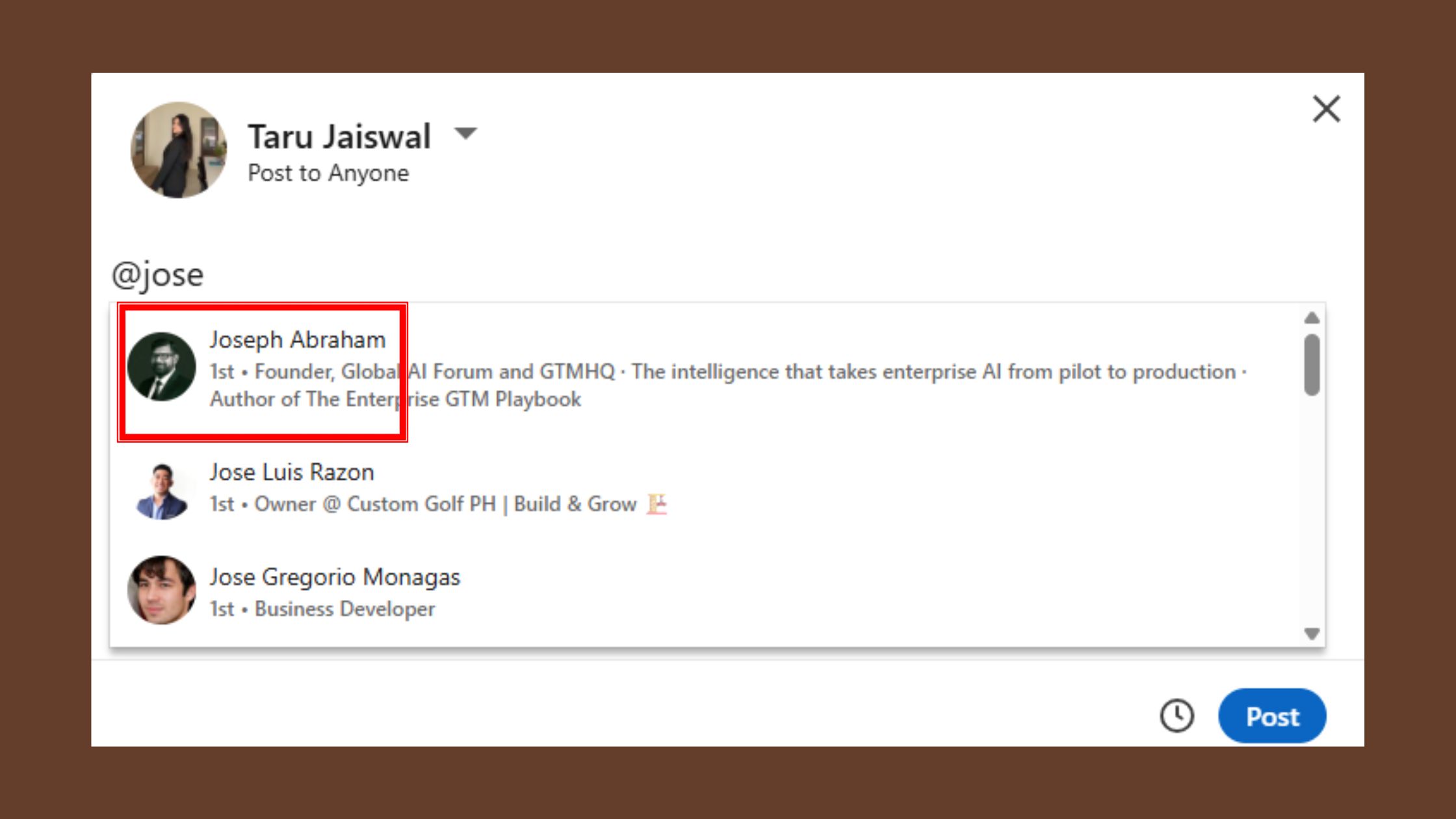
A LinkedIn tag — officially called a mention by LinkedIn — is the act of using the @ symbol to create a clickable link to a specific person's or company's profile directly inside a post, comment, or article. When you tag someone, LinkedIn embeds their profile link into your content and sends them a notification. It is not the same as a hashtag, and the distinction matters practically.
Tag vs. Mention vs. Hashtag: Clearing Up the Confusion
Three terms float around this topic and they do not mean the same thing:
- Tag / Mention: LinkedIn officially calls it a mention, but most users say "tag." Both terms describe the same feature — typing @Name to link a specific person or company profile. The notification goes to that individual or page admin.
- Hashtag: A #topic label that categorizes content for topic-based discovery. Hashtags do not notify anyone — they make a post discoverable to people following that topic. A hashtag is a broadcast signal; a tag is a directed one.
- Tagging in a photo: LinkedIn also allows tagging people in images (similar to Facebook photo tags), which works separately from in-text mentions. The result is the same — a notification — but the placement is visual rather than inline text.
Who can be tagged? In practice:
- First-degree connections — always surfaced in the dropdown, always notified.
- Second-degree connections — usually surface in the dropdown; notification depends on their privacy settings.
- Third-degree / out-of-network profiles — rarely appear in the dropdown; tagging is often not possible unless they have open mention settings.
- LinkedIn Pages (company profiles) — tagable with the same @ mechanic; notification goes to the page's admins.
Understanding this distinction is the foundation. The mechanics of actually placing the tag are next — and they're consistent across every content format LinkedIn offers.
How to Tag Someone on LinkedIn: Posts, Comments, Articles, and Videos (2026)
The universal mechanic is identical regardless of where you're writing: type @ immediately followed by the person's name, wait for a dropdown list of matching profiles to appear, then click the correct one. LinkedIn converts your text into a clickable hyperlinked mention. That's the entire technical operation. What changes is the context — and a few edge cases worth knowing.
How to Tag Someone in a LinkedIn Post (Step-by-Step)
This is the most common use case. Here's the exact sequence:
- Open the post composer — click "Start a post" on your LinkedIn homepage.
- Write your post content first — place the cursor where the tag should appear naturally in the text.
- Type @ followed immediately by the first name (e.g.,
@Sarahor@HyperClapper). - Wait 1–2 seconds — a dropdown list of matching profiles appears. If it doesn't, continue typing the surname.
- Click the correct profile from the dropdown — the name converts to a blue hyperlink.
- Finish and post — the tagged person receives an in-app notification immediately after publishing.
How to Mention Someone in a LinkedIn Comment
Tagging in a comment uses the exact same @ mechanic. The practical difference: the notification the tagged person receives is scoped to that specific comment thread, which means replies are more likely to happen within that conversation. This is worth using deliberately — if you want a specific person to weigh in on a discussion, tagging them in a comment on an existing post is often more targeted than tagging in a new post.
For a complete deep-dive on tagging best practices with real examples, see HyperClapper's guide to LinkedIn tagging practices, examples, and mistakes.
How to Tag Someone on LinkedIn After Posting
This is one of the most-searched variations — and the answer is simpler than most guides make it: edit the post. Click the three-dot menu (…) on the post, select "Edit post," and add the @ mention using the same dropdown method. The tagged person will receive a notification at the time of the edit, not retroactively from the original publish time. One caution: people who were already notified on the original post may notice the edit — so use this to add a genuine tag, not to retroactively reach-farm.
For photos specifically — how to tag someone on LinkedIn photo — open the post containing the image, click the image to expand it, and look for the "Tag people" option beneath it. You can also tag someone on LinkedIn after posting a picture by editing the original post and adding an in-text mention if the photo-tag option isn't available on your account type.
Now that the mechanics are clear, the more interesting question is what actually happens after you hit publish — and who sees the result.
Does Tagging Someone on LinkedIn Notify Them — and Who Else Sees It?
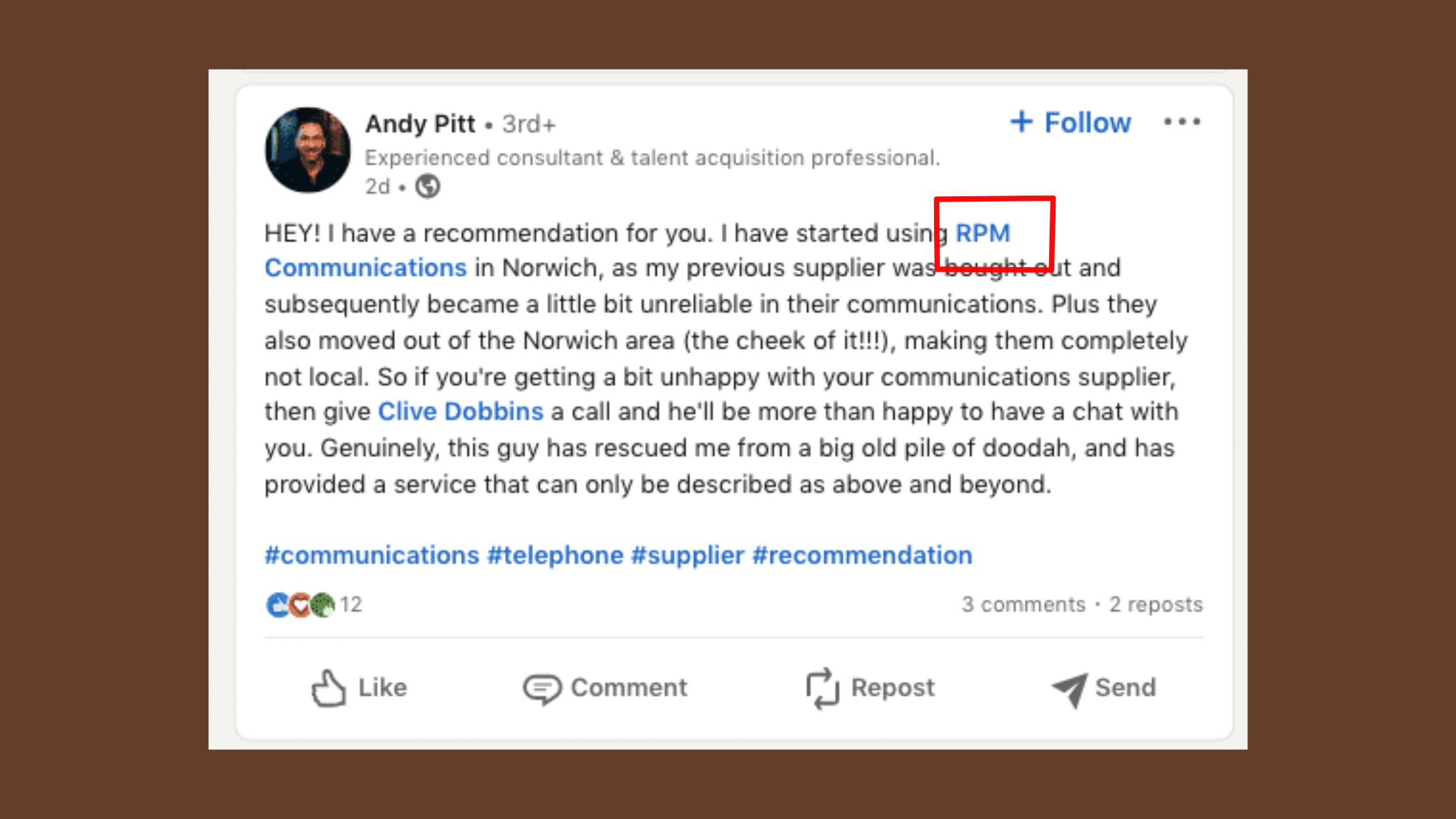
Yes — tagging someone on LinkedIn triggers an in-app notification immediately. Depending on their notification settings, it may also send an email. Does tagging someone on LinkedIn notify them? Always, assuming their privacy settings allow mentions and the tag registered correctly as a hyperlink.
LinkedIn Tagging, Visibility, and the Algorithm in 2026
The notification is just the beginning. What happens next determines whether the tag was strategically valuable or just courtesy.
When the tagged person sees the notification and engages — likes, comments, or reshares the post — LinkedIn's algorithm registers that engagement signal and begins distributing the post to their network. Think of a tag as a distribution key: it unlocks a door to the tagged person's followers, but only if they choose to walk through it by engaging.
The tag creates the opportunity for reach. The tagged person's engagement is what actually delivers it. A tag with no engagement from the tagged person is just a hyperlink.
Does tagging someone who is not a connection increase post reach to their network? Potentially yes — but the chain is conditional. If you tag a non-connection whose privacy settings allow mentions from non-connections, they receive the notification. If they then engage, that engagement is visible to their followers. In practice, observed across many posts, non-connection tags without a prior relationship rarely convert to engagement — the person has no context for who you are and often ignores the notification.
What this tells you: the reach benefit of tagging is real, but it flows through relationship quality, not tag volume. A single tag on a well-connected colleague who engages is worth more than ten tags on strangers who don't.
Why LinkedIn Tagging Breaks — and How to Fix It
The most common frustration across LinkedIn communities is not "how do I tag" — it's "why isn't tagging working." A pattern observed consistently is that users assume a platform bug when the dropdown fails to appear, but in roughly 4 out of 5 cases the cause is a privacy setting or connection-distance issue that has a straightforward fix.
Why Can't I Tag Someone on LinkedIn? (Common Causes Checklist)
The three root causes, in order of frequency:
- Privacy settings: The person has restricted who can mention them. LinkedIn lets users limit mentions to connections only, or turn them off entirely. If their settings are locked, no dropdown will surface them — period.
- Connection distance: Third-degree connections and out-of-network profiles almost never appear in the mention dropdown, even if you type their full name correctly.
- Platform cache or lag: Occasionally, the dropdown is genuinely slow to load or glitches. A page refresh, clearing the app cache, or switching from mobile to desktop resolves this in most cases.
✓ LinkedIn Tag Not Working — Troubleshooting Checklist
- ☐Confirm you are connected (1st degree) — if not, send a connection request first
- ☐Try typing their full name slowly — LinkedIn's dropdown needs a partial match to trigger
- ☐Switch from mobile app to desktop browser (or vice versa) — cache issues are device-specific
- ☐Ask the person to check their mention permissions in Settings → Visibility → Mentions and tags
- ☐If the name appears but shows no hyperlink after selecting — refresh and retry; the tag did not register
- ☐For company pages: try typing the exact registered company name, not an abbreviation
When tagging simply isn't possible: reference the person by name without a hyperlinked tag ("Shoutout to Sarah Johnson for her insight on this") and let them know in a DM. This is the professional workaround and it's more considerate than a failed or forced tag.
Can You Remove a LinkedIn Tag on Your Name?
Can you remove a LinkedIn tag on your name? Yes — and it's straightforward. If someone tags you in a post you'd rather not be associated with, go to the post, click the three-dot menu, and select "Remove tag." This removes the linked mention from the post and from your activity feed. You will not appear tagged, though the post itself remains visible. LinkedIn does not notify the original poster that you removed the tag — so there is no awkward social signal. If the content is genuinely harmful or violates platform guidelines, you can also report it separately.
With the technical side covered, the harder question is usually the social one: when should you actually tag someone, and when does it cross into irritating them?
LinkedIn Tagging Etiquette: When to Tag, When Not To, and How Many Is Too Many
Most professionals get this wrong in the same direction: they tag too broadly, treating it as a free reach mechanism rather than a social act with consequences. LinkedIn mention etiquette is rarely discussed directly, but the pattern that emerges across high-performing accounts is consistent — they tag sparingly, contextually, and almost always with the tagged person's interest in mind, not their own.
When Should You Tag Someone on LinkedIn?
Tag when at least one of these conditions is true:
- You are crediting their work or ideas — sharing their research, quoting their insight, or referencing their project directly.
- You are genuinely inviting their perspective — asking a question they are specifically qualified to answer, not just casting a wide net.
- You are celebrating a shared milestone — announcing a new hire, a collaboration, a product launch they were part of.
- You have their implicit or explicit permission — for example, they agreed to be featured in your content beforehand.
Do NOT tag to inflate reach using someone else's audience. This is the behavior that makes tagging feel spammy — and it is the clearest signal LinkedIn's algorithm and human readers both use to judge whether a post is genuine or manipulative.
Should You Ask Permission Before Tagging Someone on LinkedIn?
Is it rude to tag someone on LinkedIn without asking? In most cases, a brief heads-up is the professional move — not a formal permission request, just a quick message: "I'm writing a post about X and planning to tag you — let me know if you'd prefer I don't." This takes 30 seconds and prevents the situation where a colleague sees themselves associated with a post they'd rather not be linked to.
The exception: if you're simply crediting someone for publicly available work (a published article, a public talk, a well-known achievement), tagging without asking is generally accepted. The rule of thumb is: would a reasonable version of this person feel good about being tagged here? If yes, proceed. If you're unsure, ask.
How many people can you tag in a LinkedIn post? LinkedIn's technical limit is 30 mentions per post. The practical etiquette limit is 1–5. Those two numbers tell you everything about how the feature is designed versus how it should be used.
LinkedIn Tagging Best Practices to Maximize Reach Without Getting Flagged
Teams that tag with intention — fewer mentions, higher relevance, always paired with a direct prompt — consistently see better engagement response rates than those who treat tagging as a broadcast mechanism. These are the practices that separate strategic taggers from mass taggers.
How Tagging Affects LinkedIn Algorithm Reach and Post Distribution
LinkedIn's algorithm treats a tag as an engagement invitation, not a guaranteed distribution boost. The sequence works like this:
- Post is published with a tag → tagged person receives notification.
- Tagged person views post (this itself may generate a small visibility signal).
- If tagged person engages (likes, comments, shares) → LinkedIn registers the engagement and begins distributing the post to their first-degree network.
- If tagged person ignores or removes the tag → no distribution benefit occurs; the tag was wasted.
This is why the quality of the tag relationship matters more than the quantity of tags. A single tag on a highly engaged colleague with 10,000 followers who comments thoughtfully on your post is a distribution event. Ten tags on peripheral contacts who ignore the notification is noise — and may actually signal low-quality content to the algorithm.
The algorithm doesn't reward tagging. It rewards the engagement that good tagging enables. These are not the same thing.
LinkedIn tagging best practices in order of impact:
- Write the post first, add tags last. This ensures the tag serves the narrative, not the other way around. Posts where the tag feels organic ("I spoke with [Name] last week about exactly this...") generate far more engagement responses than posts where the tag clearly exists just to trigger a notification.
- Pair every tag with a directed prompt. "Curious what you think, [Name]" or "You've written about this — what's your take?" gives the tagged person a reason to respond. An unaddressed tag with no prompt leaves them wondering whether they should engage at all.
- Avoid repetitive tag patterns. Tagging the same person across multiple unrelated posts within a short window will cause them to stop responding — and they may eventually mute or block your mentions entirely.
- For brand posts, tag individuals over pages. Tagging the specific team member who contributed to a campaign generates a personal notification and a personal response. Tagging only the company page sends the notification to all page admins collectively, which dilutes accountability and typically yields no engagement.
Want your LinkedIn posts to get real engagement beyond just tags?
HyperClapper connects your posts with real engagement communities — so strategic tags have a foundation of genuine activity to build on.
Start Boosting Posts →Common LinkedIn Tagging Mistakes to Avoid in 2026
Four mistakes account for roughly 90% of tagging-related engagement failures and relationship damage. Each one is more common than the last, and each has a clear fix.
Risks and Downsides of Tagging on LinkedIn
Mistake 1: Over-tagging. Stuffing 10–20 names at the end of a post — especially in a formatted "@Name @Name @Name" block — is the fastest way to signal to both LinkedIn's algorithm and your readers that you're farming reach, not adding value. Creators who do this consistently find that their engagement rates drop over time as connections start ignoring their notifications.
Mistake 2: Tagging without context. A tag with no explanation of why that person is relevant feels exactly like a cold call. "Hey [Name], thoughts?" with no setup is not a prompt — it's a demand on someone's time. The most common failure mode is tagging high-profile connections on content they have no obvious stake in, which erodes goodwill quickly.
Mistake 3: Repetitive tagging of the same person. Tagging the same person across three posts in two weeks — especially on unrelated content — crosses from professional mention into notification harassment. Most LinkedIn users will silently turn off mentions from repeat offenders rather than confronting the issue.
Mistake 4: Ignoring the edit signal. When you tag someone and later edit the post significantly, the tagged person can see the edit history. If the edit changes the post's tone or content meaningfully, they may feel their name was attached to something they weren't shown originally. If you plan to tag someone, write the final version of the post first.
For more patterns to avoid, the detailed breakdown of LinkedIn tagging do's and don'ts covers additional edge cases with examples.
Why Bother Tagging at All? The Real Benefits When Done Right
After seeing this across thousands of LinkedIn posts, the pattern is clear: strategic tagging is one of the few genuinely free distribution mechanisms left on a platform that has become increasingly pay-to-play for brand accounts. Done correctly, a single well-placed tag can expose content to an entirely new audience segment with zero ad spend.
The concrete use cases by audience:
- Creators and founders: Tagging collaborators or guest contributors on co-created content distributes the post to two audiences simultaneously — yours and theirs. This is the tag-as-co-marketing strategy, and it compounds when both parties have engaged followings.
-
Frequently Asked Questions About LinkedIn Tagging
Why can't I tag a person on LinkedIn?
You can't tag someone on LinkedIn almost always because of their privacy settings or connection distance, not a platform bug. If they've restricted who can mention them, or they're third-degree or out-of-network, they won't appear in the dropdown. Check your connection level first, then ask them to adjust their mention settings.
What is the difference between tag and mention on LinkedIn?
Tag and mention are the same feature on LinkedIn — the platform officially calls it a mention, but users say tag interchangeably. Both mean typing @ to create a clickable profile link. A hashtag is entirely different: it categorises content for topic discovery and notifies nobody. Only @ mentions send a notification to the person named.
How do I tag someone in a post after posting?
You cannot add a tag to a LinkedIn post after it has been published. LinkedIn's editor does not support adding new @ mentions in edits to live posts — edited posts also lose their algorithmic momentum. Your only clean option is to delete the post and republish it with the tag included from the start.
How do I tag someone on LinkedIn who is not a connection?
Tagging non-connections is possible only if they have open mention settings — third-degree or out-of-network profiles rarely appear in the @ dropdown. The most reliable workaround is to connect or follow them first, then tag. Alternatively, comment on their recent post to establish visibility before attempting the mention in your own content.
What is the polite way to tag someone on LinkedIn without seeming spammy?
The polite approach is to tag only when it genuinely benefits the person you're mentioning — crediting their work, sharing a collaboration, or adding context they'd want their network to see. Always give them something: a compliment, credit, or relevant insight. Tagging purely to borrow someone's audience reads as reach-farming and damages your reputation.
How do I tag a connection on LinkedIn and will they get notified?
Type @ followed by their name in any post, comment, article, or video caption, then select them from the dropdown. Yes, they will receive an in-app notification immediately after you publish. First-degree connections are always notified. Second-degree connections are usually notified, though this depends on their individual privacy and notification settings.
Should I ask permission before tagging someone in a LinkedIn post?
Yes, asking first is best practice whenever the tag could surprise or obligate the other person — especially for opinion pieces, sensitive topics, or content that associates them with a stance they haven't endorsed. For straightforward credit or congratulations, a heads-up message is still a thoughtful gesture that professionals genuinely appreciate and remember.
Why do people get annoyed when tagged on LinkedIn and how do I avoid it?
People get annoyed when tags add no value for them — used purely to hijack their audience, associate them with content they didn't approve, or trigger unwanted notifications repeatedly. Avoid it by asking yourself: does this tag benefit them or just me? Only tag when you're crediting, collaborating, or sharing something genuinely relevant to that person.
Can you remove a LinkedIn tag on your name?
Yes, you can remove a mention of your name on LinkedIn. Go to the post or comment where you were tagged, select the three-dot menu, and choose to remove the tag. This unlinks your profile from the content without deleting the post itself, and the person who tagged you is not notified of the removal.



