Create a LinkedIn Banner with AI in Under 15 Minutes
Learn how to create an ai linkedin banner using free and paid tools like Canva, Claude Design, and Adobe Express — with exact specs, step-by-step upload guide, and pro tips.
📅 ⏱ 15 min read📝 ~2900 words
An ai linkedin banner — a profile background image created or enhanced using AI tools — takes the most overlooked real estate on LinkedIn and turns it into an instant branding signal. A pattern observed across high-performing LinkedIn profiles is that a polished banner correlates directly with more profile views and connection acceptance rates: it signals credibility before a visitor reads a single word. Most professionals either leave this space blank or use a generic gradient. With AI tools available in 2026, creating a professional banner now takes under 15 minutes and costs nothing if you pick the right tool.
Key Takeaways
For: professionals, founders, coaches, recruiters, and marketers who want a stronger LinkedIn presence without hiring a designer
What you'll learn: which AI banner tools to use, the exact specs to get right, and how to upload your finished banner
Why it matters: LinkedIn posts with images receive up to 94% more views — a great banner primes visitors to engage before they even scroll
Fastest path: a template-based AI tool like Canva AI or Adobe Express gets you a publish-ready banner in 5–10 minutes
Counterintuitive finding: free AI tools often outperform paid tools for banner creation specifically — the constraint is specs knowledge, not tool budget
After launch: pairing your new banner with actively boosted posts is what turns profile visits into real connections
What Is an AI LinkedIn Banner and Why It Matters for Your Profile
LinkedIn Banner
A LinkedIn banner — also called a background image or cover photo — is the wide horizontal image that sits behind your profile photo. It spans the top of your profile and is the first visual element any visitor sees. AI-generated LinkedIn banners use text-to-image generation or template-based AI to produce on-spec visuals without requiring Photoshop skills or a freelance designer.
Why does it matter? LinkedIn posts with images receive 94% more views than text-only posts. While that statistic applies to feed content, the same principle holds for profiles: visual identity shapes first impressions within seconds. A banner that communicates your role, value proposition, or brand personality converts casual profile visitors into connection requests at a measurably higher rate than a blank or default banner.
The banner is the only part of your LinkedIn profile that works entirely through visual communication — it tells your story before a visitor reads your headline, your about section, or a single post.
LinkedIn Background Image Size and Specs You Must Get Right
Getting the dimensions wrong is the single most common reason AI-generated banners look blurry or get awkwardly cropped on live profiles. Here is what the LinkedIn background image size specification requires:
Recommended dimensions: 1584 × 396 pixels
Aspect ratio: 4:1
Maximum file size: 8 MB
Supported formats: JPG, PNG, GIF (static)
Safe zone: keep key text and logos away from the bottom-left 300px (where your profile photo overlaps)
Mobile crop: mobile devices display a tighter center crop — place critical content in the horizontal center third
Warning:Exporting at the wrong canvas size — a common default in many AI tools — causes LinkedIn to compress and re-crop your image. Always set your canvas to exactly 1584 × 396px before generating or exporting, not after.
Once the specs are locked in, the next decision is which tool to use — and that choice affects both quality and cost more than most people realise.
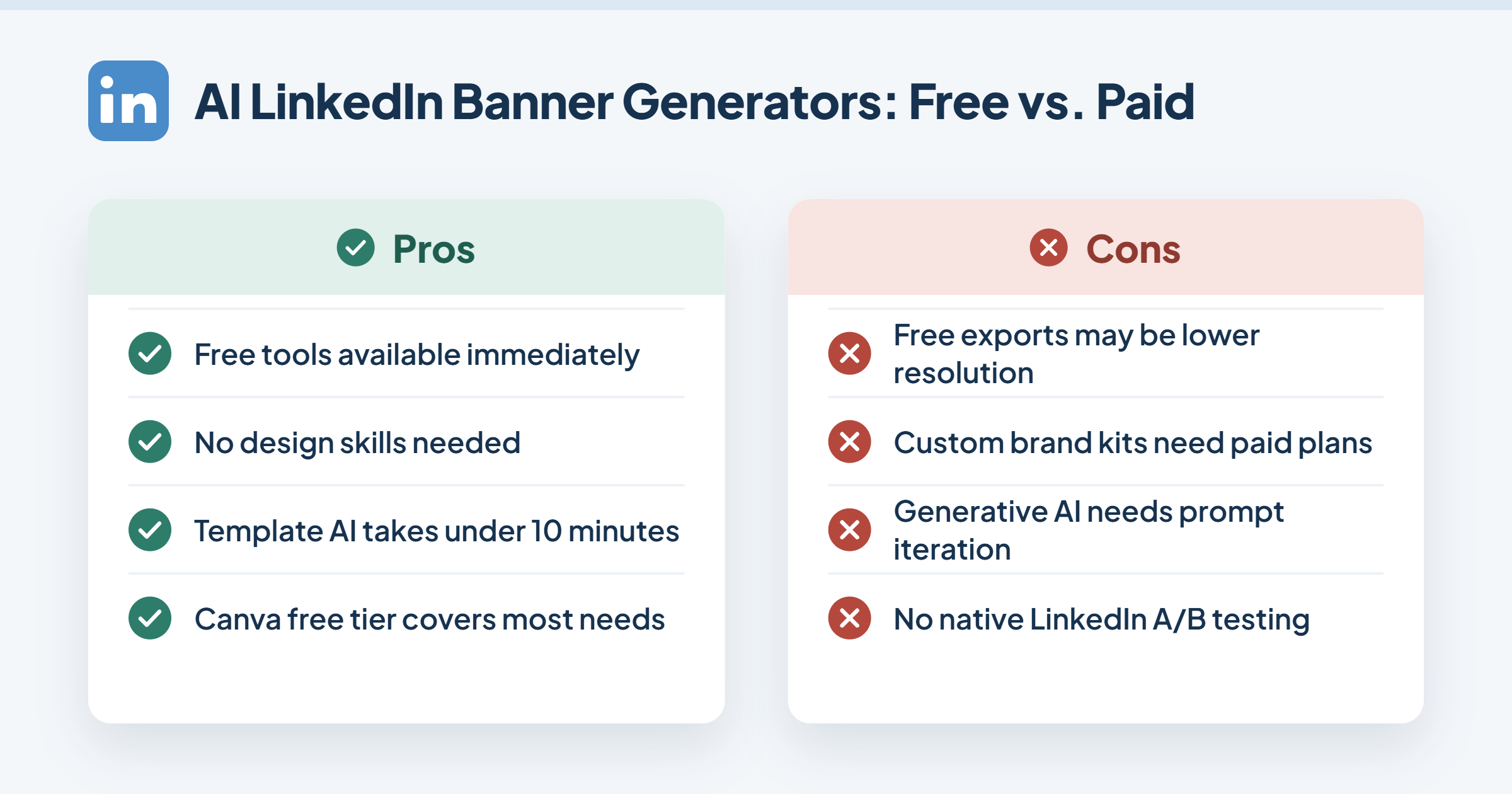
Best AI LinkedIn Banner Generators: Free vs. Paid Options Compared
Free vs. Paid AI LinkedIn Banner Generators
The most common failure mode when people ask "can AI design my LinkedIn banner?" is testing only one tool and concluding AI-generated banners look generic. In practice, the quality gap between tools is enormous — and the best results often come from combining a template-based AI for structure with a generative AI for custom visuals.
Tool
Best For
Free Tier?
Starting Price
Speed
Canva AI
Template-based, fast iterations
Yes
Free / $15/mo Pro
5–10 min
Adobe Express AI
Brand kit consistency
Limited
$9.99/mo
10–15 min
Microsoft Designer
Microsoft 365 users
Yes (with M365)
Free with M365
5–10 min
Krea.ai
Advanced generative control
Limited
~$18/mo
20–40 min
Claude Design
Screenshot-to-banner, logo uploads
Yes (Claude free)
Free / $20/mo Pro
15–30 min
The AI LinkedIn banner generator pricing reality is that free tiers cover most professionals' needs. The upgrade cases are specific: brand kit enforcement across a team, high-resolution print exports, or access to premium template libraries. For individual personal branding, the free tier of Canva or Claude Design is genuinely sufficient.
How Claude Design Handles LinkedIn Banners (Including Logo and Brand Asset Uploads)
Claude Design accepts uploaded screenshots, logos, and brand asset images as reference inputs. You describe the style you want, upload a screenshot of a banner you admire or your existing brand materials, and Claude generates a version that matches your aesthetic. The key limitation: Claude Design outputs SVG or canvas-based HTML designs rather than a direct PNG export. You need to screenshot or use a print-to-PDF workflow to get a clean image file at the right dimensions. It handles logos well when they have transparent backgrounds (PNG format), but struggles with complex multi-element compositions on the first pass — expect 2–3 iteration rounds.
Customize LinkedIn Banner Templates vs. Generating From Scratch
To customize LinkedIn banner templates is the faster path for most people — a template handles the layout and hierarchy decisions, and you substitute your text, colours, and photo. Generating from scratch with a text-to-image tool (Midjourney, Krea, DALL-E) gives more originality but requires stronger prompting skills and typically takes 3–5x longer. Teams that use templates consistently see faster turnaround and more brand-consistent output across multiple team members. The hybrid approach — generate a background image with AI, then layer text and logo in Canva — combines the best of both.
💡
Pro Tip:When using the Canva linkedin banner workflow, search "LinkedIn Banner" in Canva's template library — it auto-sizes the canvas to 1584 × 396px. Select a template, swap the text and brand colors, download as PNG (not PDF), and you're done in under 10 minutes.
How to Create a LinkedIn Banner with AI: Step-by-Step
The end-to-end process from blank canvas to live profile takes between 5 and 40 minutes depending on the tool and how much customisation you want. Here is the complete walkthrough — including the export and upload steps that most guides skip over.
Step 1–2: Find Your Style and Generate the First Version
Collect 2–3 reference banners you like — screenshot them from LinkedIn profiles in your industry. This is your style brief. Look for: colour palette, text placement, whether they use photography, illustration, or abstract design. (~2 minutes)
Choose your tool — if you have no design experience, start with Canva. If you want a custom generative image, start with Krea.ai or Microsoft Designer. Open it and set your canvas to 1584 × 396px before you touch anything else. (~1 minute)
Enter your prompt or select a template — for template tools: search "LinkedIn Banner" and filter by your industry. For generative tools: describe your visual in plain language — "minimal dark blue abstract background, geometric shapes, professional, wide banner format, no text". (~3–5 minutes)
LinkedIn Banner Templates
Generate and review — assess the first output for: correct aspect ratio rendering, legibility of any text elements, and whether it conflicts with where your profile photo will sit (bottom-left). (~2 minutes)
Step 3–4: Review, Edit, Export, and Upload to LinkedIn
Refine the design — add your name, role, or value proposition as a text layer. Keep it to one line. Use high-contrast text (white on dark, dark on light — never mid-tone on mid-tone). (~5 minutes)
Export correctly — download as PNG at the native canvas size (1584 × 396px). Avoid JPEG if the design has text — compression artifacts are visible. File size under 8 MB. (~1 minute)
Upload to LinkedIn: go to your LinkedIn profile → click the camera/edit icon on the background area (top-right of the banner zone) → select "Change photo" → upload your PNG → use the crop tool to confirm positioning → click "Apply". (~2 minutes)
Check on mobile — open LinkedIn on your phone immediately after uploading. The mobile view crops the banner more aggressively. Confirm that your key text and logo are visible in the center crop. If not, go back and adjust. (~2 minutes)
Total realistic time: 15–20 minutes for a template-based approach; 30–40 minutes if iterating with a generative tool. The question "how long does it take to make a LinkedIn banner?" has a real answer: it depends entirely on how many revision rounds you accept before being satisfied.
✓ LinkedIn Banner Pre-Upload Checklist
☐Canvas is exactly 1584 × 396px
☐File exported as PNG, under 8 MB
☐Key text is NOT in the bottom-left 300px (profile photo zone)
☐Design reviewed on mobile after uploading
☐Brand colors match your profile photo background and post style
☐Text is one concise line — role, value prop, or tagline only
LinkedIn Banner Ideas for Professionals: What Works and Common Mistakes to Avoid
What should I put on my LinkedIn banner? The answer depends on your goal — but in roughly 3 out of 4 well-performing banners observed across professional profiles, one principle holds: one dominant visual focus. Not three things. One.
Here are proven LinkedIn banner ideas for professionals by audience type:
Founders: bold value proposition text ("We help B2B teams close 40% faster") on a clean brand-color background — no stock photography, no busy backgrounds
Recruiters: a company culture visual or office/team photo with the company logo — communicates "this is a real, human workplace"
Marketers: a campaign visual or product screenshot — shows, doesn't tell
Coaches: an aspirational lifestyle image (speaking on stage, a client transformation quote) that signals the transformation they offer
Sales professionals: a clean headline about the specific problem they solve, with a simple brand color background and their contact CTA
On the question of "how to make a LinkedIn banner stand out": high contrast between text and background is the single most reliable differentiator. Most generic banners use mid-tone backgrounds with white text — they become invisible. A dark navy or deep green background with bright white text in a clean sans-serif reads clearly at thumbnail size and on mobile.
Risks and Limitations of AI-Generated LinkedIn Banners
Creators who skip the review step typically find two problems: AI-generated faces in banner backgrounds look uncanny at banner dimensions, and AI text generation often misspells or renders garbled text as part of the image. Avoid both by keeping AI-generated human figures out of banners entirely (use abstract or pattern backgrounds instead) and never relying on the AI tool to render your text as part of the image — always add text as a separate overlay layer in your design tool.
Other failure modes to avoid:
Wrong dimensions leading to blurry compression on LinkedIn's CDN
Colors that clash with your profile photo background — your headshot and banner should feel like they belong together
Ignoring the mobile crop — roughly 60% of LinkedIn browsing happens on mobile in 2026
Over-designing — five competing design elements, three font styles, and two color families in one banner
🔴
Avoid:Using a linkedin banner template without swapping the default stock photo. Visitors have seen those images thousands of times. A template's value is its layout structure — replace every stock element with something specific to you.
After Your Banner Is Live: Boost Visibility and Track Performance
A strong banner raises the ceiling on how your profile converts — but it does nothing unless people actually land on your profile. What separates professionals who see their banner pay off from those who don't is post volume and engagement quality in the weeks after updating their profile.
On banner A/B testing: LinkedIn does not offer native A/B testing for profile elements. The practical workaround is to manually swap banners and monitor the "Profile views" metric in LinkedIn Analytics over 2-week windows — keeping posting frequency constant between the two periods so the variable stays isolated. This is low-precision but useful directional data.
For the AI generated LinkedIn profile image consideration: pairing a polished banner with a professionally lit headshot (whether real or AI-enhanced with a tool like Aragon AI or similar) creates a cohesive visual identity. Mismatching a high-quality AI banner with a blurry or outdated headshot undermines the first impression the banner was meant to create.
94%
More views on LinkedIn content that includes visual elements — the same principle applies to your profile banner
This means the banner is table stakes. The actual engagement driver is your post activity. Tools like HyperClapper handle the engagement side — connecting your posts with real people across relevant channels so each post drives profile traffic. When your posts generate likes and comments from real community members, LinkedIn's algorithm surfaces your profile to more people, and your new banner gets seen by a larger audience every week. That's the flywheel: a strong banner converts the visitors that active posting creates.
Make Your New Banner Work Harder
A great banner attracts attention — HyperClapper's real engagement channels make sure your posts keep driving people to see it.
What consistently separates profiles with real reach from profiles with impressive credentials is not the content alone — it is the combination of a credible visual identity and consistent, engaged posting. The banner creates the first impression; the posts create the relationship.
Hyperclapper
Frequently Asked Questions About AI LinkedIn Banners
What is the fastest way to create a professional LinkedIn banner using AI?
The fastest path is using Canva's LinkedIn Banner template — search "LinkedIn Banner" in Canva, select a template, swap the text and brand color, and download as PNG. Total time: under 10 minutes. No design experience needed. The canvas auto-sizes to 1584 × 396px, eliminating the most common spec error.
Which AI tools can generate a LinkedIn banner in under a minute?
Canva AI and Microsoft Designer can produce a banner in under 60 seconds using their AI "Generate" features with a short text prompt. The output usually needs 2–3 minutes of text editing before it is publish-ready — so "under a minute" applies to the raw generation, not the finished product. Template-based generation is faster than prompt-to-image generation.
How do I make my LinkedIn banner look professional without a designer?
Use a LinkedIn Banner template in Canva or Adobe Express — these are built by professional designers and already have correct proportions and hierarchy. Swap the stock photo for a solid color or subtle pattern, add one line of text in a clean sans-serif font, and match your brand colors. One template, three substitutions, done.
Does AI create LinkedIn banners that match personal branding?
Yes, when you provide brand inputs. Tools like Canva AI, Adobe Express, and Claude Design accept color hex codes, logo uploads, and font preferences as inputs. The output reflects those inputs closely. The gap appears when users prompt generatively without providing brand references — in that case, the AI defaults to generic stock aesthetics.
What should I put on my LinkedIn banner?
Put one clear element: your role and value proposition, a strong visual that signals your industry, or a brand image that communicates what you do. Avoid: multiple competing messages, busy backgrounds with text on top, AI-generated faces, and any text in the bottom-left corner where your profile photo overlaps. One focus, high contrast, mobile-tested.
Is there a free AI LinkedIn banner maker worth using?
Yes. Canva's free tier and Microsoft Designer (free with a Microsoft account) both produce publish-ready LinkedIn banners without a paid subscription. Canva's free tier includes hundreds of LinkedIn Banner templates and basic AI generation. For most individual professionals, the free tier covers everything needed — paid plans add brand kits and premium assets, but are not required.
Canva vs AI LinkedIn banner generator: which is better?
Canva is an AI LinkedIn banner generator — the distinction is between template-based AI (Canva, Adobe Express) and text-to-image generative AI (Krea, Midjourney). Template tools are faster and more predictable. Generative tools produce more original visuals but require more iteration. For most professionals, Canva's template AI delivers better results per minute of effort than pure generative tools.
👋
⚡ Free plan
Leaving already?
Grab 3 free boosts on your next LinkedIn post — real likes & comments from 5,000+ creators. No card, cancel anytime.