
To linkedin schedule posts, you have two routes: LinkedIn's built-in native scheduler (free, no third-party account needed, available on desktop and mobile) or a dedicated scheduling tool like Buffer, Hootsuite, or Taplio. A pattern observed across thousands of LinkedIn accounts is that the creators who post consistently — not necessarily the most, but reliably — accumulate compounding visibility over months, while sporadic posters plateau no matter how good any single post is. Scheduling is the mechanism that makes consistency achievable without requiring you to open LinkedIn every morning at 8 AM.
- Yes, you can schedule posts natively on LinkedIn — free, up to 3 months in advance, on both desktop and mobile.
- Scheduled posts do NOT hurt reach — older 2023 data suggested a drop, but 2026 comparisons show less than a 10% difference vs. manual posts.
- Timing matters far more than method — a post fired at the wrong hour kills engagement regardless of how it was published.
- 2–4 posts per week is the current sweet spot for most creators; daily posting without quality control causes audience fatigue.
- The most common scheduling mistake: posting and disappearing. LinkedIn rewards early comment responses in the first 60–90 minutes.
- Pairing a scheduler with an engagement tool closes the final gap — getting early traction after your post goes live is what sustains algorithmic reach.
- Can You Schedule Posts on LinkedIn?
- How to Schedule LinkedIn Posts: Step-by-Step
- Best Time to Post on LinkedIn and How Timing Affects the Algorithm
- How Often Should You Post on LinkedIn?
- Best LinkedIn Scheduling Tools in 2026
- How to Stay Consistent on LinkedIn Without Spending Hours Every Week
- Common LinkedIn Scheduling Mistakes That Kill Your Reach
- Frequently Asked Questions About Scheduling LinkedIn Posts
Can You Schedule Posts on LinkedIn? (What Most People Get Wrong)
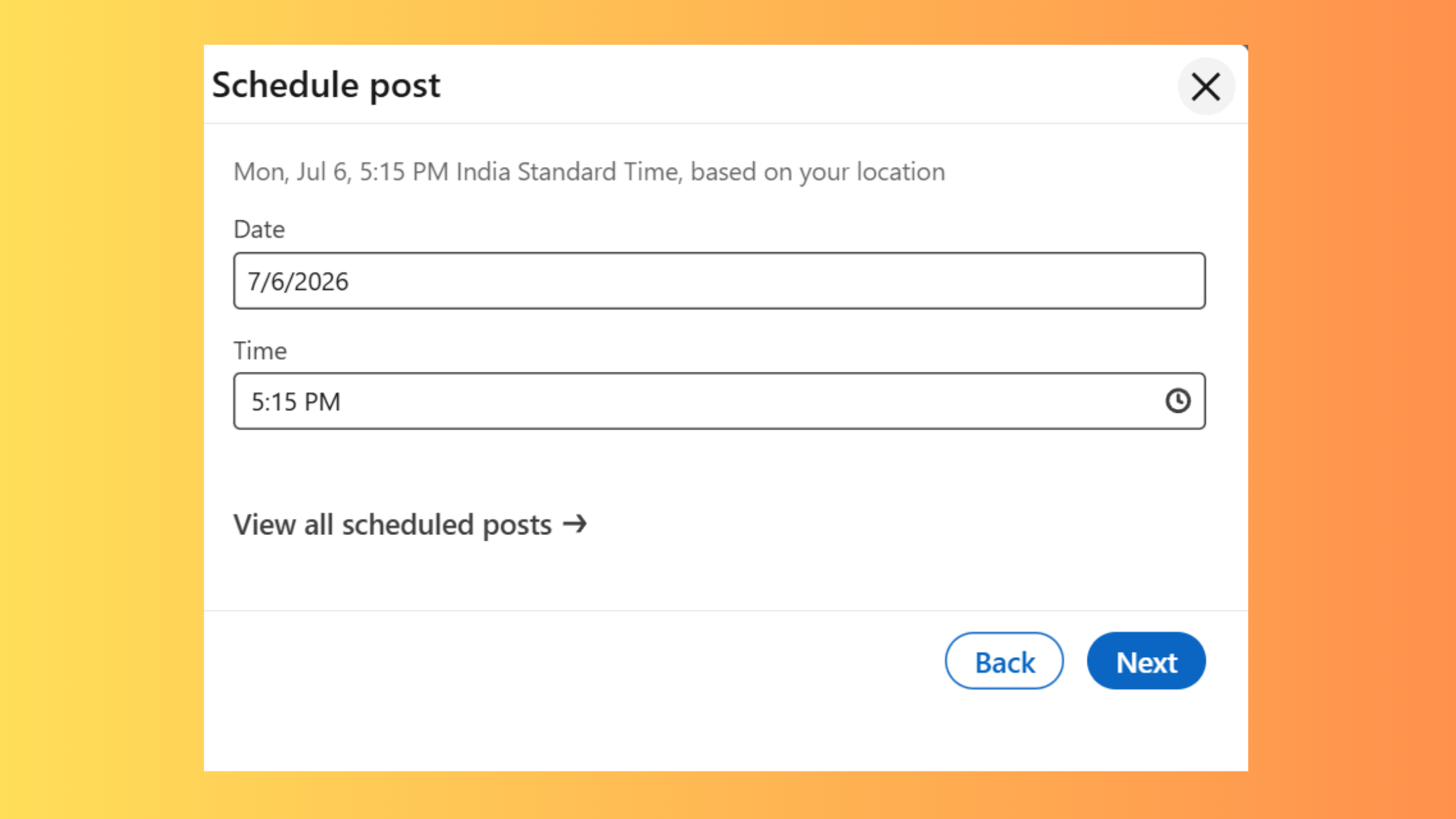
Yes — and it requires no third-party tool. LinkedIn's native scheduler has been available for several years, yet a surprising number of active users still don't know it exists. You can schedule posts up to 3 months in advance directly inside LinkedIn, on both desktop and mobile, for free. The workflow is slightly different for personal profile posts versus company page posts, but the core mechanism is the same.
The bigger misconception — and the one that causes real harm — is the belief that scheduling itself penalises reach. This comes from older 2023 data when some third-party tools were triggering LinkedIn's spam filters. In 2026, a direct comparison of 10 accounts published on LinkedIn showed scheduled posts averaging 47K impressions versus 51K for manual — a difference of less than 8%. That is not algorithmic penalisation. That is normal variance driven by timing choices, not the scheduling method.
What actually hurts reach: scheduling a post for a time when your audience is asleep, then walking away and not responding to the first comments. The algorithm doesn't care how you published. It cares about what happens in the first 60–90 minutes after.
How LinkedIn's Native Scheduler Works
The native scheduler is embedded directly in the post composer. When you create a post, a small clock icon appears next to the "Post" button. Clicking it opens a date-and-time picker. LinkedIn defaults to your browser's detected timezone — which is almost always correct on desktop, but worth double-checking on mobile if you travel frequently.
Scheduled posts for personal profiles and company pages are stored separately. Personal posts sit in your own queue; company page posts are managed under the page's content section. Both can be edited, rescheduled, or deleted before they go live.
How to Edit, Reschedule, or Delete a Scheduled LinkedIn Post
Knowing how to edit scheduled posts on LinkedIn is something most guides skip — and it's one of the most searched questions on this topic. Here's the process:
- Go to your LinkedIn profile or company page.
- Click "Start a post" as if writing a new post.
- Click the clock icon next to the Post button.
- Select "View scheduled posts" from the dropdown — this is where your queue lives.
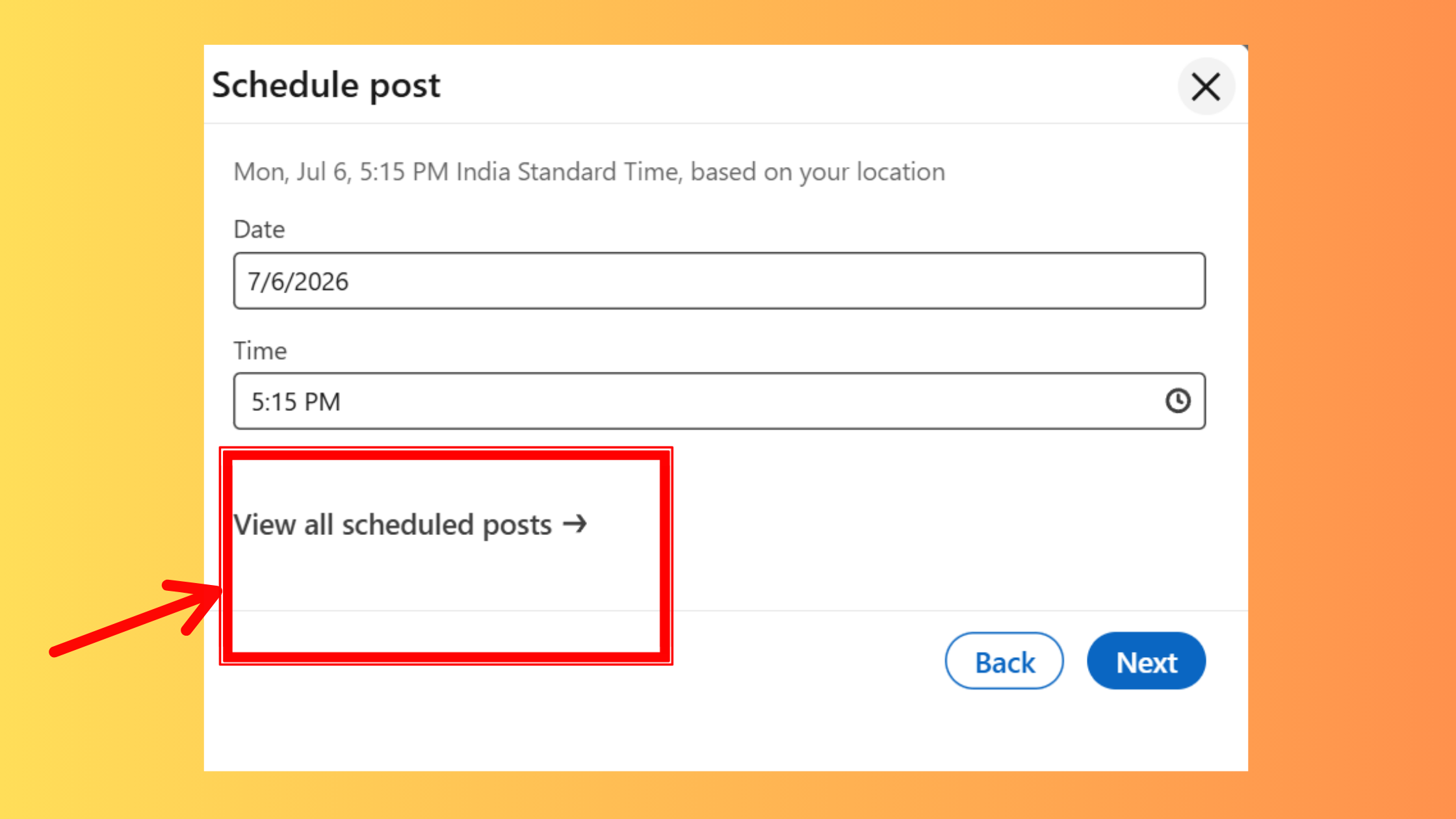
View scheduled posts - Find the post you want to change, click the three-dot menu, and choose Edit, Reschedule, or Delete.
Now that you know where to manage your queue, here's exactly how to build it from scratch.
How to Schedule LinkedIn Posts in Advance: A Practical Step-by-Step Guide
The native flow is fast once you know it. Here's the desktop and mobile process side by side.
Desktop (recommended for formatting):
- Click "Start a post" on your LinkedIn home feed. (~10 seconds)
- Write your post. Add line breaks for readability, relevant hashtags (3–5 is enough), and any media. (~5–10 minutes)
- Click the clock icon next to the blue Post button. (~5 seconds)
- Set your date and time. Verify the timezone shown is your audience's local time — not UTC. (~30 seconds)
- Click "Next" then "Schedule" to confirm. (~10 seconds)
Mobile (iOS/Android):
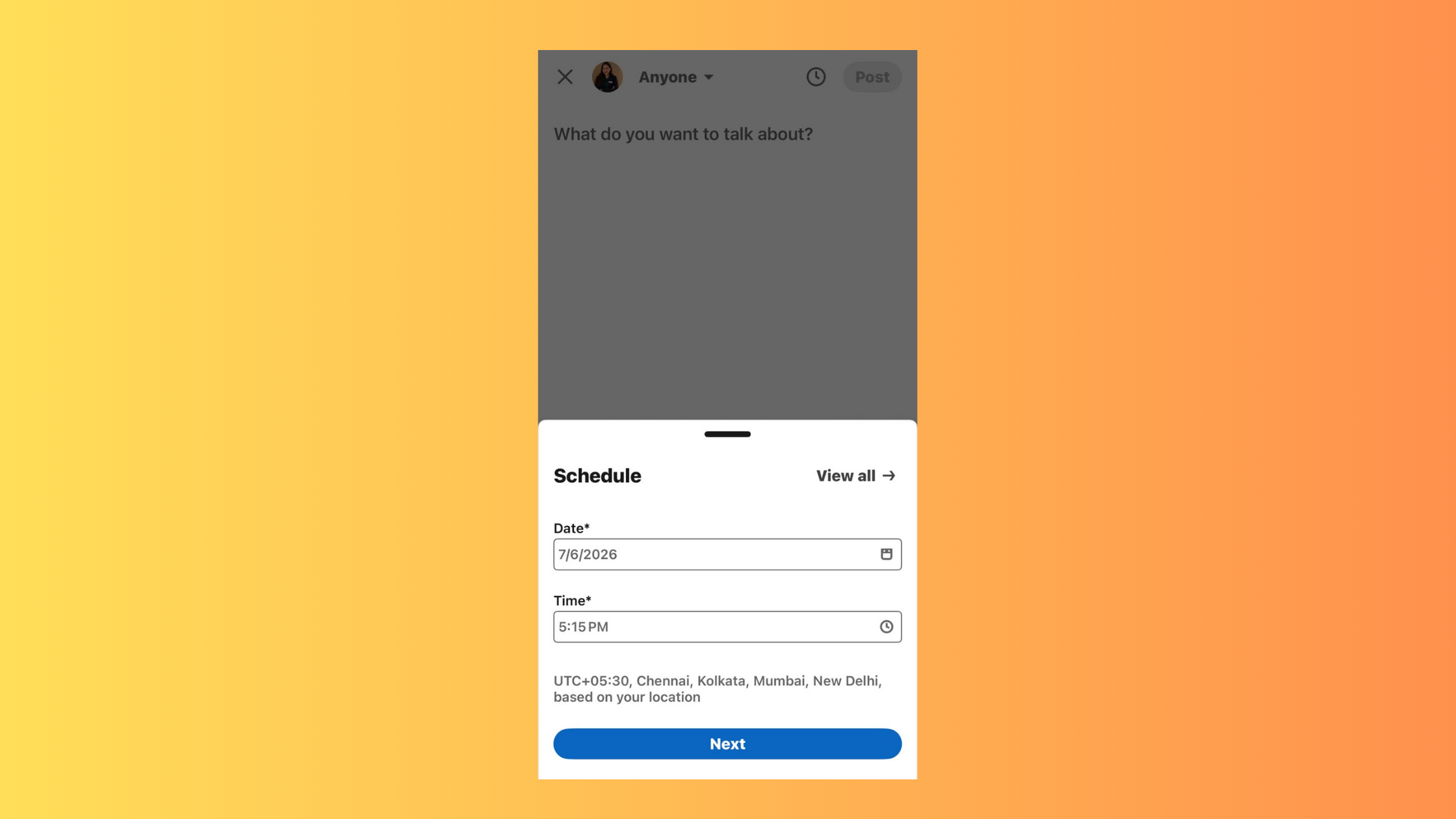
- Tap the pencil/compose icon on the LinkedIn app.
- Write your post as normal.
- Tap the clock icon in the lower toolbar (you may need to scroll the toolbar).
- Select date and time — same timezone verification applies.
- Tap "Schedule".
Scheduling LinkedIn Posts for Free vs. Using a Paid Tool
How to schedule linkedin posts for free is a common question — and the honest answer is: the native scheduler handles everything a solo creator needs at no cost. The decision to upgrade to a paid tool comes down to four triggers:
- Volume: Scheduling more than 10 posts per week becomes cumbersome natively.
- Team size: Multiple authors or approval workflows require a proper tool.
- Analytics: Native analytics are basic; paid tools offer heatmaps, best-time suggestions, and engagement tracking.
- Cross-platform: If you're also posting to Twitter/X, Instagram, or Facebook, a unified dashboard saves hours.
A pattern seen consistently across agencies managing LinkedIn for clients is that they hit the free-tier ceiling within the first month — not because of post volume, but because client approval workflows require comment threads and version history that no native scheduler provides.
Best Time to Post on LinkedIn and How Timing Affects the Algorithm
Engagement velocity is the speed at which a post collects likes and comments after publishing — and it is the single most important variable in LinkedIn's distribution model. Posts that accumulate early engagement get pushed to more feeds; posts that sit silent for the first hour quietly expire.
According to Buffer's analysis of 4.8 million LinkedIn posts (2026), evening hours now outperform mornings — posts shared between 3 PM and 8 PM on weekdays consistently show stronger engagement than early-morning windows. This is a meaningful shift from the "post at 7–9 AM" advice that dominated 2023 guides.
According to Metricool's 2026 LinkedIn benchmarks, posts with a question generate 77% more comments, and posts with links get 51% more impressions. This means format choices made during scheduling — adding a closing question, deciding whether to include a link — have a measurable impact on distribution. In practice, the most impactful change most creators can make isn't when they post; it's what their post asks the reader to do.
Does Scheduling LinkedIn Posts Hurt Reach?
No — not in any meaningful way in 2026. The concern stems from a real but now-outdated pattern: in 2023, certain third-party scheduling tools were triggering LinkedIn's spam detection, causing a documented 8–15% reach reduction. That data circulated widely and became conventional wisdom even after the underlying cause was addressed.
The same LinkedIn experiment cited above — 10 accounts, scheduled versus manual — showed an average difference of under 8% impressions, well within normal post-to-post variance for any account. What consistently explains underperforming scheduled posts is not the scheduling mechanism. It's one of three things: wrong timezone (post fires at 3 AM), no engagement in the first hour, or a format that doesn't prompt interaction.
The scheduling method is not the variable that moves the needle. The timing, the format, and what happens in the first 90 minutes after publishing — those are the variables. Get those right and scheduling is invisible to the algorithm.
How Often Should You Post on LinkedIn? Building a Sustainable Content Calendar
According to Buffer's 2026 posting frequency data, posting 2–5 times weekly is the sweet spot for improving reach and engagement without overwhelming your audience. Moving from one post per week to two-to-four adds approximately 1,234 incremental impressions per week — a meaningful lift that compounds over time.
Daily posting can work, but teams that increase frequency without adjusting content variety typically see engagement rate decline after 2–3 weeks. The audience doesn't stop following; they start scrolling past. Format variety is what prevents fatigue, not volume reduction.
A simple weekly content calendar framework that scales:
- Monday or Tuesday: Value/insight post — a lesson, observation, or data point from your work
- Wednesday: Personal story or behind-the-scenes — the format that drives comments
- Thursday: Engagement question or poll — explicitly invites responses
- Friday (optional): Promotional or offer post — lowest organic reach day, so use it for direct content
How often should you post on LinkedIn ultimately depends on how much quality content you can produce without recycling the same insight every week. Three genuinely useful posts outperform five mediocre ones every time.
LinkedIn Content Calendar Strategy for Creators and Teams
A content calendar for LinkedIn is a planned schedule that maps post topics, formats, and publish times across days or weeks — and it's the difference between "I'll post when I have something" and consistent algorithmic presence.
The most effective LinkedIn content calendar strategy observed across creator accounts follows a simple principle: batch creation, scheduled distribution. Write all your posts in one 60–90 minute session at the start of the week, schedule them, then close the tab. This decouples the creative act from the publishing act — you write when you're focused, LinkedIn posts when your audience is online.
For agencies managing multiple client accounts, a proper LinkedIn tool workflow for agencies adds an approval layer: a content manager drafts, a client approves, the tool schedules. Native LinkedIn scheduling doesn't support this — it's one of the clearest triggers to move to a paid tool.
Scheduled posts only go so far — early engagement is what amplifies them
HyperClapper connects your posts with real engagement channels so they gain early traction — the kind that tells LinkedIn's algorithm to push your content further.
See How HyperClapper WorksBest LinkedIn Scheduling Tools in 2026: Free, Paid, and Head-to-Head
The right tool depends entirely on your workflow — solo creator, small team, or agency. Here's a head-to-head comparison across the dimensions that actually matter:
| Tool | Best For | Free Tier? | Paid From | Team Seats | AI Writing | Company Page |
|---|---|---|---|---|---|---|
| LinkedIn Native | Solo creators, beginners | ✅ Yes (full) | Free | ❌ No | ❌ No | ✅ Yes |
| Buffer | Solo + small teams, multi-platform | ✅ Yes (3 channels) | ~$6/mo | ✅ From paid | ✅ AI assist | ✅ Yes |
| Hootsuite | Enterprise, multi-platform agencies | ❌ No (30-day trial) | ~$99/mo | ✅ Yes | ✅ OwlyWriter AI | ✅ Yes |
| Taplio | LinkedIn-only creators, lead gen | ❌ No (trial only) | ~$49/mo | ✅ Yes | ✅ Strong AI | ❌ Limited |
| Publer | Budget-conscious teams | ✅ Yes (limited) | ~$12/mo | ✅ From paid | ✅ AI assist | ✅ Yes |
LinkedIn Scheduling Tool Free vs. Paid: Which Do You Actually Need?
Most solo creators genuinely do not need a paid tool. The LinkedIn native scheduler handles personal and company page posts, stores up to a full queue, and costs nothing. The gap appears the moment you need more than one of the following:
- Approval workflows before publishing
- Best-time-to-post recommendations from your own audience data
- Bulk scheduling (10+ posts in one session)
- AI-assisted post drafting or rewriting
- Scheduling to multiple platforms simultaneously
For a deeper breakdown of what each tool actually costs and which is worth paying for, the best LinkedIn scheduling tools comparison covers pricing tiers in detail — including which free plans are genuinely usable versus which are trial disguises.
Buffer vs Hootsuite for LinkedIn
Buffer vs Hootsuite for LinkedIn is a common comparison, and the honest answer is: they serve different user sizes. Buffer wins for solo creators and small teams — it's simpler, significantly cheaper (starting around $6/month versus Hootsuite's $99/month), and its LinkedIn scheduling works cleanly without extra configuration. Hootsuite wins for enterprise and agency workflows: deep team permissions, content approval chains, and robust multi-platform analytics that Buffer's free and entry tiers don't match.
LinkedIn-specific tools like Taplio serve a different need entirely — they're built for LinkedIn-first creators who want carousel builders, post inspiration feeds, and lead tracking alongside scheduling. If LinkedIn is your only platform and you're actively building an audience, Taplio's creator features justify the higher price. If you're managing LinkedIn as one of several platforms, Buffer or Hootsuite is a cleaner fit.
How to Schedule Your First Post with a Third-Party Tool (Taplio Example)
- Connect your LinkedIn account in Taplio's settings — takes under 2 minutes via LinkedIn OAuth.
- Draft your post in Taplio's editor. Use the AI assist feature to add a hook or closing question.
- Set your publish time using the best-time suggestion (Taplio reads your own audience heatmap, not generic averages).
- Add it to your queue or set a specific date and time.
- Review in the calendar view to confirm spacing between posts.
 taplio.com
See also: free LinkedIn scheduling tools — a full breakdown of which tools have genuinely usable free plans in 2026.
How to Stay Consistent on LinkedIn Without Spending Hours Every Week
Creators who skip the batching step typically find themselves writing posts reactively — when inspired, when they have time, or when they notice they haven't posted in a week. The result is the erratic pattern that tanks algorithmic reach: three posts in two days, then silence for ten days.
The most time-efficient workflow observed across consistent LinkedIn creators is a 90-minute weekly session:
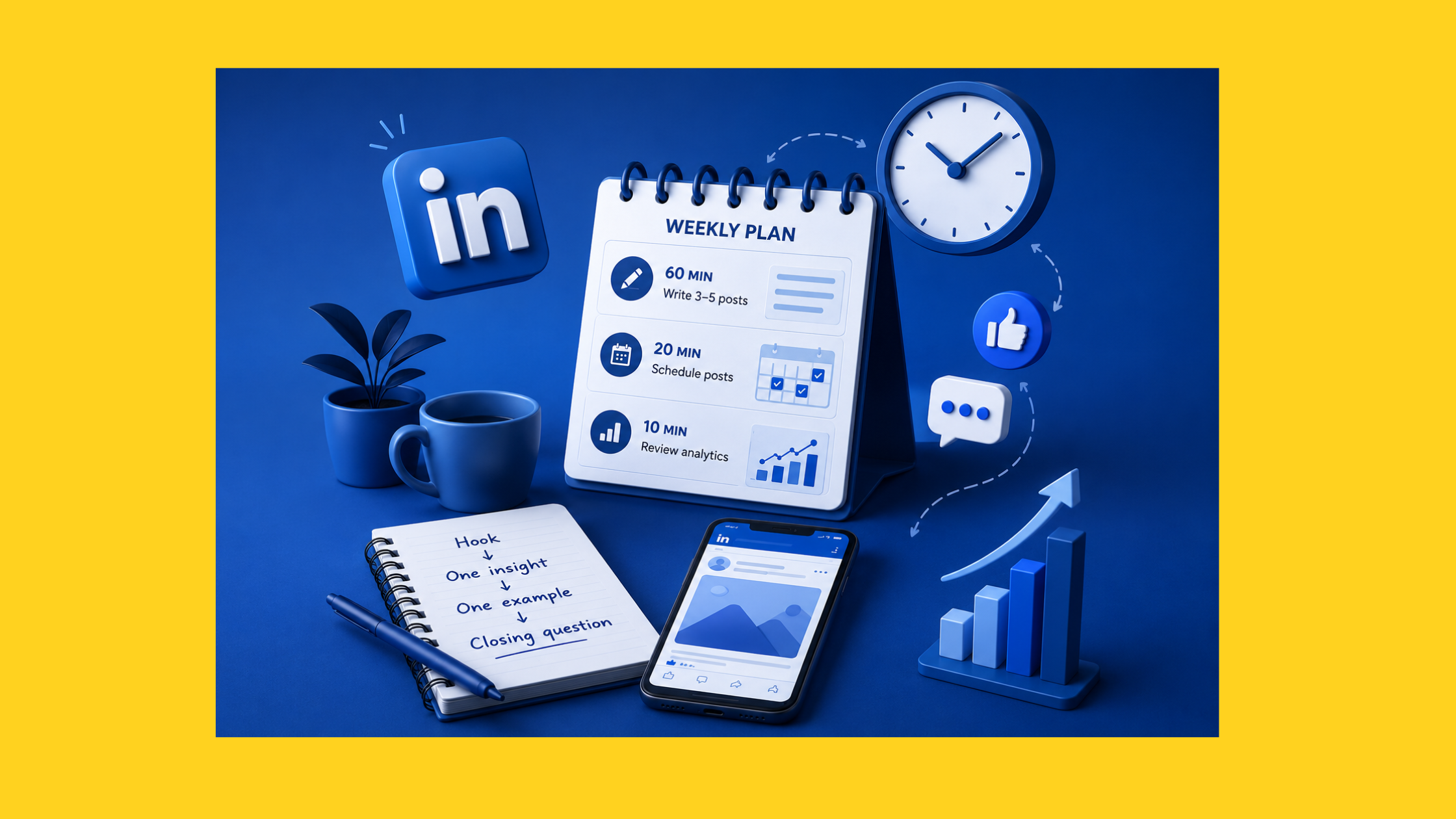
- 60 minutes: Write 3–5 posts in one focused session. Use a simple template: hook → one insight → one example → closing question.
- 20 minutes: Schedule all posts across the week, verify timezones, check spacing.
- 10 minutes: Review last week's analytics — which post format performed best, which fell flat.
This 90-minute block replaces daily "what should I post today?" anxiety and removes LinkedIn from your active attention for the rest of the week. Everything else — responding to comments, engaging with others' posts — happens in normal LinkedIn browsing time, not dedicated creation time.
Repurposing shortcut: The fastest content you'll ever create is content you've already created somewhere else. A newsletter section becomes a LinkedIn insight post. A podcast answer becomes a text post. A client question becomes a carousel. Repurposing isn't cheating — it's leverage.
Increase LinkedIn Visibility Consistently After You Post
Scheduling handles when your content publishes. But consistent visibility on LinkedIn also depends on what happens after it publishes. Engagement velocity — likes and comments in the first 60–90 minutes — is the mechanism LinkedIn's algorithm uses to decide whether to expand your post's distribution or let it quietly expire.
This is the gap that scheduling alone cannot close. A perfectly timed post with no early engagement gets suppressed just as quickly as a badly timed one. Tools like HyperClapper address this directly — by connecting your posts to real engagement channels where relevant professionals like and comment early, you give LinkedIn's algorithm the signal it needs to distribute your content further. The scheduler gets your post live at the right moment; the engagement layer gives it the momentum to travel.
For a deeper look at how to increase LinkedIn reach and engagement in 2026 without paid ads, see this guide on organic LinkedIn growth.
✓ The LinkedIn Scheduling Consistency Checklist
- ☐Batch-write 3–5 posts in a single weekly session (not one at a time)
- ☐Schedule posts to your audience's active timezone — verify the local time shown
- ☐Vary post formats across the week: insight, story, question, promo
- ☐Set a calendar reminder to engage with comments 30–60 minutes after each post goes live
- ☐Include a closing question in at least 2 posts per week to drive comment volume
- ☐Review post analytics monthly — double down on the formats that outperformed
- ☐Repurpose one piece of existing content (newsletter, podcast, client Q&A) each week
Common LinkedIn Scheduling Mistakes That Kill Your Reach (And How to Fix Them)
Most scheduling problems aren't technical — they're behavioural. The most common failure mode is not a wrong setting or a broken tool; it's a wrong assumption about what scheduling actually does for you.
Mistake #1: Schedule and disappear. Scheduling a post and walking away is the single most common reach killer. LinkedIn's algorithm interprets early engagement as a quality signal and distributes accordingly. If your post fires at 7 PM and you don't check it until the next morning, you've missed the 60–90 minute engagement window entirely. Fix: set a phone reminder for 30 minutes after your scheduled post time. Spend 5–10 minutes responding to early comments.
Mistake #2: The UTC timezone trap. What happens to engagement if you post at the wrong timezone due to UTC confusion? A post intended for 8 AM EST that fires at 8 AM UTC actually goes live at 3 AM Eastern. It sits with zero engagement for five hours before your audience wakes up — by which point LinkedIn's distribution has already moved on. Always verify the local time your scheduler displays is the local time of your target audience, not your device's default.
Mistake #3: Volume without variety. Posting every day in the same text-only format trains your audience to stop engaging. LinkedIn's algorithm also responds to format variety — carousels, polls, video, and single-image posts each reach slightly different audience segments. A weekly mix of at least two formats consistently outperforms a feed of uniform text posts, even at lower frequency.
Mistake #4: Never looking at the data. Scheduling without checking analytics means you're optimising nothing. After a month of scheduled posting, you have real data: which day drove the most impressions, which format earned the most comments, which hook kept readers from clicking away. Creators who review analytics monthly consistently improve their average post performance quarter over quarter. Those who don't tend to plateau.
Risks and Limitations of Scheduling LinkedIn Posts
Scheduling itself carries minimal risk in 2026 — particularly with the native tool. The limitations worth understanding:
- No conditional scheduling: You can't schedule a follow-up post to only go live if the first one performs above a threshold.
- Limited carousel support natively: LinkedIn's native scheduler doesn't support PDF/document carousels on all account types. Third-party tools like Taplio or Publer handle this more reliably.
- No engagement automation: Scheduling posts is only half the equation. HyperClapper versus traditional LinkedIn outreach tools covers how engagement strategy differs from scheduling strategy — and why you need both.
Stop letting good posts go unnoticed
HyperClapper pairs with your scheduler to drive early engagement — real likes and comments from real professionals — so your scheduled posts get the algorithmic boost they deserve.
Try HyperClapper FreeFrequently Asked Questions About Scheduling LinkedIn Posts
Can you schedule posting on LinkedIn?
Yes — LinkedIn has a built-in native scheduler that lets you schedule posts up to 3 months in advance, completely free, on both desktop and mobile. Click the clock icon next to the Post button in the post composer to access it. No third-party tool is required for basic scheduling.
Where can I find my scheduled posts on LinkedIn?
To view scheduled posts on LinkedIn, open the post composer, click the clock icon, and select "View scheduled posts." This shows your full queue with options to edit, reschedule, or delete each post. On mobile, the same clock icon appears in the compose toolbar. There is no standalone "Scheduled Posts" menu — you access it through the composer.
Can I edit my scheduled posts on LinkedIn?
Yes. To edit scheduled posts on LinkedIn, go to the post composer, tap the clock icon, select "View scheduled posts," and click the three-dot menu on the post you want to change. You can edit the text, change the scheduled time, or delete the post entirely before it publishes.
How to schedule LinkedIn posts for free?
LinkedIn's native scheduler is completely free with no post limits. Open the post composer, write your post, click the clock icon next to the blue Post button, set your date and time, and click Schedule. For free third-party options, Buffer's free plan supports 3 channels and basic scheduling; Publer also offers a limited free tier.
Does LinkedIn penalise posts scheduled through third-party tools?
No, not in any consistent or significant way in 2026. Older 2023 data showed an 8–15% reach reduction from certain third-party tools — but this was caused by spam-trigger behaviour, not scheduling itself. A 2026 comparison of scheduled versus manual posts showed less than 8% difference in impressions, well within normal variance. Tool choice and timing matter far more than method.
What is the best way to schedule LinkedIn posts and stay consistent?
Batch-write 3–5 posts in one weekly 60-minute session, schedule them across Tuesday–Thursday in your audience's active hours (now typically 3–8 PM based on 2026 data), and set reminders to engage with early comments. Consistency in publishing frequency matters more than perfection in any single post — a reliable 3x/week schedule compounds reach over months.
What LinkedIn posting frequency gets the best engagement?
According to Buffer's 2026 analysis, 2–5 posts per week is the current sweet spot. Moving from one to two-to-four posts weekly adds roughly 1,234 additional impressions. Beyond five posts per week, engagement rates tend to decline unless content format varies significantly across posts.
How do I build a LinkedIn posting schedule that I can actually stick to?
Start with two posts per week — not five. A schedule you maintain for 90 days at 2x/week builds more algorithmic authority than an ambitious 5x/week plan you abandon after three weeks. Use a batch-creation day, a simple content type rotation (insight, story, question), and a scheduling tool to remove daily friction. Add a third post only once the two-post habit is automatic.
What consistently separates accounts that grow steadily on LinkedIn from accounts that plateau is not posting more — it is posting predictably, at times when their specific audience is active, and showing up in the comments afterward. The schedule is just the container. The engagement is what fills it.



