
Sharing your LinkedIn profile means sending a direct public URL — typically linkedin.com/in/yourname — so anyone can view your professional identity without searching for you manually. A pattern observed consistently across job seekers, freelancers, and founders is that most people know how to copy a URL but have no idea whether their profile is actually visible to someone who isn't already logged into LinkedIn. That single settings oversight is the reason hundreds of profile shares go nowhere every day. This guide covers every method — desktop, mobile, email, resume, WhatsApp, QR code, and recruiter outreach — along with the visibility settings that determine whether sharing your profile actually works.
- Who this is for: Job seekers, freelancers, founders, recruiters, and any professional who wants their LinkedIn profile to work harder for them.
- What you'll learn: How to find, copy, customize, and share your LinkedIn profile URL across every major platform and scenario.
- Why it matters: In 2026, your LinkedIn profile is often the first professional impression you make — before a resume, before a portfolio.
- The biggest overlooked step: Most people share their profile without checking public visibility — recipients see a login wall instead of your profile.
- Maximum reach approach: Custom URL + public visibility settings + consistent content activity + strategic distribution = compounding profile views.
- Counterintuitive finding: A profile shared with no supporting post engagement gets fewer follow-through views than one backed by active LinkedIn content.
- What It Means to Share Your LinkedIn Profile
- Where to Find Your LinkedIn Profile Link
- How to Copy Your LinkedIn Profile Link on Mobile and Desktop
- Step-by-Step Guide to Sharing Across Every Platform
- How to Share Your LinkedIn Profile with Recruiters
- How to Make Your LinkedIn Profile Public and Shareable
- Why Nobody Is Viewing Your LinkedIn Profile
- Best Way to Share Your LinkedIn Profile for Maximum Reach
- Common Mistakes to Avoid When Sharing Your LinkedIn Profile
- LinkedIn Profile Sharing vs. Other Professional Channels
- How HyperClapper Helps You Get More Views
- Frequently Asked Questions
What It Means to Share Your LinkedIn Profile (And Why It Matters in 2026)?

Sharing your LinkedIn profile means distributing a direct link — your public profile URL — so others can view your professional identity without needing to search for you manually. In 2026, that URL functions as your professional handshake: it's often the first thing a recruiter checks after receiving your application, the link a client Googles after your call, and the destination you put in your email signature, resume, and social media bios.
LinkedIn profile sharing is relevant across dozens of contexts:
- Job applications and recruiter outreach
- Email signatures and business card links
- Social media bios (Instagram, Twitter/X, TikTok)
- WhatsApp messages during in-person networking
- Resume headers and portfolio footers
- Zoom chat windows during virtual meetings
- QR codes at live events and conferences
According to LinkedIn (2024), members with complete, visible profiles receive up to 6x more profile views than those with incomplete ones. This means that sharing a strong, public profile link is a lever most professionals underuse — not because they don't want to share it, but because they don't realize the setup steps that make sharing actually work.
The most common reason a shared LinkedIn profile fails to convert is not the platform, the audience, or the timing — it's that the profile's public visibility was never turned on in the first place.
LinkedIn Public Profile vs. Private Profile: What Recruiters Actually See
Public profile visibility is the LinkedIn setting that determines whether your profile is viewable by people who are not logged in to LinkedIn. When it's enabled, anyone — recruiter, client, colleague — can open your link and see your full profile. When it's off (or partially restricted), non-members see a generic login wall with no profile content. Recruiters who receive a link from a candidate and hit that wall almost never log in specifically to view it. They move on.
LinkedIn Premium users with Open Profile enabled are visible to all members regardless of connection level — an additional layer that expands reach beyond the public setting alone.
Now that you understand what profile sharing actually involves, here's exactly where to find the link itself.
Where to Find Your LinkedIn Profile Link?
Your LinkedIn profile URL is always accessible — the challenge is knowing which of the three places to look depending on whether you're on desktop or mobile.
On desktop: Navigate to your LinkedIn profile page. The URL in your browser's address bar is your LinkedIn profile link. It will look like linkedin.com/in/yourname (if customized) or linkedin.com/in/firstname-lastname-randomnumbers (if not yet customized).

On mobile (the reliable method): Tap your profile photo → select "View Profile" → tap the three-dot menu (⋯) in the top right corner → select "Share Profile." You'll see a share sheet with the option to copy the link directly. This is the fastest route on both iPhone and Android.
Through Settings (most reliable for managing it): Go to Settings → Visibility → Edit your public profile. This page shows your exact public URL and gives you options to customize it — more on that below.
How to Customize and Share Your LinkedIn Profile Link
Profile URL customization is the process of replacing LinkedIn's default random-number URL with a clean, readable slug like linkedin.com/in/jane-smith. It takes under two minutes and makes a measurable difference. According to LinkedIn's own data, profiles with customized URLs receive approximately 40% more profile views — partly because the URL looks professional in email signatures and resumes, and partly because it improves Google discoverability.
To customize:
- Go to your LinkedIn profile (desktop).
- Click "Edit public profile & URL" in the top-right panel.
- Under "Edit your custom URL," click the pencil icon.
- Type your preferred URL slug (first name + last name works well; add a middle initial if your name is common).
- Click Save.
Warning: After changing your URL, your old link stops working immediately. Update all places where you've shared your profile link — resume, email signature, social bios — before or right after making the change.
Once customized, this is the URL you'll use across every sharing scenario in the next section.
How to Copy Your LinkedIn Profile Link on Mobile and Desktop?
Copying your LinkedIn profile link takes under 30 seconds once you know the exact steps for your device. Here's the breakdown for every common scenario.
How to Share Your LinkedIn Profile Link on iPhone
On iPhone, the LinkedIn app has a built-in share flow that most users never discover:
- Open the LinkedIn app and tap your profile photo (top left).
- Tap "View Profile."
- Tap the three-dot menu (⋯) at the top right of your profile.
- Select "Share Profile."
- Choose "Copy Link" from the iOS share sheet — or tap WhatsApp, Messages, Mail, or AirDrop to share directly.
Alternative (browser method): Open Safari or Chrome, navigate to LinkedIn, go to your profile, and copy the URL directly from the address bar. This gives you a cleaner URL without any tracking parameters.
Teams that test their copied link in Safari's private browsing mode before sharing consistently catch public visibility issues before they become missed opportunities.
How to Share Your LinkedIn Profile Link on Android
On Android, the steps are nearly identical but the menu labels vary slightly depending on your LinkedIn app version:
- Open the LinkedIn app → tap your profile photo.
- Tap "View Profile."
- Tap the three-dot menu or the share icon (an arrow pointing right).
- Select "Share via" or "Copy link".
- If the Android share sheet opens, tap Copy or choose your preferred app.
For users searching specifically for where to find LinkedIn URL on app Android: the fastest route is Profile → three-dot menu → Share → Copy link. Some older Android app versions show the URL directly in the share sheet so you can manually select and copy it.
With your link copied and tested, here's how to use it effectively across every platform and context.
Step-by-Step Guide to Sharing Your LinkedIn Profile Across Every Platform?
The right sharing method depends entirely on context. Dropping a raw link into a recruiter's LinkedIn message without context is a different scenario from embedding it in a professional email signature. This section covers all of them.
How to Share Your LinkedIn Profile via Email
In a professional email, hyperlink your name or the phrase "my LinkedIn profile" rather than pasting the raw URL. This looks cleaner and is more likely to get clicked.
- Format: "You can find my full background on my LinkedIn profile."
- In Gmail or Outlook: highlight the anchor text → Insert Link → paste your LinkedIn URL.
- Always include it below your email sign-off so it's visible without effort from the recipient.
How to Share Your LinkedIn Profile in Your Email Signature
Your email signature is the highest-leverage permanent placement for your LinkedIn link. Every email you send becomes passive profile promotion.
- Add a LinkedIn icon with a hyperlink, or text like "Connect on LinkedIn" with your URL embedded.
- In Gmail: Settings → See all settings → General → Signature → Insert link.
- In Outlook: File → Options → Mail → Signatures → format and hyperlink your text.
- Use your customized URL — never the default number-string version.
How to Share Your LinkedIn Profile on WhatsApp
To share your LinkedIn profile on WhatsApp, simply copy your LinkedIn URL (using the steps above) and paste it directly into a WhatsApp chat or group message. WhatsApp will auto-generate a link preview showing your name and headline — making it visually recognizable without any extra formatting.
For group networking (e.g., WhatsApp groups from conferences or meetups), a short message works well: "Great to meet everyone — here's my LinkedIn: [link]. Happy to connect!"
How to Share Your LinkedIn Profile on Social Media
Cross-platform profile promotion works best when your LinkedIn link is permanently embedded in your bio rather than shared in one-off posts.
- Instagram: Add your LinkedIn URL to your bio via Edit Profile → Website or Linktree.
- Twitter/X: Add it to your bio or pin a tweet that includes your LinkedIn link.
- TikTok: Add the URL to your bio (available once you have 1,000+ followers) or reference it in video captions.
- Facebook: Add it to your "About" section under Work and Education.
How to Share Your LinkedIn Profile on a Resume
Your LinkedIn profile link belongs in your resume header — next to your name, email, and phone number. How to share your LinkedIn profile on a resume correctly: include your customized URL, hyperlinked if submitting digitally. For printed resumes, write it in full: linkedin.com/in/yourname.
A recruiting pattern worth noting: hiring managers who see a generic LinkedIn URL with numbers on a resume often interpret it as a sign of limited digital literacy — even if the profile itself is strong. The customized URL signals attention to detail before they've read a single bullet point.
How to Share Your LinkedIn Profile in a Job Application
Most job application forms include a dedicated "LinkedIn Profile" field. Paste your customized URL there directly. For application methods that don't have this field (email applications, portal submissions without a LinkedIn field):
- Include your LinkedIn URL in your resume header.
- Reference it in your cover letter: "My LinkedIn profile includes additional recommendations and project details at linkedin.com/in/yourname."
- Ensure your profile is set to public before submitting — ATS systems and recruiters often check it within minutes of receiving your application.
How to Share Your LinkedIn Profile QR Code
LinkedIn's built-in QR code feature is one of the platform's most underused tools for in-person networking. Your LinkedIn profile QR code generates a scannable image that opens your profile directly when scanned with any smartphone camera.
To access it:
- Open the LinkedIn app → tap the Search bar.
- Tap the QR code icon on the right side of the search bar.
- Your QR code appears instantly — you can screenshot it or tap "Save to Gallery."
- Print it on business cards, add it to presentation slides, or display it on your laptop at events.
Now that every distribution channel is covered, here's how to approach the highest-stakes sharing scenario: getting in front of recruiters.
How to Share Your LinkedIn Profile with Recruiters for Maximum Impact?
Recruiters often evaluate dozens of profiles daily — so when and how you share your profile matters as much as what's in it. The most effective moments to share are:
- After sending a connection request — include a brief note with context.
- In response to a job posting — reference specific alignment with the role.
- During or after a phone/video screen — send a follow-up message with your link while the conversation is still fresh.
When messaging a recruiter on LinkedIn directly, avoid dropping a bare link. The message that performs better looks like this: "Hi [Name], I noticed the [Role] opening at [Company] — my background in [X] aligns closely with what you've described. Here's my profile for reference: [link]. Happy to connect."
Before sharing your profile with any recruiter, run through these optimization checks:
- Headline: Does it include your target role or key skill set? Recruiters scan headlines first.

Use effective and appropriate headline - Open to Work: Consider enabling it privately (visible to recruiters only) if you're actively searching.
- Quantified achievements: Each role should include at least one specific result — percentages, revenue figures, team sizes.
- Recommendations: Even one or two strong recommendations dramatically increases a recruiter's confidence in a shared profile.
This means the profile you share with a recruiter is not supplementary — in 87% of cases, it's actively being evaluated as a primary document. In practice, a weak profile shared proactively can hurt more than not sharing at all.
Can You Share Your LinkedIn Profile Privately with Specific People?
Yes — you can share your LinkedIn profile with specific individuals without making it fully public to the internet. Send your profile link directly via LinkedIn message, email, or WhatsApp to specific recipients. The recipient with a LinkedIn account will see your full profile. Recipients without a LinkedIn account will see your public profile if visibility is enabled, or a login wall if it's disabled.
For situations where you want a recruiter to see your profile without your current employer knowing you're looking, enable the "Open to Work" badge for "Recruiters only" — this hides the green banner from your general network while still signaling availability to people with LinkedIn Recruiter accounts.
With recruiter outreach covered, the next step is ensuring your profile settings are correctly configured so every share lands successfully.
How to Make Your LinkedIn Profile Public and Shareable?
Your profile's public visibility setting is the single most important configuration step before sharing your link anywhere. Without it, every share leads to a dead end for people outside LinkedIn.
On desktop:
- Go to your LinkedIn profile.
- Click "Edit public profile & URL" (top right panel).
- Under "Visibility," toggle "Make my public profile visible to everyone" to ON.
- Below that, customize which sections appear publicly: photo, headline, summary, experience, education, skills, and recommendations.
On mobile:
- Tap your profile photo → Settings.
- Go to Visibility → Profile viewing options and Edit your public profile.
- Enable public visibility and select the sections to display.
The most common failure mode here is a partially visible profile — users turn on public visibility but leave key sections (summary, experience) hidden. Recruiters and prospects who open that link see a thin, incomplete profile that doesn't reflect the actual depth of the account.
A pattern seen consistently across professionals who complain about low profile views: their public visibility was either off entirely or restricted to first-degree connections only. Once corrected, profile view counts typically increase within days of sharing the link again.
Why Nobody Is Viewing Your LinkedIn Profile — And How to Fix It?
Getting zero views after sharing your profile is one of the most frustrating LinkedIn experiences — and the causes almost always fall into one of three categories. Check these in order:
- 1. Public visibility is off or restricted. The most common cause. Fix: follow the steps in the section above.
- 2. Profile is incomplete. LinkedIn's algorithm favours All-Star profiles — those with a photo, headline, summary, 3+ roles, education, 5+ skills, and at least one recommendation. Profiles missing these elements appear lower in search results, reducing organic discovery alongside direct sharing.
- 3. No content activity supporting the profile. A profile shared with no supporting post engagement gets fewer follow-through views. People who see you posting thoughtfully are far more likely to click through to your profile than someone who receives your link cold.
There's also a fourth factor that almost no guide covers: keyword density in your headline and summary. LinkedIn's internal search algorithm surfaces profiles based on relevance to search terms — if your headline says "Passionate professional" instead of "B2B Sales Manager | SaaS | Revenue Growth," your profile will not appear in recruiter searches for your actual role. This means sharing your link manually becomes the only way people find you — and that's a much smaller surface area than organic search.
How Engagement on Your Posts Drives More LinkedIn Profile Views?
LinkedIn's feed distribution model surfaces content based on early engagement signals — likes, comments, and shares in the first 60-90 minutes after posting. When your posts gain traction, they appear in the feeds of people outside your immediate network. Those people see your name, read your content, and click your profile.
In practice, a well-engaged post generates 3-10x more profile views than a direct link share to the same audience size. This is the core reason why LinkedIn profile visibility is inseparable from content strategy. The profile link is the destination — content is the traffic engine that drives people there.
For founders, coaches, and marketers trying to grow LinkedIn network quickly in 2026, the highest-leverage move is not just sharing your profile link more often — it's creating content that sends people to your profile organically. Tools like HyperClapper are built specifically for this: boosting early post engagement so your content reaches beyond your existing connections and drives profile discovery at scale.
Want More People to Actually View Your LinkedIn Profile?
HyperClapper boosts your LinkedIn posts with real engagement — so your content reaches further, your profile gets more visits, and your network grows faster.
See How HyperClapper WorksBest Way to Share Your LinkedIn Profile for Maximum Reach in 2026?
The best way to share your LinkedIn profile is not a single tactic — it's a layered system. What separates top performers here is not that they share their profile more often, but that they've built a system where their profile link appears in the right places permanently, while they actively distribute it during high-intent moments.
Here's the framework — call it The LinkedIn Profile Distribution Stack:
- Layer 1 — Permanent placements (passive reach): Email signature, resume header, LinkedIn QR code on business card, website/portfolio footer, social media bios. Set once, works forever.
- Layer 2 — Active distribution (high-intent moments): After networking events, in response to job postings, during recruiter conversations, after speaking or presenting, following client calls.
- Layer 3 — Content-driven organic reach: Regular LinkedIn posts that include your perspective on your industry. People who engage with your content visit your profile organically — no link share required.
What consistently separates LinkedIn profiles with real reach from those with impressive connection numbers is not how often the link is shared — it's whether the profile itself gives the recipient a reason to stay and act after they arrive.
LinkedIn Profile Sharing Tips for Freelancers, Job Seekers, and Recent Graduates in 2026?
Different audiences need slightly different approaches. Here's what works for each:
Freelancers: Embed your LinkedIn link in every proposal, invoice footer, and client email. Your profile functions as a live portfolio with social proof (recommendations, endorsements) that a static proposal can't replicate. Use the "Services" section on LinkedIn to make your offerings discoverable to people who land on your profile from any source.
Job seekers: Share your profile link proactively after every interview — send a follow-up email that references the conversation and includes your link. Enable "Open to Work" privately for recruiters. Check that your LinkedIn headline and summary are optimized before launching any active sharing campaign.
Recent graduates in 2026: Your LinkedIn profile is likely your strongest professional asset before you have years of experience. Feature projects, academic work, volunteer experience, and any internship outcomes. Share it in university alumni groups, during career fairs (via QR code), and in every application. The resume-LinkedIn integration is particularly powerful at this stage — your LinkedIn expands what your resume can hold.
The common thread across all three groups: the profile must be complete and publicly visible before any sharing campaign. Distribution without optimization wastes every opportunity it creates.
Common Mistakes to Avoid When Sharing Your LinkedIn Profile?
After seeing profile sharing patterns across thousands of LinkedIn users, five mistakes appear repeatedly — each of which silently kills the impact of an otherwise solid profile.
- Sharing a private or restricted profile. Recipients hit a login wall. Non-LinkedIn users see nothing. Most won't create an account just to view yours. Fix: enable public visibility before distributing any link.
- Using an uncustomized URL. A URL like linkedin.com/in/jane-smith-38492847 looks accidental on a resume or email. It also won't appear in Google searches for your name. Fix: customize your URL in under two minutes.
- Sharing an incomplete profile. A profile without a photo, with a generic headline, or with empty experience sections gives the recipient nothing to act on. Creators who skip the optimization step before sharing typically find that response rates are near zero — not because of the channel, but because of the destination.
- Dropping a link with no context. "Here's my LinkedIn: [link]" in a cold message is the digital equivalent of handing someone a business card mid-conversation without saying your name. Always include one sentence about why you're sharing it.
- Not testing on mobile. Over 60% of LinkedIn profile views happen on mobile devices (LinkedIn, 2024). A link that looks correct on desktop may behave differently on a phone — especially if you've recently changed your URL. Always test on mobile before any major distribution push.
✓ The LinkedIn Profile Sharing Checklist
- ☐Public profile visibility is turned ON (Settings → Visibility → Public profile)
- ☐LinkedIn URL is customized — no random numbers (Edit public profile & URL)
- ☐Profile photo is present and professional-quality
- ☐Headline includes target role, key skill, or value proposition — not just job title
- ☐Summary/About section is complete with keywords relevant to your target audience
- ☐At least 3 experience entries with specific, quantified achievements
- ☐LinkedIn URL added to resume header, email signature, and social media bios
- ☐Profile link tested in incognito browser — confirmed visible without login
- ☐LinkedIn QR code saved to camera roll for in-person networking
LinkedIn Profile Sharing vs. Other Professional Channels: Resume, Portfolio, and More?
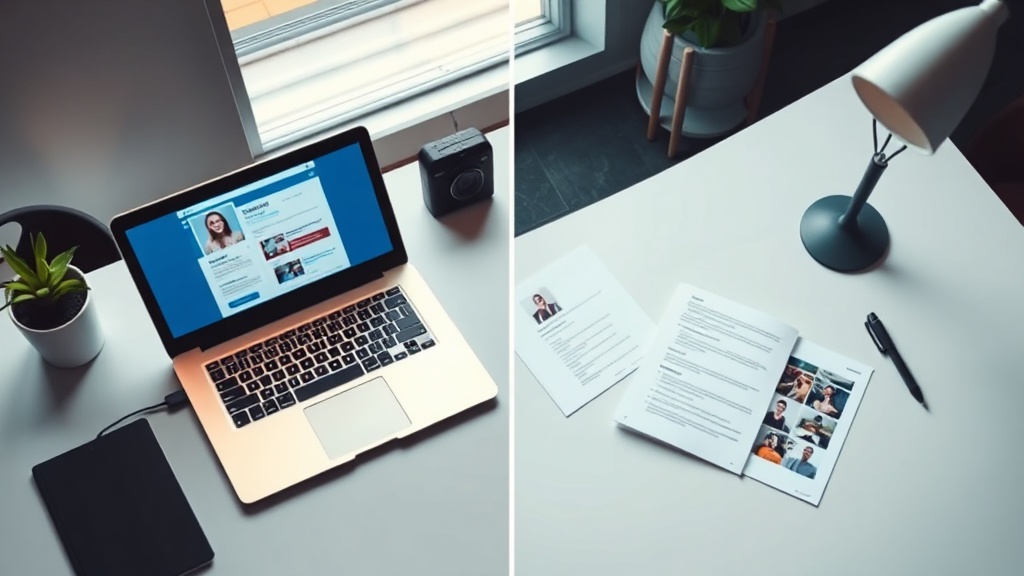
A recurring pattern among professionals trying to decide where to focus their personal brand discoverability efforts is treating LinkedIn, resumes, and portfolio sites as competitors. They're not — they serve different functions in the same discovery chain.
LinkedIn vs. resume in 2026: A LinkedIn profile is dynamic, searchable, and social. It shows recommendations from named colleagues, endorsements from peers, content you've published, and activity signals that a static document can never replicate. Recruiters and hiring managers frequently check LinkedIn after receiving a resume — and the quality of what they find there has significant influence on interview decisions. That said, your resume remains the required artifact for most ATS systems. The two work together.
LinkedIn vs. portfolio website: A portfolio shows the depth of your creative or technical work — case studies, projects, writing samples. LinkedIn provides the professional context and social proof that makes those projects credible. The smartest approach in 2026: link your portfolio from your LinkedIn profile, and link your LinkedIn from your portfolio footer. Each channel sends traffic to the other.
LinkedIn free vs. LinkedIn Premium for profile reach: LinkedIn Premium is the paid tier that unlocks features like InMail credits, Open Profile (visible to all members regardless of connection level), and who-viewed-your-profile data. These features amplify sharing results — particularly Open Profile, which means anyone can see your full profile and message you without a connection. But a well-optimized free profile shared strategically still outperforms a neglected Premium one. Premium amplifies; it doesn't substitute for profile quality and active distribution.
For a deeper look at how to present your work history alongside your LinkedIn presence, the guide on adding your resume to your LinkedIn profile covers the integration in full detail.
How HyperClapper Helps You Get More Views After You Share Your LinkedIn Profile?
Sharing your LinkedIn profile link is only half the equation. When someone clicks your profile and sees a dormant account — no recent posts, no engagement, no visible activity — your credibility takes a hit. The profile link gets them to your door; your content activity determines whether they walk in or leave.

This is exactly the gap that HyperClapper is built to close. Rather than relying on manual engagement or hoping your posts gain traction organically, HyperClapper connects your posts to real engagement channels — groups of relevant professionals who like, comment, and interact with your content. When someone visits your profile after receiving your link, they see active, well-engaged posts that reinforce your expertise and credibility.
The platform's AI-powered replies keep conversations active on your posts for days after publishing — which matters because LinkedIn's algorithm rewards depth of engagement (comments and replies) over basic likes. A post with 15 comments and 40 likes signals more authority than a post with 40 likes and no conversation.
For LinkedIn profile sharing tips for freelancers who are sharing their profile with potential clients, or founders sharing with investors, HyperClapper provides the engagement infrastructure that makes every profile share land with more impact. The profile you share looks like the profile of someone actively contributing to LinkedIn — not a passive account that only appears when job hunting.
%2520(1).png) hyperclapper.com
hyperclapper.comIf you want to see what sharing your LinkedIn profile looks like when backed by consistent post engagement, you can explore the full approach in this guide on how to share your LinkedIn profile and content for maximum impact.
Turn Every Profile Share Into a Strong First Impression
HyperClapper gives your LinkedIn posts the early engagement they need to reach beyond your existing network — so when people arrive at your profile, they see an active, credible presence.
Start Boosting Your LinkedIn PostsFrequently Asked Questions About Sharing Your LinkedIn Profile
How do I share my LinkedIn profile link?
On desktop, go to your LinkedIn profile and copy the URL from your browser's address bar. On mobile, tap your profile photo → View Profile → three-dot menu → Share Profile → Copy Link. Paste it wherever you need it. Before sharing, confirm your profile is set to public so recipients don't hit a login wall.
How do I find my LinkedIn URL?
Your LinkedIn URL appears in three places: the browser address bar when you're on your profile page, the "Edit public profile & URL" section in your profile settings, and the share sheet when you tap "Share Profile" in the LinkedIn mobile app. The settings page is the most reliable location for finding and customizing your URL.
How do I share my LinkedIn profile in person?
The fastest method in person is your LinkedIn QR code. Open the LinkedIn app, tap the search bar, and tap the QR code icon on the right — show this to someone and they can scan it directly with their phone camera. Alternatively, have your LinkedIn URL saved in your phone's notes or as a contact card for quick copy-paste in someone's browser.
Can someone view my LinkedIn profile if they're not logged in?
Yes — but only if your public profile visibility is turned on. Go to Settings → Visibility → Edit public profile, and toggle "Make my public profile visible to everyone" to ON. Without this setting enabled, people who aren't logged into LinkedIn will see a generic sign-up wall instead of your profile, regardless of which link you share with them.
What is the easiest way to share my LinkedIn profile on mobile?
The easiest way on mobile is: open the LinkedIn app → tap your profile photo → View Profile → tap the three-dot menu → Share Profile → Copy Link. This works identically on both iPhone and Android. From there you can paste the link into any app — WhatsApp, Gmail, Messages, or a browser. The whole process takes under 15 seconds.
How do I share my LinkedIn profile link in a job application?
Most job application forms have a dedicated LinkedIn URL field — paste your customized URL there. For email applications or forms without a LinkedIn field, include your URL in your resume header and mention it in your cover letter. Ensure your profile is set to public and fully optimized before submitting any application, since recruiters typically check it within minutes of receiving your materials.
Why is no one viewing my LinkedIn profile even after I share it?
The most common causes are: public visibility is off (recipients see a login wall), the profile is incomplete (LinkedIn's algorithm ranks it lower), or there's no supporting content activity to drive organic discovery. Check your visibility settings first, then review your profile completeness score in LinkedIn's dashboard. If both are in order, the missing piece is usually consistent post engagement — people who encounter your content in their feed are significantly more likely to click through to your profile than those who receive your link cold with no prior context.
How do I share my LinkedIn profile on WhatsApp?
Copy your LinkedIn profile URL using the mobile share flow (View Profile → three-dot menu → Share Profile → Copy Link), then open WhatsApp and paste it into any chat or group. WhatsApp will display a link preview showing your name and LinkedIn headline. Add a brief personal message alongside the link so the recipient knows why you're sharing it.
How do I customize and share my LinkedIn profile link?
Go to your LinkedIn profile on desktop and click "Edit public profile & URL" in the top-right panel. Under "Edit your custom URL," click the pencil icon and type your preferred slug (typically firstname-lastname). Click Save. Your new custom URL — linkedin.com/in/yourname — is now ready to share anywhere. Update your resume, email signature, and social bios immediately after making the change, since your old URL stops working right away.
What consistently separates LinkedIn accounts that generate real opportunity from those that collect connections without impact is not the frequency of profile shares — it is the combination of a complete, publicly visible, keyword-optimized profile backed by active content engagement that gives every shared link somewhere worth landing.



