
A pattern observed across thousands of LinkedIn profiles is that most job seekers spend hours perfecting their headline and summary — then leave every privacy and visibility setting on the default. That single oversight can mean recruiters never find them, or worse, their current employer sees an "Open to Work" banner they never intended to show publicly. These job search LinkedIn tips cover every setting that actually moves the needle: who can see your profile views, what "found you through LinkedIn search" really means, how the LinkedIn search engine ranks you, and how to control your active status — all in one place.
- Searching someone on LinkedIn does NOT notify them — but visiting their profile might, depending on your privacy mode.
- Three profile viewing modes exist: fully visible, semi-private (job title only), and completely anonymous.
- "Found you through LinkedIn search" means your profile SEO is working — recruiters who send this signal are actively hunting.
- Active status (the green dot) can be toggled off without affecting your search visibility — a must for discreet job hunting.
- The Open to Work recruiter-only filter is not foolproof — your current employer can potentially still see it.
- Engagement signals — not just settings — drive LinkedIn algorithm visibility, which directly affects how often recruiters discover you.
- Does LinkedIn Notify When You Search Someone?
- If You Look at Someone's LinkedIn, Will They Know?
- How to Turn Off Active Status on LinkedIn
- What Does "Found You Through LinkedIn Search" Mean?
- How to Search on LinkedIn: The Search Engine Explained
- Can You See When You Connected with Someone on LinkedIn?
- How to Export LinkedIn Search Results and Manage Activity History
- Where Is Settings in LinkedIn and How to Add "View My Services"
- Open to Work Feature: Visibility, Privacy Risks, and Best Practices
- Common LinkedIn Visibility Mistakes That Hurt Your Job Search
- Boost Your LinkedIn Visibility Beyond Settings
- Frequently Asked Questions
Does LinkedIn Notify When You Search Someone?
No — LinkedIn does not send a notification when you search someone's name. Typing a name into the search bar is entirely private. The confusion arises because visiting a profile is a separate action from searching, and profile visits can trigger alerts.
Does LinkedIn Notify If You Search Someone vs. View Their Profile?
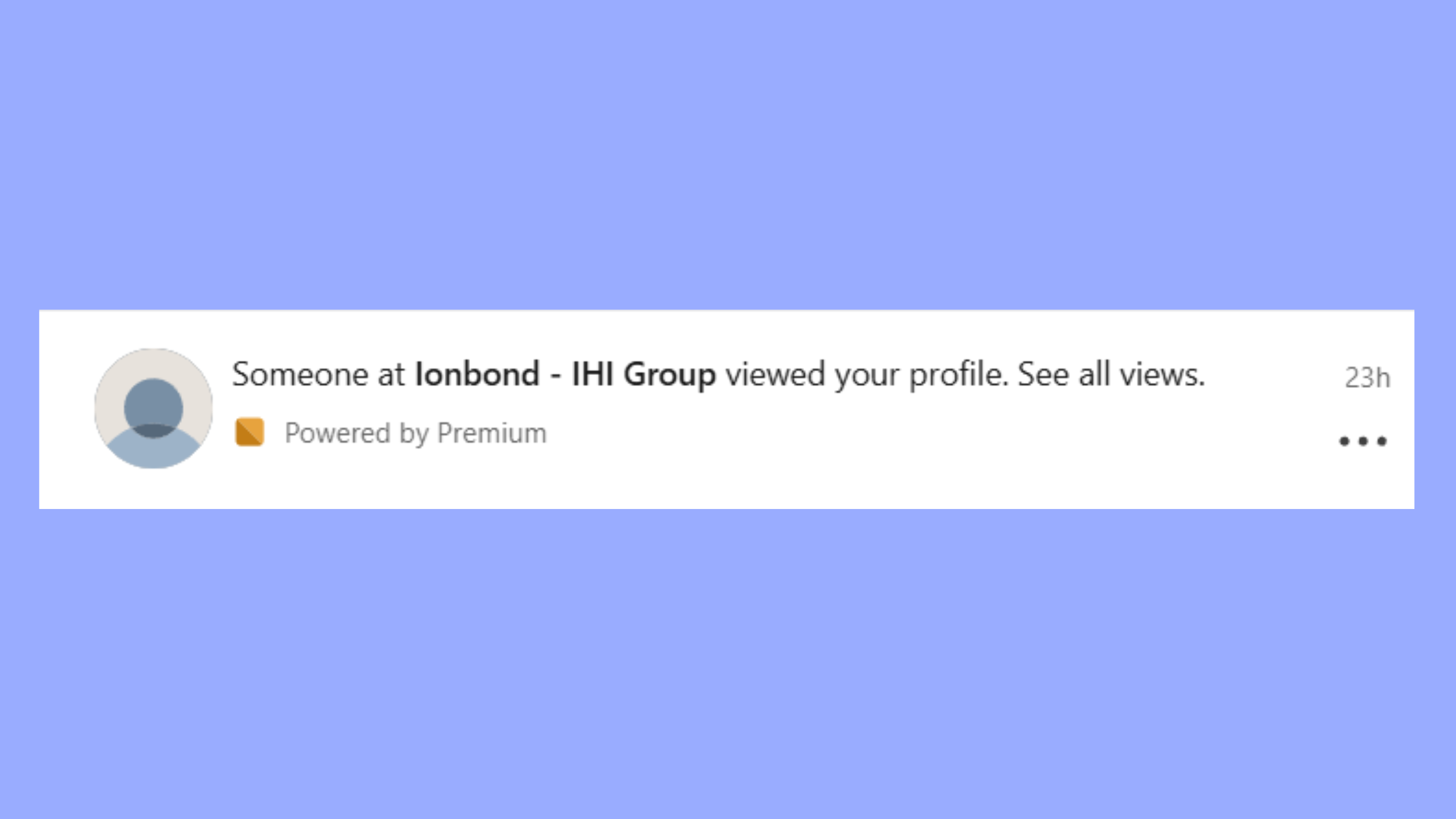
Searching is invisible to the other person. The moment you click through to their profile, however, LinkedIn may record that visit and surface it in their "Who viewed your profile" list — depending on both your privacy settings and theirs. Think of it as the difference between looking at a shop window from the street versus walking inside: the search is the window, the profile visit is the door.
If You Look Up Someone on LinkedIn, Do They Know?
If your account is set to full visibility mode, the person will see your name and headline in their viewer list. In semi-private mode, they see your job title but not your name. In anonymous mode, they see nothing. You control this entirely — see the next section for how to change it. For a deeper breakdown of how LinkedIn tracks profile views, see this detailed guide on LinkedIn profile view tracking and read receipts.
Understanding the difference between searching and viewing is the foundation — now let's look at exactly how to control what others see when you visit them.
If You Look at Someone's LinkedIn, Will They Know? Privacy Mode Explained
LinkedIn offers three distinct profile viewing modes, and most people have never changed theirs from the default:
- Full visibility — your name, photo, and headline appear in their viewer list
- Semi-private — only your job title and industry are shown, no name
- Anonymous / Private mode — the viewer appears as "LinkedIn Member" with no identifying information
How to switch modes: Settings & Privacy → Visibility → Profile viewing options → select your preferred mode.
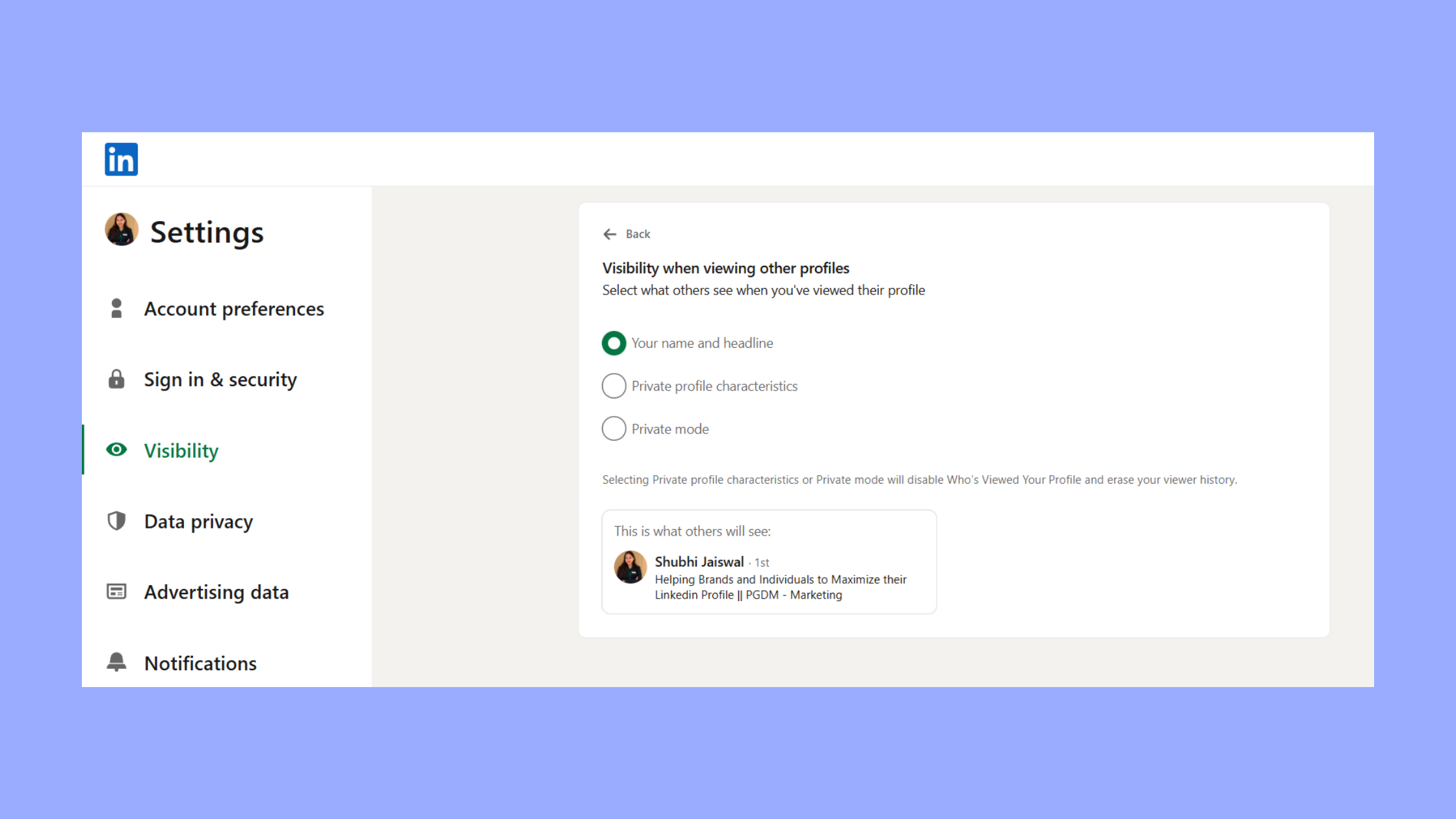
The trade-off is real. When you browse in private mode, LinkedIn disables your own access to "Who viewed your profile" data — you can't see who's visiting you while you're hiding from them. Most recruiter-active job seekers benefit from staying in full visibility mode during active search phases: appearing in someone's viewer list is a form of passive outreach. Save anonymous mode for competitor research or sensitive reconnaissance. Learn more about how LinkedIn notifications work when you view a profile.
How to Turn Off Active Status on LinkedIn
The green active status dot — visible next to your name in messaging — shows your connections that you're currently online. Useful for networking. Potentially awkward when you're job hunting while employed.
Step-by-step to disable it:
- Click your profile photo (top right on desktop)
- Select Settings & Privacy
- Navigate to Data Privacy
- Click Manage active status
- Toggle to No one
Turning off active status is a one-minute fix that removes an unnecessary signal during discreet job hunting — but it's just one piece of the privacy puzzle.
What Does "Found You Through LinkedIn Search" Mean?
"Found you through LinkedIn search" is a source tag LinkedIn attaches to connection requests and messages, indicating the exact pathway through which the sender discovered your profile. It means they typed keywords — your name, job title, company, or skills — into LinkedIn's search bar and your profile surfaced in the results.
For job seekers, appearing in search results is the highest-intent signal LinkedIn can send you. A recruiter who finds you through search is actively hunting — not passively browsing a feed. Respond within 24 hours.
Found You Through Feed vs. Found You Through Homepage — What's the Difference?
- Found you through feed — your post or comment appeared in their LinkedIn feed organically; your content brought them to you
- Found you through homepage — LinkedIn's algorithm surfaced your profile or activity on their homepage (often "People You May Know" or suggested posts)
- Found you through a LinkedIn profile — they were browsing someone else's connections or "People Also Viewed" and discovered you there
- Found you through LinkedIn messaging — they found you while searching within the messaging interface, often after a mutual conversation
What does "found you through a LinkedIn profile" mean in practice? It typically means you appeared in the LinkedIn People Also Viewed sidebar on another professional's page — making your headline and photo the only things standing between you and a new connection. A weak headline loses this warm traffic entirely.
Found You Through a LinkedIn Profile — Meaning and What to Do Next
When you receive this tag, your profile is doing passive networking work for you. The right response: check who sent it, review their role, and if relevant to your job search, accept and send a brief personalised message referencing a shared connection or interest. Don't just click accept — the discovery context is your conversation opener.
Knowing how people find you shapes how you optimise — which brings us to how the LinkedIn search engine actually works.
How to Search on LinkedIn: The LinkedIn Search Engine Explained
The LinkedIn search engine is not just a people-finder — it indexes people, jobs, companies, posts, groups, and schools, each with its own filter set. Understanding how to search LinkedIn strategically is as important for job seekers as optimising your own profile to appear in searches.
Key filters that change everything:
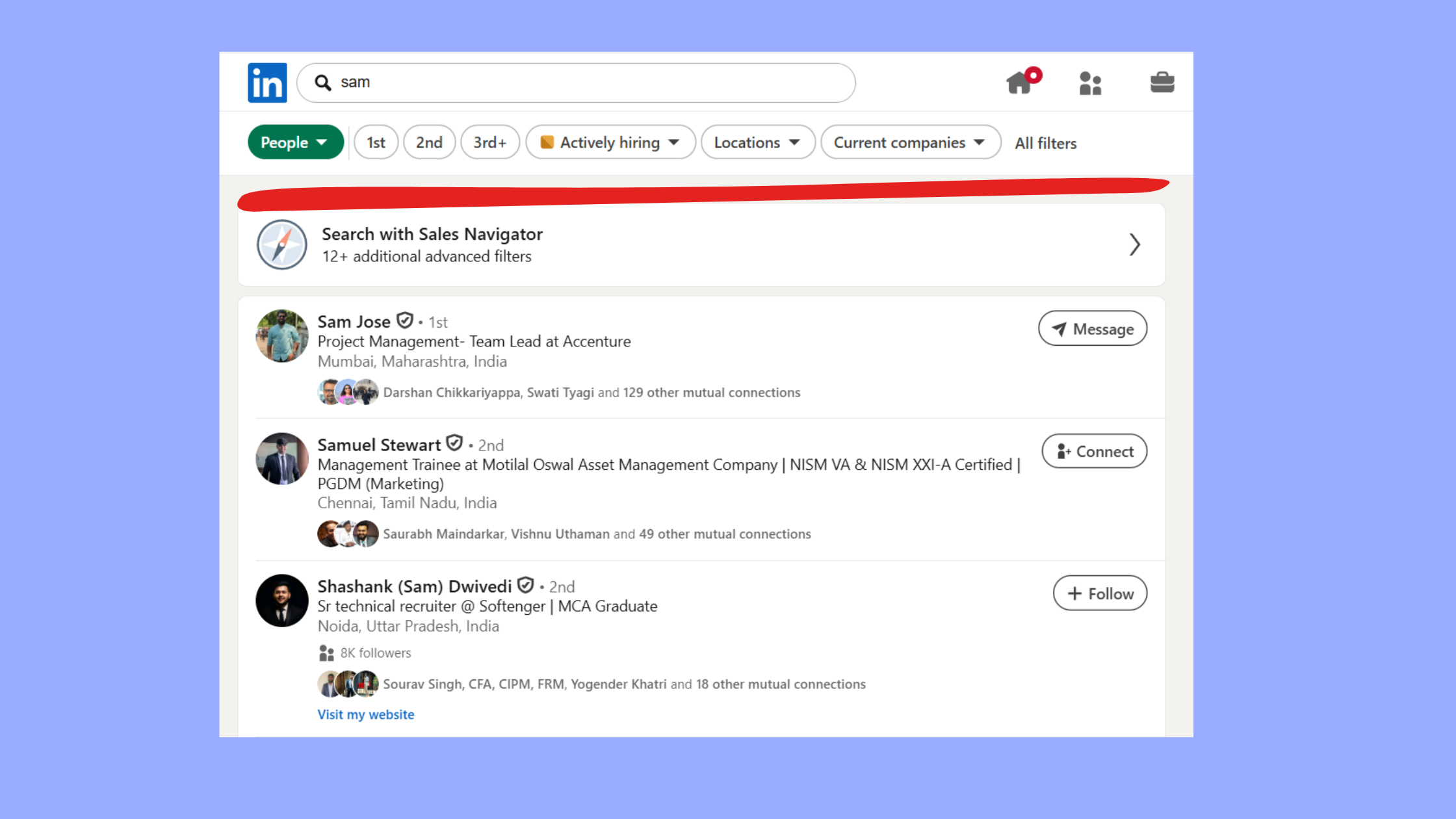
- Location — narrow to city, region, or country; essential for how to search jobs on LinkedIn by location
- Connections level — 1st, 2nd, and 3rd degree connections filter by network proximity
- Industry and job title — find decision-makers at target companies
- Past company — surface alumni networks who've moved to roles you're targeting
Free LinkedIn accounts hit a LinkedIn monthly limit for profile searches — this is the platform's commercial use limit, which kicks in when LinkedIn detects search behaviour consistent with recruiting or prospecting. You'll see a warning before you're blocked. Export your key connections before hitting this ceiling.
LinkedIn Search Operators and Boolean Search: A Practical Guide
LinkedIn Boolean search is the use of logical operators — AND, OR, NOT, quotes, and parentheses — to build precise search queries within LinkedIn's search bar. It is the single most underused feature by job seekers and recruiters alike.
LinkedIn Boolean search examples:
"product manager" AND "SaaS" NOT "intern"— finds product managers in SaaS, excludes interns("hiring manager" OR "talent acquisition") AND "fintech"— surfaces decision-makers at fintech companies"open to work" AND "UX designer" AND London— finds available designers in a specific city
How to do a Boolean search on LinkedIn: type your Boolean string directly into the main search bar and press enter. Apply People filters afterward to refine further. There is no dedicated LinkedIn Boolean search tool inside the platform — the main search bar handles it natively. LinkedIn Recruiter accounts get more advanced Boolean support, but standard how to boolean search LinkedIn works on free accounts too.
Once you understand how to search LinkedIn effectively, the next question is how to manage the connections and history you've already built.
Can You See When You Connected with Someone on LinkedIn?
Yes — LinkedIn records the exact date of every connection, and you can access it directly from a profile. This feature is slightly hidden but takes under 10 seconds to find.
How to see when you connected with someone on LinkedIn:
- Go to their LinkedIn profile
- Click the Connected button (where "Connect" used to be)
- A small dropdown appears — the connection date is listed there
Teams that use connection date data consistently report more effective re-engagement campaigns. Connections made within the last 6 months are warmer leads — they remember you. Connections from 3+ years ago need more context in your outreach message. During a job search, sorting outreach by recency dramatically improves response rates compared to blasting your entire network at once.
How to Export LinkedIn Search Results and Manage Your Activity History
LinkedIn lets you export your personal data — connections, messages, endorsements, and more — via a built-in data download tool. This is distinct from exporting search results (which LinkedIn does not allow directly).
How to export your LinkedIn data: Settings & Privacy → Data Privacy → Get a copy of your data → select data types → request archive (delivered within 24 hours via email).
The connections export gives you a CSV with names, job titles, current companies, and email addresses — invaluable for off-platform outreach if you prefer email over LinkedIn messaging.
To view LinkedIn activity history, go to Settings & Privacy → Data Privacy → Search history. You can review and clear your search history, which also removes it from LinkedIn's personalisation data. This is worth doing periodically if your recent searches reflect job-hunting activity you'd prefer not to inform LinkedIn's ad targeting with.
Where Is Settings in LinkedIn and How to Add "View My Services"
On desktop: click your profile photo in the top-right corner → select Settings & Privacy from the dropdown. On mobile: tap your profile photo in the top-left → scroll to Settings at the bottom of the menu.
How to add "View My Services" on LinkedIn:
- Go to your LinkedIn profile
- Click Add profile section
- Select Services under the Highlights category
- Add your service categories, description, and location preference
The Services section creates a separate discoverable card on your profile and makes you eligible to appear in LinkedIn's service provider search — a meaningful visibility boost for freelancers, coaches, and consultants who want to be found through linkedin search tips beyond standard job title matching.
Four settings to configure immediately if you're job searching:
- Profile viewing mode (full, semi-private, or anonymous)
- Active status (on or off)
- Open to Work visibility (all members vs. recruiters only)
- Notification preferences (control email and in-app alerts)
Open to Work Feature: Visibility, Privacy Risks, and Best Practices
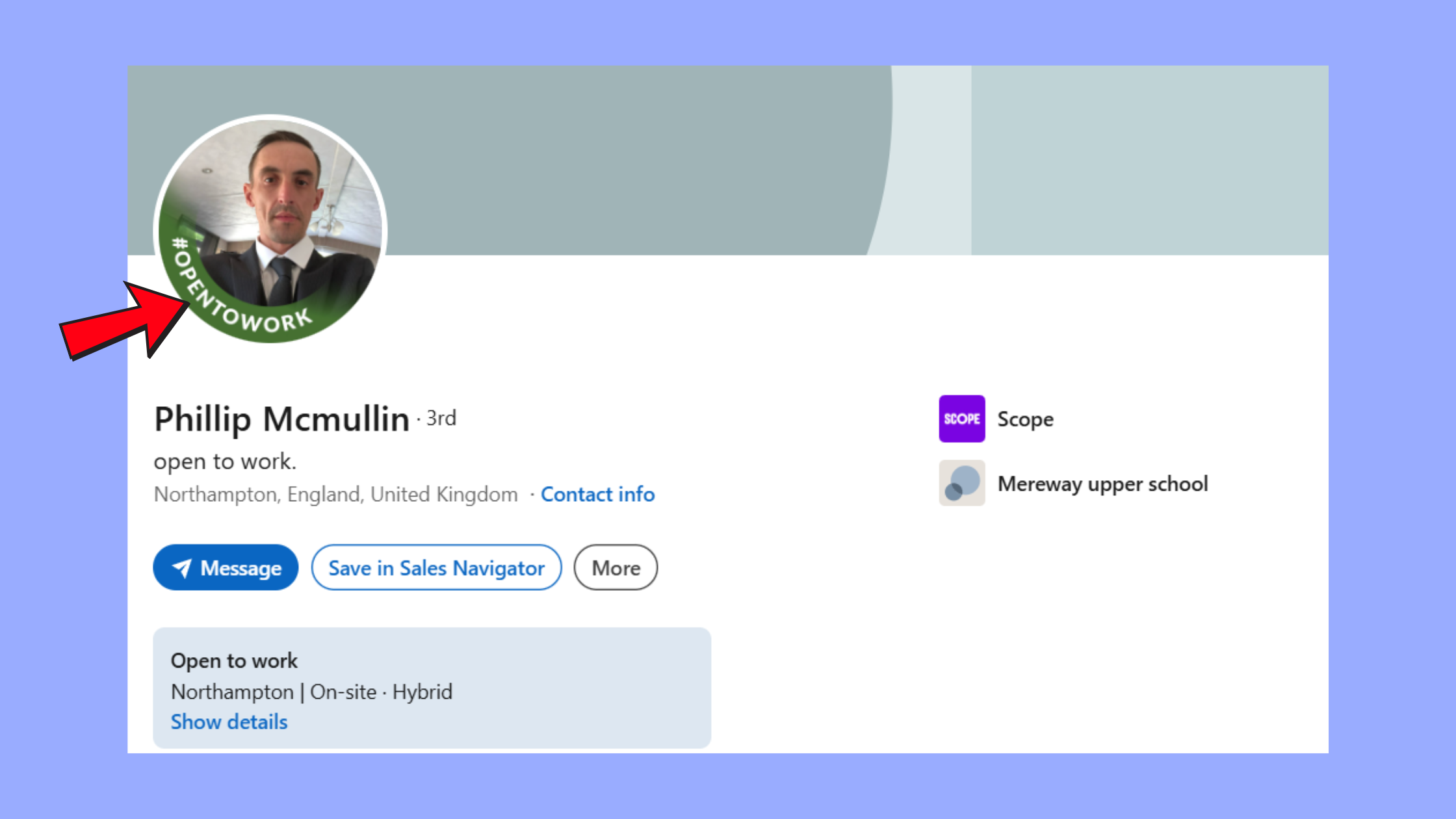
The Open to Work feature lets you signal job interest directly on your profile — but the visibility options carry meaningfully different risks that most professionals don't read carefully before enabling.
- All LinkedIn members — adds the green "Open to Work" photo frame; anyone can see it
- Recruiters only — hides the photo frame but flags your profile in LinkedIn Recruiter search results
The recruiter-only setting is not fully private. LinkedIn explicitly states it "makes best efforts" to prevent your current employer from seeing it — but HR and talent teams at large companies often have Recruiter licenses that may still surface your status. The most common mistake observed across job-hunting professionals is leaving this setting on the default public option without realising it.
The Open to Work recruiter-only filter is a soft privacy measure, not a hard barrier. If your current employer uses LinkedIn Recruiter, treat this setting as semi-public and plan accordingly.
Best practice: combine Open to Work (recruiter-only) with a keyword-rich headline. The feature flags you in search; the headline determines whether a recruiter actually clicks. Both must work together. For a full playbook on profile optimisation, this guide to optimising your LinkedIn profile for maximum visibility covers the headline formula in detail.
Common LinkedIn Visibility Mistakes That Hurt Your Job Search
The most common failure mode is not a single bad decision — it is a cluster of small defaults that individually seem harmless but collectively make a profile invisible to the right people.
- Full visibility while researching sensitive contacts. Visiting a hiring manager's profile in full-visibility mode signals interest before you're ready. Switch to semi-private for reconnaissance, then switch back for intentional outreach.
- Ignoring the LinkedIn People Also Viewed sidebar. Your profile appears in other people's sidebars — if your headline is generic ("Marketing Professional"), you're losing warm referral traffic to more specific profiles.
- Active status left on during work hours. Colleagues, managers, and clients can see the green dot in messaging. If you're browsing job listings at 10am on a Tuesday, that dot tells a story.
- Not exporting connections before hitting search limits. Free accounts have a monthly limit for profile searches. Hitting it mid-job-search cuts off discovery exactly when you need it most. Export your connections early.
Fixing these mistakes is fast — most take under 2 minutes. The settings audit checklist below covers all of them in one pass.
✓ The LinkedIn Job Search Privacy Audit Checklist
- ☐Set profile viewing mode to anonymous before researching target companies or sensitive contacts
- ☐Toggle active status off if you're job hunting while employed (Data Privacy → Manage active status)
- ☐Set Open to Work to "Recruiters only" (not all members) if currently employed
- ☐Export your connections CSV before hitting the monthly profile search limit
- ☐Add a keyword-rich headline (job title + specialisation + outcome) to appear in Boolean recruiter searches
- ☐Add the Services section if you're a freelancer or consultant (Add profile section → Highlights → Services)
- ☐Switch back to full visibility mode when actively networking and wanting to be seen by target connections
Boost Your LinkedIn Visibility Beyond Settings: Engagement and Algorithm Signals
Settings determine your baseline visibility. The LinkedIn algorithm determines how far you actually travel. And the algorithm has one clear preference: content that generates meaningful conversation.
This means 7 in 10 job opportunities never reach a job board — they're distributed through network connections before a formal listing exists. The professionals who get those calls are the ones whose content regularly surfaces in feeds, making them visible without actively applying. When someone says they received a message tagged "found you through feed linkedin," that's the algorithm doing passive job search work on their behalf.
What separates top performers here is not posting frequency alone — it is the combination of consistent posting, meaningful engagement (comments that add perspective, not just "great post!"), and the social proof that comes from replies and reactions from credible people in your industry.
For creators, founders, and job seekers who want to accelerate that social proof, HyperClapper helps amplify post visibility through real community engagement channels and AI-powered replies — without bots or fake activity. When your posts receive genuine early engagement, LinkedIn's algorithm treats them as higher-quality content and distributes them further, which means more "found you through feed" tags in your connection requests. See how LinkedIn activity and privacy settings interact to understand what signals you're broadcasting as you engage.
Get real LinkedIn engagement that recruiters notice
HyperClapper connects your posts to real engagement channels — so your content reaches further, and the right people find you first.
Boost Your LinkedIn Visibility →Frequently Asked Questions About LinkedIn Visibility, Search, and Privacy
How to Effectively Use LinkedIn for Job Search?
Use LinkedIn for job search by optimising your profile headline with target job titles and skills, enabling Open to Work for recruiters only, using Boolean search to find decision-makers at target companies, and engaging with industry content so your profile surfaces in feeds. The professionals who get recruited passively combine strong profile SEO with consistent, visible activity.
Does LinkedIn Notify If You Search Someone's Name?
No — LinkedIn does not notify anyone when you search their name. Notifications are only triggered when you visit a profile, and only if your privacy mode is set to full or semi-private visibility. Searching is completely private regardless of your settings.
Why Does My Ex (or Anyone) Keep Viewing My LinkedIn Profile?
Repeated profile views typically indicate genuine professional interest, not surveillance — LinkedIn's algorithm often surfaces profiles to people in overlapping industries or mutual networks. If a specific person views your profile repeatedly and you find it uncomfortable, switching to private browsing mode won't stop them viewing your profile, but it will stop you seeing their views in return.
What Is the LinkedIn Monthly Limit for Profile Searches?
Free LinkedIn accounts hit a commercial use limit when search behaviour resembles recruiting or heavy prospecting — typically after 100–300 profile views in a month depending on your account age and activity. LinkedIn shows a warning before blocking further searches. Upgrading to Premium or Sales Navigator removes this limit.
Who Has the Most Connections on LinkedIn, and Does Connection Count Matter?
LinkedIn caps displayed connections at 500+ — anyone above that shows the same "500+" label, so exact counts aren't visible. For job seekers, connection count matters less than connection quality and how actively those connections engage with your content. A 300-person network of relevant industry contacts outperforms 5,000 unrelated connections every time.
What Does "Found You Through LinkedIn Messaging" Mean?
"Found you through LinkedIn messaging" means the sender discovered your profile while searching within LinkedIn's messaging interface — often by typing a name or keyword in the search field inside a conversation thread. It's a less common discovery pathway than feed or search, and typically indicates the sender was already in a related conversation when they found you.



