
Knowing how to upload resume to LinkedIn correctly — and choosing the right method — is what separates a candidate who gets found by recruiters from one who doesn't. There are three distinct ways to add your resume on LinkedIn, and each one serves a different purpose. A pattern observed consistently across job seekers is that most people only know one method, use it in the wrong context, and then wonder why their applications aren't landing. This guide covers all three methods, the file format debate, visibility settings, and how to fix the most common upload errors.
- There are three ways to add your resume to LinkedIn — Featured section, Easy Apply, and Job Preferences — and each works differently.
- Your uploaded resume does not replace your LinkedIn profile — they serve separate purposes and should be kept in sync.
- PDF is the safest file format for most uploads; DOCX is accepted but can render inconsistently.
- LinkedIn only accepts PDF or DOCX files under 5 MB — the most common upload errors come from violating this.
- Resumes uploaded to the Featured section are publicly visible unless you adjust your privacy settings.
- Counterintuitive finding: a polished LinkedIn profile often outperforms a résumé alone — but having both, correctly configured, maximises recruiter visibility.
- Why Adding Your Resume to LinkedIn Still Matters in 2026
- How to Add Your Resume to LinkedIn: Three Ways That Actually Work
- Resume File Format, Visibility Settings, and What Recruiters Actually See
- Why Your LinkedIn Resume Isn't Uploading — and How to Fix It
- Common Mistakes to Avoid When Uploading Your Resume to LinkedIn
- Frequently Asked Questions About Adding a Resume to LinkedIn
Why Adding Your Resume to LinkedIn Still Matters in 2026
Your LinkedIn profile and your resume are not the same document. Your profile is always-on, public, and optimised for discoverability — it works passively while you sleep. A resume is a targeted, tailored document written for a specific role or recruiter. Understanding that distinction is the first step to using both correctly.
According to NGPF (2026), 72% of recruiters use LinkedIn as part of their hiring process, and 87% use it to vet candidates. That means your profile is almost certainly being reviewed before any application you submit.
In practice, adding your resume amplifies your discoverability — especially when combined with LinkedIn's Open to Work feature, which signals availability directly to recruiters using the platform's search filters. Recruiters searching for candidates by skill or job title are more likely to act when they can immediately download a formatted resume without requesting it separately.
Does Your Resume Replace Your LinkedIn Profile?
No. Uploading a resume to LinkedIn does not replace or overwrite your profile. The two exist independently. What matters is keeping them consistent — recruiters who spot discrepancies between your resume and your profile often question the accuracy of both. Think of your profile as the always-visible shop window and your resume as the detailed product brochure you hand over when someone walks in.
Can Employers See Your Resume on LinkedIn?
It depends on where you upload it. A resume added to your Featured section is publicly visible to anyone who views your profile, including employers, unless you restrict your profile visibility. A resume submitted through Easy Apply goes only to that specific employer and is never shown on your public profile. LinkedIn resume visibility settings give you control over both — but you have to configure them deliberately.
Now that the "why" is clear, here's exactly how to do it.
How to Add Your Resume to LinkedIn: Three Ways That Actually Work
There are three distinct paths to upload resume to LinkedIn profile, and choosing the wrong one for your intent is the most common mistake. Here's a breakdown of each:
Method 1 — Upload Resume to Your LinkedIn Featured Section
This is the public-facing method — anyone viewing your LinkedIn profile can see and download this resume. Use it when you want passive visibility with recruiters, headhunters, or anyone who lands on your profile organically.
Here's how to do it on desktop:
- Go to your LinkedIn profile page.
- Click "Add profile section" near the top of your profile.
- Select "Recommended", then click "Add featured".
- Click the plus (+) icon and choose "Add media".
- Upload your resume file (PDF or DOCX, under 5 MB).
- Add a title and description, then click "Save".
This same process answers how do you upload resume to LinkedIn, how to upload resume in LinkedIn, how to upload the resume in LinkedIn, how to upload linkedin resume, how do i upload resume to linkedin, how to upload a resume to linkedin, how to upload a resume on linkedin, how to upload a resume in linkedin — they all lead here when your goal is profile-level visibility.
Method 2 — LinkedIn Easy Apply Resume Upload
The LinkedIn Easy Apply resume upload is job-specific and private. When you apply for a role using the Easy Apply button, LinkedIn prompts you to attach a resume. This goes directly to the hiring company and does not appear on your public profile.
- Find a job listing with the Easy Apply button.
- Click "Easy Apply" to open the application flow.
- When prompted, click "Upload resume" and select your file.
- Complete the remaining fields and submit.
What happens when you upload a resume to LinkedIn Easy Apply? Your file is sent directly to the recruiter or applicant tracking system (ATS) at that company — LinkedIn stores a copy under your job preferences for convenience, but it is not shown to the public.
Method 3 — Save a Resume Under Job Preferences (Settings)
This method lets you pre-save a resume so it auto-populates in future Easy Apply applications — saving time when you're actively applying to multiple roles. To access it:
- Click "Jobs" in the top navigation bar.
- Select "Preferences" from the left menu.
- Under "Resume and application data", upload your file.
Understanding the format you upload matters as much as where you upload it — which is exactly what the next section covers.
Resume File Format, Visibility Settings, and What Recruiters Actually See
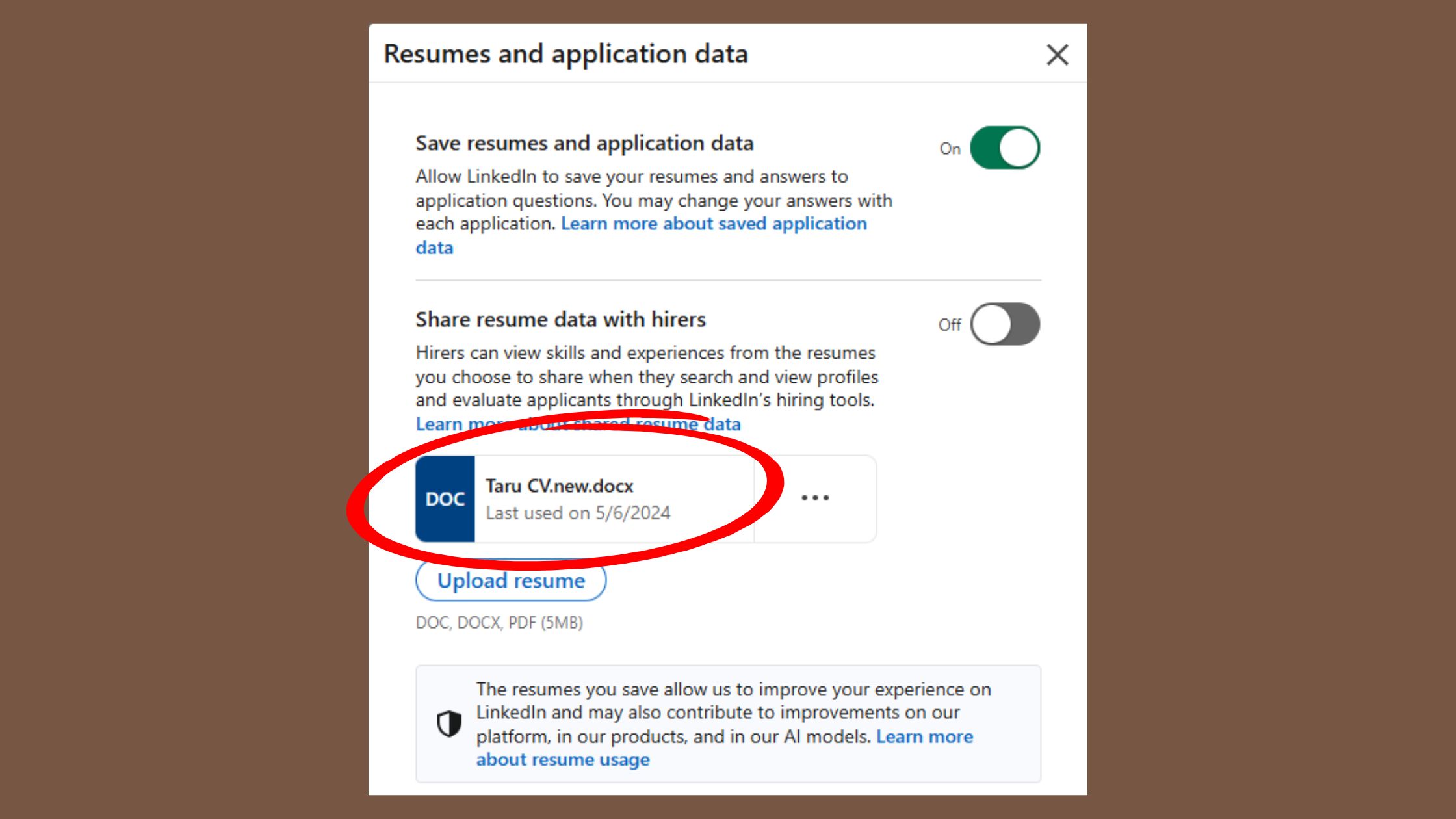
According to Kanbox (2026), LinkedIn accepts PDF, DOC, and DOCX files under 5 MB. That's the full list. Anything outside this — PNG, ZIP, PAGES — will fail silently or return an error.
PDF or Word for LinkedIn — Which Format Wins?
For the LinkedIn Featured section resume, PDF wins every time. PDF preserves your formatting exactly as you designed it — fonts, spacing, columns — regardless of what device or software the recruiter uses to open it. A DOCX file can render differently depending on the viewer's version of Word or Google Docs, which means your carefully designed layout may arrive looking broken.
The one exception: some applicant tracking systems (ATS software that parses resumes automatically) handle DOCX better than PDF for text extraction. If you know a specific employer uses a heavy ATS pipeline, submitting a clean single-column DOCX can improve parse accuracy. When in doubt, PDF is the safer default.
LinkedIn Resume Visibility Settings — Who Sees What
This is the area most guides skip entirely. Here's a clear breakdown of LinkedIn resume visibility settings:
- Featured section resume: Visible to anyone who can view your profile. Control this by adjusting your profile's public visibility settings under Settings & Privacy → Visibility → Edit your public profile.
- Easy Apply resume: Visible only to the specific employer you applied to. It is never shown publicly.
- Job Preferences resume: Private by default — only used to pre-fill Easy Apply forms. Not publicly visible.
What consistently separates candidates with strong recruiter InMail discoverability from those who don't hear back is not just having a resume uploaded — it's having the visibility settings aligned with their actual job-search posture.
Why Your LinkedIn Resume Isn't Uploading — and How to Fix It
The most common failure mode here isn't a broken feature — it's a preventable file issue. A recurring pattern among job seekers trying to upload their resume to LinkedIn is hitting a vague error with no explanation, assuming it's a platform bug, and giving up. In most cases, the fix takes under two minutes.
The most frequent causes:
- Wrong file type — only PDF and DOCX are accepted. No PNG, PAGES, ODP, or ZIP files.
- File size over 5 MB — compress your PDF or reduce image resolution inside it.
- Corrupted file — re-export the PDF from your word processor rather than uploading an older copy.
- Browser or app issue — cached data can interfere with uploads.
- Temporary LinkedIn platform glitch — these happen, especially after platform updates.
Step-by-Step Troubleshooting Checklist
✓ LinkedIn Resume Upload Troubleshooting Checklist
- ☐Confirm file is PDF or DOCX only — no other formats are accepted
- ☐Check file size is under 5 MB — compress PDF if needed using Adobe or Smallpdf
- ☐Re-export the file fresh from Word, Google Docs, or your resume builder — don't reuse an old saved copy
- ☐Desktop: clear browser cache and cookies, then retry in an incognito window
- ☐Mobile: update the LinkedIn app, force-close it, reconnect Wi-Fi, and retry
- ☐Try uploading from a different browser (Chrome, Firefox, Edge) — some extensions block file pickers
- ☐If still failing, wait 30 minutes and retry — LinkedIn occasionally has brief platform-side upload outages
Common Mistakes to Avoid When Uploading Your Resume to LinkedIn
Teams that get LinkedIn job applications right nearly always avoid one specific mistake that their peers make: they never upload a generic resume to a public-facing section. Here's the full list of what goes wrong most often:
- Uploading an outdated resume to the Featured section — this is the version recruiters see first. If it's two years old or lists a job title you've since moved past, it creates a poor first impression.
- Assuming the uploaded resume and your LinkedIn profile auto-sync — they don't. Inconsistencies between the two (different job titles, dates, or skills) are a red flag to experienced recruiters.
- Ignoring privacy settings — a resume in the Featured section is public by default. If yours contains your home address or personal phone number, remove those details before uploading.
- Using one generic resume for all Easy Apply applications — each role has different ATS keyword filters. A one-size-fits-all resume typically underperforms tailored versions by a significant margin.
The resume you upload publicly is a permanent first impression — recruiters who find you organically will see it before they read a single word of your application.
Should You Use a Resume Builder Made for LinkedIn?
The best resume builder for LinkedIn is one that exports a clean, ATS-friendly PDF. Tools like Google Docs, Microsoft Word, or purpose-built options like Canva (for visual roles) or Resume.io (for ATS-focused formats) all work well. The key criterion is simple: does the exported PDF look exactly as intended when opened by someone else? If yes, it's fit for purpose.
Here's something most people overlook: once your resume is uploaded and your profile is polished, the next step is making sure recruiters actually see your posts and activity. Tools like HyperClapper help professionals and recruiters increase LinkedIn post visibility through real community engagement and AI-powered replies — so when you're actively sharing your expertise alongside your job search, those posts reach a meaningful audience instead of disappearing into the feed.
Want More Recruiters to Find Your LinkedIn Profile?
HyperClapper boosts your LinkedIn post visibility with real community engagement — so your expertise gets seen, not buried.
See How It WorksFrequently Asked Questions About Adding a Resume to LinkedIn
Is it a good idea to upload a resume on LinkedIn?
Yes, for most professionals it adds value — particularly when paired with the Open to Work feature. An uploaded resume gives recruiters immediate access to your formatted credentials without needing to request it. The main caveat: make sure it's current, tailored to your target role, and stripped of personal contact details if uploaded publicly.
How do I add or remove a resume in LinkedIn?
To add: go to your profile → Add profile section → Recommended → Featured → Add media. To remove: go to your Featured section, click the pencil icon on the resume file, and select Delete. For Easy Apply resumes, go to Jobs → Preferences → Resume and Application Data to manage saved files.
How do I update my PDF resume on LinkedIn?
Delete the existing resume from your Featured section or Job Preferences, then upload the new version. LinkedIn does not offer an in-place overwrite — you always delete the old file first, then upload the new one. This takes under 60 seconds once your updated PDF is ready.
Why can't I upload my resume on LinkedIn?
The most common causes are an unsupported file type (only PDF and DOCX are accepted), a file size over 5 MB, or a corrupted export. Try re-exporting a fresh PDF from your word processor, clear your browser cache, and retry. If the issue persists on desktop, try the mobile app — or wait 30 minutes in case of a temporary platform outage.
What is the best way to add a resume to LinkedIn without replacing my profile?
Use the Featured section method — it adds your resume as a downloadable attachment on your profile without touching any of your profile fields. Your LinkedIn profile data (experience, skills, education) remains completely separate and unaffected. The two documents coexist independently.
Should I upload a resume to LinkedIn or just use my profile?
Both, ideally. Your LinkedIn profile handles passive discoverability and SEO within the platform. Your resume handles structured, formatted credentials for specific applications. Professionals who maintain both — keeping them consistent — consistently show up more in recruiter searches and convert those views into conversations more effectively than those who rely on just one.
What happens when you upload a resume to LinkedIn Easy Apply?
Your resume is sent directly to the employer or their ATS when you submit the application. It is not added to your public profile. LinkedIn saves a copy under your Job Preferences for use in future applications, but it remains private and employer-specific — no other LinkedIn users or recruiters browsing your profile can see it.
How do I make my resume downloadable on LinkedIn for recruiters?
Upload it to your Featured section (Profile → Add profile section → Featured → Add media). Once live, any LinkedIn user who can view your profile can click to download it. To restrict access, adjust your public profile visibility settings under Settings & Privacy → Visibility — this controls whether public (non-logged-in) visitors can see your Featured content.
Where does your resume show on LinkedIn profile?
A resume uploaded via the Featured section appears under the "Featured" block on your profile page — typically visible below your About section. It shows as a document card with the file name you gave it. Resumes uploaded through Easy Apply or Job Preferences do not appear on your public profile at all.
What consistently separates LinkedIn profiles that generate consistent recruiter interest from those that don't is not the resume file itself — it's the combination of a polished, keyword-rich profile, a current and publicly accessible resume in the Featured section, and active content presence. Accounts that get all three right compound their visibility over time. Those that rely on just one typically plateau, regardless of how strong the underlying credentials are.



