
LinkedIn scheduled posts are posts queued in advance through LinkedIn's native clock-icon scheduler or a third-party tool — and finding them again trips up more people than you'd expect. A recurring pattern among LinkedIn creators trying to manage their content calendar is that they schedule a post, close the tab, and then can't locate it. The native scheduler buries scheduled posts behind the composer's clock icon rather than surfacing them in a dedicated menu, which explains most of the confusion. This guide shows exactly how to see scheduled posts on LinkedIn, how to edit or delete them, and when it's worth switching to a third-party tool.
- LinkedIn's native scheduler hides your scheduled posts behind the clock icon in the post composer — there's no standalone menu.
- To view, edit, or delete a scheduled post on desktop: open the composer → click the clock icon → select "View scheduled posts."
- Mobile access to scheduled posts is limited — you can view the queue on the LinkedIn app but editing requires desktop.
- The native scheduler is free and compliant but lacks a content calendar, bulk scheduling, and cross-platform posting.
- Third-party tools (Buffer, Hootsuite, Taplio) solve the calendar view problem but add cost and slight compliance considerations.
- The single biggest reach mistake: scheduling a post and going offline — the first 60 minutes of engagement determine whether LinkedIn distributes it widely.
- Where Do Scheduled Posts Go on LinkedIn?
- How to See, Find, Edit, or Delete Your Scheduled LinkedIn Posts
- Native LinkedIn Scheduler vs. Third-Party Tools: Honest Comparison
- Scheduling LinkedIn Posts for Reach: Timing, Algorithm Impact, and Mistakes
- Frequently Asked Questions About LinkedIn Scheduled Posts
Where Do Scheduled Posts Go on LinkedIn? (And How the Native Scheduler Works)
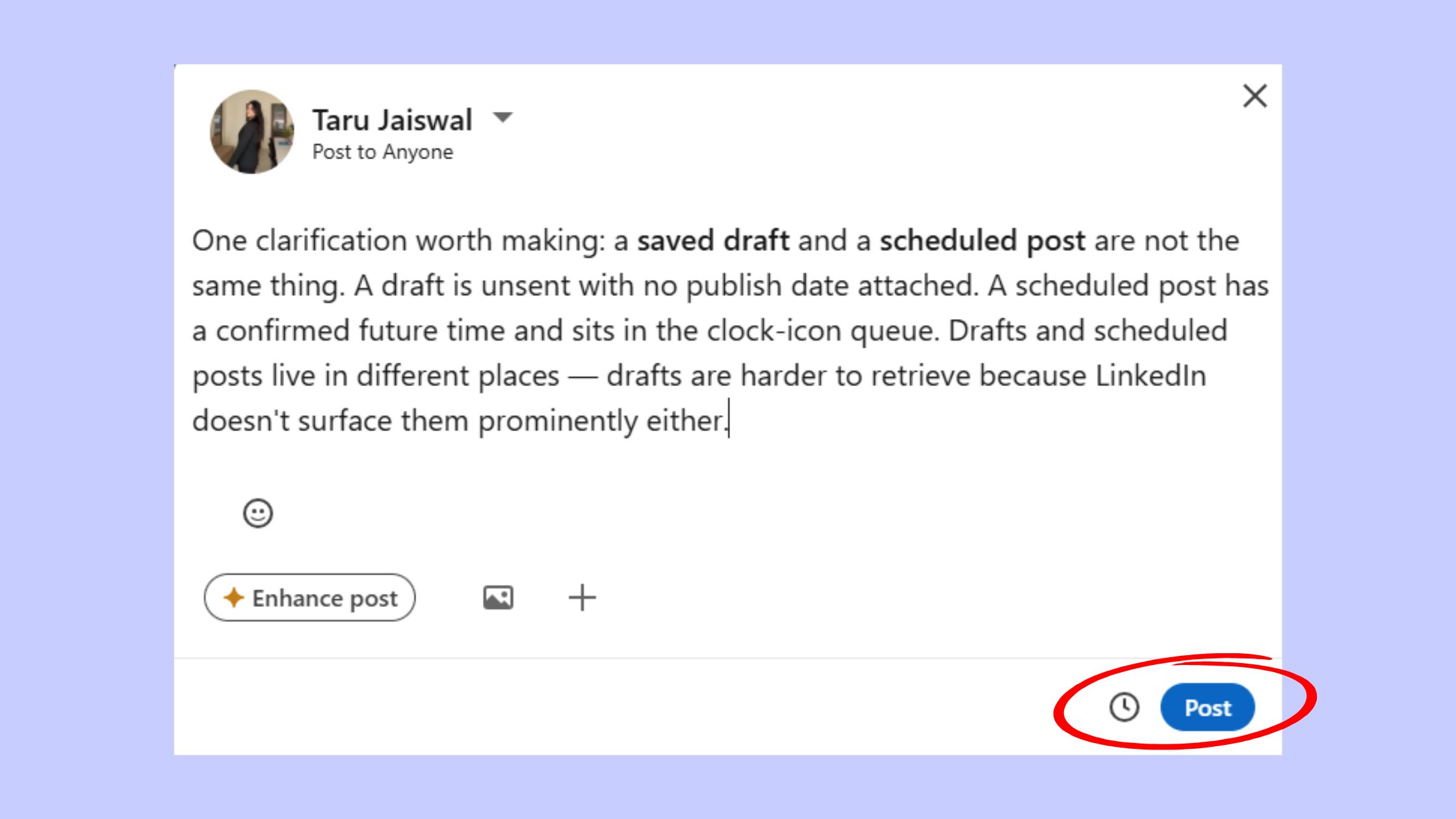
When you schedule a post on LinkedIn, it moves into a pending queue stored inside the post composer — not a separate app section or sidebar menu. Most people miss it because the entry point is a small clock icon in the bottom toolbar of the composer, not a clearly labelled "Scheduled Posts" tab. That's the core UX issue behind the majority of "LinkedIn scheduled posts not showing" complaints.
Here's the full flow on desktop:
- Click Start a post from your LinkedIn feed.
- Write your content as normal.
- Click the clock icon (bottom-left of the composer window).
- Set your date and time — LinkedIn accepts scheduling between 1 hour and 3 months ahead, per Metricool's 2026 breakdown.
- Click Schedule. The post enters a pending state until its publish time.
One clarification worth making: a saved draft and a scheduled post are not the same thing. A draft is unsent with no publish date attached. A scheduled post has a confirmed future time and sits in the clock-icon queue. Drafts and scheduled posts live in different places — drafts are harder to retrieve because LinkedIn doesn't surface them prominently either.
Does LinkedIn Have a Built-In Post Scheduler in 2026?
Yes. LinkedIn's native post scheduling feature has been available to personal profiles and company pages since 2022, and it remains free for all users in 2026. It handles single-post scheduling up to three months out. What it does not do: bulk scheduling, content calendar views, or cross-platform publishing.
How to Schedule LinkedIn Posts from Mobile
The LinkedIn mobile app allows you to schedule posts using the same clock icon in the composer. However, the ability to edit a scheduled post is restricted to desktop in most current app versions. You can view the queue on mobile and delete a scheduled post, but substantive content edits require switching to a desktop browser — a friction point that catches mobile-first creators off guard.
How to See, Find, Edit, or Delete Your Scheduled LinkedIn Posts
Here's the exact path to view scheduled posts on LinkedIn — the step most people are searching for:
- Go to linkedin.com on a desktop browser and log in.
- Click Start a post to open the composer.
- Click the clock icon in the bottom toolbar.
- Select "View scheduled posts" — this opens your full scheduled queue.
This queue shows all pending posts with their scheduled date and time. From here you can delete a post or open it for edits. That's how to find scheduled posts on LinkedIn in four steps.
For company pages: navigate to your company page, click Admin tools, then look for Scheduled posts in the content management section. The path differs from personal profiles, which is where to find scheduled posts on LinkedIn becomes ambiguous — the personal and page queues are completely separate.
How to Edit or Delete a Scheduled LinkedIn Post
To edit or delete a scheduled LinkedIn post: open the scheduled queue (steps above), find the post, and click the three-dot menu (···) next to it. You'll see options to Edit or Delete. For most standard text posts, direct editing works. For posts with certain media types, LinkedIn may require you to delete and reschedule rather than edit in place.
Can you reschedule a LinkedIn post after scheduling? Yes — open the post in the queue, click Edit, change the date/time in the clock picker, and save. The process works but involves several clicks. If you're managing a high-volume content queue, this UX friction is where third-party tools start earning their keep.
Where to Find Scheduled Posts on LinkedIn Mobile
On mobile: tap the Post button, tap the clock icon in the composer, then tap View scheduled posts. The queue displays the same posts as desktop. Where to find scheduled posts on linkedin mobile follows the same entry point — through the composer clock — not through your profile or feed directly.
Native LinkedIn Scheduler vs. Third-Party Tools: Honest Comparison for 2026
The native LinkedIn scheduler is the right tool for occasional, simple scheduling. Third-party tools are the right tool for managing a LinkedIn content queue at scale. The honest trade-off looks like this:
| Feature | LinkedIn Native | Buffer | Hootsuite |
|---|---|---|---|
| Cost | Free | Free tier / paid from ~$6/mo | From ~$99/mo |
| Content calendar view | ❌ No | ✅ Yes | ✅ Yes |
| Bulk scheduling | ❌ No | ✅ Yes | ✅ Yes |
| Multi-platform posting | ❌ LinkedIn only | ✅ Yes | ✅ Yes |
| Team approval workflow | ❌ No | Limited | ✅ Full |
| LinkedIn compliance risk | ✅ None | Low (API-based) | Low (API-based) |
| Best for | Occasional posts, individuals | Solo creators, small teams | Teams, agencies, multi-account |
Buffer vs Hootsuite for LinkedIn scheduling: Buffer wins on simplicity and cost for solo creators managing one or two profiles. Hootsuite is the stronger choice for teams that need approval workflows, multi-account management, and detailed analytics dashboards. A LinkedIn scheduling tool with content calendar view — which both provide — changes daily content management from reactive to planned.
Manage LinkedIn Content Queue: What Third-Party Tools Do Better
The biggest practical gap in LinkedIn's native offering is the absence of a visual LinkedIn content calendar. Managing a LinkedIn content queue through the native clock-icon queue is linear — you see a list of scheduled posts, no drag-and-drop rescheduling, no post-performance overlay. Third-party tools surface all of this in a calendar grid, which matters when you're planning content themes across weeks.
For creators who also want to understand how to view scheduled posts on Instagram alongside their LinkedIn queue, tools like Buffer and Hootsuite handle both platforms in one dashboard — a clear multi-platform advantage the native scheduler cannot offer.
Risks and Limitations of Third-Party LinkedIn Schedulers
Tools that use LinkedIn's official API (Buffer, Hootsuite, Sprout Social) carry minimal compliance risk. Tools that operate outside the API carry more. Always verify that a third-party LinkedIn scheduling tool uses LinkedIn's official API before connecting your account — this is the single most important safety check. Scraping-based or browser-extension schedulers sit in a riskier position regarding LinkedIn's terms of service.
Scheduling LinkedIn Posts for Reach: Timing, Algorithm Impact, and Common Mistakes
The most reported frustration among LinkedIn creators isn't learning how to schedule — it's that scheduled posts consistently underperform live posts in reach. This is a real pattern, and the explanation matters more than the scheduling mechanics.
Up until 2023, independent research — including data cited by Richard van der Blom on LinkedIn — showed that scheduling posts could cost 8–15% of reach. Whether that specific penalty still applies at the same magnitude is contested in 2026, but the underlying dynamic has not changed: LinkedIn's algorithm weights early engagement velocity — the speed and volume of likes and comments in the first 30–60 minutes after publishing — as a primary signal for wider distribution.
According to Buffer's 2026 LinkedIn research, LinkedIn now has a median organic engagement rate of 8% — the strongest of any major social platform. This means the opportunity cost of a poorly timed or under-supported scheduled post is genuinely high. In practice, a post with great content but no early engagement can plateau within 2 hours, while a post with average content that attracts 20 early comments can distribute for 24–48 hours.
According to Sprout Social's 2026 timing research, the strongest windows are Tuesdays through Thursdays, with peak engagement on Tuesdays from 11am–5pm. LinkedIn's own marketing blog points to mid-morning (10–11am) and lunchtime (12–1pm) on Tuesday through Thursday as the highest-performing slots. These remain useful starting benchmarks, but your own optimal posting window depends on where your audience is located and when they are actually active — check your LinkedIn analytics before defaulting to universal timing rules.
The most common failure mode: scheduling a post and going offline. Without early engagement in the first hour, even strong content gets suppressed. The fix is to be present and responsive in the first 60 minutes — reply to every early comment, engage with people who engage with you. That's what turns a scheduled post's initial trickle into sustained distribution.
How to Boost Engagement on Scheduled Posts (Where HyperClapper Fits In)
Scheduling solves the "when to post" problem. It does not solve the "early engagement" problem. Teams that treat scheduling and engagement as a combined system consistently see better reach than those who treat them as separate activities.
This is exactly where a tool like HyperClapper fits into the workflow. After your scheduled post goes live, you can submit it to HyperClapper's real engagement channels — groups of real LinkedIn users who engage with each other's posts. One channel delivers approximately 50 engagements; two channels roughly 100. This kind of early, authentic engagement directly addresses the algorithm's first-hour distribution signal. Unlike bot-based approaches, HyperClapper's community engagement and AI-powered replies work with LinkedIn's quality signals rather than against them.
For creators focused on reach and post performance, pairing a solid scheduling workflow with a deliberate early-engagement strategy is the playbook that separates growing accounts from stagnant ones. You can also explore how HyperClapper compares to other engagement tools in this LinkedIn engagement tools comparison.
Get Real Engagement on Every Post You Schedule
HyperClapper connects your posts with real LinkedIn users who engage authentically — so your scheduled content gets the early signals it needs to distribute widely.
Start Boosting Posts →Frequently Asked Questions About LinkedIn Scheduled Posts
How do I find scheduled posts on LinkedIn?
Open the post composer by clicking "Start a post," then click the clock icon in the bottom toolbar. Select "View scheduled posts" to see your full queue. This works on desktop for personal profiles. For company pages, go to Admin tools → Scheduled posts. There is no standalone menu — the composer is always the entry point.
Can I edit my scheduled posts on LinkedIn?
Yes, for most standard text posts. Open the scheduled queue via the clock icon, find the post, click the three-dot menu, and select Edit. For posts with certain media attachments, LinkedIn may require you to delete and reschedule. Editing is available on desktop; mobile supports viewing and deleting but not full content edits.
How do scheduled posts work on LinkedIn?
LinkedIn's native post scheduling feature holds your post in a pending queue and publishes it automatically at the date and time you set. Scheduling windows range from 1 hour to 3 months ahead. Times are handled in UTC, so verify your local timezone offset. The post behaves identically to a live post once published — the algorithm treats it the same way.
What is the easiest way to view all my scheduled LinkedIn posts in one place?
Natively, the clock icon in the post composer is the only access point — there's no dedicated dashboard. For a proper content calendar view showing all scheduled and draft posts visually, third-party tools like Buffer or Hootsuite are significantly easier to manage than the native queue, especially when handling more than a few posts per week.
Is LinkedIn's native scheduler good enough, or do I need a third-party tool?
For occasional scheduling of personal posts, the native scheduler is sufficient — it's free, always compliant, and simple. If you manage a LinkedIn content queue across multiple profiles or pages, need a content calendar, want bulk scheduling, or post to multiple platforms, a third-party LinkedIn scheduling tool is worth the cost. Most solo creators hit the native tool's limits within a few weeks of consistent posting.
Can I see scheduled LinkedIn posts on the mobile app, and what happens if I change my profile settings after scheduling?
You can view your scheduled post queue on the LinkedIn mobile app via the same clock-icon path in the composer. Editing, however, requires desktop in most current app versions. Changing your profile settings after scheduling — such as privacy settings or your headline — does not affect a scheduled post's content or timing. The post publishes exactly as written regardless of subsequent profile changes.
How do I find my scheduled post?
On desktop: click "Start a post," click the clock icon, then "View scheduled posts." On mobile: tap "Post," tap the clock icon, then "View scheduled posts." If nothing appears, your post may have already published — check your profile's activity feed. A cleared browser cache can also cause the queue to display incorrectly; refreshing usually resolves it.
The accounts that consistently get strong reach on LinkedIn aren't necessarily posting more often — they're posting at intentional times and ensuring the first hour after every post, scheduled or not, is actively managed. Scheduling handles the clock. Engagement handles the algorithm.
What consistently separates accounts with real reach from accounts with good content and modest results is not the scheduling tool they use — it's whether they treat the post-publish window as a passive or active moment. Scheduled posts are not inherently weaker. They become weaker when creators schedule and disappear. Pair your LinkedIn scheduling workflow with an early-engagement habit — or a platform like HyperClapper that handles the early signals for you — and the scheduling penalty effectively disappears.



