
LinkedIn analytics tools are software platforms that collect, visualize, and interpret performance data from your LinkedIn profile, company page, and content — turning raw numbers into decisions you can act on. A pattern observed across high-performing LinkedIn accounts is that the professionals growing fastest aren't posting more often, they're posting smarter: using data to identify what resonates, who's seeing it, and whether it's moving the right people to act. Native LinkedIn analytics gives you a starting point, but third-party tools are what close the gap between "I think this is working" and "I know this is working."
- LinkedIn's native analytics is useful for basics but falls short on historical data depth, personal profile metrics, and competitor benchmarking.
- Third-party LinkedIn analytics tools fill those gaps — the right one depends entirely on your goal (personal brand, B2B lead gen, agency reporting).
- The most overlooked insight: personal profile analytics are far weaker in LinkedIn's native dashboard than company page analytics — a major reason creators switch to tools like Shield.
- Tracking 3–5 focused KPIs consistently outperforms tracking everything — most users who fail with analytics are overwhelmed, not under-informed.
- For creators who want both analytics and the engagement to act on those insights, platforms like HyperClapper combine post performance data with real community engagement in one place.
- Free trials with real account data for at least two weeks are the only reliable way to evaluate whether a tool is worth paying for.
- What Are LinkedIn Analytics Tools and Why They Matter
- How LinkedIn Analytics Tools Work
- What LinkedIn Metrics Should I Track for Growth
- What Features Should LinkedIn Analytics Tools Have
- Best LinkedIn Analytics Tools: A Practical Comparison for 2026
- LinkedIn Analytics Tools for B2B Marketers
- LinkedIn Analytics Tools for Small Business
- LinkedIn Native Analytics Not Enough: Pain Points and Fixes
- How to Measure LinkedIn Marketing ROI
- Common Mistakes to Avoid
- How to Choose LinkedIn Analytics Tools: Step-by-Step
- Frequently Asked Questions
What Are LinkedIn Analytics Tools and Why They Matter in 2026?
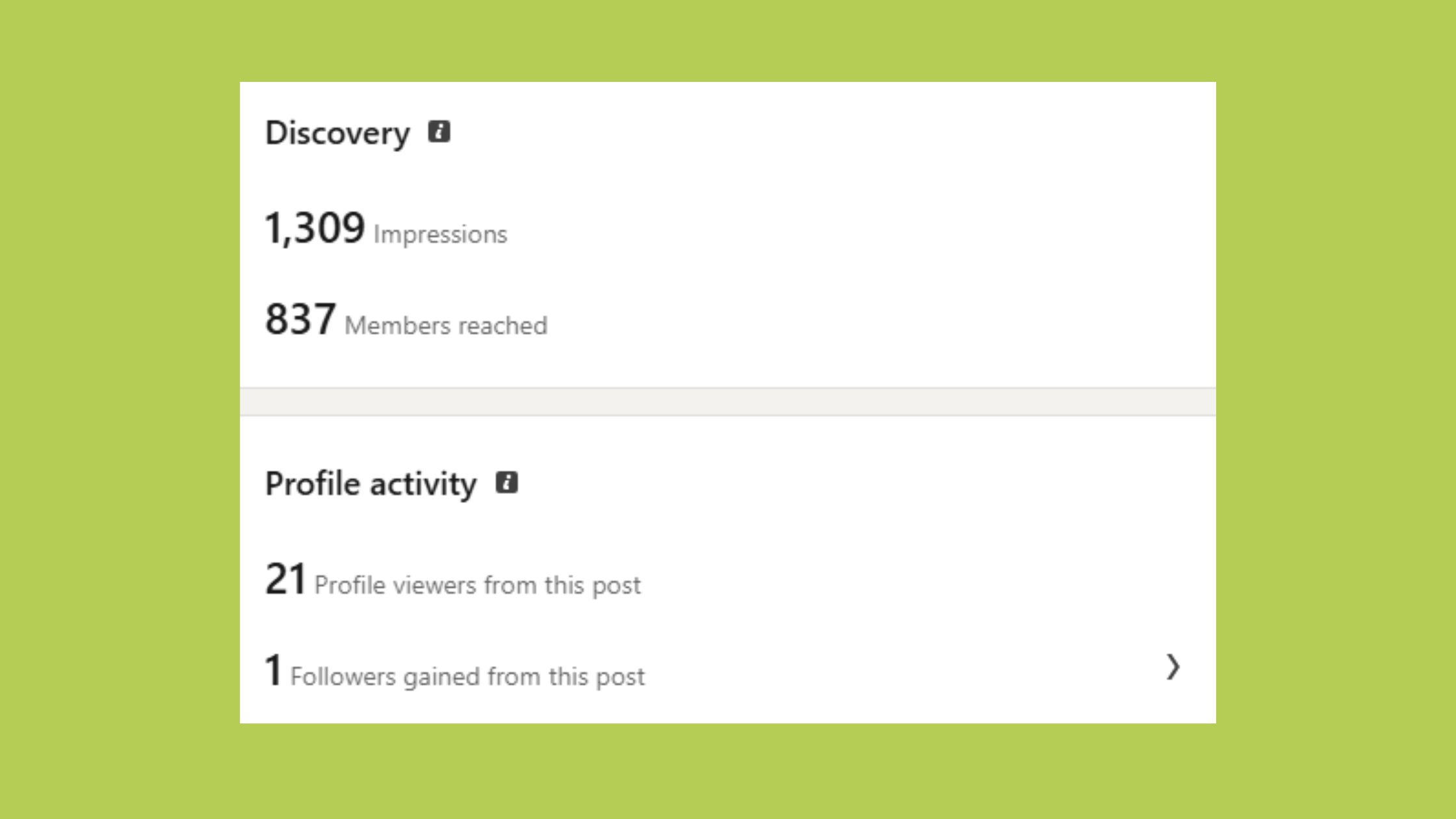
LinkedIn analytics tools are platforms — either native to LinkedIn or built by third parties — that aggregate your profile and content performance data, then surface it in dashboards designed for decision-making. The core value isn't the numbers themselves. It's the patterns inside those numbers: which content type drives profile visits, which audience segment is actually engaging, and whether your growth is compounding or plateauing.
LinkedIn's built-in dashboard has improved, but it still carries three structural limitations that frustrate serious users:
- Historical data cap: native analytics typically shows only the past 365 days, making year-over-year trend analysis impossible without a third-party export.
- No competitor benchmarking: you can see your own numbers, but you can't compare your engagement rate against peers or industry averages.
- Weak personal profile data: company pages get richer native analytics than individual profiles — a gap that frustrates personal brand builders more than anyone else.
In 2026, LinkedIn growth analytics isn't optional for anyone serious about building visibility or generating pipeline on the platform. According to LinkedIn's own published data, the platform has over 1 billion members — meaning organic reach without a data feedback loop is essentially guesswork at scale.
LinkedIn Native Analytics vs Third Party Tools: What's the Real Difference?
Native analytics refers to the built-in dashboard inside LinkedIn itself — accessible via your profile or page under Analytics. Third-party tools connect via LinkedIn's official API to pull that same data, then add layers of historical comparison, competitor context, export capability, and automated reporting that LinkedIn's own dashboard doesn't offer. Think of native analytics as a rear-view mirror — it shows where you've been. Third-party tools add a GPS: where you are relative to others, and which route is fastest from here.
Now that the core distinction is clear, here's how those third-party tools actually work under the hood.
How LinkedIn Analytics Tools Work: The Mechanism Behind the Metrics?
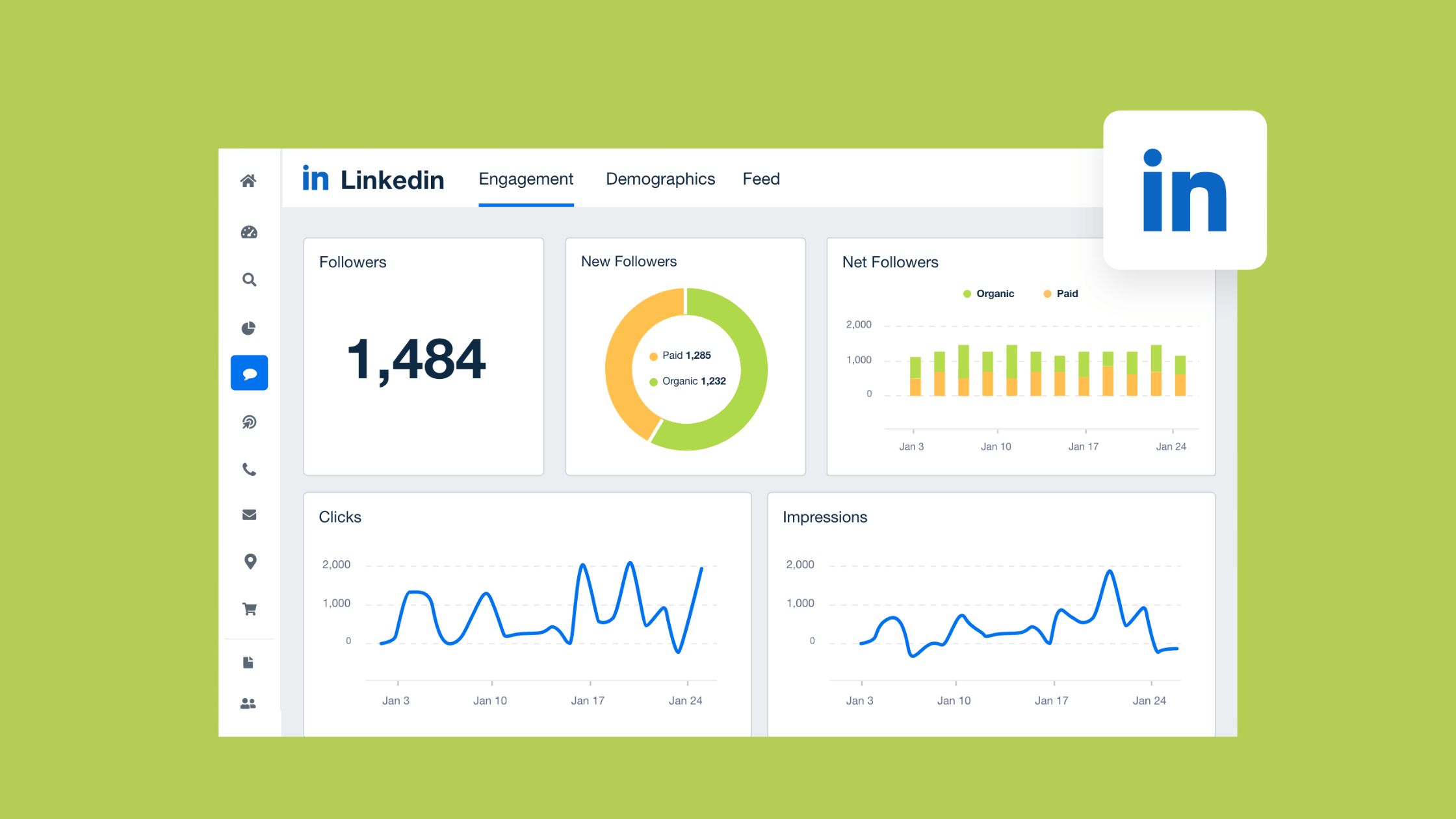
Most LinkedIn data analytics software connects to your account using OAuth authentication — you grant the tool read access via LinkedIn's official API, and it begins pulling post performance, follower demographics, and engagement data into its own database. No password sharing, no scraping. The API is the authorized bridge.
Once data flows in, tools normalize and aggregate it — combining raw impression counts, click data, and follower change rates into visualizable trends. This is where dashboard design matters enormously: a well-structured tool surfaces "your Tuesday posts outperform Friday posts by 40%" in seconds. A poorly designed one buries that same insight in three clicks of raw exports.
LinkedIn Algorithm and Analytics Connection: What the Data Actually Reflects
LinkedIn's algorithm distributes content in waves — a small initial push to your first-degree connections, then wider distribution if early engagement velocity is strong. Engagement velocity is the speed at which a post receives likes and comments after publishing — and it's the single most important signal in LinkedIn's distribution model.
What your analytics data actually reflects isn't just how good your content is — it reflects how quickly your network responded to it in the first 60–90 minutes after posting. Slow early engagement caps reach permanently, regardless of content quality.
This means analytics tools that show you time-of-day and day-of-week performance patterns aren't just convenient — they're strategically critical. Posting when your audience is most active compounds early engagement velocity, which directly expands your content reach visibility tracking beyond your immediate network. Knowing the mechanism makes the metrics far more actionable.
What LinkedIn Metrics Should I Track for Growth?
Teams that track fewer metrics more consistently see better outcomes than teams that monitor everything and act on nothing. The core KPIs worth tracking for LinkedIn growth are:
- Impressions: total views of your content — a leading indicator of distribution reach.
- Engagement rate: (likes + comments + shares + clicks) ÷ impressions — the quality signal behind the quantity. Engagement rate benchmarking against industry averages typically shows 2–3% as solid for LinkedIn.
- Profile views: how many people visited your profile after seeing your content — a direct signal of intent.
- Follower growth rate: week-over-week percentage change, not just raw follower count. Rate reveals momentum.
- Click-through rate (CTR): for posts with links, the percentage that clicked — your most direct pipeline signal.
LinkedIn Analytics Metrics and KPIs Guide for Beginners
Audience growth attribution — understanding which specific posts or campaigns drove new followers — is where most beginners get lost. LinkedIn's native tool doesn't connect these dots directly. Third-party tools do it by correlating follower spikes to content published in the same window.
The most common failure mode is optimizing for impressions while ignoring profile visits and connection requests. High reach with zero downstream action usually signals a content relevance problem: you're reaching people, but not the right ones. Meanwhile, saves and meaningful comments are the metrics most predictive of long-term LinkedIn profile performance metrics improvement — yet they're the ones most users ignore in favor of like counts.
What Features Should LinkedIn Analytics Tools Have?
The must-have features that separate genuinely useful LinkedIn insights tools from data dashboards that look impressive but don't drive action:
- Post performance reports: detailed breakdown per post — impressions, engagement rate, CTR, and comments — not just totals.
- Audience demographics data: job title, industry, seniority, and geography of your followers and engagers. This confirms whether you're reaching the right people.
- Historical data access: at minimum 12–24 months of trend data. Tools that only show rolling 30-day windows hide seasonal patterns and long-term growth curves.
- Automated reporting dashboard: scheduled PDF or CSV exports that go directly to your inbox or client — essential for agencies and teams.
Advanced features worth paying for, depending on your use case:
- LinkedIn analytics with competitor tracking: benchmark your engagement rate and posting frequency against specific competitor pages.
- Scheduling integration: tools that combine publish scheduling with analytics close the loop between planning and performance measurement.
- Team collaboration features: role-based access and shared dashboards for marketing teams managing multiple LinkedIn profiles or pages.
- LinkedIn analytics API access for custom reporting: essential for enterprise teams building proprietary BI dashboards in Tableau, Looker, or similar.
LinkedIn Analytics Tool with Scheduling Integration and Automated Reporting
The most underrated feature combination in any LinkedIn performance tracking tool is scheduling + analytics in a single platform. When your publishing tool and your measurement tool share the same data model, you eliminate the manual step of cross-referencing post dates with performance spikes. Tools like Taplio and Hootsuite offer this natively. For teams running multiple client accounts, an automated reporting dashboard that sends weekly performance summaries removes a recurring manual task that typically consumes 2–3 hours per week per account manager.
Best LinkedIn Analytics Tools: A Practical Comparison for 2026?
Choosing the best LinkedIn analytics tools comes down to matching features to use case — not chasing the platform with the longest feature list. Here's how the leading tools stack up:
| Tool | Best For | Competitor Tracking | Pricing Tier | Standout Feature |
|---|---|---|---|---|
| Shield App | Personal brand / creators | Limited | $8–$25/mo | Deep personal profile analytics |
| Taplio | AI content + analytics | Yes | $49–$149/mo | AI writing + scheduling + analytics |
| Sprout Social | Enterprise teams | Yes | $249+/mo | Richest LinkedIn-specific reporting |
| Hootsuite | Multi-platform teams | Yes | $99–$249/mo | Cross-platform scheduling + analytics |
| Buffer | Budget-conscious teams | No | Free–$18/mo | Simple scheduling with basic analytics |
| HyperClapper | Creators, founders, agencies | Engagement data | Affordable tiers | Real community engagement + analytics combined |
Shield Analytics and Shield LinkedIn Analytics: The Personal Brand Standard
Shield analytics has become the go-to tool for LinkedIn personal brand builders because it solves the single biggest gap in native analytics: detailed personal profile performance data. Shield LinkedIn analytics tracks post-level performance across your entire history, shows audience growth trends, and surfaces your best-performing content formats — all for a fraction of the cost of enterprise tools. For individuals and solopreneurs focused purely on personal brand growth, Shield remains the benchmark other tools are compared against. For a deeper look at how Shield stacks up against alternatives, see our guide on Shield Analytics competitors for LinkedIn growth.
Free LinkedIn Analytics Tools vs Paid Options: What Do You Actually Get?
Free tiers — including LinkedIn's native dashboard, Buffer's free plan, and limited Shield trials — give you enough data to understand your current situation. They rarely give you enough to improve it systematically. The specific things free tools almost universally lack:
- Historical data beyond 30–90 days
- Competitor benchmarking
- Automated report exports
- Audience demographic breakdowns
Paid tools justify their cost fastest for people posting 3+ times per week who are actively trying to grow — because they have enough data volume to surface meaningful patterns. For someone posting once a month, a free tier is often sufficient.
Affordable LinkedIn Analytics Tools for Agencies and Small Teams
For agencies managing multiple client LinkedIn accounts, the calculus shifts: per-seat pricing on enterprise tools like Sprout Social becomes expensive quickly. Shield's agency plan and Taplio's team tier are among the most cost-effective options for affordable LinkedIn analytics tools for agencies. HyperClapper's model — which bundles engagement boosting with analytics — can further reduce costs for agencies whose clients need both visibility and measurement without paying for two separate platforms.
With the tool landscape mapped, the real question is which features actually matter for your specific growth goal — especially if you're a B2B marketer where pipeline, not just impressions, is the measure of success.
LinkedIn Analytics Tools for B2B Marketers: What Actually Moves the Needle?
For LinkedIn analytics tools for B2B marketers, the non-negotiable feature is audience demographics data — specifically job title, seniority level, and industry. Without this, you're flying blind on whether your content is reaching actual decision-makers or just your peers. A pattern consistently observed across B2B LinkedIn campaigns is that high impression counts with low seniority-level engagement signals a targeting or content angle problem, not a volume problem.
LinkedIn marketing analytics for B2B means connecting content performance to pipeline signals. That means:
- Tracking CTR on posts that link to gated assets or landing pages
- Tagging UTM parameters on all LinkedIn links so CRM attribution is accurate
- Monitoring which content themes generate the most profile visits from target job titles
- Using post performance trend analysis to identify which formats (carousel, text-only, video) drive the highest CTR from your target audience
LinkedIn Analytics for Startup Growth Teams and Personal Brand Builders
Startup growth teams often need to prove LinkedIn's value quickly — which means skipping vanity metrics entirely and building a simple ROI model from day one. Map three data points weekly: content posted, profile visits generated, and connection requests or DMs received from target-profile contacts. This lightweight framework takes 15 minutes per week and produces clear signals within 30 days. Personal brand builders follow the same logic: the goal isn't follower count, it's audience growth attribution — understanding which content brings the right people into your orbit.
Get Real Engagement Data Alongside Your LinkedIn Analytics
HyperClapper combines community-driven post boosting with performance analytics — so you can see what's working and act on it immediately.
Explore HyperClapperLinkedIn Analytics Tools for Small Business: Picking the Right Fit Without Overspending?
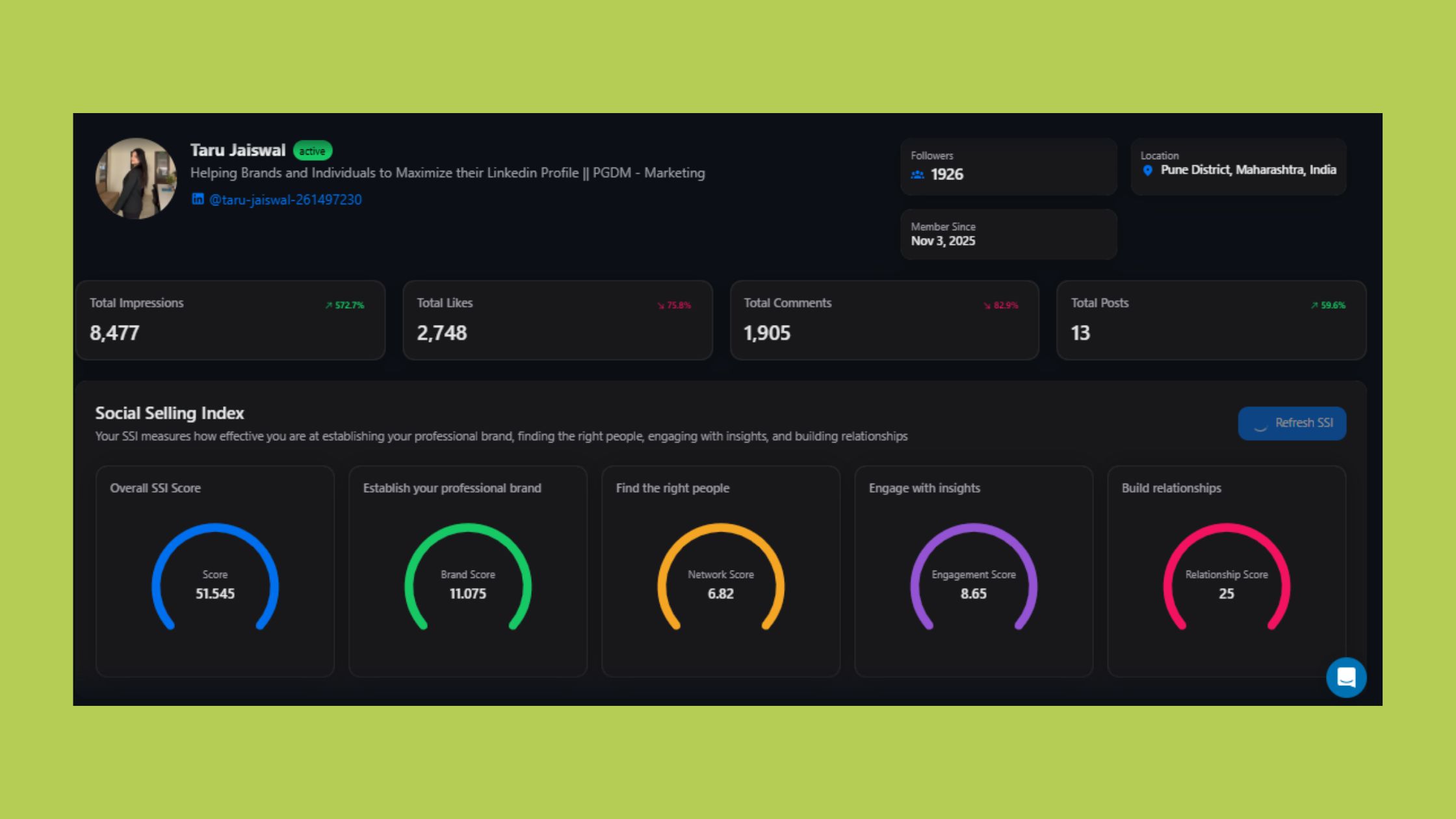
Small businesses rarely need enterprise LinkedIn data analytics software — and the ones that invest in it often don't extract proportional value because the tool is too complex to use consistently. The minimum viable feature set for a small business is simpler than most vendors would have you believe:
- Post-level performance tracking (impressions, engagement rate, CTR)
- Follower growth trend over time
- Basic audience demographics (industry and geography)
- CSV or PDF export for reporting
The most common failure mode here: a small team subscribes to a $200/month platform, spends two weeks in onboarding, then reverts to checking native LinkedIn analytics because the tool felt overwhelming. LinkedIn analytics tools for small business should prioritize simple dashboards with clear "here's what you should do next" recommendations over comprehensive raw data.
The right approach: start a free trial, set 3 core metrics to track, review them weekly for 30 days, and only upgrade to a paid tier when you can name a specific decision the extra data would improve.
LinkedIn Analytics for Social Media Managers and HR Teams
Social media managers need automated reporting above all else — the ability to schedule weekly or monthly performance summaries that go directly to clients or leadership without manual compilation. HR and talent acquisition teams have a different need: follower demographics and content engagement from the candidate audience segments they're trying to attract. A tool that shows "72% of your page followers are mid-level professionals in tech" is far more useful for a recruiter than raw impression counts. Matching the tool's reporting outputs to the specific question your team needs answered weekly is the fastest path to consistent usage — and consistent usage is what actually drives growth. For a broader look at how analytics integrates with scheduling and other tools, the guide on LinkedIn tools for scheduling, carousels, and analytics covers the full stack.
LinkedIn Native Analytics Not Enough: Common Pain Points and How to Solve Them?
The most widespread frustration among LinkedIn users — particularly personal brand builders — is that native analytics are especially weak for individual profiles. Company pages get richer default data: follower demographics, visitor analytics, and content performance breakdowns. Personal profiles get far less. This asymmetry is the single biggest driver of third-party tool adoption among creators and solopreneurs.
The specific pain points reported most consistently:
- LinkedIn analytics data too limited: no post-view detail, no data export, and a hard 365-day history cap makes trend analysis over longer periods impossible.
- LinkedIn metrics not showing real growth: impression spikes that don't produce followers, profile visits, or connections are common — and native analytics doesn't help you understand why.
- Overwhelmed by LinkedIn data with no clear insights: the native dashboard shows many numbers but rarely surfaces the 3–5 actions most likely to improve your next post's performance.
Are Third Party LinkedIn Analytics Tools Worth It?
For anyone posting more than twice per week with a specific growth goal, third-party LinkedIn analytics tools are worth the investment — because native analytics doesn't give you enough signal to improve systematically. The payoff isn't richer data for its own sake. It's faster feedback loops: knowing within 48 hours which post format is outperforming so you can replicate it next week, not next quarter. For a thorough safety and compliance perspective, the safe LinkedIn analytics tools guide for serious professionals covers what to watch for when connecting third-party tools to your account.
The professionals who plateau on LinkedIn are almost never the ones who lack good content — they're the ones who lack a feedback mechanism that tells them which of their good content is actually working.
How to Measure LinkedIn Marketing ROI Using Analytics Tools?
Measuring LinkedIn marketing ROI starts with defining what "return" means for your specific goal — because the answer is different for a B2B SaaS founder (pipeline influenced) versus a recruiter (qualified candidate applications) versus a consultant (inbound inquiry volume). Once the outcome metric is defined, the framework is straightforward.
The LinkedIn ROI Tracking Framework works in four steps:
- Set a baseline (Week 1): record current impressions per post, average engagement rate, weekly profile views, and any downstream business outcome (DMs received, link clicks, leads).
- Track weekly for 30 days: note which post formats and topics produce the highest CTR and profile visit rate — these are your content ROI signals.
- Connect to CRM (Month 2): tag all LinkedIn link traffic with UTM parameters so pipeline attribution in your CRM accurately reflects LinkedIn's influence.
- Report monthly: build a one-page summary — content posted, reach generated, leads attributed, pipeline influenced. This is what proves LinkedIn value to leadership.
What separates top performers here is the CRM connection step. Without UTM tagging, LinkedIn gets no credit in most attribution models — which makes it easy for leadership to question the channel's value even when it's directly generating pipeline.
Better LinkedIn Lead Generation Through Analytics: Connecting Data to Pipeline
LinkedIn analytics tools to improve content strategy create a compounding effect on lead generation: better data reveals which content attracts your ideal audience, which you then create more of, which attracts more of the right people at scale. A recurring pattern among B2B content marketers using data-driven posting is that 20% of their content types generate 80% of their pipeline-relevant clicks. Analytics surfaces that 20% quickly — so the other 80% can be reallocated. For a comprehensive look at how analytics and automation work together in a B2B context, the guide on LinkedIn analytics and automation tools for marketers and sales teams is worth reading alongside this one.
Common Mistakes to Avoid When Using LinkedIn Analytics Tools?
After seeing this across thousands of LinkedIn accounts and campaign setups, the pattern of failure is almost always one of four things:
- Mistake #1 — Tracking too many metrics: analysis paralysis is real. Accounts that track 15 KPIs consistently act on zero of them. Pick 3–5 metrics aligned to your specific goal and commit to them for 90 days before expanding.
- Mistake #2 — Optimizing for impressions over meaningful engagement: high reach with zero profile visits or connection requests from target contacts is a content relevance problem. Impressions without downstream action are not a win — they're a warning.
- Mistake #3 — Ignoring audience demographics data: publishing great content to the wrong audience is a silent waste. Analytics reveals it within 2–3 weeks if you're checking the job title and seniority breakdown of your engagers.
- Mistake #4 — Treating analytics as a one-time audit: LinkedIn growth analytics only compounds in value when reviewed consistently. A monthly audit catches patterns a single check never would.
How HyperClapper Complements LinkedIn Analytics with Real Engagement Data
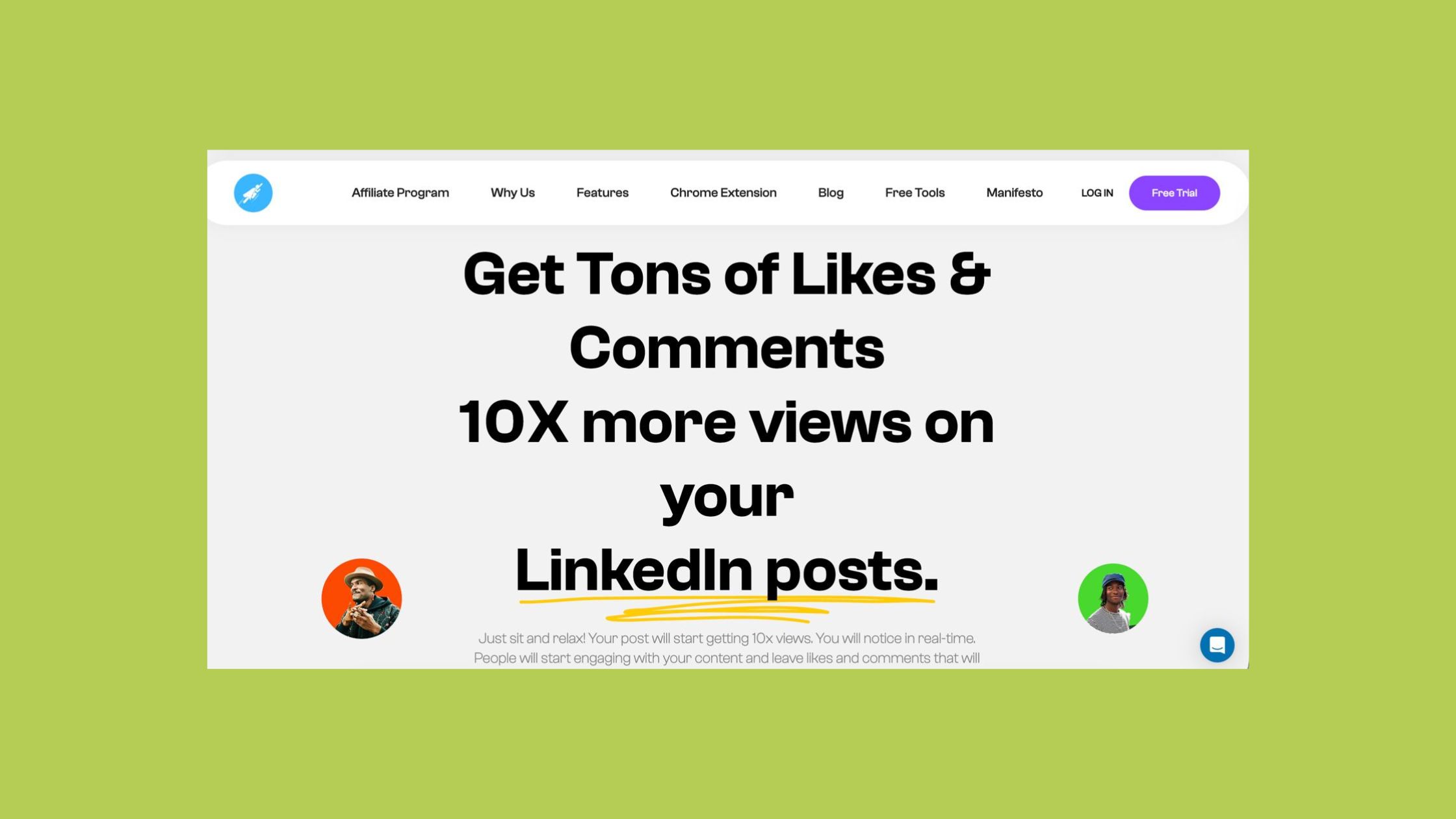
Most analytics tools tell you what happened to your posts. HyperClapper gives you a way to actively influence what happens — then measure the result. By boosting posts through real community engagement channels, HyperClapper generates early engagement velocity that improves LinkedIn's algorithmic distribution. The built-in analytics then show you how that engagement translates into impressions, profile visits, and follower growth — closing the loop between action and outcome. For teams already using a dedicated analytics platform, HyperClapper functions as the engagement engine that feeds better data into whichever measurement tool you prefer. See how this compares to outreach-focused tools in the Skylead vs HyperClapper comparison.
How to Choose LinkedIn Analytics Tools for Growth: A Step-by-Step Decision Framework?
The right LinkedIn analytics tool isn't the one with the most features — it's the one you'll actually use consistently because it surfaces the exact insight your growth goal requires. Use this four-step framework:
- Define your primary goal (5 minutes): personal brand growth, B2B lead generation, company page visibility, or agency client reporting. Your goal determines which 3 features matter most — everything else is noise.
- Audit LinkedIn's native dashboard (15 minutes): write down the specific data points you wish you had but can't find. This list is your feature requirements document.
- Shortlist 2–3 tools and run free trials with real data (2 weeks minimum): don't evaluate tools on demo screenshots. Connect your actual account and track your actual posts. The tool that surfaces a non-obvious insight in the first two weeks is the one worth paying for.
- Evaluate on ease of insight, not feature count: the question isn't "does this tool have competitor benchmarking?" — it's "did this tool tell me something I didn't know that changed what I did next week?"
✓ LinkedIn Analytics Tool Selection Checklist
- ☐Define your primary LinkedIn goal before evaluating any tool
- ☐List the exact data gaps native LinkedIn analytics doesn't fill for you
- ☐Confirm the tool connects via official LinkedIn API (not scraping)
- ☐Run a free trial with your real account for at least 14 days
- ☐Verify the tool provides audience demographics (job title, industry, seniority)
- ☐Check historical data depth — confirm it stores more than LinkedIn's native 365-day cap
- ☐Test automated reporting exports — can you schedule a PDF to a client or manager?
- ☐Ask: did this tool surface at least one non-obvious insight in the first two weeks?
Which LinkedIn Analytics Tool Drives Real Results: Final Recommendations by Use Case
- Personal brand / creator: Shield App — deepest personal profile analytics at the lowest price point.
- AI content + analytics in one: Taplio — best for creators who want writing assistance and performance measurement together.
- Enterprise / agency: Sprout Social — richest LinkedIn-specific reporting, justified at scale.
- Multi-platform teams on a budget: Hootsuite — solid LinkedIn analytics as part of a broader social media management stack.
- Engagement-first growth with built-in analytics: HyperClapper — the strongest choice for content creators and founders who want to both boost post performance through real community engagement and measure the results in one platform.
Turn LinkedIn Data Into Real Visibility
HyperClapper gives you real community engagement, AI-powered replies, and analytics — so you can grow faster without guessing what works.
Start Growing on LinkedInFrequently Asked Questions About LinkedIn Analytics Tools
Where is Analytics and Tools on LinkedIn?
On LinkedIn, analytics is found under the "Me" icon on desktop — go to your profile, then scroll down to find the Analytics section showing post impressions, profile views, and search appearances. For company pages, click "Analytics" in the left navigation of your Page admin view. On mobile, access analytics by tapping your profile photo, then "View Profile," and scrolling to the Analytics panel.
What are good analytics for LinkedIn?
The most useful LinkedIn analytics to track regularly are engagement rate, profile views, follower growth rate, post impressions, and click-through rate. For B2B marketers, audience demographics — specifically job title and seniority of your engagers — is the single most actionable metric. Vanity metrics like raw like counts are the least predictive of real growth outcomes.
How do I track LinkedIn growth metrics over time?
Track LinkedIn growth metrics over time by connecting a third-party tool like Shield, Taplio, or HyperClapper — since LinkedIn's native dashboard only retains 365 days of data and offers no long-term trend export. Record weekly snapshots of your 3–5 core KPIs in a simple spreadsheet, and review monthly for patterns. Consistent weekly tracking over 90 days reveals trends that shorter windows miss entirely.
What is the best LinkedIn analytics tool for personal brand growth?
Shield App is widely considered the strongest tool specifically for personal brand analytics — it provides deep individual post history, audience growth trends, and content performance breakdowns that LinkedIn's native dashboard doesn't offer for personal profiles. For users who also want engagement boosting alongside analytics, HyperClapper combines both capabilities in one platform.
Are LinkedIn analytics tools worth it for small teams and agencies?
Yes — provided you choose a tool matched to your actual feature needs rather than the most feature-rich option available. Small teams typically need post performance tracking, follower growth trends, and basic export capability. Agencies add automated client reporting. Both needs can be met at $8–$50 per month. Enterprise tools at $200+/month are only justified when managing 10+ accounts with complex reporting requirements.
What is a LinkedIn analytics report?
A LinkedIn analytics report is a structured summary of your LinkedIn performance data over a defined period — typically covering impressions, engagement rate, follower growth, top-performing posts, and audience demographics. Third-party tools generate these automatically as PDF or CSV exports, which can be scheduled weekly or monthly for team or client distribution.
What is the difference between LinkedIn native analytics and third-party tools?
LinkedIn native analytics is the built-in dashboard — free, accessible, but limited to 365 days of data, no competitor benchmarking, minimal export options, and weak personal profile data. Third-party LinkedIn analytics tools connect via the official API to provide unlimited history, competitor comparisons, automated reporting, and deeper demographic breakdowns — all for a monthly subscription fee that varies by platform.



