
A pattern observed across thousands of LinkedIn profiles is that the ones getting flagged, restricted, or simply ignored by recruiters are not usually low-effort profiles — they are over-engineered ones. Keyword-stuffed headlines, AI-copied About sections, and aggressive engagement tactics are the real culprits. To optimize your LinkedIn profile effectively in 2026, you need to balance recruiter searchability with the kind of natural, human-sounding content LinkedIn's algorithm increasingly rewards. This guide covers every section of your profile, what each one actually does, and the specific mistakes that silently tank your visibility.
- LinkedIn's algorithm flags keyword stuffing, inconsistent profile data, and bot-like update patterns — optimization must feel human
- Every profile section serves two functions: visibility (getting found) and trust (keeping the viewer engaged)
- Your headline is your highest-visibility real estate — use the Role + Audience + Outcome formula, not just a job title
- The About section should open with a hook, not your job title, and use natural keywords throughout
- AI tools help draft profile content but need heavy personalisation — generic AI outputs are increasingly detected as low-authenticity
- Profile optimisation alone is not enough — post-level engagement through real community activity compounds your profile's reach significantly
- Why LinkedIn Profile Optimization Matters in 2026
- LinkedIn Profile Optimization Guide: The Full Structure
- How to Boost LinkedIn Profile Visibility Without Triggering Flags
- Tips for a Good LinkedIn Profile: Headlines, Photos, Cover Images
- How to Write a LinkedIn Job Description That Doesn't Look Like Spam
- How to Add the About Section on LinkedIn and Write a Good Summary
- LinkedIn Keywords Tool: How to Find Keywords Recruiters Look For
- AI Tools for LinkedIn Profile Optimization: What Helps and What Creates Risk
- Optimize Your LinkedIn Profile: Common Mistakes That Trigger Spam Flags
- How to Add a Link to Your LinkedIn Profile and Build Social Proof
- Optimizing My LinkedIn Profile for Job Seekers: Headlines That Actually Work
- Frequently Asked Questions About How to Optimize LinkedIn
Why Does LinkedIn Profile Optimization Matter More in 2026?
LinkedIn's algorithm has grown significantly more sensitive to low-quality signals. Profiles with keyword stuffing, inconsistent data, or engagement patterns that mimic automation are being quietly deprioritised in search results — sometimes without any notification to the user. A fully optimised profile increases recruiter searchability, improves LinkedIn algorithm visibility, and reinforces personal brand positioning in a way that generic profiles simply cannot match.
A recurring pattern among professionals trying to stand out is that they focus on adding more content rather than fixing the quality of what already exists. The skills section goes untouched for years. The About section still opens with "I am a passionate professional." The headline says nothing beyond a job title. None of these are spam triggers on their own — but together, they tell LinkedIn's system that the profile is incomplete and low-effort, which directly reduces its distribution in search results.
What 'Optimised' Actually Means for a LinkedIn Profile
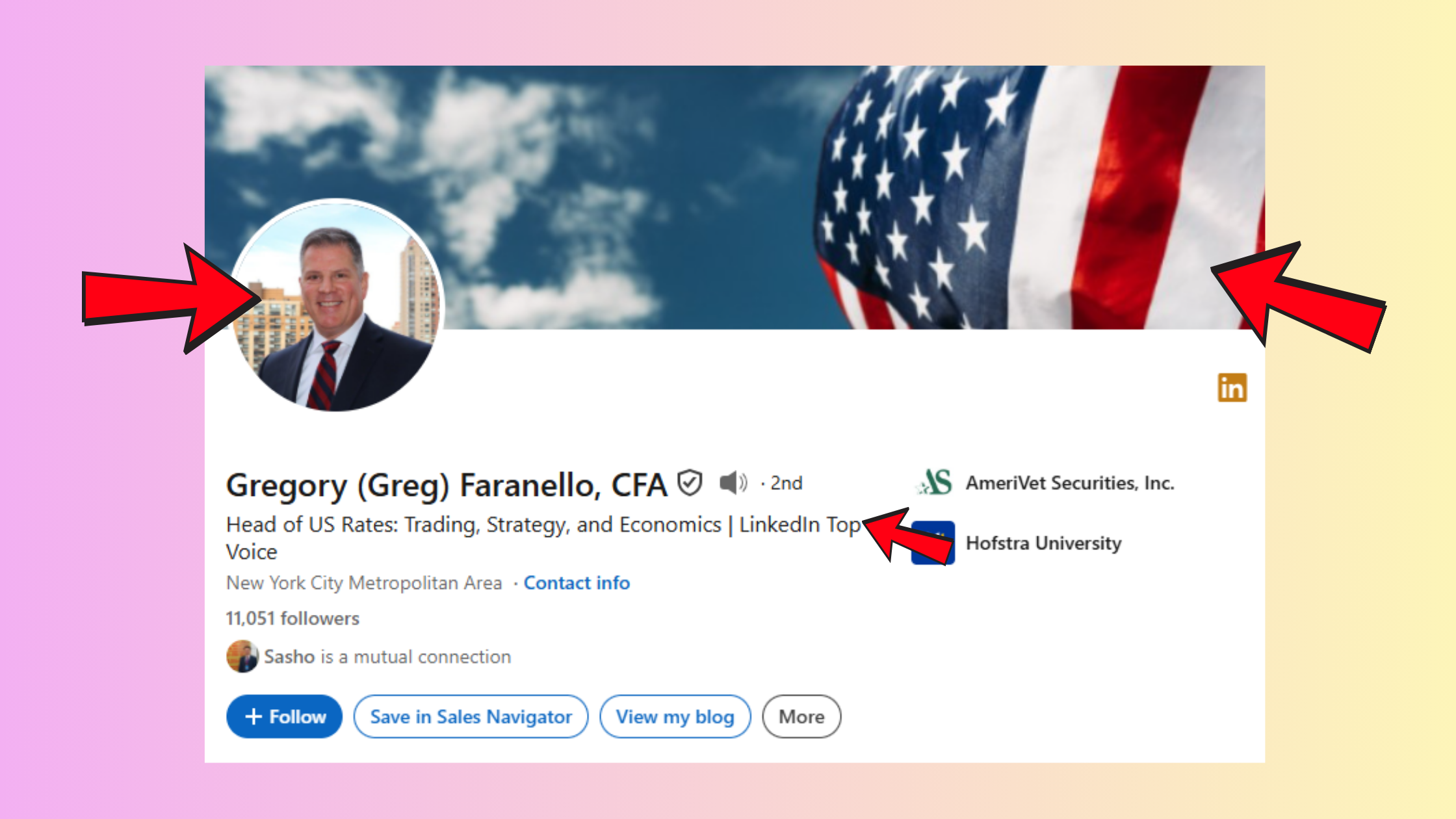
LinkedIn profile optimisation is the process of configuring every profile section — headline, photo, About, experience, skills, URL — so that both the platform's search algorithm and human viewers find it credible, relevant, and worth engaging with. It is not about cramming in keywords. It is about making each section do a specific job naturally.
Now that the stakes are clear, here is how to audit and build every section from the ground up.
LinkedIn Profile Optimization Guide: What Does the Full Structure Look Like?
Every major profile section serves two functions simultaneously: a visibility function (helping recruiters or prospects find you in search) and a trust function (making you look credible once they land on your profile). Skipping sections or filling them with placeholder text is one of the top reasons profiles get deprioritised. LinkedIn's completeness score is not just a vanity metric — incomplete profiles rank lower in search.
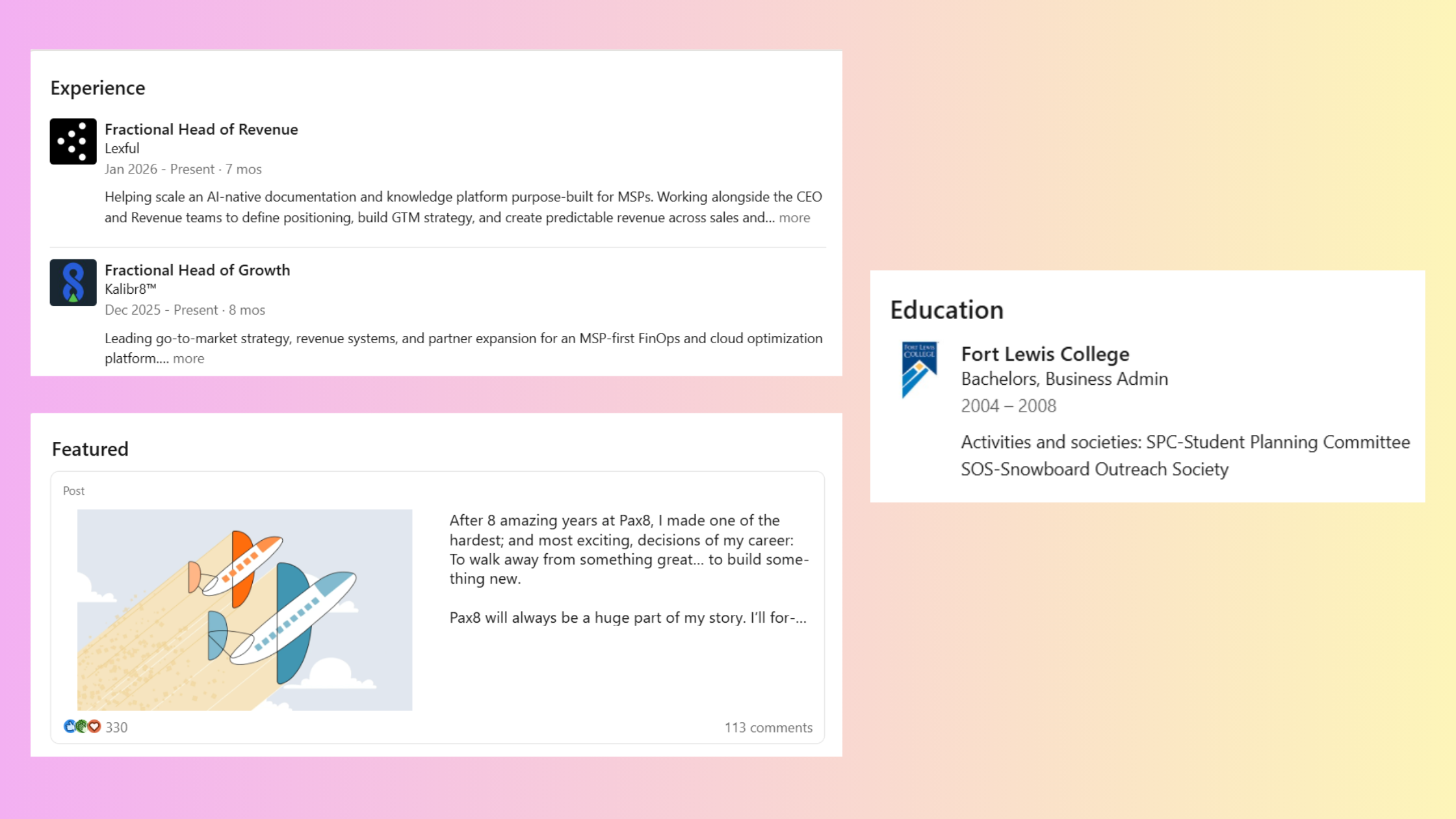
The sections to get right, in order of impact:
- Profile photo — clear, professional, well-lit headshot
- Background cover photo — branded or contextual, not the default blue
- Headline — the highest-frequency-indexed text on your profile
- About section — personal brand positioning in your own voice
- Experience section — specific, results-oriented, naturally keyword-rich
- Education section — include even if older; it signals completeness
- Skills section — the most underused visibility lever on most profiles
- Vanity URL — clean, professional, shareable
- Links and Featured section — social proof and external credibility
How to View Your Profile as Someone Else to Audit It
To view your profile as someone else, go to your LinkedIn profile, click the three-dot menu (⋯) near your profile photo, and select "View profile as." This shows you exactly what a recruiter or connection sees — including which sections appear above the fold, what your headline looks like, and whether your photo loads correctly. Use this audit before and after making any major changes.
Does LinkedIn Notify People When You Update Your Profile?
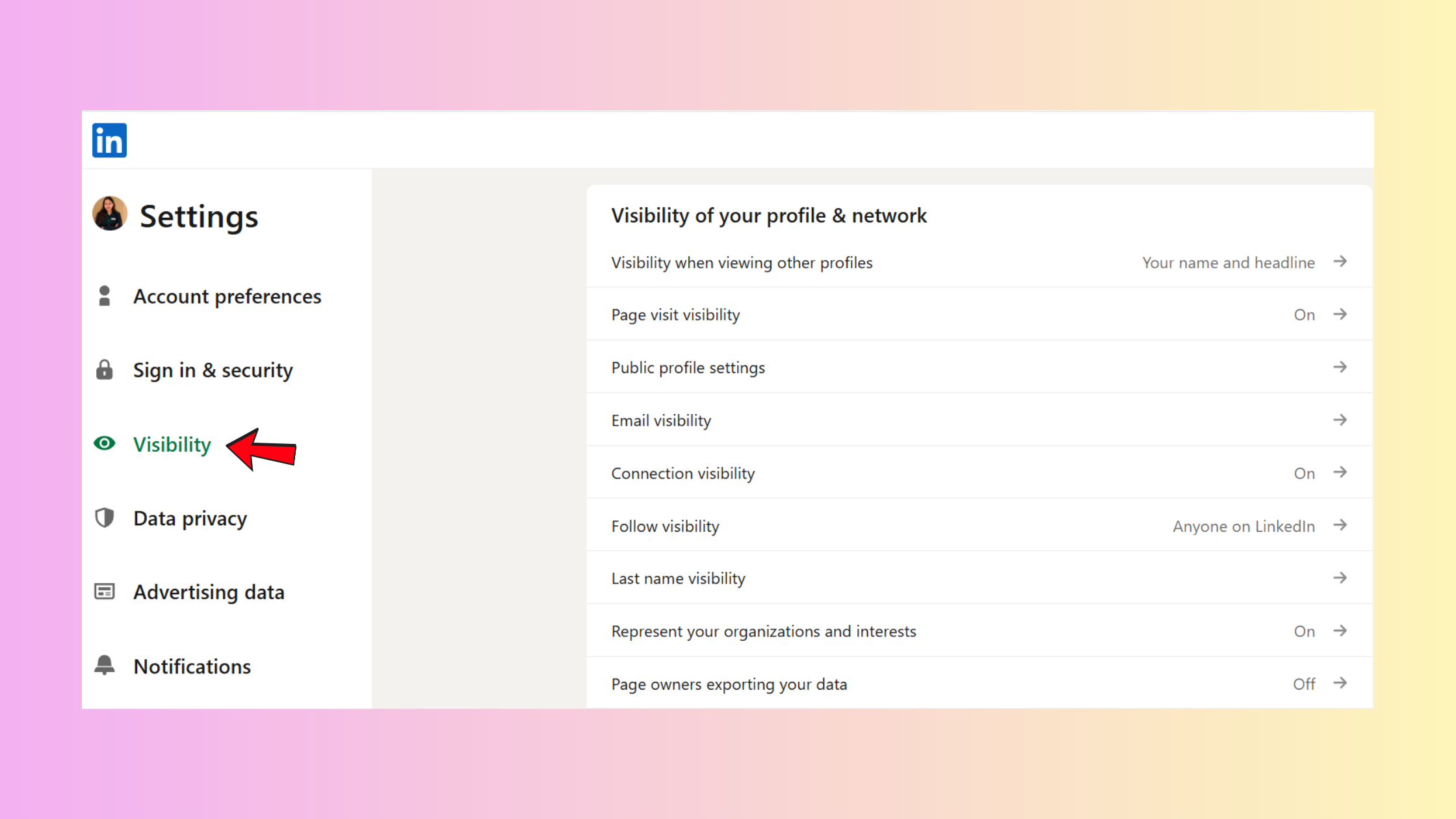
Yes — by default, LinkedIn notifies your connections when you update major profile sections like your job title, employer, or education. You can disable this. Go to Settings & Privacy → Visibility → Visibility of your LinkedIn activity → turn off "Share profile updates with your network." Do this before making bulk edits, especially if you are actively job searching and do not want to broadcast changes to your current employer's network.
With structure covered, the next question is how to make your profile actively discoverable — not just complete.
How to Boost LinkedIn Profile Visibility Without Triggering Flags?
Profile visibility on LinkedIn depends on two signal categories: on-profile signals (keywords, completeness, section quality) and off-profile signals (engagement on your posts, incoming profile views, connection growth patterns). Most guides only address the first category. The second one is where most visibility gains — and most spam risks — actually live.
Safe profile booster tactics include:
- Optimising for keywords using LinkedIn's own job search and skill suggestions
- Getting genuine recommendations from colleagues (3+ recommendations increases search ranking noticeably)
- Publishing posts consistently to keep your profile active in your network's feed
- Engaging with others' content to increase your profile view rate organically
What triggers flags: buying fake connections, using bot-based engagement pods, or sending mass connection requests without personalisation. LinkedIn's trust and safety systems track velocity — too many actions in too short a window looks automated, regardless of whether it technically is.
The profiles that grow fastest on LinkedIn are not the ones that game the algorithm — they are the ones that give the algorithm genuine signals to work with: real engagement, consistent posting, and a complete profile that matches what people are actually searching for.
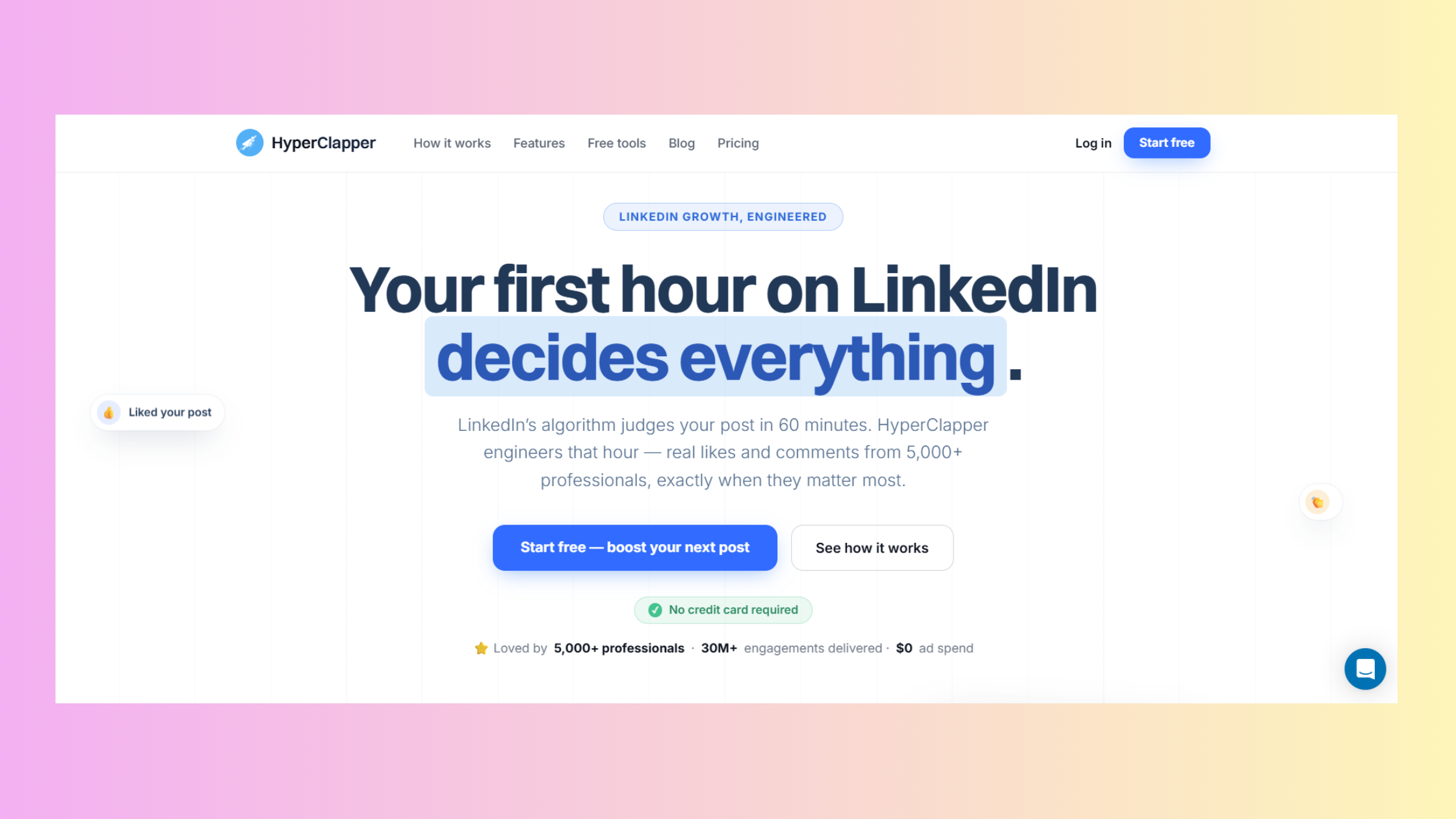
Tools like HyperClapper are built around this principle — real community engagement through channels of actual LinkedIn users, not bots or fake activity. Post-level engagement (likes, comments from real people) drives profile views, which in turn compound your profile's organic visibility. It is a legitimate complement to profile optimisation, not a shortcut around it.
Profile Visibility Settings: What to Turn On and Off
In Settings & Privacy → Visibility, make sure your public profile is set to visible to everyone (not just connections). Turn on "Open to Work" if job searching — it adds a searchable badge visible to recruiters using LinkedIn Recruiter. Turn off activity broadcasts before bulk profile edits, and turn off "People also viewed" if you prefer competitors or connections cannot see who else views profiles similar to yours.
Visibility settings are step one. The content inside those visible sections is what actually converts a view into an opportunity.
What Are the Best Tips for a Good LinkedIn Profile?
The headline is the single most-indexed piece of text on your profile. It appears in search results, under your name in comment threads, and in connection request previews. Most professionals waste it on a job title alone. The professional headline formula that consistently outperforms: [Role] + [Who You Help] + [Specific Outcome or Differentiator].
Example: "Product Manager | Helping B2B SaaS Teams Cut Time-to-Launch by 30% | Agile, Roadmapping, Stakeholder Alignment"
For a headline for LinkedIn for job seekers, include your target job title and 1–2 keywords recruiters search — not just your current role. This closes the gap between where you are and where you want to be in LinkedIn's search index.
LinkedIn Background Cover Photo: What Works and What Looks Spammy?
A background cover photo for LinkedIn that works is one that provides context without being cluttered. Good options: a branded graphic with your tagline, a photo of you speaking or working, or a clean visual relevant to your industry. The default blue background signals an incomplete profile. Overly promotional banners with multiple phone numbers, URLs, and call-to-action text look like spam — keep it clean and purposeful.
To change background photo on LinkedIn: click the camera icon in the top-right of your profile cover area → upload an image at 1584 × 396px for best quality.
LinkedIn Vanity URL: How to Create and Customize Your Profile Link?
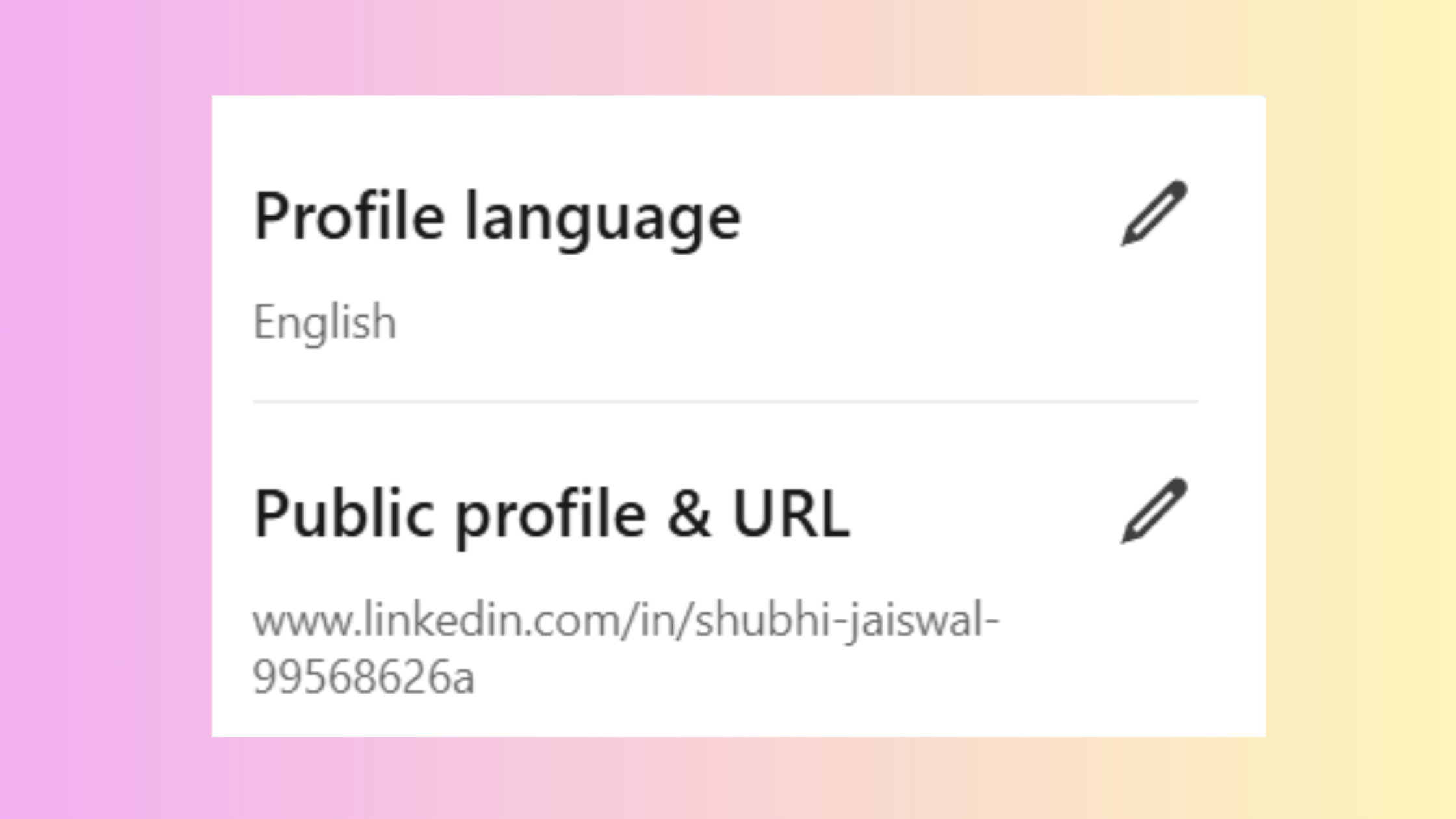
A LinkedIn vanity URL is a customised version of your profile link — for example, linkedin.com/in/yourname instead of a string of random numbers. To change your LinkedIn profile URL: go to your profile → click "Edit public profile & URL" in the top right → click the pencil icon next to your URL. Use your full name or name + profession. A clean URL is easier to add to a CV, email signature, or business card — and it reads as more credible to anyone who clicks it.
With your visual presence sorted, the next layer is the content inside your experience section — where most profiles either build credibility or silently lose it.
How to Write a LinkedIn Job Description That Doesn't Look Like Spam?
The experience section is where profiles most commonly cross the line from "optimised" to "flagged." Each job description on LinkedIn should follow a simple three-part structure: what you did, the scale or context, and a measurable result. Not a list of duties copied from a job posting — that pattern is one of the most recognisable spam signals to both LinkedIn's content quality filters and human recruiters.
LinkedIn Experience Section Examples: How to Write Work History That Converts?
Strong LinkedIn work experience examples use active verbs, specific numbers, and business outcomes. Here is the contrast:
- Weak: "Responsible for managing social media accounts and creating content."
- Strong: "Grew LinkedIn company page from 4,200 to 18,000 followers in 11 months by shifting to a weekly video + written post cadence — increasing inbound demo requests by 34%."
The second version contains natural keywords (LinkedIn, content, social media), a scope signal (follower numbers), and a business result (demo requests). It reads as human. The first reads as filler — and LinkedIn's algorithm increasingly treats filler as a quality signal against you. For more detailed guidance, see our LinkedIn profile optimisation for maximum visibility guide.
How to Update Position on LinkedIn Without Triggering Notification Spam?
To update your position on LinkedIn without broadcasting it to your entire network: go to Settings & Privacy → Visibility → turn off "Share profile updates with your network" before editing your experience section. Make all changes. Then re-enable it if you want future activity shared. Editing multiple positions in a single session with notifications on will flood your connections' feeds — which looks like bot behaviour and reduces trust.
Once your experience section is solid, the About section is where you make the emotional case for why someone should connect with you.
How to Add the About Section on LinkedIn and Write a Good Summary?
The About section is your highest-value personal brand positioning space on LinkedIn. It should open with a hook — a result you've delivered, a problem you solve, or a contrarian statement — not your job title. To add About in LinkedIn: go to your profile, scroll to the About section, click the pencil icon (or "Add about" if it's blank), and write up to 2,600 characters.
What is a good LinkedIn summary? One that speaks directly to your target audience's needs, uses natural keywords without forcing them, and ends with a specific call to action (DM me, visit this link, book a call). Avoid copy-pasting your CV. Avoid buzzword-heavy openings like "Results-driven professional with a passion for excellence" — this exact phrase pattern is so overused that it now actively reduces credibility.
The About section is the one place on LinkedIn where your personality is allowed to show — and the profiles that use it that way consistently get more profile views, longer dwell time, and more inbound messages than profiles that treat it as a second resume.
LinkedIn Education Section Example: What to Include and What to Skip?
Include your degree, institution, graduation year, and any relevant activities or honours — even if your degree is older or unrelated to your current role. A complete education section signals profile completeness, which improves your All-Star status score. Skip: listing every module or course unless directly relevant to your current industry. For recent graduates, the education section carries more weight and should include skills developed, projects completed, and relevant coursework.
Keywords in your profile only work if they match what recruiters are actually searching. Here's how to find those terms.
What Does a LinkedIn Keywords Tool Actually Tell You?
LinkedIn's own search bar is the most underused keyword research tool available to you. Type a job title or skill into the search bar and observe the autocomplete suggestions — these are the exact terms LinkedIn users are searching. Cross-reference these with 10–15 job postings in your target role to identify which hard skills, software names, and methodologies appear most frequently. These are keywords recruiters look for on LinkedIn.
Distribute them across:
- Headline (2–3 primary terms)
- About section (naturally woven throughout)
- Experience descriptions (contextualised, not repeated)
- Skills section (exact match matters for skill-based recruiter filters)
The most common failure mode here is clustering all keywords in one section — typically the skills list — and leaving the rest of the profile sparse. LinkedIn's algorithm reads keyword distribution across sections as a trust signal. Profiles where the same term appears naturally in multiple sections outperform those where it appears in bulk in one.
LinkedIn Industry Code and Industry Options: Why Does Your Category Matter?
Your LinkedIn industry setting directly affects which recruiter searches your profile appears in. LinkedIn organises its recruiter search filters by industry, so choosing the wrong one — or leaving it generic — means you disappear from entire categories of relevant searches. To update it: Edit Profile → Industry. Choose the most specific option available for your actual sector, not the broadest. A marketing professional who lists "Internet" instead of "Marketing & Advertising" misses every recruiter filtering by the correct category.
What AI Tools for LinkedIn Profile Optimization Actually Help With?
AI writing tools — ChatGPT, Claude, Gemini, and dedicated LinkedIn profile optimizer apps — can meaningfully speed up drafting headlines, About sections, and job descriptions. Used well, they produce a strong starting framework in minutes. The risk is real though: AI-generated profiles that all use the same structural phrases ("Passionate about driving impact," "Proven track record of") are increasingly flagged by LinkedIn's content quality systems as low-authenticity. The algorithm has seen these patterns at scale and weights them negatively.
Teams that use AI for profile drafting but invest time in personalising with real metrics, specific company names, and genuine voice consistently see better results than those who publish AI output directly. Think of AI as a first draft engine, not a publish-ready tool.
How Should My LinkedIn Profile Look: A Pre-Publish Checklist?
✓ The LinkedIn Profile Optimisation Checklist
- ☐Professional headshot uploaded (clear background, face centred, good lighting)
- ☐Custom background cover photo (not default blue)
- ☐Headline uses Role + Audience + Outcome formula (not just job title)
- ☐Vanity URL customised to your name or name + profession
- ☐About section opens with a hook (result, problem, or bold statement — not job title)
- ☐Each experience entry includes scope + measurable result, written in active voice
- ☐Skills section contains 10+ relevant skills matching your target role's job postings
- ☐Profile viewed as "someone else" to confirm public visibility is correct
- ☐At least one working link added to Featured section or Contact Info
- ☐Notification broadcasting turned off before bulk edits, back on after
Optimize Your LinkedIn Profile: What Are the Most Common Mistakes That Trigger Spam Flags?
The most common mistakes professionals make when trying to optimize your LinkedIn profile actually reduce visibility rather than improve it. The worst offenders are ones that look like effort but read as spam to both LinkedIn's algorithm and recruiters.
- Keyword stuffing in the headline: "CEO | Leader | Innovator | Speaker | Coach | Consultant | Entrepreneur" — this pattern is so overused that it functions as a negative trust signal
- Inconsistent profile vs CV data: different dates, titles, or company names between LinkedIn and your resume triggers recruiter distrust and algorithmic inconsistency flags
- Rapid repeated updates: changing your headline 4–5 times in a week looks like bot behaviour to LinkedIn's detection systems — make changes in batches
- Generic skills with no endorsements: listing 50 skills with zero endorsements is less effective than 15 highly relevant skills with genuine endorsements
- Using fake engagement tools: low-quality pod tools or bought connections create engagement from accounts that do not match your audience — LinkedIn's systems detect this mismatch
Risks and Limitations of Aggressive LinkedIn Optimization Tactics?
What separates profiles that grow sustainably from profiles that plateau — or get restricted — is restraint. Aggressive tactics like mass connection campaigns, rapid keyword cycles, or artificially inflating endorsements produce short-term metric bumps followed by algorithmic suppression. LinkedIn's trust score for your account is cumulative and slow to recover once damaged. The guide to managing your LinkedIn profile visibility and activity covers exactly which activity patterns LinkedIn monitors and how to stay within safe thresholds.
Building social proof through genuine external links is the final layer most profiles leave untouched.
How to Add a Link to Your LinkedIn Profile and Build Social Proof?
Adding links to a portfolio, website, or case studies adds social proof signals that increase recruiter trust and give viewers a reason to engage further. To add a link to LinkedIn: go to Edit Profile → Contact info → Website, and add up to three URLs with custom display text. Use descriptive anchor text ("View My Portfolio" performs better than a raw URL).
Links in your Featured section carry higher visual weight than contact info links — they appear as cards with thumbnails. Pin your strongest external asset there: a published article, a case study, a personal website, or a key project. Make sure every link is live and working. Dead links are one of the fastest credibility killers on any profile, and LinkedIn does not warn you when a linked page goes down.
You can find more detail on managing what's visible on your profile in this complete guide to who viewed your LinkedIn profile — understanding your viewers helps you optimise what they see first.
Turn a great profile into real post visibility
HyperClapper boosts your LinkedIn posts through real community engagement — so your optimised profile gets the views it deserves.
Try HyperClapper FreeOptimizing My LinkedIn Profile for Job Seekers: What Headlines Actually Work?
Job seekers face a specific visibility problem: their current title often does not match the role they are targeting, which creates a searchability gap. Recruiters search for the title they want to hire. If your headline only shows your current role, you do not appear in those searches. The fix is a bridging headline that signals both where you are and where you are going.
Formula for job seeker headlines:
- Current expertise + transition signal + target role language + 1–2 key skills
- Example: "Senior Marketing Manager → Head of Growth | B2B SaaS | Demand Generation & Revenue Marketing"
Avoid making your entire headline "Open to Opportunities." This tells recruiters your status but gives LinkedIn's algorithm nothing to index. It uses your most visible real estate on a status update rather than a value proposition. Include "Open to Work" as a separate setting in LinkedIn's feature — keep the headline for keywords and positioning. For additional guidance, see the guide to adding your resume to LinkedIn to align your on-platform and off-platform professional story.
What consistently separates profiles that attract inbound opportunities from profiles that require constant outbound effort is not any single section being perfect — it is the combination of a keyword-rich headline, a human-sounding About section, results-oriented experience entries, and active post-level engagement that compounds over time. Profiles that get all three layers right see genuine recruiter inbound. Profiles that optimise the structure but post nothing, or post consistently but have a hollow profile, plateau regardless of the effort invested in either layer alone.
Frequently Asked Questions About How to Optimize LinkedIn
What is the fastest way to optimize my LinkedIn profile?
Start with your headline and About section — these two elements have the highest visibility and impact recruiter searchability the most. Update your headline using the Role + Audience + Outcome formula, write an About section that opens with a result or hook, and add your vanity URL. These three changes take under 30 minutes and immediately improve how your profile reads in search results.
How do I view my LinkedIn profile as someone else?
Click the three-dot menu (⋯) near your profile photo and select "View profile as." This shows exactly what a recruiter or connection sees, including sections visible above the fold and how your headline and photo display. Use this view before and after any major profile update to confirm your changes appear as intended.
Does changing my LinkedIn profile notify my connections?
Yes, by default. LinkedIn broadcasts major profile changes — new employer, updated education, title changes — to your network. To disable this: Settings & Privacy → Visibility → Share profile updates with your network → Off. Turn this off before making batch edits, especially when job searching while currently employed.
What keywords should I use on my LinkedIn profile?
Use keywords sourced from job postings in your target role, LinkedIn's own search autocomplete, and your industry's standard terminology. Prioritise hard skills (specific software, methodologies, certifications), exact job title matches, and industry terms. Distribute them across your headline, About section, experience descriptions, and skills list — not clustered in one section.
Can AI tools help me optimize my LinkedIn profile without getting flagged?
Yes, but only if you personalise the output. AI tools are effective for drafting structure, but AI-generated profiles using generic phrasing are increasingly detected as low-authenticity content by LinkedIn's quality filters. Use AI as a first-draft framework, then edit in your real results, specific metrics, and genuine voice before publishing.
What is a personalized URL on LinkedIn and why does it matter?
A personalized URL (also called a vanity URL) is a custom version of your LinkedIn profile link — for example, linkedin.com/in/yourname. It makes your profile link cleaner for CVs, email signatures, and business cards, and it signals profile completeness. Set it once under Edit public profile & URL and keep it consistent, as changing it breaks any previously shared links.



