
Blocking someone on LinkedIn cuts off all visibility and interaction between two accounts — not just their posts from your feed, but your entire profile, search presence, and messaging thread from their view (and vice versa). A pattern consistently observed across LinkedIn privacy questions is that most users assume blocking is a one-sided mute. It isn't. It's a mutual blackout. Whether you're dealing with unwanted recruiter messages, someone harassing you on LinkedIn, or simply a contact you'd prefer not to share a digital space with, understanding exactly what the LinkedIn blocking feature does — and doesn't do — saves you from costly assumptions.
- Blocking on LinkedIn is mutual — neither party can see the other's profile, posts, or messages while the block is active.
- LinkedIn does not notify the blocked person — but they can infer it through indirect signals.
- Blocking automatically removes an existing connection; it goes further than simply removing a contact.
- Existing message threads are not deleted permanently — they become inaccessible while the block stands.
- You can block someone on LinkedIn without being connected to them first.
- For complete privacy, combine blocking with LinkedIn's profile visibility settings — blocking alone doesn't cover external Google-indexed pages.
- What Does Blocking Do on LinkedIn?
- How to Block Someone on LinkedIn: Step-by-Step Guide
- What Happens When You Block Someone on LinkedIn
- Does LinkedIn Notify Someone When You Block Them?
- Can a Blocked Person See My LinkedIn Profile?
- LinkedIn Block vs Remove Connection: What's the Difference?
- When to Block Someone on LinkedIn: Real Use Cases
- Common Mistakes to Avoid When Blocking on LinkedIn
- How to Protect Your Privacy on LinkedIn Beyond Blocking
- Frequently Asked Questions
What Does Blocking Do on LinkedIn? A Plain-English Explanation
What does blocking do on LinkedIn? It creates a complete, mutual privacy barrier. Your profile vanishes from their LinkedIn experience — search results, post feeds, comment sections, messaging — and theirs vanishes from yours. This is not the same as muting, unfollowing, or removing a connection. Each of those is one-directional. Blocking on LinkedIn is two-way and total.
The confusion is understandable. LinkedIn offers several ways to limit what you see or who sees you, and the differences aren't spelled out clearly in the interface. Here's how the options stack up:
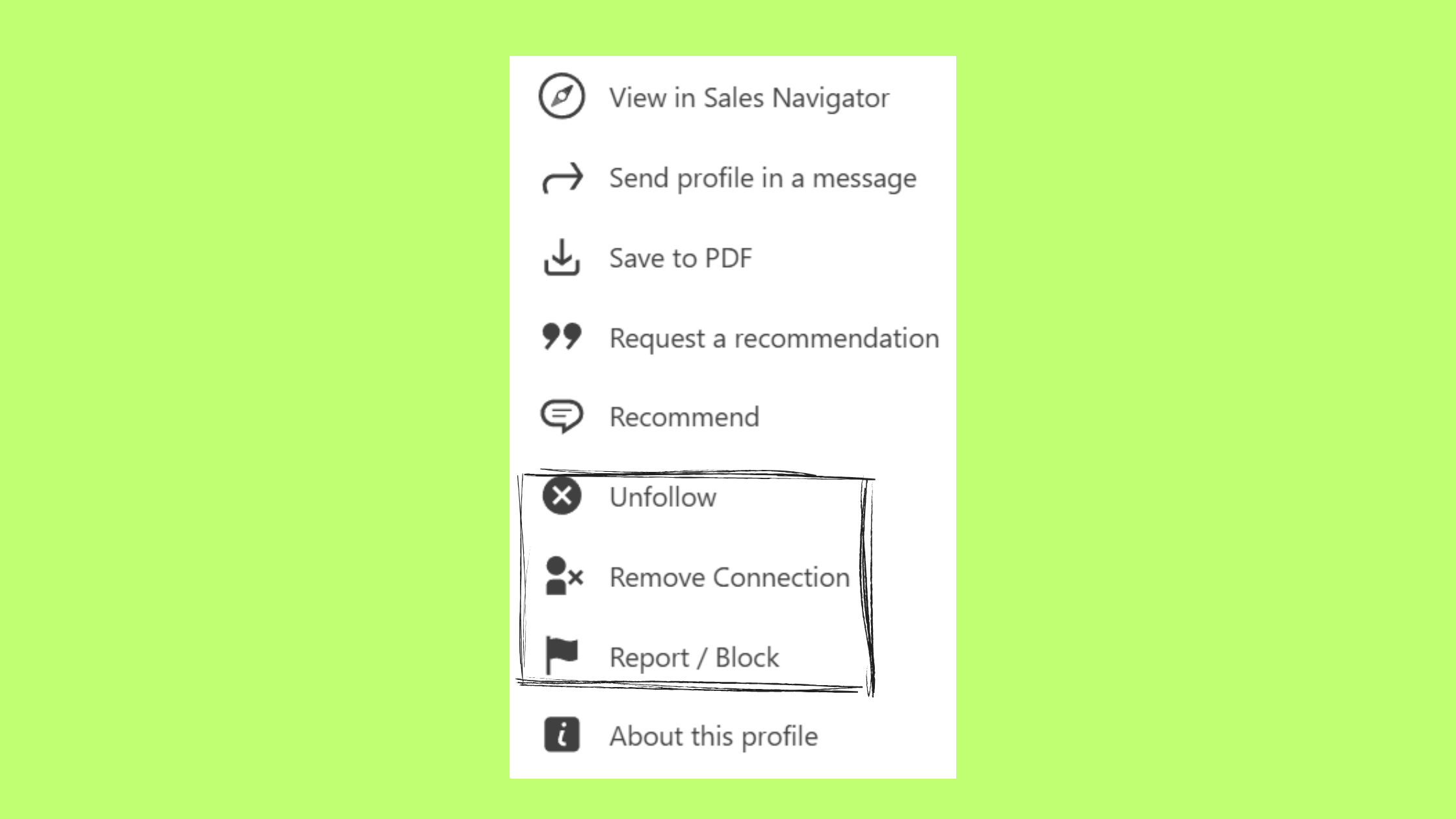
- Unfollow — stops their posts appearing in your feed, but they can still see yours and visit your profile
- Remove connection — ends the 1st-degree relationship, but both parties remain visible to each other
- Block — removes the connection AND makes both profiles invisible to each other across all LinkedIn surfaces
LinkedIn Block Feature Explained: Key Terms to Know
Profile visibility control is LinkedIn's suite of settings that determine who can see your profile, posts, and activity. Connection removal implications refers to what changes in your network when a link between two accounts is severed. When you block someone on LinkedIn, both mechanisms activate simultaneously — you lose the connection and lose mutual visibility in one action.
The most complete privacy option LinkedIn offers is the block. Everything else — unfollow, remove, restrict — leaves at least one line of visibility open. Only blocking closes all of them at once.Now that you understand what blocking actually does, here's exactly how to do it — on any device.
How to Block Someone on LinkedIn: Step-by-Step Guide (Desktop & Mobile)
Blocking takes under 30 seconds, and you don't need to be connected to the person first. Here's the full step-by-step guide to blocking someone on LinkedIn.
On Desktop
- Navigate to the person's LinkedIn profile page. (~5 seconds)
- Click the More button (shown as "•••") below their profile photo and headline. (~2 seconds)
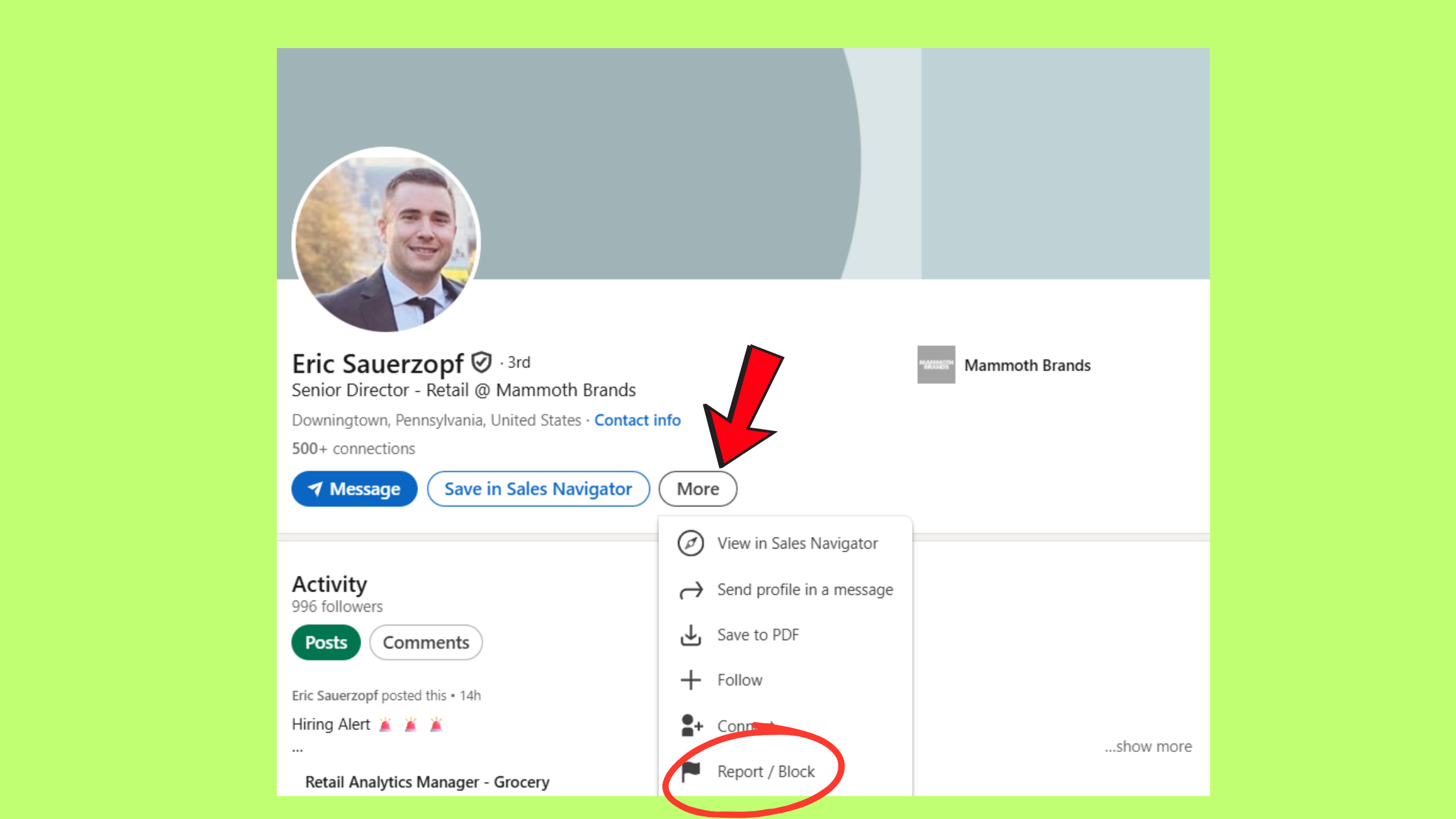
Step-by-Step Guide to block on linkedin - Select Report / Block from the dropdown menu. (~2 seconds)
- Choose Block [Name] from the options presented. (~2 seconds)
- Click Block on the confirmation modal to finalise. (~2 seconds)
How to Block a Connection on LinkedIn Mobile
On the LinkedIn app, the process for how to block a connection on LinkedIn mobile is nearly identical. Open the person's profile, tap the three-dot menu (⋮) in the top-right corner, then select Block or report. Confirm your choice. Done. The block is instant on both iOS and Android.
Can You Block Someone on LinkedIn Without Connecting First?
Yes — you can block someone on LinkedIn without connecting to them or ever having interacted. The block option appears on any public profile. This matters for situations where someone has viewed your profile repeatedly without connecting, or where you've received a message from a stranger you'd prefer not to hear from again.
What Happens When You Block Someone on LinkedIn: The Full Breakdown
The moment a block is confirmed, LinkedIn executes several changes simultaneously. Understanding what happens when you block someone on LinkedIn prevents the common assumption that it's just a visibility toggle.
Does Blocking on LinkedIn Remove the Connection?
Yes — blocking on LinkedIn removes the connection automatically. You don't need to remove them first. The block severs the 1st-degree link, and that removal is permanent even if you later unblock. To reconnect, the other person would need to send a new connection request and you'd need to accept it.
Here's the full list of what changes the moment a block activates:
- Both profiles become invisible to each other across LinkedIn — search, feed, comments, suggestions
- The existing connection (if any) is removed immediately
- Endorsements and recommendations tied to that connection may be affected or hidden
- Neither party can send messages or InMail to the other
- The blocked person cannot tag you in posts or comments
- Your posts and articles disappear from their feed — and theirs from yours
Does Blocking on LinkedIn Delete Messages?
Blocking on LinkedIn does not delete messages permanently. Existing message threads remain in both inboxes but become inaccessible while the block is active. If you unblock the person later, the conversation thread may reappear. This means blocking is not a way to erase a conversation — it's a way to suspend it. If message deletion is the goal, that requires a separate action inside the messaging interface.
Does LinkedIn Notify Someone When You Block Them?
LinkedIn does not notify someone when you block them. No alert, no email, no in-app message. The block is silent from LinkedIn's side. This directly answers the most-asked version of this question: "if I block someone on LinkedIn, will they know?" — not from LinkedIn, no. But that doesn't mean they can't figure it out.
If I Block Someone on LinkedIn, Will They Know?
A recurring pattern among users worried about social fallout is underestimating the indirect signals a block sends. The blocked person may notice:
- Your profile no longer appears in their search results
- Clicking a previous link to your profile returns an error or "Page not found"
- Your message thread goes grey or disappears from their inbox
- Your comments vanish from mutual post threads
- Your name stops appearing in mutual connection suggestions
A savvy LinkedIn user who was recently in contact with you will likely notice one of these within days. The block itself is silent — the absence it creates is not.
Now that the notification question is settled, here's the deeper privacy question most people are actually asking underneath it.Can a Blocked Person See My LinkedIn Profile?
No — a blocked person cannot see your LinkedIn profile while logged into their account. Your profile becomes invisible to them: it won't appear in search, won't show up via direct URL while they're logged in, and won't surface through mutual connection profiles or post tags.
Can a Person I Blocked on LinkedIn Still Find Me?
Within LinkedIn's authenticated environment, the answer is no. Outside of it, there's one important edge case: if your LinkedIn profile is set to "Public" and indexed by Google, someone who is blocked can still find a cached version of your profile through a Google search — or by accessing the URL while logged out. Blocking controls visibility within LinkedIn sessions only.
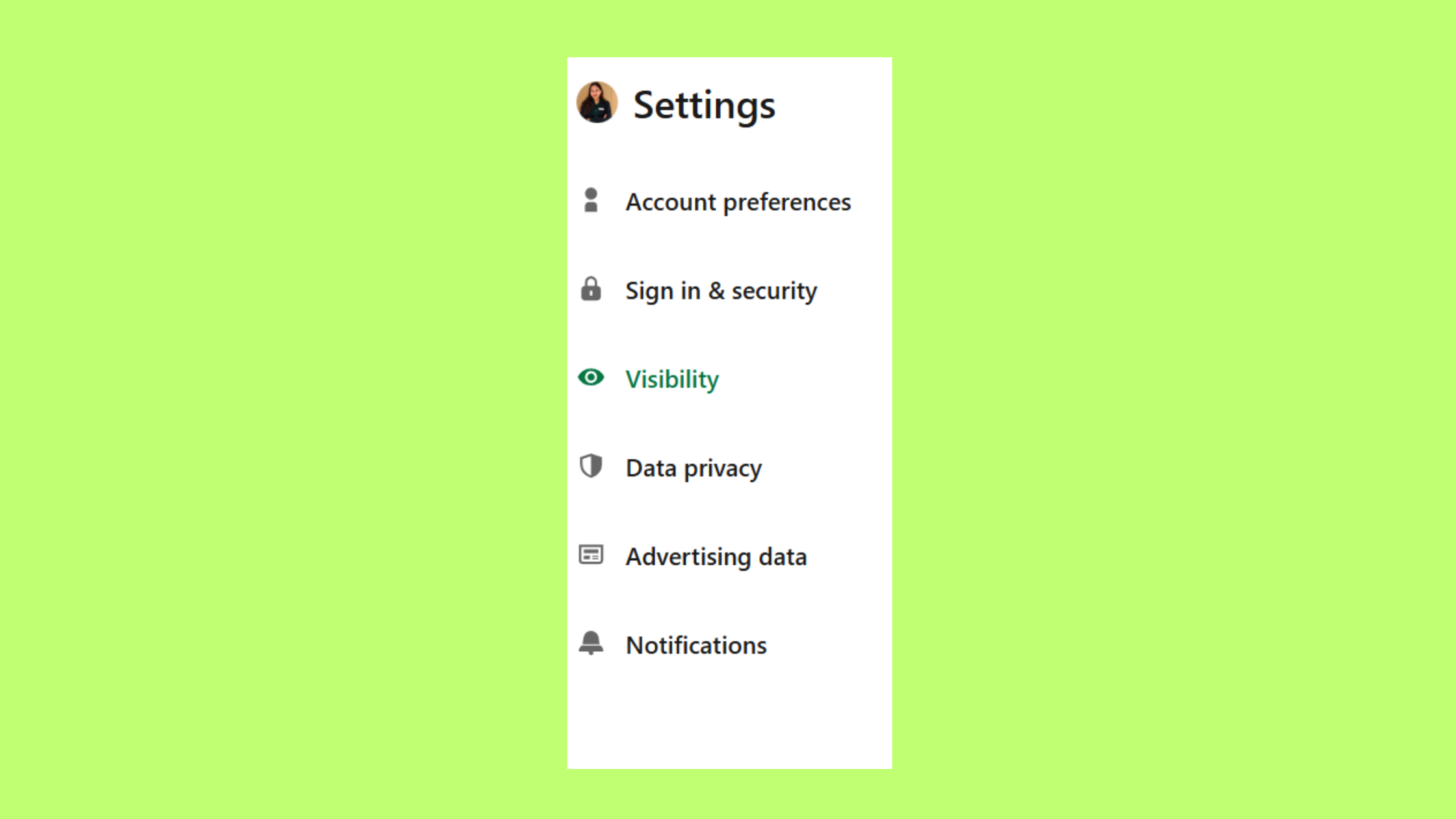
To close this gap, go to Settings → Visibility → Edit your public profile and adjust what external search engines can index. For maximum profile visibility control, turn off public profile visibility entirely or limit it to just your name and headline.
LinkedIn Block vs Remove Connection: What's the Difference?
Teams that manage large LinkedIn networks often get this wrong — and it costs them. The difference between removing and blocking on LinkedIn is not just degree; it's kind.
- Remove connection — ends your 1st-degree link. Both of you can still find each other in search, view each other's public profiles, and send connection requests again.
- Block — removes the connection AND creates a mutual visibility blackout. Neither of you can search for, find, or message the other.
The LinkedIn block vs remove connection difference summarised: remove is passive and one-dimensional; block is active and mutual. Use remove to clean up a stale network. Use block when you want to stop seeing someone's posts on LinkedIn and prevent any future contact entirely.
LinkedIn Block vs Unfollow: Which Is Better?
For the LinkedIn block vs unfollow question, it comes down to intent. Unfollow stops their content from reaching your feed — but they can still message you, view your profile, and comment on your posts. Block removes all of that. If the goal is simply reducing noise, unfollow is sufficient. If the goal is cutting off contact and mutual visibility, block is the right tool.
LinkedIn Restrict vs Block: What's the Difference?
As of 2026, LinkedIn does not have a formal "Restrict" feature equivalent to Instagram's — where you can limit someone's interactions silently. The LinkedIn restrict vs block comparison is largely moot: LinkedIn's options are unfollow, remove, and block. There is no middle-ground "restrict" mode. The closest equivalent to a soft restriction is adjusting your privacy settings to limit what certain connection tiers can see.
The LinkedIn block vs unfollow decision comes down to a single question: do you want to reduce what you see, or do you want to prevent all contact? Unfollow handles the first. Only blocking handles both.
When to Block Someone on LinkedIn: Real Use Cases
Blocking is appropriate in specific circumstances — not as a first resort for every awkward interaction. What separates thoughtful use of the block feature from reactive use is knowing which situation genuinely calls for it.
- Someone harassing you on LinkedIn — repeated unwanted messages, offensive comments, or threatening behaviour after you've asked them to stop

When to Block Someone on LinkedIn - How to block a recruiter on LinkedIn who keeps sending unsolicited pitches after you've clearly declined or asked to be removed from their list
- How to block a coworker on LinkedIn — when a professional relationship has ended badly and you prefer no further digital contact
- Ex-clients or partners with whom you've had a dispute, who are monitoring your professional activity
- Spam accounts or fake profiles sending connection requests or phishing messages
How to Stop Someone Contacting Me on LinkedIn
If someone is messaging you repeatedly and you want to stop unwanted messages on LinkedIn, blocking is the most complete solution — it prevents all future InMail and messaging. For a lighter touch, you can also go to the message thread, click the three-dot menu, and select Block or report directly from the conversation. This is often faster than navigating to their profile. For general LinkedIn account safety, also check your complete guide to staying private on LinkedIn to layer your privacy settings properly.
Common Mistakes to Avoid When Blocking Someone on LinkedIn
The most common failure mode is acting on impulse without thinking through the downstream effects. Here are the 4 mistakes seen most often — and what to do instead.
What Are the Consequences of Blocking Someone on LinkedIn for Both People?
Understanding what the consequences of blocking someone on LinkedIn are for both people helps you decide whether it's the right action.
- For you: You lose access to their profile, posts, and message history while the block is active. If they were a valuable mutual connection bridge, some shared network context may also become less accessible.
- For them: They lose access to your profile, your posts, and cannot message you. They will not be notified — but they may infer the block from the indirect signals described earlier.
- For your shared network: Mutual connections are not affected. They retain their relationships with both parties independently.
The difference between removing and blocking LinkedIn connections is permanent when it comes to the connection itself — even if you unblock later, the 1st-degree link does not auto-restore. That's the most consequential aspect most people overlook. For a deeper dive into the full implications, see this guide to blocking someone on LinkedIn.
How to Unblock Someone on LinkedIn?
Unblocking someone on LinkedIn takes about 30 seconds and can be done from your privacy settings — you don't need to visit their profile directly, since it's not visible to you while the block is active. This is the correct way to find and manage your blocked list.
Desktop steps:
- Click your profile photo in the top-right corner and go to Settings & Privacy.
- Select the Visibility tab, then scroll to Blocking.
- Find the person's name in your blocked list and click Unblock.
- Confirm the action.
After unblocking, both profiles become visible to each other again — but the connection is not restored. You would need to send a new connection request. Note: LinkedIn imposes a 48-hour waiting period before you can re-block the same person after unblocking them. Plan accordingly.
For a complete walkthrough including how to how to unblock someone on LinkedIn on phone, the process mirrors the above — navigate to Settings → Visibility → Blocking in the LinkedIn app, find their name, and tap Unblock. The 48-hour re-block restriction applies on mobile too. For more detail on reconnecting after a block, see this guide on how to unblock someone on LinkedIn and reconnect.
How to Block Someone on LinkedIn Without Visiting Their Profile?
You can block someone on LinkedIn without visiting their profile by using the messaging interface directly. Open the conversation thread with the person, click the three-dot menu at the top of the chat window, and select Block or report. This completes the block without triggering a profile view on their end — which means no profile view notification reaches them before the block is in place.
Alternatively, if you've never messaged them, search for their name, hover over their profile card in search results, and use the overflow menu if available — though this varies by LinkedIn version. When in doubt, opening their profile briefly in an incognito browser tab (while logged into LinkedIn in another tab) prevents the view from registering in most cases, though LinkedIn's tracking behaviour can vary.
How to Protect Your Privacy on LinkedIn Beyond Blocking?
Blocking handles one person at a time. For broader protection of your privacy on LinkedIn, layered settings make a bigger impact at scale. After seeing this pattern across how professionals manage unwanted attention on the platform, the most effective approach combines blocking with these account-level controls:
- Who can see your connections — set to "Only you" to prevent others from mining your network
- Profile visibility off LinkedIn — limits Google indexing of your profile
- Who can send you invitations — restrict to "Email only" to reduce cold connection requests
- Active status — turn off so contacts can't see when you're online
- Third-party app permissions — audit regularly under Settings → Data privacy → Other applications
Prevent Someone Viewing Your LinkedIn Profile Without Blocking
If you want to prevent someone from viewing your LinkedIn profile without the finality of a block, the most effective option is switching your public profile to private and enabling private mode for profile browsing. In private mode, you can view others' profiles without them seeing who visited. The trade-off: you also lose visibility into who viewed your profile. It's a fair exchange when discretion matters more than analytics.
For creators and professionals who rely on LinkedIn visibility for growth, tools like HyperClapper help manage the quality of engagement reaching your posts — connecting you with real, relevant audiences rather than casting a wide net that attracts unwanted noise. When your content reaches the right people, the need to block random or irrelevant contacts decreases naturally.
✓ LinkedIn Privacy & Blocking Checklist
- ☐Screenshot any important message evidence before confirming a block
- ☐Check whether remove or unfollow is sufficient before choosing block
- ☐Set your public profile visibility in Settings → Visibility to limit Google indexing
- ☐Enable private browsing mode if you want to view profiles discreetly
- ☐Restrict who can send you connection invitations to reduce cold outreach
- ☐Review third-party app permissions under Settings → Data privacy regularly
- ☐Remember: unblocking has a 48-hour waiting period before re-blocking is allowed
Build a LinkedIn presence that attracts the right people
HyperClapper connects your posts with real, relevant audiences — so you spend less time blocking noise and more time building meaningful professional relationships.
Try HyperClapper FreeFrequently Asked Questions About Blocking Someone on LinkedIn
When you block someone on LinkedIn, what can they see?
When you block someone on LinkedIn, they can see nothing of yours — your profile, posts, comments, and articles all become invisible to them. They cannot find you via search, visit your profile URL while logged in, or send you messages. The block is complete and mutual; you also lose visibility into their account simultaneously.
How can you tell if someone blocked you on LinkedIn?
LinkedIn doesn't notify you when you're blocked, but the signs are clear: their profile returns a "Page not found" error or disappears from search, your message thread goes inactive or grey, and their comments vanish from shared posts. If all of these happen at once after a recent interaction, a block is the likely explanation.
Can I hide my profile from someone on LinkedIn without blocking?
Yes — partially. You can switch to private browsing mode so they can't see you viewed their profile, and you can restrict your public profile visibility so less of your information is searchable. However, these settings won't make you invisible to someone who already has your profile URL and is logged into LinkedIn. Only blocking achieves full mutual invisibility.
Can I block someone on LinkedIn without them knowing I viewed their profile?
Yes — use the messaging interface to block them directly from a conversation thread, bypassing the need to visit their profile at all. Alternatively, enable LinkedIn's private mode before viewing their profile, which prevents a view notification from registering. Once you're in private mode, navigate to their profile and block from there.
Does blocking someone on LinkedIn remove them from my network and messages?
Yes on both counts. Blocking automatically removes the connection from your network — you won't need to do it separately. Existing message threads are not deleted but become inaccessible while the block is active. If you later unblock, the thread may reappear, but you will not be automatically reconnected as a 1st-degree connection.
How many people can I block on LinkedIn?
LinkedIn allows up to 1,000 blocked accounts per profile. This is more than sufficient for most users. If you're managing a profile that receives high volumes of spam or harassment, that limit can be approached — in which case, pairing blocking with LinkedIn's invitation and messaging filters is the more scalable solution.
What is the difference between blocking and restricting on LinkedIn?
LinkedIn does not have a dedicated "Restrict" feature as of 2026. The available options are unfollow (stops their content), remove connection (ends the link), and block (mutual invisibility and contact prevention). The closest thing to a soft restriction is adjusting your privacy settings to limit what 2nd or 3rd-degree connections can view on your profile.
What consistently separates professionals who manage LinkedIn with confidence from those who feel exposed is not any single privacy setting — it's knowing which tool to use for which situation. Remove when you're tidying your network. Unfollow when you want quiet. Block when you need a boundary. And use your LinkedIn privacy settings to build the broader layer of control that blocking alone can't provide.



