
The LinkedIn services section is a dedicated profile block that lets freelancers, consultants, and solopreneurs publicly list exactly what they offer — and it takes under three minutes to set up. A pattern observed consistently across high-performing LinkedIn profiles is that the people generating the most inbound leads aren't necessarily posting the most content — they've simply made it impossible to visit their profile without knowing precisely what they do and how to hire them. The Services section is the single fastest lever most professionals haven't pulled yet. Add it once, and you become discoverable to buyers actively searching on LinkedIn, without writing another post.
- Who this is for: Freelancers, coaches, consultants, and any professional wanting LinkedIn to generate inbound leads passively.
- What you'll learn: The exact click path to add services on LinkedIn on desktop and mobile, plus how to write descriptions that attract clients.
- The Services section is free: Available on free LinkedIn accounts — no Premium subscription required to add or display it.
- Counterintuitive finding: Most profiles that have the section added still don't get clients — because the description is written for the provider, not the buyer.
- Beyond setup: How real post engagement amplifies your Services section visibility and creates a compounding lead funnel.
- Common blocker: If you can't find the Services option, your profile likely hasn't hit LinkedIn's minimum completeness threshold — fixable in minutes.
- What Is the LinkedIn Services Section (and Why It Matters in 2026)
- How to Add Services on LinkedIn: Step-by-Step in Under 3 Minutes
- How to Showcase Freelance Services on LinkedIn to Actually Attract Clients
- Why Your LinkedIn Services Section Is Not Showing (And How to Fix It)
- Common Mistakes That Kill Your LinkedIn Services Section
- Boost Your Visibility Beyond the Services Section with LinkedIn Engagement
- Frequently Asked Questions About LinkedIn Services
What Is the LinkedIn Services Section (and Why It Matters in 2026)
The LinkedIn services section profile is a structured profile block — separate from Experience, Skills, and About — where you publicly list what services you offer, set location preferences, write a description, and collect client reviews. Unlike every other profile section, this one feeds directly into LinkedIn's Services Marketplace, meaning buyers who search for "freelance copywriter" or "UX consultant" can find you without ever seeing your posts or following you.
That passive discoverability is what makes this section genuinely different. According to Sprout Social (2026), LinkedIn now has over 1.3 billion members — and only a small fraction of profiles have the Services section configured correctly. That asymmetry is an opportunity.
A recurring pattern among professionals trying to generate leads on LinkedIn is spending months optimizing headlines and posting consistently, yet still receiving no inbound inquiries. The missing piece is almost always discoverability infrastructure — and the Services section is the most direct fix available. It acts as social proof on LinkedIn, signaling to profile visitors that you are open for business without requiring them to send a cold message first.
LinkedIn Services Section vs. Open to Work Badge: Key Differences
The Open to Work badge and the Services section serve completely different purposes — and confusing them is one of the most common profile mistakes seen across freelance-oriented profiles.
| Feature | Open to Work Badge | Services Section |
|---|---|---|
| Primary signal | Seeking employment | Offering paid services |
| Appears in search | Recruiter filters | Services Marketplace |
| Client reviews | Not applicable | Yes — separate from Recommendations |
| Best for | Job seekers | Freelancers & consultants |
| Free to use | Yes | Yes (core features) |
The LinkedIn open to work vs services badge distinction matters practically: using the Open to Work badge while also listing freelance services sends a mixed signal — visitors can't tell if you're looking for a job or selling consulting. Use one or the other based on what you actually want.
Now that the purpose is clear, here's the exact process to get it live in under three minutes.
How to Add Services on LinkedIn: Step-by-Step in Under 3 Minutes
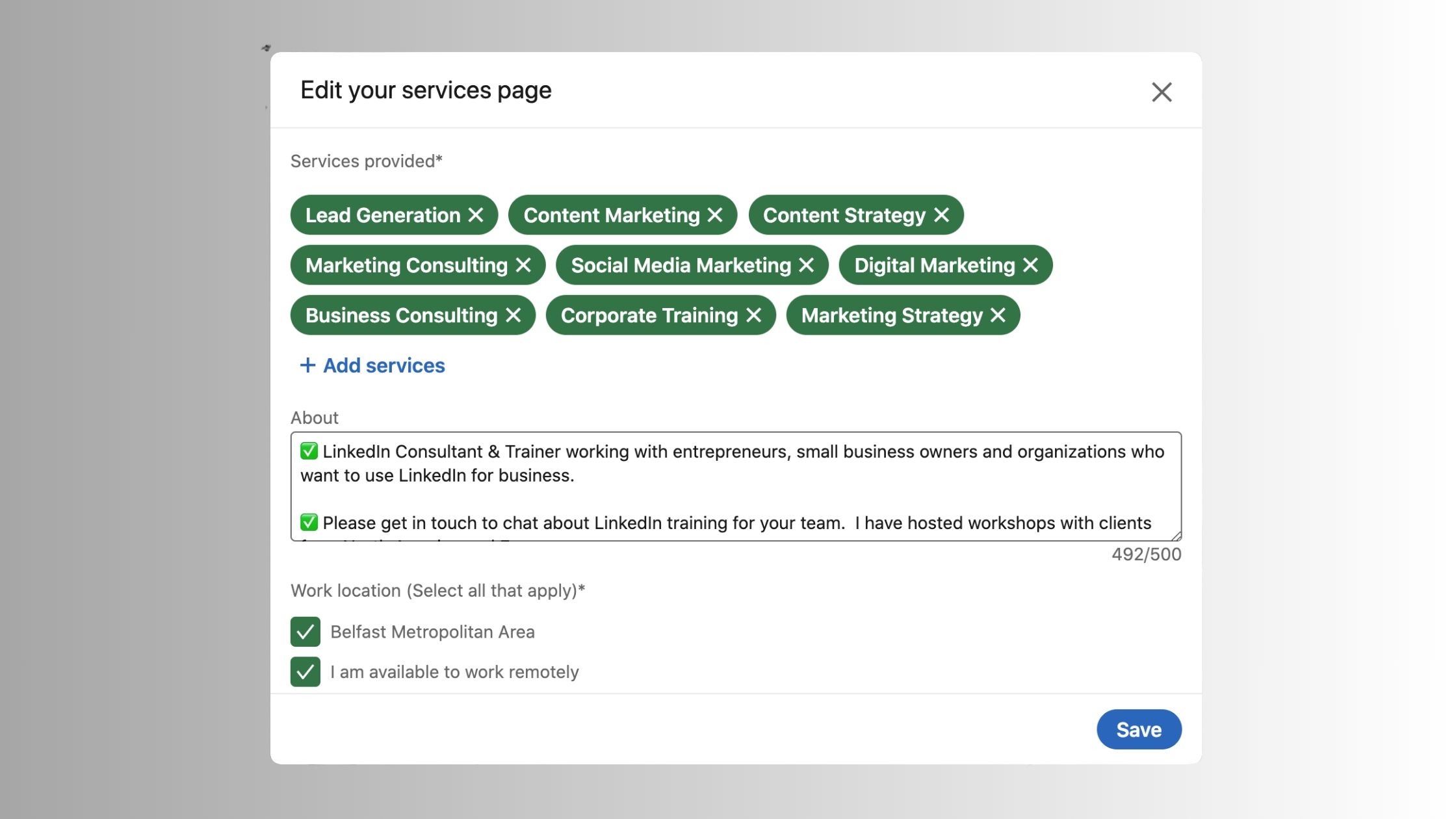
Adding the services tab to your LinkedIn profile is straightforward once you know where LinkedIn hides the option. Here is the complete click path:
- Go to your LinkedIn profile — click your profile photo or name from the homepage. (10 seconds)
- Click "Add profile section" — this button appears just below your headline and contact info on desktop, or under your profile photo on mobile. (5 seconds)
- Select "Services" — it appears under the Highlight category in the dropdown panel. If you don't see it, check the troubleshooting section below. (10 seconds)
- Choose your service categories — LinkedIn presents a predefined list. Select up to the maximum allowed (see below). Pick the closest match to your actual offering. (45 seconds)
- Write your service description — up to 500 characters. Lead with the outcome you deliver, not your credentials. (60 seconds)
- Set your location preference — choose remote, on-site, or hybrid. (10 seconds)
- Click Save — a "Provides services" badge appears on your profile card immediately. (5 seconds)
How to Add the Services Tab on Mobile vs. Desktop
The path is slightly different depending on your device:
- Desktop: Profile → "Add profile section" button (below headline) → Highlight → Services
- Mobile app (iOS/Android): Profile → tap the "+" icon or "Add section" → scroll to Highlight → Services
Both paths reach the same form. Mobile users occasionally report the Services option not appearing in the "Add section" list — if that happens, try the desktop version first to create the section, then manage it from mobile afterwards.
How Many Services Can You Add on LinkedIn?
How many services can you add on LinkedIn? LinkedIn allows up to 10 service categories per profile. That's the ceiling — but in practice, profiles with 4-6 tightly relevant categories tend to perform better than profiles that max out with loosely related options. LinkedIn's algorithm and Marketplace search weight relevance, not volume. Pick the categories that most precisely match what clients search for, and use your 500-character description to fill the gaps your category selections can't cover.
How to Showcase Freelance Services on LinkedIn to Actually Attract Clients
Setting up the section is the easy part. What separates profiles that receive client inquiries from profiles that sit idle is how the description is written. Teams that reframe their descriptions around the client's problem — rather than listing their own qualifications — consistently see higher response rates from Marketplace visitors.
The most effective LinkedIn service descriptions don't describe what you do. They describe what changes for the client once you've done it.
Consider these two approaches for the same service:
- Credential-first (less effective): "Experienced copywriter with 7 years in B2B tech, specializing in SaaS and fintech."
- Outcome-first (more effective): "I help SaaS founders turn complex product features into landing page copy that converts — without sounding like every other tech startup."
The second version tells the visitor exactly what problem you solve and who you solve it for. LinkedIn's search algorithm also picks up the client-intent language, improving your discoverability for relevant searches.
To fully showcase freelance services on LinkedIn, combine three elements into a complete lead generation system on your profile:
- A Services section with outcome-focused descriptions
- A headline that reinforces what you do (not just your job title)
- A Featured section item — a case study, portfolio piece, or pinned post — that provides evidence
This three-layer structure means a profile visitor can understand what you do, believe you can do it, and contact you — all without you being online.
Who Can See My Services on LinkedIn?
Who can see my services on LinkedIn? By default, your Services section is visible to all LinkedIn members — logged in or not — as long as your profile is set to public. This includes people who find you through LinkedIn search, Google, and the LinkedIn Services Marketplace. If you've set your profile to private or restricted visibility, the Services section will also be hidden — so confirm your privacy settings are set to public if you want Marketplace discoverability.
Does the LinkedIn services section help get clients? Yes — but only when the description is written for the buyer. Once that's done, the section does the work for you 24/7. Getting the visibility settings right comes next.
Why Your LinkedIn Services Section Is Not Showing (And How to Fix It)
The LinkedIn services section not showing is one of the most frustrating experiences for professionals who've done everything right — or think they have. In most cases, the cause is one of four specific issues, each with a direct fix.
- Profile incompleteness: LinkedIn requires a minimum completeness threshold (often described as "All-Star" status) before unlocking all profile sections. This means having a profile photo, headline, current position, education, skills, and at least 50 connections. Missing any one of these can block the Services option from appearing.
- Account type: The services section is available on free LinkedIn accounts for the core features. However, some Marketplace functionality — appearing in additional search filters, sending proposals to potential clients — requires LinkedIn Premium.
- Geographic availability: LinkedIn's Marketplace has rolled out unevenly. In 2026, some regions still have partial or no Marketplace access. If you added the section but it doesn't appear publicly, check LinkedIn's Help Center for confirmed regional availability.
- Save error: Occasionally, the form appears to save but doesn't register — especially on mobile. Reload your profile after saving to confirm the "Provides services" badge is visible.
Is LinkedIn Premium Worth It for Freelancers Using the Services Section?
LinkedIn Premium worth it for freelancers who rely on the Services section? The honest answer is: it depends on your primary goal. The core Services section — listing your offerings, appearing in Marketplace search, and collecting reviews — is free. Premium unlocks additional Marketplace proposal credits, expanded search filter visibility, and profile analytics showing who viewed your listing. If you're actively using the Marketplace to pitch clients rather than waiting for inbound, Premium's proposal credits can justify the cost. If you're primarily using the section for passive inbound discoverability, most users find the free version sufficient to start.
Common Mistakes That Kill Your LinkedIn Services Section (And How to Avoid Them)
Four mistakes account for the majority of underperforming Services sections seen across freelance and consulting profiles. Each one is preventable.
- Mistake #1 — Generic descriptions: Phrases like "I provide high-quality services" communicate nothing to LinkedIn's algorithm or to a potential buyer scanning Marketplace results. Lead with the specific outcome: "I help e-commerce brands reduce cart abandonment with email sequences" beats "Email marketing specialist" every time.
- Mistake #2 — Ignoring reviews: The Services section supports client reviews that are separate from standard LinkedIn recommendations. Not requesting these leaves your most powerful social proof tool empty. After completing a project, message the client directly with a link to leave a Services review — most are happy to do it if you make it easy.
- Mistake #3 — Mismatching your headline and services: If your headline reads "Marketing Manager at Acme Corp" but your Services section lists freelance brand consulting, visitors get a confusing signal about your availability and credibility. Align them so both tell the same story.
- Mistake #4 — Set-and-forget: LinkedIn rewards active profiles. Revisiting and refreshing your service descriptions every quarter keeps your listing relevant and can reset its algorithmic visibility in Marketplace search — a small investment with meaningful upside.
How the LinkedIn Algorithm Treats Service Providers
What separates top performers here is understanding that LinkedIn's algorithm doesn't treat your Services listing in isolation. LinkedIn algorithm and content reach are linked: profiles that post content that generates meaningful engagement — especially comments and conversations — receive higher distribution in Marketplace search results too. Your profile's overall activity score influences how prominently your Services listing appears to buyers. This means posting consistently and generating real engagement isn't just about brand building — it directly supports your lead generation through LinkedIn profile infrastructure.
The most common failure mode is treating the Services section as a set-it-and-forget-it form while posting content sporadically. Both need to be active simultaneously for the compounding effect to work.
Want your LinkedIn posts to actually reach the people who'd hire you?
Your Services section gets you found — real post engagement keeps you visible. See how HyperClapper helps.
Try HyperClapper FreeBoost Your Visibility Beyond the Services Section with LinkedIn Engagement
The Services section improves passive discoverability. But a pattern observed across profiles that convert visitors into paying clients is that discoverability alone isn't enough — trust is what closes the gap. And on LinkedIn, trust is built through content that shows up consistently in a buyer's feed before they ever visit your profile.
According to Digital Applied's LinkedIn Statistics 2026 analysis, content engagement on LinkedIn has become increasingly concentrated — posts that generate strong early engagement (likes, comments, and replies within the first hour) receive significantly more algorithmic distribution than posts that start slowly. This means the quality of early engagement matters more than posting volume.
The profiles generating the most inbound client inquiries in 2026 are not the ones posting the most. They are the ones whose posts generate real conversations — and whose profiles make it effortless to hire them once someone lands there.
For freelancers and consultants combining a strong Services section with active content, the lead generation funnel looks like this:
- Content surfaces in a buyer's feed → they notice your name and expertise
- They visit your profile → the Services section immediately signals availability
- Client reviews and Featured items provide evidence → the decision to reach out becomes easy
Tools like HyperClapper support this model by connecting creators, founders, and freelancers with real engagement channels — groups of real professionals who interact with posts — and AI-powered replies that keep conversations active after publishing. This directly supports the early-engagement window that LinkedIn's algorithm rewards. You can also explore how HyperClapper compares to other platforms in this engagement pod comparison.
Why Real Engagement Matters More Than Posting Volume
Most professionals tracking their LinkedIn activity fixate on output — how many posts per week. What the engagement data consistently shows is that three posts per week with strong comment threads outperform seven posts per week with minimal interaction. LinkedIn's distribution model amplifies content that's already engaging. In practice, this means one well-engaged post can drive more profile views — and therefore more Services section views — than a week of low-engagement posts.
Creators who skip this step typically find themselves in a frustrating loop: posting regularly, building followers slowly, but generating little to no inbound interest. The fix is engagement infrastructure, not more content. Once your LinkedIn engagement rate is healthy, your Services section benefits from the traffic it drives to your profile.
✓ The LinkedIn Services + Engagement Setup Checklist
- ☐Profile is set to public visibility (Settings → Visibility)
- ☐Profile completeness is at "All-Star" level (photo, headline, position, education, skills, 50+ connections)
- ☐Services section added with 4-6 specific categories (not maxed out with loosely related ones)
- ☐Service description leads with client outcome, not your credentials (500 characters used fully)
- ☐Headline aligns with services listed — no conflicting signals between job title and freelance offer
- ☐At least one Services section review requested from a past client
- ☐Featured section includes a case study, portfolio piece, or testimonial post
- ☐Posting at least 2-3x per week with a strategy to generate early engagement on each post
- ☐Service description reviewed and refreshed quarterly to stay algorithmically current
Turn LinkedIn profile views into real client conversations
HyperClapper connects your posts with real engagement communities so every piece of content pushes more buyers to your profile — and your Services section. See how it compares to other engagement tools.
See HyperClapper in ActionFrequently Asked Questions About LinkedIn Services
How do I add a services section to my LinkedIn profile step by step?
Go to your LinkedIn profile, click "Add profile section," select "Services" under the Highlight category, choose up to 10 service categories from LinkedIn's predefined list, write a 500-character outcome-focused description, set your location preference, and click Save. The "Provides services" badge appears on your profile card immediately. Total time: under 3 minutes.
Why can't I find the services option on my LinkedIn profile?
The most common cause is an incomplete profile — LinkedIn requires "All-Star" status (photo, headline, current position, education, skills, and 50+ connections) before showing the Services option. If your profile is complete and the option is still missing, check whether the LinkedIn Marketplace is available in your region, as rollout has been uneven globally in 2026.
What should I write in my LinkedIn services section to attract clients?
Lead with the specific outcome you deliver for clients, not your credentials. Instead of "Experienced consultant with 10 years in finance," write "I help CFOs reduce financial reporting time by 40% through automated dashboards." Use all 500 characters, mention the type of client you serve, and include one specific result where possible.
Is the LinkedIn services section available for free accounts?
Yes — the core LinkedIn services section is available on free LinkedIn accounts. You can list services, write a description, appear in Marketplace search, and collect client reviews without a Premium subscription. Some advanced Marketplace features, like sending proposals and accessing expanded search filters, require LinkedIn Premium.
How do I post a service on LinkedIn and make it visible to potential clients?
Add the Services section via "Add profile section → Highlight → Services," ensure your profile is set to public, and select categories that match what buyers search for. Once saved, your listing is eligible to appear in LinkedIn's Services Marketplace. Combining it with active, well-engaged posts amplifies your profile's overall visibility and pushes more buyers to your listing.
Does the LinkedIn services section actually help get clients?
Yes — but only when set up correctly. Profiles with an active Services section appear in LinkedIn's Marketplace search, giving you passive visibility with buyers actively looking to hire. The section alone isn't enough; outcome-focused descriptions and at least one client review are the difference between a listing that gets found and one that gets ignored.
Can companies add services on LinkedIn?
Can companies add services on LinkedIn? Yes — company pages have a Products section (not called Services, but serving a similar discovery function) where businesses can list their offerings. The individual Services section described in this guide is for personal profiles. For brand-level service visibility, the Products tab on a LinkedIn Company Page is the equivalent feature.
What consistently separates LinkedIn profiles that generate real client inbound from profiles with impressive follower counts is not any single element — it is the combination of a properly configured Services section, aligned profile copy, and content that earns genuine engagement. Get all three working together, and your LinkedIn profile becomes a lead generation asset that works while you're not online.



