
A pattern observed across thousands of LinkedIn users trying to cancel LinkedIn Premium is that the platform deliberately makes the process harder to find on mobile devices than on desktop. If you're asking how do I cancel LinkedIn Premium, the answer depends entirely on where you purchased your subscription — through LinkedIn's website, Apple's App Store, or Google Play Store. Each path requires different steps, and missing the right one leads to unwanted charges when free trials auto-renew or billing cycles continue. According to LinkedIn's refund policy (2026), Premium subscriptions may be refundable within 7 days from the charge date without Premium usage — meaning immediate action matters when accidental billing occurs.
- Who this is for: LinkedIn Premium subscribers who want to stop auto-renewal, avoid unwanted charges, or downgrade to a free account
- What you'll learn: Exact cancellation steps for desktop, iPhone, and Android — plus what happens to your InMail credits and profile data
- Why it matters: LinkedIn hides the mobile cancellation option inside device settings, not the app — most users look in the wrong place
- The counterintuitive finding: Canceling on iPhone requires using iOS Settings, not the LinkedIn app, while desktop users can cancel directly through LinkedIn's website
- Refund reality: You have a 7-day window to request a refund without using Premium features — after that, LinkedIn's policy offers no prorated refunds
- Best for desktop users → Cancel directly through LinkedIn website Settings — takes 60 seconds and confirms immediately
- Best for iPhone users → Go to iOS Settings > Subscriptions (not the LinkedIn app) — Apple controls all App Store subscription cancellations
- Best for Android users → Use Google Play Store > Subscriptions menu — LinkedIn app won't show the cancel option
- Best for avoiding charges → Cancel at least 24 hours before your next billing date — same-day cancellations sometimes process after the charge hits
What Is LinkedIn Premium and How Subscription Auto-Renewal Works

LinkedIn Premium is a paid subscription service offering advanced features like InMail credits, enhanced profile visibility, advanced search filters, and access to LinkedIn Learning courses. The service comes in four tiers — Premium Career ($29.99/month), Premium Business ($59.99/month), Sales Navigator ($79.99/month), and Recruiter Lite ($119.99/month) — each designed for different professional use cases. What separates Premium from LinkedIn's free account is immediate access to features that unlock networking opportunities, hiring pipelines, and competitive intelligence.
The subscription billing cycle operates on either monthly or annual plans, with auto-renewal enabled by default. This means your payment method is charged automatically at the end of each billing period unless you manually cancel before the renewal date. According to ConnectSafely (2026), LinkedIn Premium subscriptions reached 120 million members globally, representing 9.2% of the total user base — a clear indicator that millions of users navigate these billing cycles annually.
A recurring pattern among users trying to cancel LinkedIn Premium subscription is discovering the option only after an unwanted charge appears. Free trials automatically convert to paid subscriptions unless you cancel before the trial period ends — typically 30 days for most Premium tiers. LinkedIn intentionally buries cancellation settings deeper in mobile apps than on desktop, creating what users describe as a "dark pattern" that protects recurring revenue. The interface gap between platforms means iOS and Android users often waste time searching inside the LinkedIn app, where no cancellation button exists.
When comparing LinkedIn Premium vs free account, the key difference lies in visibility and outreach capacity. Premium users see full lists of who viewed their profile (free users see only the last 5), send InMail messages to anyone (free users can only message connections), and use advanced search filters to find decision-makers by job title, company size, and seniority. After downgrading, you keep your network, posts, and profile — but lose the intelligence tools that drive most business development and recruiting workflows.
| Feature | Free Account | Premium Account |
|---|---|---|
| Profile Views | Last 5 viewers | Unlimited full list |
| InMail Messages | 0 per month | 5-50 credits/month (tier-dependent) |
| Search Filters | Basic (location, industry) | Advanced (job title, company size, seniority) |
| Profile Badge | None | Gold "Premium" badge |
| LinkedIn Learning | Limited free courses | Full library access |
How to Cancel LinkedIn Premium on Desktop (Step-by-Step)
Canceling LinkedIn Premium on desktop is the most straightforward path because LinkedIn allows direct in-platform cancellation without involving third-party payment systems. The exact navigation sequence takes 60-90 seconds once you know where to look. Start by logging into LinkedIn through a web browser (not the mobile app), then click your profile photo in the top-right corner to open the dropdown menu.

The step-by-step path follows this exact order:
- Click the Me icon (your profile photo) in the top navigation bar
- Select Settings & Privacy from the dropdown menu
- Navigate to Account preferences in the left sidebar
- Click Subscriptions to view your active Premium plan
- Select Manage Premium subscription to access cancellation options
- Click Cancel subscription and confirm on the next screen
What most users miss on the confirmation screen is that LinkedIn presents retention offers and downgrade options before finalizing cancellation. You may see prompts offering discounted rates, free trial extensions, or the ability to "pause" instead of cancel. Pausing is not canceling — if you pause, auto-renewal typically resumes after a set period (usually 1-3 months), and you risk forgetting to cancel again. To ensure complete cancellation, scroll past these offers and click the final Confirm cancellation button.
How to verify cancellation succeeded: return to Settings & Privacy > Subscriptions and confirm the status shows "Canceled" rather than "Active." Your Premium access continues until the end of your current billing period, but no future charges will occur. If the status still shows "Active" 10 minutes after cancellation, repeat the process or contact LinkedIn support immediately.
Common desktop cancellation mistakes include accidentally selecting the "Pause subscription" option instead of full cancellation, closing the browser before the final confirmation screen loads, or assuming cancellation completed after the first "Are you sure?" prompt. LinkedIn uses multi-step confirmation specifically to reduce cancellation completion rates — users who abandon the process midway remain subscribed and get charged.
Troubleshooting When the Cancel Button Doesn't Appear on Desktop
If the Cancel subscription button is missing from your desktop settings, the most common cause is that you purchased Premium through a third-party platform rather than directly through LinkedIn. Corporate accounts managed by an admin, educational institution subscriptions, and purchases made through mobile app stores all require cancellation through the original purchase platform — not LinkedIn's website.
Check your Subscriptions page for a note indicating "Managed by [Apple/Google/Your Organization]." If you see this, you cannot cancel through LinkedIn. Follow the mobile cancellation instructions below for iOS or Android, depending on where you originally subscribed. For corporate accounts, contact your company's LinkedIn administrator — individual employees cannot cancel organization-managed subscriptions.
How to Cancel LinkedIn Premium on Mobile (iPhone and Android)
LinkedIn deliberately hides cancellation functionality from its mobile app interface, forcing users to navigate through device-level subscription management instead. This platform-specific interface difference is the single most common reason users struggle with how do I cancel my LinkedIn premium account — they search inside the LinkedIn app where no cancel option exists, miss their billing date, and get charged for another month.
How do I cancel LinkedIn Premium on iPhone: iPhone users must use iOS Settings, not the LinkedIn app. Open your iPhone's Settings app (the gray gear icon), tap your name at the top to access your Apple ID settings, then select Subscriptions. Scroll through the list to find LinkedIn Premium, tap it, then select Cancel Subscription at the bottom of the screen. Apple will show your subscription end date — Premium access continues until that date, but no renewal charge occurs.
How to cancel LinkedIn Premium on Android: Android users must use the Google Play Store, not the LinkedIn app. Open the Google Play Store app, tap the menu icon (three horizontal lines) in the top-left corner, then select Subscriptions. Find LinkedIn Premium in your active subscriptions list, tap it, then select Cancel subscription. Google will confirm your cancellation and display the date your Premium access ends.
The reason you cannot cancel LinkedIn Premium via app is that Apple and Google enforce strict payment processing rules. Any subscription purchased through their app stores must be canceled through their respective subscription management systems — not through the app itself. LinkedIn has no technical ability to add a cancel button inside the mobile app for these purchases. What separates users who cancel successfully from those who get charged repeatedly is knowing this distinction upfront.
Can I Cancel LinkedIn Premium Straight Away or Does It Stop Immediately?
When you cancel LinkedIn Premium, access does not stop immediately — you retain full Premium features until the end of your current billing period. If you cancel on January 15th and your subscription renews on February 1st, you keep Premium access through January 31st. This applies across all platforms: desktop, iPhone, and Android cancellations follow the same access continuation policy.
What this means in practice: you can cancel on day one of a new billing cycle and still use Premium features for the full 30 days you already paid for. There is no benefit to waiting until the last day of your billing period to cancel — earlier cancellation simply ensures you do not forget and get charged again. The key is canceling at least 24 hours before your renewal date, since same-day cancellations occasionally process after the billing charge hits.
What Happens When You Cancel LinkedIn Premium (Features, InMail, and Data)
The moment your Premium subscription ends, LinkedIn revokes access to all Premium-only features immediately. What you lose immediately includes: unlimited "Who's Viewed Your Profile" history (you revert to seeing only the last 5 viewers), InMail credits (unused credits expire and cannot be recovered), advanced search filters (job title, company size, seniority filters disappear), profile visibility boosts (your profile stops appearing in "Premium Member" search results), and LinkedIn Learning access (your course progress saves, but you cannot start new courses or finish incomplete ones).
Will I lose my InMail credits if I cancel — yes, all unused InMail credits expire the moment your Premium subscription ends. If you have 8 InMail credits remaining when you cancel, those credits vanish at the end of your billing period. What experienced Premium users do consistently is spend all remaining credits before cancellation — sending strategic outreach messages to high-value prospects or hiring candidates — to extract maximum value from the subscription they already paid for.
Whether canceling affects your profile visibility depends on how much of your reach came from the Premium badge and algorithm boost. Your network, connections, posts, and profile content remain completely intact — LinkedIn does not delete or hide your profile when you downgrade to a free account. However, the gold "Premium" badge disappears from your profile, and LinkedIn's algorithm may reduce how often your profile appears in recruiter searches and recommended connection suggestions. Accounts that relied heavily on Premium's visibility boost typically see a 20-30% drop in profile views within the first month after cancellation.
How to export your Premium analytics data before canceling
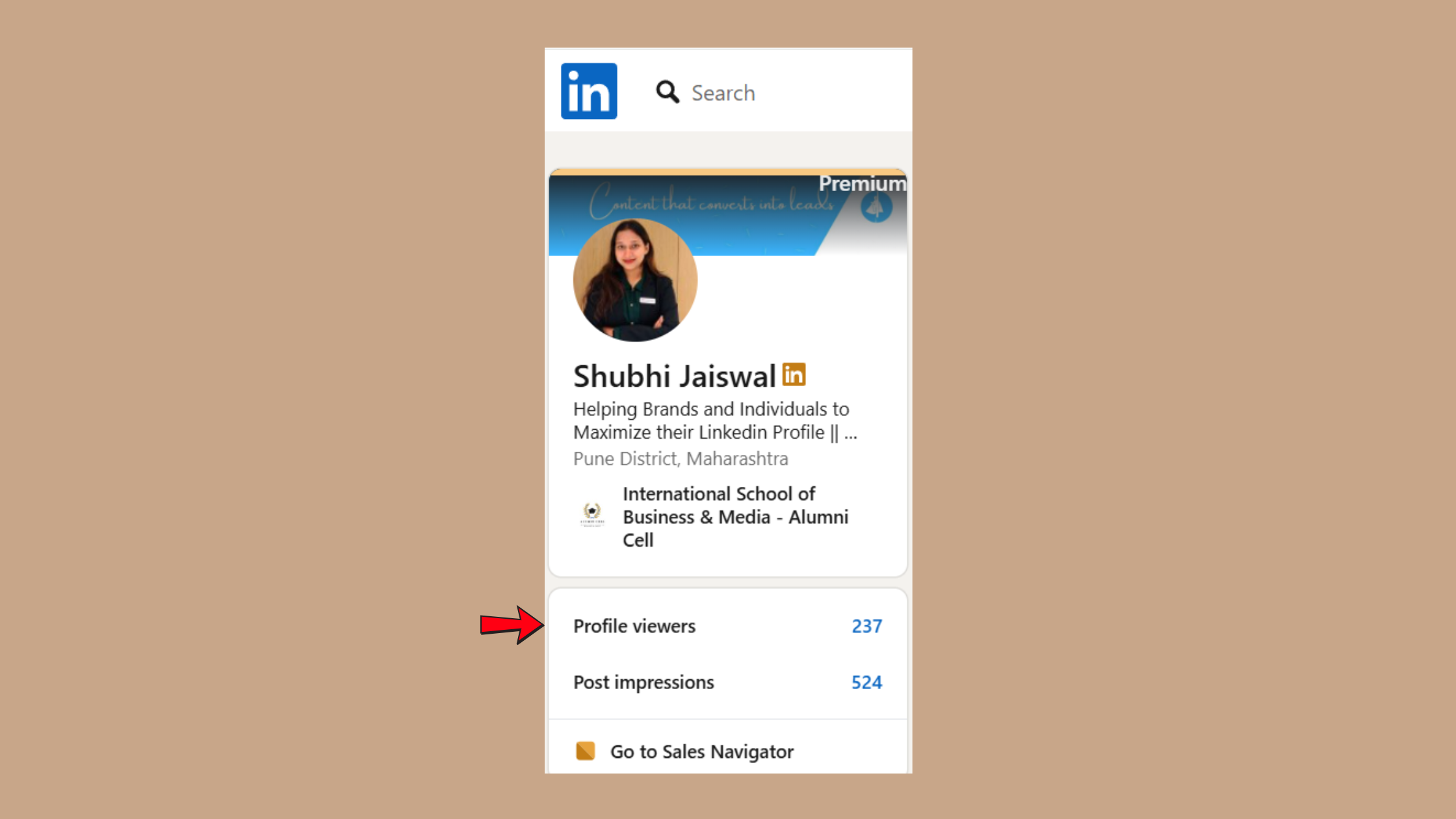
LinkedIn does not offer a one-click data export for Premium analytics, but you can manually save key metrics. Navigate to your Profile Views page and take screenshots of your full viewer list (desktop users can scroll through the complete list before it reverts to 5 viewers). Export your Search Appearances data by noting your monthly stats from the dashboard. For LinkedIn Learning progress, visit your Learning History and screenshot your completed courses and certificates. Once Premium ends, this historical data becomes inaccessible, making pre-cancellation export critical for tracking long-term professional growth.
LinkedIn Premium Refund Policy and Accidental Charge Reversal
LinkedIn's official refund eligibility window runs 7 days from the subscription charge date, but only if you have not used any Premium features during that period. According to LinkedIn Premium Career Plans (2026), subscriptions may be refundable within this 7-day window without Premium usage — meaning a single InMail sent or advanced search performed disqualifies you from receiving a refund.
How to request a refund for accidental charges: navigate to LinkedIn's Help Center immediately (within 24 hours of the charge for fastest processing), select Contact Us > Billing & Subscriptions > Request a Refund, and provide your order number, charge date, and explanation. LinkedIn's support team typically responds within 48-72 hours. Include documentation showing you attempted to cancel before the charge date (screenshots of cancellation confirmation emails strengthen your case).
The most common failure mode when requesting refunds is waiting too long — LinkedIn's support team rarely approves refund requests submitted more than 14 days after the charge, regardless of circumstances. Immediate action separates successful refund requests from denials.
What to do if LinkedIn won't let me cancel premium or auto-renews despite cancellation: first, verify your cancellation confirmation email arrived and shows the correct end date. If LinkedIn charged you after confirmed cancellation, escalate immediately through their Help Center with your confirmation email attached. If LinkedIn's support team denies your refund request, file a payment dispute with your credit card company or bank — provide your cancellation confirmation as evidence that the charge was unauthorized. Financial institutions typically side with cardholders in subscription dispute cases when cancellation proof exists.
Partial refund scenarios for mid-cycle cancellations do not exist under LinkedIn's current policy. If you cancel 15 days into a 30-day billing cycle, LinkedIn does not prorate or refund the remaining 15 days — you simply retain access through day 30. The only exception occurs when LinkedIn makes a billing error (double-charges, charges the wrong amount, or bills after confirmed cancellation) — in those cases, LinkedIn's support team typically issues full or partial refunds to correct their mistake.
Downgrade LinkedIn Premium to Free and Alternatives to Premium Features
Downgrading from Premium to a free account differs from outright cancellation only in mindset — technically, the process is identical. What changes is how you optimize your free profile to replicate Premium value without the subscription cost. Free account limitations include reduced profile visibility, no InMail credits, basic search filters only, and limited access to "Who's Viewed Your Profile" data. The strategic shift involves replacing Premium's paid advantages with higher-effort organic tactics.
LinkedIn Premium alternatives for engagement and visibility center on community-driven strategies rather than paid features. Tools like HyperClapper provide post boosting through real engagement groups called channels — where 1 channel delivers approximately 50 possible engagements, 2 channels yield around 100, and 3 channels generate roughly 150 interactions. This approach compensates for the algorithmic reach drop that occurs after canceling Premium by replacing the Premium badge's visibility boost with authentic community engagement and AI-powered replies that keep posts active.
Free LinkedIn features that replicate Premium value include: strategic hashtag following (to surface your posts in niche community feeds), consistent content creation (3-5 posts per week maintains algorithmic distribution), active commenting on industry leaders' posts (increases your profile visibility to their audiences), and joining LinkedIn Groups in your target industry (free networking access that mimics InMail outreach). What separates users who maintain influence after canceling Premium from those whose visibility collapses is replacing paid reach with earned reach through higher activity volume.
✓ Post-Cancellation Optimization Checklist
- ☐Update profile headline and summary to maximize free search visibility (include 3-5 high-value keywords)
- ☐Follow 10-15 relevant hashtags to keep your content visible in community feeds
- ☐Join 5-10 active LinkedIn Groups in your industry for free networking access
- ☐Commit to 3-5 posts per week to maintain algorithmic distribution after Premium ends
- ☐Spend all remaining InMail credits on high-value prospects before subscription ends
- ☐Export and screenshot all Premium analytics data (profile views, search appearances, learning certificates)
- ☐Set up engagement reciprocity system (comment on 10 posts daily to earn visibility in others' feeds)
Can I pause subscription instead of canceling — LinkedIn does not officially offer a "pause" feature for Premium subscriptions in most regions. What they present during cancellation is retention offers disguised as pauses, which typically discount your next billing cycle rather than suspending charges entirely. True subscription pausing (where billing stops for a set period then resumes automatically) is rare and usually requires contacting support with a specific reason like extended travel or medical leave. For most users, clean cancellation makes more sense than pausing, since reactivating later at your original rate remains an option.
Can I reactivate Premium at the same price later depends on whether your original rate was promotional. If you subscribed during a discount period (e.g., 50% off for 3 months), LinkedIn typically charges full price upon reactivation. If you paid full price originally, you can generally reactivate at the same rate unless LinkedIn raised prices platform-wide. Annual subscribers who cancel mid-contract lose any bulk discount and pay monthly rates upon return. To lock in promotional pricing long-term, consider keeping Premium active through the full promotional period before canceling.
When LinkedIn Premium Is Actually Worth Keeping vs Canceling
Premium makes sense to keep when your professional activity generates measurable ROI that exceeds the subscription cost. Active recruiters filling multiple roles monthly, sales professionals prospecting 50+ leads per week, job seekers applying to 20+ positions per month, and content creators with 10,000+ followers typically extract enough value from InMail credits, advanced search, and visibility boosts to justify the $30-$120/month expense.

Premium is worth canceling when your LinkedIn usage drops below these thresholds. If you log in once per week, send fewer than 5 InMails per month, or have already secured your target job/clients, the subscription delivers minimal return. The calculus shifts further when free engagement tools like HyperClapper can replicate Premium's visibility benefits through community engagement at a fraction of the cost — making Premium's value proposition weaker for content-focused users who prioritize post reach over direct outreach.
Frequently Asked Questions About Canceling LinkedIn Premium
Can I cancel LinkedIn Premium anytime?
Yes, you can cancel your LinkedIn Premium subscription at any time without penalties or cancellation fees. However, you must cancel before your next billing cycle begins to avoid being charged for another month or year — canceling on your renewal date often results in one final charge before cancellation takes effect.
How do I cancel my LinkedIn premium account subscription if I can't find the settings on mobile?
You cannot cancel through the LinkedIn mobile app — you must go through your device's subscription management system. iPhone users open iOS Settings > [Your Name] > Subscriptions > LinkedIn Premium > Cancel. Android users open Google Play Store > Menu > Subscriptions > LinkedIn Premium > Cancel. The LinkedIn app intentionally does not include cancellation functionality for App Store or Google Play purchases.
If I cancel LinkedIn Premium today will I still have access until the end of my billing period or does it stop immediately?
You retain full Premium access until the end of your current paid billing period. If you cancel on January 15th and your subscription renews February 1st, you keep all Premium features through January 31st. LinkedIn does not offer prorated refunds for the remaining days — you simply stop being charged when the current period ends.
What is the difference between canceling LinkedIn Premium on desktop versus doing it through the iPhone app?
Desktop cancellation happens directly through LinkedIn's website (Settings & Privacy > Subscriptions > Cancel), while iPhone cancellation requires using iOS Settings > Subscriptions because Apple controls all App Store subscription management. The LinkedIn iPhone app has no cancel button — you must exit the app and use iOS system settings instead.
Can LinkedIn automatically renew my Premium subscription even after I try to cancel it and how do I make sure it stops?
Auto-renewal should stop after confirmed cancellation, but errors occur. Verify cancellation by checking for a confirmation email from LinkedIn (arrives within 5 minutes) and confirming your subscription status shows "Canceled" rather than "Active" in Settings. If LinkedIn charges you after confirmed cancellation, contact support immediately with your confirmation email as proof of unauthorized billing.
Why won't LinkedIn let me cancel premium?
The most common reason is that you purchased Premium through a third-party platform. If you subscribed via iPhone, you must cancel through iOS Settings. If you subscribed via Android, you must cancel through Google Play Store. Corporate accounts managed by an organization's admin cannot be canceled by individual employees — contact your company's LinkedIn administrator instead.
I want to cancel my LinkedIn Premium subscription but can't find the settings on mobile, where do I look?
For iOS: exit the LinkedIn app completely, open your iPhone's Settings app, tap your name at the top, select Subscriptions, find LinkedIn Premium, and tap Cancel Subscription. For Android: exit LinkedIn, open the Google Play Store app, tap the menu icon, select Subscriptions, find LinkedIn Premium, and tap Cancel subscription. The cancel option exists outside the LinkedIn app, not inside it.
What happens to my InMail messages after cancellation?
All InMail conversations you already started remain in your LinkedIn inbox and stay accessible after Premium ends — past messages do not disappear. However, you lose the ability to send new InMail messages to people outside your network, and any unused InMail credits expire immediately when your Premium subscription ends.
Can I get a refund if I cancel mid-cycle?
No, LinkedIn does not offer prorated refunds for mid-cycle cancellations. If you cancel 10 days into a 30-day billing period, you receive no refund for the remaining 20 days — you simply keep Premium access through the full period you already paid for, and billing stops at the next renewal date.
Will canceling affect my profile visibility?
Your profile remains fully visible on LinkedIn after canceling Premium — your connections, posts, and profile content stay intact. However, you lose the gold Premium badge, and LinkedIn's algorithm may show your profile less frequently in recruiter searches and recommended connection lists. Profile view counts typically drop 20-30% in the first month after Premium ends.
How do I cancel a Premium trial before being charged?
Cancel using the same process as a paid subscription — desktop users go to Settings & Privacy > Subscriptions > Cancel, while mobile users cancel through iOS Settings or Google Play Store. Cancel at least 24 hours before your trial end date to ensure the cancellation processes before the first charge hits. LinkedIn sends a trial-ending reminder email 7 days before billing begins.



